Rocket Chat

This guide provides step-by-step instructions to integrate Rocket.Chat with Network Copilot using a bot. The integration allows users to interact with Network Copilot directly from Rocket.Chat channels to run queries, generate reports, and collaborate on network insights.

This helps streamline communication and operational workflows within Rocket.Chat.

Procedure Overview

  1. Create a Rocket.Chat bot user

  2. Generate an authentication token for the bot

  3. Configure the Rocket.Chat connector in Network Copilot

  4. Add the bot to the desired Rocket.Chat channels

  5. Start interacting with Network Copilot from Rocket.Chat

Step 1: Create a Rocket.Chat Bot User

  1. Log in to Rocket.Chat as an administrator

  2. Navigate to Administration → Users

  3. Click Add User

  4. Create a dedicated bot user:

    • Username (for example, ncp-bot)

    • Set a strong password

    • Assign appropriate roles (bot or integration role)

  5. Save the user

Step 2: Generate Bot Authentication Token

  1. Navigate to Administration → Integrations → Bots

  2. Create a new bot and associate it with the bot user

  3. Copy the generated Bot Token

This token will be used by Network Copilot to authenticate with Rocket.Chat.

Step 3: Add Rocket.Chat Connector in NCP
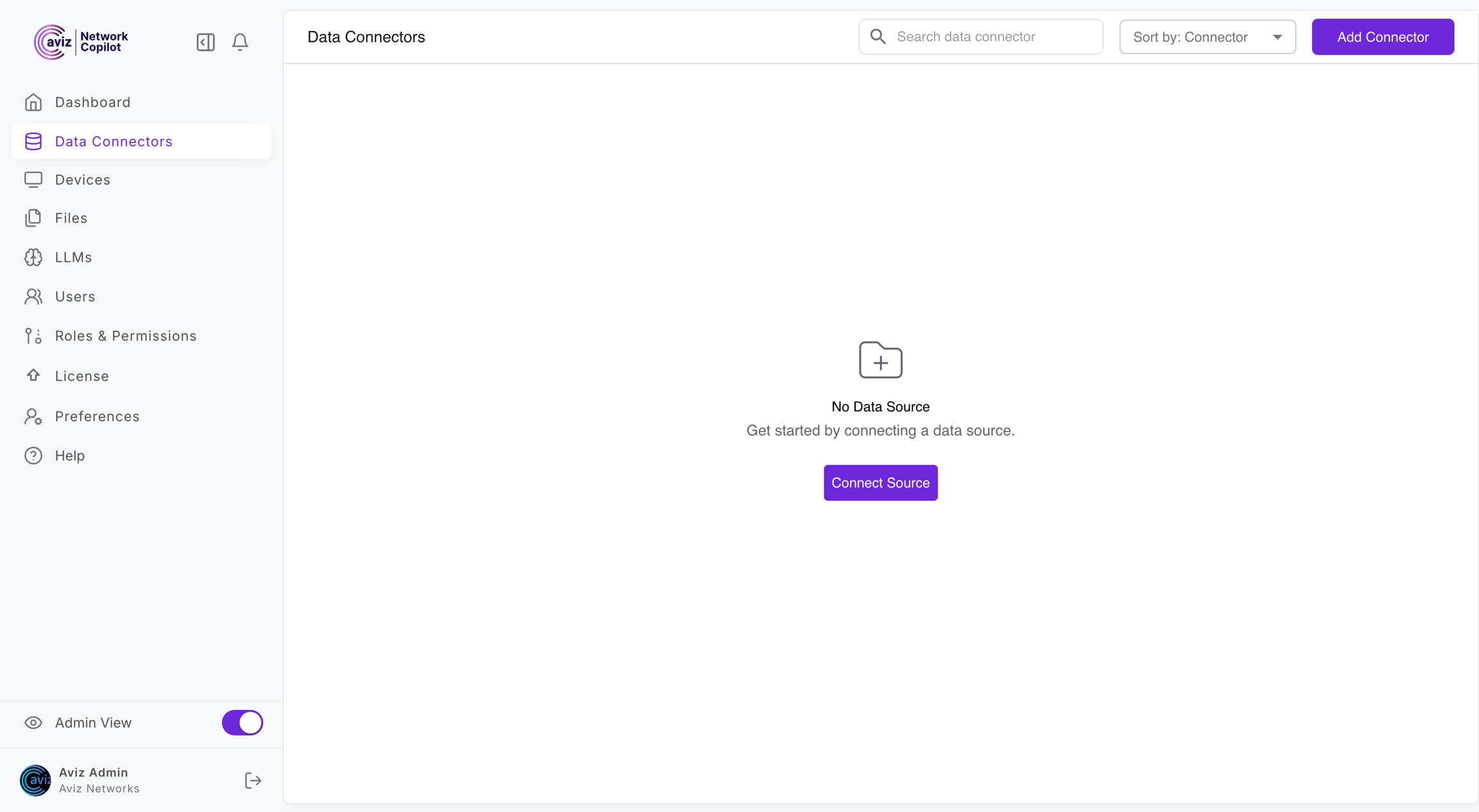
  1. Log in to the NCP UI

  2. Toggle Admin View

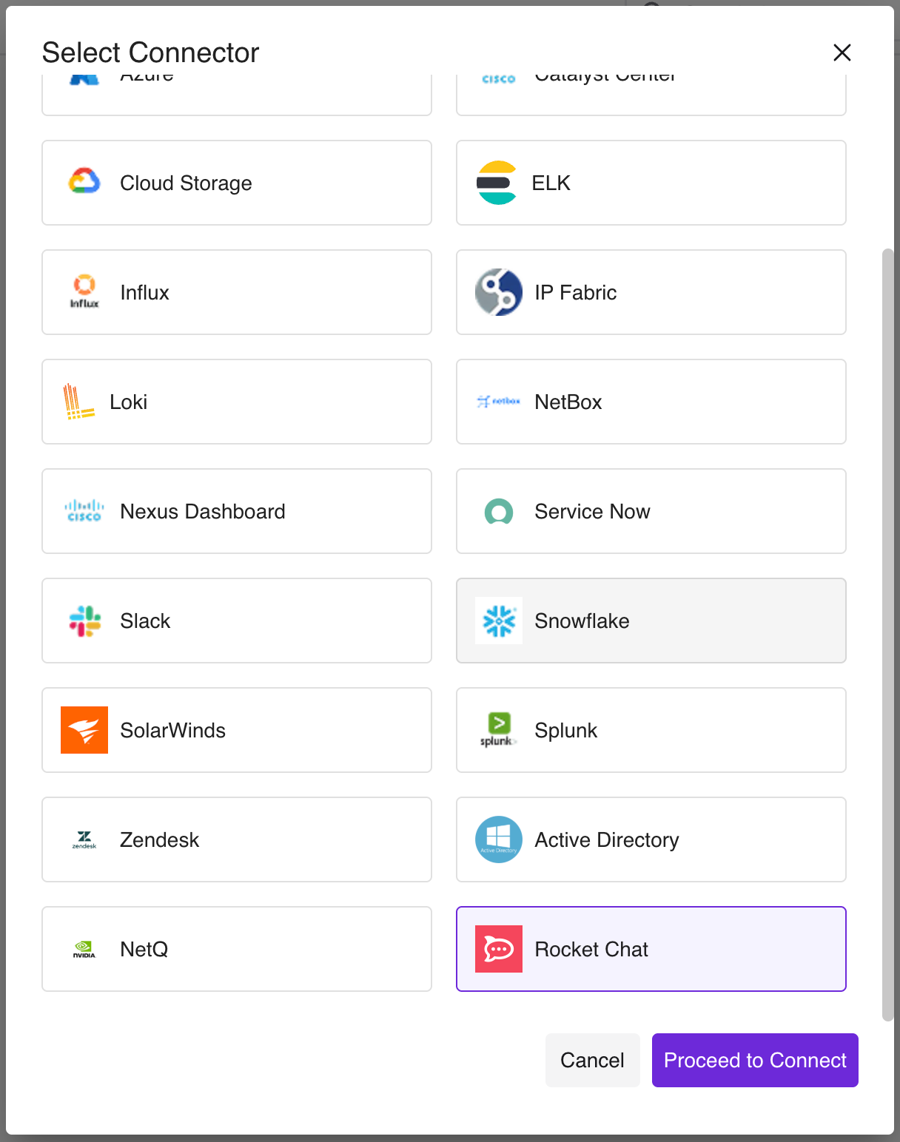
  3. Navigate to Data Connectors → Add Connector

  4. Select Rocket.Chat

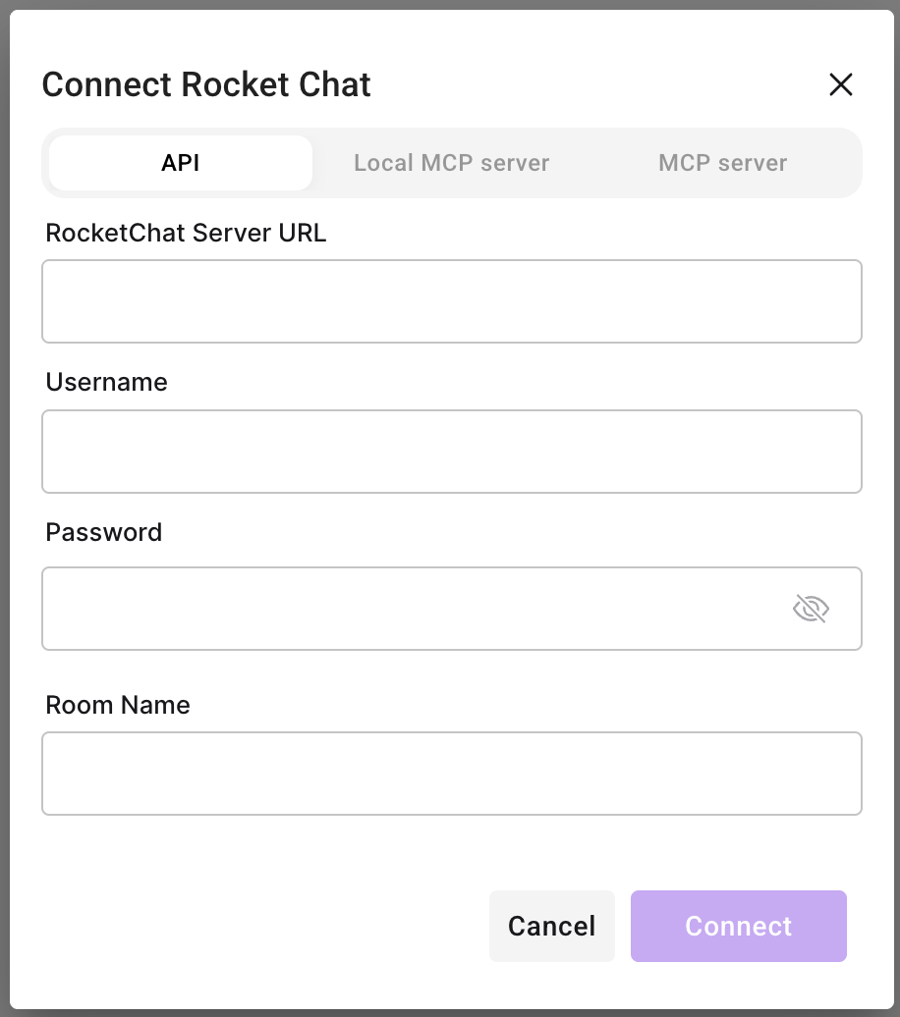
In the Connect Rocket.Chat form, provide:

  • Rocket.Chat Server URL

  • Bot Username

  • Bot Password

  • Room Name

Click Connect to complete the configuration.

Step 4: Add the Bot to Channels

  1. Open the desired Rocket.Chat channel

  2. Add the bot user to the channel

  3. Ensure the bot has permission to read and post messages

Step 5: Interact with Network Copilot

Start interacting with Network Copilot from Rocket.Chat by mentioning the bot:

Example:

Last updated

Was this helpful?