ONES Orchestration
This section explains how large data centers can be designed seamlessly using ONES.
Configuring Devices
Most fabric orchestration solutions available today are complex and often difficult to understand. ONES provides simple and effective tools, such as predefined templates (YAML file), to configure data centers at scale. ONES allows a customized way of configuring devices that includes enhancements to the standard configuration.
The device should not have any IP, VLAN, Portchannel, BGP, SAG, or MCLAG config on any of the Interfaces to avoid overlapping during the orchestration and run into cleanup issues.
Post that, the user needs to save the config to a file, in case of any orchestration failure, or misconfiguration user can rollback to the saved config.
Configuration Commands:
Save Config:
sudo config save -yCopy to File:
sudo cp /etc/sonic/config_db.json /host/backup_config_db.jsonRestore Config: //If needed only
sudo config reload /host/backup_config_db_json -y
Speed config for the Host Facing port should be updated before Orchestration if there is any change in the default speed config.
Ex: Interface speed is 25G, but you can use it with 10G Transceiver. In such cases, user needs to update speed.
Configuration Commands:
Update Speed:
sudo config interface speed Ethernet0 10000Configuration Commands:
Save Config:
Copy to File:
Restore Config: //If needed only
You need to provide the following inputs to configure the devices:
Device Details
Username - Device User-Name
Management IP - Device IP for management
Device Credentials - Login admin user-name & password with write permission
Subnet Details
IPv4 Subnet - IPv4 address range a user wants to use in the domain
IPv4 Loopback - IPv4 address range to use on the devices only for the loopback address
IPv6 Subnet - IPv6 address range a user wants to use in the domain
Connectivity
Link connectivity between (SuperSpine, Spine, Leaf & TOR)
Link Type (Access Trunk)
Layer-2 / Layer3 - interface type
MCLAG Details
VLAN - VLAN to b used for interfaces
PO Group - PortChannel number to be used to bundle the interface
Keepalive VLAN - VLAN a user wants to use to send keepalive messages
VRF number - VRF number to be used for MC-LAG
Host Interface
L2 Access & VLAN - Host facing interface with Access port & VLAN allocation
L2 Trunk & VLAN - Host facing interface with trunk port & VLAN allocation
L3 - Host facing interface with Layer 3 properties
Network Service Address
NTP server - NTP server a user wants to add
Syslog - Syslog server IP address
SNMP - SNMP Server address a user wants to add
VXLAN
VLAN Range - VLAN range a user wants to use for VXLAN Ex. 200-205
VNI Range - VNI range a user wants to use for VXLAN Ex.20000-20005
Any-Cast Gateway - Any-cast Gateway Subnet
Host Per Vlan - Allocation of Host per VLAN
IRB VLAN Range - IRB VLAN is a separate input and should not overlap with VXLAN VNI
IRB VNI Range - IRB VNI is separate input and should not overlap with VXLAN VNI
QoS
dscp_to_tc_map - DSCP to TC mapping a user wants to use Ex. "26:3 | 48:7"
dot1p_to_tc_map - dot1p to TC mapping inputs
tc_to_queue_map - TC to queue mapping inputs Ex. "3:3 | 7:7"
tc_to_pg_map - TC to PG mapping inputs Ex. "3:3 | 7:7"
pfc_enable - PFC value to be enable Ex. "3"
pfcwd - user can choose this feature to be enable disable with below inputs
enable: false
big_red_switch: false
action: "alert"
restoration_time: 400
detection_time: 400
ecn - user can use Explicit congention notification inputs can be added as per infra, below are the inputs can be used
mode: "ecn"
cnp_queue: 7
ecn_gmin: 500000
ecn_gmax: 1500000
ecn_gmark: 10
ecn_rmin: null
ecn_rmax: null
ecn_rmark: null
ecn_ymin: null
ecn_ymax: null
ecn_ymark: null
scheduler:
type: "DWRR"
weight: "0:0 | 1:0 | 2:0 | 3:90 | 4:0 | 5:0 | 6:0"
ONES requires a minimal set of information from the users to configure the devices. The tool is simple to use and allows to configure a large number of devices simultaneously.
Configuration Overview
This section explains the device configuration procedures, that gets applied seamlessly across the entire fabric
Navigate to Configurations >> Devices

Click on the Configure Devices button in the top right corner. This opens a new screen with a sample device configuration. You can edit the configurations directly in the UI to make the desired changes. You can also download the sample YAML file by clicking on Download YAML button, provided at the bottom of the above screen, make new changes and upload the YAML file using Upload YAML button.
Configure Devices
Allows to make the config changes directly in the in-built UI editor
Download YAML
Download the sample YAML file and make the required changes
Upload YAML
Upload the modified YAML file
A detailed explanation of all the intend fields
Inventory: Specify how many devices you want to add in any particular role - Super Spine, Spine, Leaf, and ToR.
Connectivity: Specify the parameters required to establish link connectivity such as:
Device switch ID: unique ID for every device, required to correctly render the topology
Switch name: hostname of the device
IP address: management address of the device
Autonomous System Number (ASN): BGP AS number to use
Device Credentials: Username & Password.
MCLAG: Multichassis Link Aggregation
Links: links connected with another device
BGP: Specify if you want to enable regular BGP peering or BGP unnumbered peering.
PhysicalIfCfg: Enable or disable FEC and change the MTU settings on all the links being configured.
ASN: Assign a BGP ASN (Autonomous System Number) from the specified pool. Dynamic assigning ASN will be implemented in ONES release 2.0. For release 1.0, you need to specify the ASN under the device configuration, as shown in the sample YAML file.
IPv4Pool: Assign IP pools to different subnets. ONES automatically divides the subnets according to the number of available links.
ONES application uses IPv4 subnets for:
Interfaces
Loopbacks
Host interfaces
To configure BGP neighborship
ONES automatically advertises these subnets in BGP
IPv6Pool: Assign IPv6 subnet.
ONES application uses:
IPv6 subnet for interfaces
Subnets to configure BGP neighborship
Automatically advertise these subnets in BGP
Note* IPv6 loopback is not supported
NTP: Provide the NTP server address, to enable NTP. You can choose your desired timezone.
Supported Time Zone
Africa/Abidjan
Africa/Accra
Africa/Addis_Ababa
Africa/Algiers
Africa/Asmara
Africa/Asmera
Africa/Bamako
Africa/Bangui
Africa/Banjul
Africa/Bissau
Africa/Blantyre
Africa/Brazzaville
Africa/Bujumbura
Africa/Cairo
Africa/Casablanca
Africa/Ceuta
Africa/Conakry
Africa/Dakar
Africa/Dar_es_Salaam
Africa/Djibouti
Africa/Douala
Africa/El_Aaiun
Africa/Freetown
Africa/Gaborone
Africa/Harare
Africa/Johannesburg
Africa/Juba
Africa/Kampala
Africa/Khartoum
Africa/Kigali
Africa/Kinshasa
Africa/Lagos
Africa/Libreville
Africa/Lome
Africa/Luanda
Africa/Lubumbashi
Africa/Lusaka
Africa/Malabo
Africa/Maputo
Africa/Maseru
Africa/Mbabane
Africa/Mogadishu
Africa/Monrovia
Africa/Nairobi
Africa/Ndjamena
Africa/Niamey
Africa/Nouakchott
Africa/Ouagadougou
Africa/Porto-Novo
Africa/Sao_Tome
Africa/Timbuktu
Africa/Tripoli
Africa/Tunis
Africa/Windhoek
America/Adak
America/Anchorage
America/Anguilla
America/Antigua
America/Araguaina
America/Argentina/Buenos_Aires
America/Argentina/Catamarca
America/Argentina/ComodRivadavia
America/Argentina/Cordoba
America/Argentina/Jujuy
America/Argentina/La_Rioja
America/Argentina/Mendoza
America/Argentina/Rio_Gallegos
America/Argentina/Salta
America/Argentina/San_Juan
America/Argentina/San_Luis
America/Argentina/Tucuman
America/Argentina/Ushuaia
America/Aruba
America/Asuncion
America/Atikokan
America/Atka
America/Bahia
America/Bahia_Banderas
America/Barbados
America/Belem
America/Belize
America/Blanc-Sablon
America/Boa_Vista
America/Bogota
America/Boise
America/Buenos_Aires
America/Cambridge_Bay
America/Campo_Grande
America/Cancun
America/Caracas
America/Catamarca
America/Cayenne
America/Cayman
America/Chicago
America/Chihuahua
America/Ciudad_Juarez
America/Coral_Harbour
America/Cordoba
America/Costa_Rica
America/Creston
America/Cuiaba
America/Curacao
America/Danmarkshavn
America/Dawson
America/Dawson_Creek
America/Denver
America/Detroit
America/Dominica
America/Edmonton
America/Eirunepe
America/El_Salvador
America/Ensenada
America/Fort_Nelson
America/Fort_Wayne
America/Fortaleza
America/Glace_Bay
America/Godthab
America/Goose_Bay
America/Grand_Turk
America/Grenada
America/Guadeloupe
America/Guatemala
America/Guayaquil
America/Guyana
America/Halifax
America/Havana
America/Hermosillo
America/Indiana/Indianapolis
America/Indiana/Knox
America/Indiana/Marengo
America/Indiana/Petersburg
America/Indiana/Tell_City
America/Indiana/Vevay
America/Indiana/Vincennes
America/Indiana/Winamac
America/Indianapolis
America/Inuvik
America/Iqaluit
America/Jamaica
America/Jujuy
America/Juneau
America/Kentucky/Louisville
America/Kentucky/Monticello
America/Knox_IN
America/Kralendijk
America/La_Paz
America/Lima
America/Los_Angeles
America/Louisville
America/Lower_Princes
America/Maceio
America/Managua
America/Manaus
America/Marigot
America/Martinique
America/Matamoros
America/Mazatlan
America/Mendoza
America/Menominee
America/Merida
America/Metlakatla
America/Mexico_City
America/Miquelon
America/Moncton
America/Monterrey
America/Montevideo
America/Montreal
America/Montserrat
America/Nassau
America/New_York
America/Nipigon
America/Nome
America/Noronha
America/North_Dakota/Beulah
America/North_Dakota/Center
America/North_Dakota/New_Salem
America/Nuuk
America/Ojinaga
America/Panama
America/Pangnirtung
America/Paramaribo
America/Phoenix
America/Port-au-Prince
America/Port_of_Spain
America/Porto_Acre
America/Porto_Velho
America/Puerto_Rico
America/Punta_Arenas
America/Rainy_River
America/Rankin_Inlet
America/Recife
America/Regina
America/Resolute
America/Rio_Branco
America/Rosario
America/Santa_Isabel
America/Santarem
America/Santiago
America/Santo_Domingo
America/Sao_Paulo
America/Scoresbysund
America/Shiprock
America/Sitka
America/St_Barthelemy
America/St_Johns
America/St_Kitts
America/St_Lucia
America/St_Thomas
America/St_Vincent
America/Swift_Current
America/Tegucigalpa
America/Thule
America/Thunder_Bay
America/Tijuana
America/Toronto
America/Tortola
America/Vancouver
America/Virgin
America/Whitehorse
America/Winnipeg
America/Yakutat
America/Yellowknife
Antarctica/Casey
Antarctica/Davis
Antarctica/DumontDUrville
Antarctica/Macquarie
Antarctica/Mawson
Antarctica/McMurdo
Antarctica/Palmer
Antarctica/Rothera
Antarctica/South_Pole
Antarctica/Syowa
Antarctica/Troll
Antarctica/Vostok
Arctic/Longyearbyen
Asia/Aden
Asia/Almaty
Asia/Amman
Asia/Anadyr
Asia/Aqtau
Asia/Aqtobe
Asia/Ashgabat
Asia/Ashkhabad
Asia/Atyrau
Asia/Baghdad
Asia/Bahrain
Asia/Baku
Asia/Bangkok
Asia/Barnaul
Asia/Beirut
Asia/Bishkek
Asia/Brunei
Asia/Calcutta
Asia/Chita
Asia/Choibalsan
Asia/Chongqing
Asia/Chungking
Asia/Colombo
Asia/Dacca
Asia/Damascus
Asia/Dhaka
Asia/Dili
Asia/Dubai
Asia/Dushanbe
Asia/Famagusta
Asia/Gaza
Asia/Harbin
Asia/Hebron
Asia/Ho_Chi_Minh
Asia/Hong_Kong
Asia/Hovd
Asia/Irkutsk
Asia/Istanbul
Asia/Jakarta
Asia/Jayapura
Asia/Jerusalem
Asia/Kabul
Asia/Kamchatka
Asia/Karachi
Asia/Kashgar
Asia/Kathmandu
Asia/Katmandu
Asia/Khandyga
Asia/Kolkata
Asia/Krasnoyarsk
Asia/Kuala_Lumpur
Asia/Kuching
Asia/Kuwait
Asia/Macao
Asia/Macau
Asia/Magadan
Asia/Makassar
Asia/Manila
Asia/Muscat
Asia/Nicosia
Asia/Novokuznetsk
Asia/Novosibirsk
Asia/Omsk
Asia/Oral
Asia/Phnom_Penh
Asia/Pontianak
Asia/Pyongyang
Asia/Qatar
Asia/Qostanay
Asia/Qyzylorda
Asia/Rangoon
Asia/Riyadh
Asia/Saigon
Asia/Sakhalin
Asia/Samarkand
Asia/Seoul
Asia/Shanghai
Asia/Singapore
Asia/Srednekolymsk
Asia/Taipei
Asia/Tashkent
Asia/Tbilisi
Asia/Tehran
Asia/Tel_Aviv
Asia/Thimbu
Asia/Thimphu
Asia/Tokyo
Asia/Tomsk
Asia/Ujung_Pandang
Asia/Ulaanbaatar
Asia/Ulan_Bator
Asia/Urumqi
Asia/Ust-Nera
Asia/Vientiane
Asia/Vladivostok
Asia/Yakutsk
Asia/Yangon
Asia/Yekaterinburg
Asia/Yerevan
Atlantic/Azores
Atlantic/Bermuda
Atlantic/Canary
Atlantic/Cape_Verde
Atlantic/Faeroe
Atlantic/Faroe
Atlantic/Jan_Mayen
Atlantic/Madeira
Atlantic/Reykjavik
Atlantic/South_Georgia
Atlantic/St_Helena
Atlantic/Stanley
Australia/ACT
Australia/Adelaide
Australia/Brisbane
Australia/Broken_Hill
Australia/Canberra
Australia/Currie
Australia/Darwin
Australia/Eucla
Australia/Hobart
Australia/LHI
Australia/Lindeman
Australia/Lord_Howe
Australia/Melbourne
Australia/NSW
Australia/North
Australia/Perth
Australia/Queensland
Australia/South
Australia/Sydney
Australia/Tasmania
Australia/Victoria
Australia/West
Australia/Yancowinna
Brazil/Acre
Brazil/DeNoronha
Brazil/East
Brazil/West
CET
CST6CDT
Canada/Atlantic
Canada/Central
Canada/Eastern
Canada/Mountain
Canada/Newfoundland
Canada/Pacific
Canada/Saskatchewan
Canada/Yukon
Chile/Continental
Chile/EasterIsland
Cuba
EET
EST
EST5EDT
Egypt
Eire
Etc/GMT
Etc/GMT+0
Etc/GMT+1
Etc/GMT+10
Etc/GMT+11
Etc/GMT+12
Etc/GMT+2
Etc/GMT+3
Etc/GMT+4
Etc/GMT+5
Etc/GMT+6
Etc/GMT+7
Etc/GMT+8
Etc/GMT+9
Etc/GMT-0
Etc/GMT-1
Etc/GMT-10
Etc/GMT-11
Etc/GMT-12
Etc/GMT-13
Etc/GMT-14
Etc/GMT-2
Etc/GMT-3
Etc/GMT-4
Etc/GMT-5
Etc/GMT-6
Etc/GMT-7
Etc/GMT-8
Etc/GMT-9
Etc/GMT0
Etc/Greenwich
Etc/UCT
Etc/UTC
Etc/Universal
Etc/Zulu
Europe/Amsterdam
Europe/Andorra
Europe/Astrakhan
Europe/Athens
Europe/Belfast
Europe/Belgrade
Europe/Berlin
Europe/Bratislava
Europe/Brussels
Europe/Bucharest
Europe/Budapest
Europe/Busingen
Europe/Chisinau
Europe/Copenhagen
Europe/Dublin
Europe/Gibraltar
Europe/Guernsey
Europe/Helsinki
Europe/Isle_of_Man
Europe/Istanbul
Europe/Jersey
Europe/Kaliningrad
Europe/Kiev
Europe/Kirov
Europe/Kyiv
Europe/Lisbon
Europe/Ljubljana
Europe/London
Europe/Luxembourg
Europe/Madrid
Europe/Malta
Europe/Mariehamn
Europe/Minsk
Europe/Monaco
Europe/Moscow
Europe/Nicosia
Europe/Oslo
Europe/Paris
Europe/Podgorica
Europe/Prague
Europe/Riga
Europe/Rome
Europe/Samara
Europe/San_Marino
Europe/Sarajevo
Europe/Saratov
Europe/Simferopol
Europe/Skopje
Europe/Sofia
Europe/Stockholm
Europe/Tallinn
Europe/Tirane
Europe/Tiraspol
Europe/Ulyanovsk
Europe/Uzhgorod
Europe/Vaduz
Europe/Vatican
Europe/Vienna
Europe/Vilnius
Europe/Volgograd
Europe/Warsaw
Europe/Zagreb
Europe/Zaporozhye
Europe/Zurich
Factory
GB
GB-Eire
GMT
GMT+0
GMT-0
GMT0
Greenwich
HST
Hongkong
Iceland
Indian/Antananarivo
Indian/Chagos
Indian/Christmas
Indian/Cocos
Indian/Comoro
Indian/Kerguelen
Indian/Mahe
Indian/Maldives
Indian/Mauritius
Indian/Mayotte
Indian/Reunion
Iran
Israel
Jamaica
Japan
Kwajalein
Libya
MET
MST
MST7MDT
Mexico/BajaNorte
Mexico/BajaSur
Mexico/General
NZ
NZ-CHAT
Navajo
PRC
PST8PDT
Pacific/Apia
Pacific/Auckland
Pacific/Bougainville
Pacific/Chatham
Pacific/Chuuk
Pacific/Easter
Pacific/Efate
Pacific/Enderbury
Pacific/Fakaofo
Pacific/Fiji
Pacific/Funafuti
Pacific/Galapagos
Pacific/Gambier
Pacific/Guadalcanal
Pacific/Guam
Pacific/Honolulu
Pacific/Johnston
Pacific/Kanton
Pacific/Kiritimati
Pacific/Kosrae
Pacific/Kwajalein
Pacific/Majuro
Pacific/Marquesas
Pacific/Midway
Pacific/Nauru
Pacific/Niue
Pacific/Norfolk
Pacific/Noumea
Pacific/Pago_Pago
Pacific/Palau
Pacific/Pitcairn
Pacific/Pohnpei
Pacific/Ponape
Pacific/Port_Moresby
Pacific/Rarotonga
Pacific/Saipan
Pacific/Samoa
Pacific/Tahiti
Pacific/Tarawa
Pacific/Tongatapu
Pacific/Truk
Pacific/Wake
Pacific/Wallis
Pacific/Yap
Poland
Portugal
ROC
ROK
Singapore
SystemV/AST4
SystemV/AST4ADT
SystemV/CST6
SystemV/CST6CDT
SystemV/EST5
SystemV/EST5EDT
SystemV/HST10
SystemV/MST7
SystemV/MST7MDT
SystemV/PST8
SystemV/PST8PDT
SystemV/YST9
SystemV/YST9YDT
Turkey
UCT
US/Alaska
US/Aleutian
US/Arizona
US/Central
US/East-Indiana
US/Eastern
US/Hawaii
US/Indiana-Starke
US/Michigan
US/Mountain
US/Pacific
US/Samoa
UTC
Universal
W-SU
WET
Zulu
SYSLOG: Provide the SYSLOG server address, to enable SYSLOG.
SNMP: Provide the SNMP server address, to enable SNMP.
Parameters: Provide user the ability to enable VXLAN and related Parameters.
QoS: Provide user the ability to enable RoCE related configuration.
Creating Configuration
Navigate to Configurations >> Devices >> Configure Devices


Applying Configuration
Click on Apply Configs button in the bottom right corner of the above screen, to push the configs across the entire fabric.
ONES provides real-time updates when the devices are being configured and validates the configurations automatically to ensure the network is ready to use.

You will see the below screen, after the configurations are successfully verified:

FRR config Issue
With Few versions of FRR, when user gives reboot, existing config is erased and default config is pushed to FRR. This will lead to missing the configuration for users. below is the workaround config in this situation
Go inside BGP Container & Open docker_init.sh
Look for "Split" Keyword & Comment out the statemets inside that with if conditions
Add a new line which writes Service integrated in vtysh.conf
Comment rm -f /etc/frr/frr.conf & save the changes
Commit the docker Changes
Various fields shown in the top right corner of the above slide are explained below:


Device configuration is not yet started
In case of the user has not applied any feature like (VXLAN, MCLAG and so on..)

Device configuration is in progress

The device configuration has failed. Move the cursor to the failed option to see the Error message.

Device configuration is completed successfully
Host Logs shows the exact configuration loaded on the device and the overview of the config loaded as per YAML

is used to configure or modify a configuration when we need to add several other devices with the same file

Backup & Restore Configs: using this user can take device config backup and can use later to restore the configuration

This option is used to connect to device via SSH

here user can get the console logs of the particular device

using this option user can get the details on the applied config and the intended config of the device

Compare the applied config vs running config on the selected device and highlight the diff changes, if any
Connect
Configuration Page allows a user to connect to the device using console access or using SSH method too.
Navigate >> Configurations >> Devices >> Connect


User can choose SSH or console option to access the device.
Console Logs
Console Logs show the exact configuration loaded on the device and the overview of the config loaded as per YAML & Derived Host IP Range can be viewed from the "Derived_Config:" section
Navigate >> Configurations >> Devices >> Console Logs

Click on the Console Log of the device

Config
This section describes the configuration feature of ONES using which you can check the applied and running configurations.
Navigate >> Configurations >> Devices >> Config

Click on Config

Compare Configuration
This section describes the compare configuration feature of ONES using which you can compare the applied and running configurations.
Navigate >> Configurations >> Devices >> Compare Configs

Compare Config
This page allows the user to compare applied configurations to the running configuration of a selected device.
The user should select only one device from the list and perform 'Compare Config' on this page, it may take several minutes to fetch the running configuration from the device
YAML Editor will appear with two windows comparing applied and running configurations as depicted in the below picture
The difference in configuration is highlighted with colour coding in the respective window of the configuration

Backup & Configuration
This Section describe the use of Backup & Restore Configuration across all the managed devices
Navigate >> Configurations >> Devices >> Backup & Restore Configs
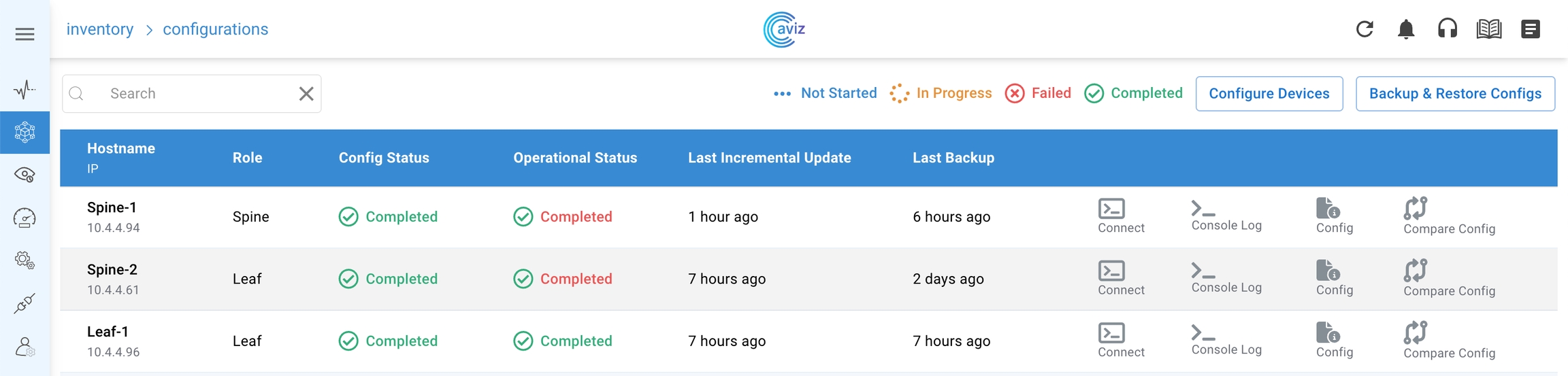
Using this feature, a user will be able to take multiple backups and will be able to restore the backup at any time.
Taking a Backup
Select Backup & Restore Configs

Give a Tag Name to the device & Select the device, the device you want to take a backup config
Submit the task

Once submitted the config will backup with the given name & can be used to restore the config at any time in future
Restoring a Backup

Select Backup & Restore Configs
Select Restore Config

Click on the drop-down button of the device on which the user wants to restore the config

Select the backup a user wants to restore from the Backups Available list
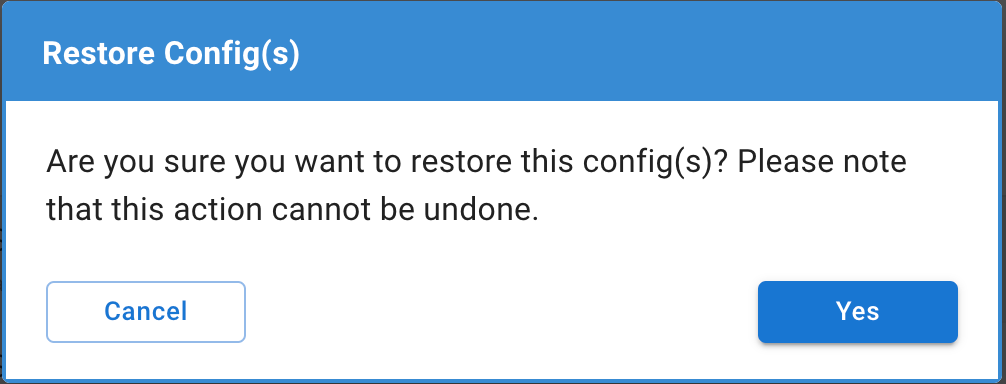
Then Submit the backup & Click on Yes to confirm