# ONES Orchestration
## Configuring Devices
Most fabric orchestration solutions available today are complex and often difficult to understand. ONES provides simple and effective tools, such as predefined templates (YAML file), to configure data centers at scale. ONES allows a customized way of configuring devices that includes enhancements to the standard configuration.
{% hint style="warning" %}
{% code overflow="wrap" %}
```
The device should not have any IP, VLAN, Portchannel, BGP, SAG, or MCLAG config on any of the Interfaces to avoid overlapping during the orchestration and run into cleanup issues.
Post that, the user needs to save the config to a file, in case of any orchestration failure, or misconfiguration user can rollback to the saved config.
```
{% endcode %}
#### Configuration Commands:
* Save Config:
{% endhint %}
{% hint style="warning" %}
Speed config for the Host Facing port should be updated before Orchestration if there is any change in the default speed config.
Ex: Interface speed is 25G, but you can use it with 10G Transceiver. In such cases, user needs to update speed.
#### Configuration Commands:
Update Speed:
sudo config interface speed Ethernet0 10000
{% endhint %}
#### Configuration Commands:
* Save Config:
**You need to provide the following inputs to configure the devices:**
Device Details
Username - Device User-Name
Management IP - Device IP for management
Device Credentials - Login admin user-name & password with write permission
BGP ASN (Autonomous System Number)
Local AS number - Local BGP AS number a user wants to use
Subnet Details
IPv4 Subnet - IPv4 address range a user wants to use in the domain
IPv4 Loopback - IPv4 address range to use on the devices only for the loopback address
IPv6 Subnet - IPv6 address range a user wants to use in the domain
Connectivity
Link connectivity between (SuperSpine, Spine, Leaf & TOR)
Link Type (Access Trunk)
Layer-2 / Layer3 - interface type
MCLAG Details
VLAN - VLAN to b used for interfaces
PO Group - PortChannel number to be used to bundle the interface
Keepalive VLAN - VLAN a user wants to use to send keepalive messages
VRF number - VRF number to be used for MC-LAG
Host Interface
L2 Access & VLAN - Host facing interface with Access port & VLAN allocation
L2 Trunk & VLAN - Host facing interface with trunk port & VLAN allocation
L3 - Host facing interface with Layer 3 properties
Network Service Address
NTP server - NTP server a user wants to add
Syslog - Syslog server IP address
SNMP - SNMP Server address a user wants to add
VXLAN
VLAN Range - VLAN range a user wants to use for VXLAN **Ex. 200-205**
VNI Range - VNI range a user wants to use for VXLAN **Ex.20000-20005**
Any-Cast Gateway - Any-cast Gateway Subnet
Host Per Vlan - Allocation of Host per VLAN
IRB VLAN Range - IRB VLAN is a separate input and should not overlap with VXLAN VNI
IRB VNI Range - IRB VNI is separate input and should not overlap with VXLAN VNI
QoS
dscp\_to\_tc\_map - DSCP to TC mapping a user wants to use **Ex. "26:3 | 48:7"**
dot1p\_to\_tc\_map - dot1p to TC mapping inputs
tc\_to\_queue\_map - TC to queue mapping inputs **Ex. "3:3 | 7:7"**
tc\_to\_pg\_map - TC to PG mapping inputs **Ex. "3:3 | 7:7"**
pfc\_enable - PFC value to be enable **Ex. "3"**
pfcwd - user can choose this feature to be enable disable with below inputs
enable: false
big\_red\_switch: false
action: "alert"
restoration\_time: 400
detection\_time: 400
ecn - user can use Explicit congention notification inputs can be added as per infra, below are the inputs can be used
mode: "ecn"
cnp\_queue: 7
ecn\_gmin: 500000
ecn\_gmax: 1500000
ecn\_gmark: 10
ecn\_rmin: null
ecn\_rmax: null
ecn\_rmark: null
ecn\_ymin: null
ecn\_ymax: null
ecn\_ymark: null
scheduler:
type: "DWRR"
weight: "0:0 | 1:0 | 2:0 | 3:90 | 4:0 | 5:0 | 6:0"
{% hint style="info" %}
ONES requires a minimal set of information from the users to configure the devices. The tool is simple to use and allows to configure a large number of devices simultaneously.
{% endhint %}
## Configuration Overview
This section explains the device configuration procedures, that gets applied seamlessly across the entire fabric
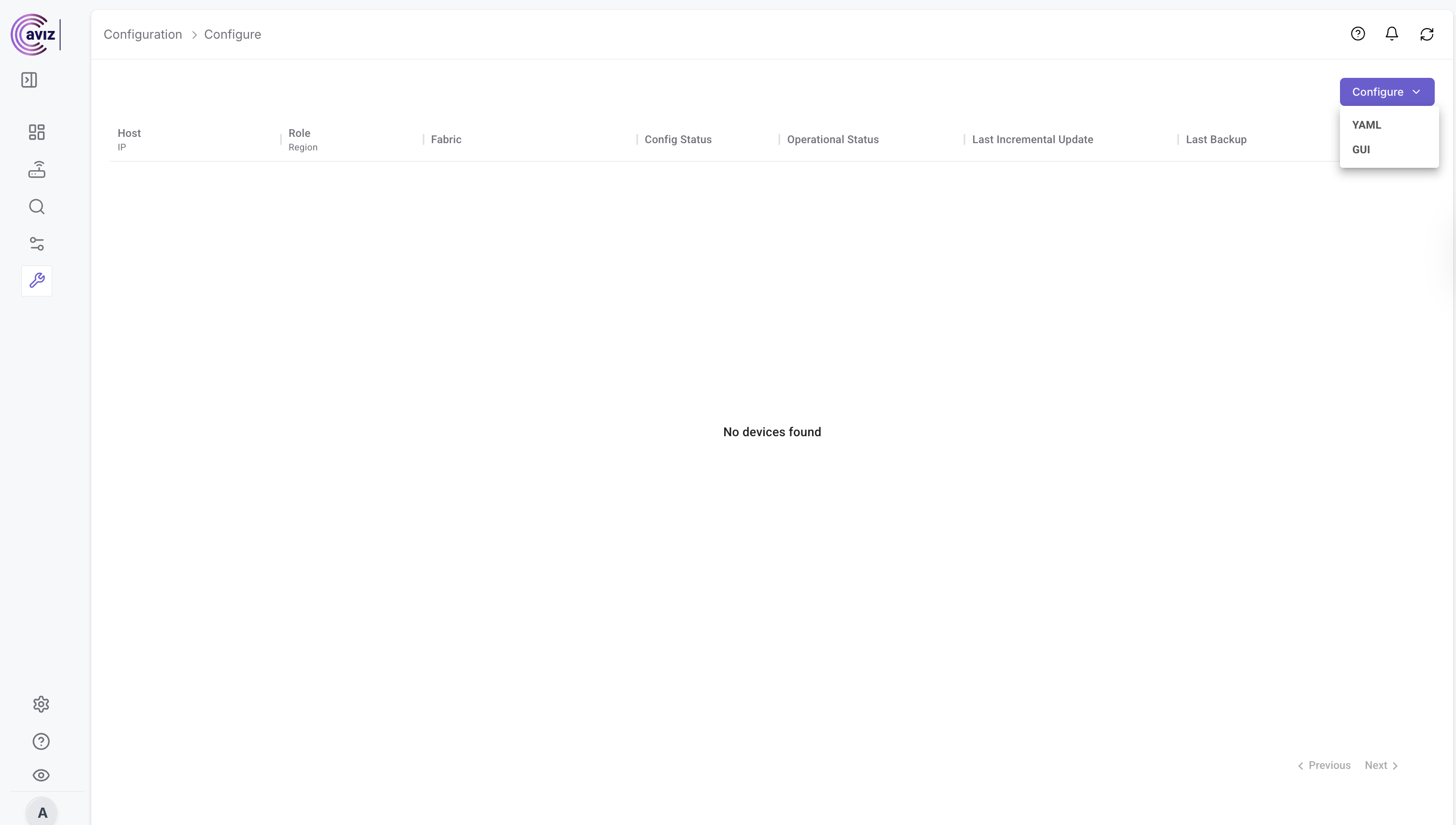
* Navigate to **Configurations >> Devices**
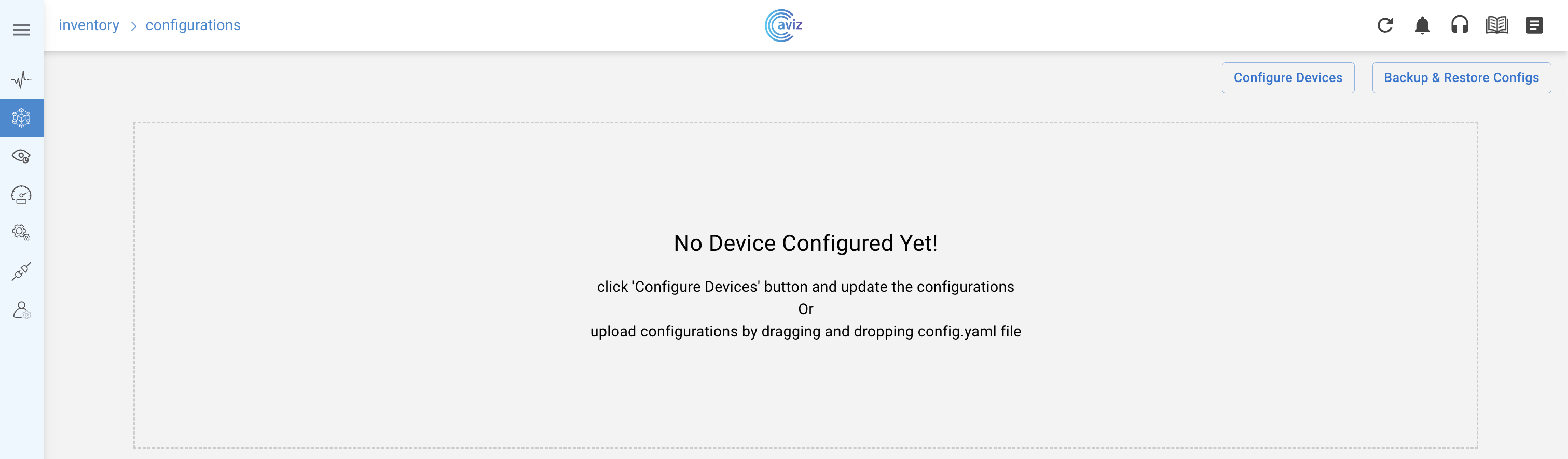
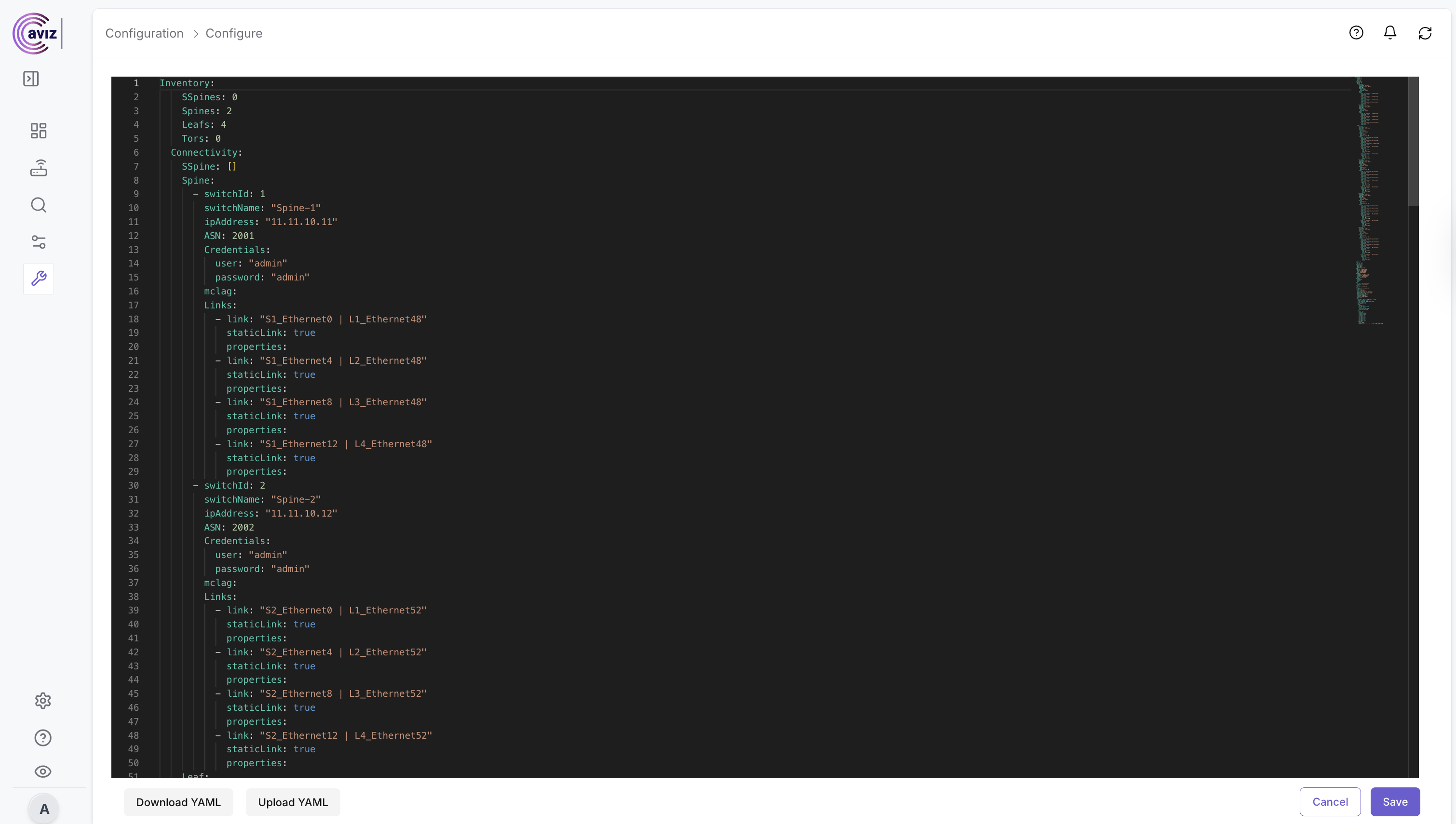
* Click on the **Configure Devices** button in the top right corner. This opens a new screen with a sample device configuration. You can edit the configurations directly in the UI to make the desired changes. You can also download the sample YAML file by clicking on **Download YAML** button, provided at the bottom of the above screen, make new changes and upload the YAML file using **Upload** **YAML** button.
| | |
| ------------------------------------------------------ | -------------------------------------------------------------------- |
| **Configure Devices** | Allows to make the config changes directly in the in-built UI editor |
| **Download YAML** | Download the sample YAML file and make the required changes |
| **Upload YAML** | Upload the modified YAML file |
## A detailed explanation of all the intend fields
**Inventory**: Specify how many devices you want to add in any particular role - Super Spine, Spine, Leaf, and ToR.
* ```yaml
Inventory:
SSpines: 2 #Define the count of devices in the SuperSpine role
Spines: 2 #Define the count of devices in the Spine role
Leafs: 2 #Define the count of devices in the Leaf role
Tors: 1 #Define the count of devices in the Tor role
```
**Connectivity**: Specify the parameters required to establish link connectivity such as:
1. **Device switch ID**: unique ID for every device, required to correctly render the topology
2. **Switch name**: hostname of the device
3. **IP address**: management address of the device
4. **Autonomous System Number (ASN)**: BGP AS number to use
5. **Device Credentials**: Username & Password.
6. **MCLAG**: Multichassis Link Aggregation
7. **Links**: links connected with another device
* ```yaml
Connectivity:
SSpine: [] #A role that does not have any device, presented as []
Spine: #Delcare all details, the device needs to update.
- switchId: 1 #Every device we define for a given Role should have an ID that is unique to that Role.
switchName: EC01 #Use the hostname of the switch
ipAddress: 10.4.4.61 #Management IP address of the device to connect
ASN: 1001 #BGP Local AS number
Credentials: #User needs to enter device credentials
user: admin
password: YourPaSsWoRd
mclag: #used to create multichassis link aggregation
enabled: True #used to activate mclag property
peer: L2 #Neighbor Device ID (Leaf Switch 2), Peer can be Spine or Leaf device
keepalive_vlan: 10 #Vlan to use for Keepalive messages
isoverl3: true #for L2 MCLAG use false, For L3 MCLAG use true
Links: #The links between all the devices we manage
#SS indicates SuperSpine Role
#S indicates Spine Role
#L indicates Leaf Role
#T indicates Tor Role
#H indicates Host port
#The next number is device's unique ID from the same respective Role
#Then interface name and number
- link: S1_Ethernet96 | L1_Ethernet96
#S1_Ethernet96 : Spine Role, Switch ID 1 with Interface Ethernet 96
is connected to
#L1_Ethernet96 : Leaf Role, Switch ID 1 with Interface Ethernet 96
staticLink: True #True indicates the status is up
properties: #This indicates the use of link properties
mode:
#L2-Trunk #Used as Layer-2 Trunk
#vlan: 200 #Vlan used for mclag
#mc_po_group: 200 #Po number for mclag
#vrf: 1 #VRF to be used for mclag, vrf is mendate in symmetric IRB
#L2-Access #Used as Layer-2 Access
#vlan: 200 #Vlan used for mclag
#L3-V4 #Only with Host peer
#mc_po_group: 201 #Po number to be used
#L3-V6 #Only with Host peer
#mc_po_group: 201 #Po number to be used
#MC-LAG #Only when we need MC-LAG between links
#MC-LAG-BGP #BGP Neighbourship between MC-Lag Peers using Peer Link
```
**BGP**: Specify if you want to enable regular BGP peering or BGP unnumbered peering.
* ```yaml
BGP:
#BGP_U If set to False, this configures regular BGP peering.
#BGP_U If set to True, this configures BGP unnumbered peering
#ND_RA is reserved for future development
BGP_U: False
ND_RA: 30
```
**PhysicalIfCfg:** Enable or disable FEC and change the MTU settings on all the links being configured.
* ```yaml
PhysicalIfCfg:
FEC: On #Possible values are On or Off
MTU: 8000 #MTU value a user wants to change
AdminStatus: Up #Set the status UP
```
**ASN:** Assign a BGP ASN (Autonomous System Number) from the specified pool. Dynamic assigning ASN will be implemented in ONES release 2.0. For release 1.0, you need to specify the ASN under the device configuration, as shown in the sample YAML file.
* ```yaml
ASN:
SSpine: 10000-20000
Spine: 21000-50000
Leaf: 51000-60000
Tor: 61000-70000
```
**IPv4Pool:** Assign IP pools to different subnets. ONES automatically divides the subnets according to the number of available links.
ONES application uses IPv4 subnets for:
* Interfaces
* Loopbacks
* Host interfaces
* To configure BGP neighborship
* ONES automatically advertises these subnets in BGP
* ```yaml
IPv4Pool:
Loopback: 19.168.10.0/24
LeafSpine: 20.168.10.0/24
LeafTor: 30.168.10.0/24
Host: 49.0.0.0/24
```
**IPv6Pool**: Assign IPv6 subnet.
ONES application uses:
* IPv6 subnet for interfaces
* Subnets to configure BGP neighborship
* Automatically advertise these subnets in BGP
* ```yaml
IPv6Pool:
LeafSpine: #Define IPv6 Pool
LeafTor: #Define IPv6 Pool
Host: #Define IPv6 Pool
```
{% hint style="info" %}
Note\* IPv6 loopback is not supported
{% endhint %}
**NTP**: Provide the NTP server address, to enable NTP. You can choose your desired timezone.
* ```yaml
NTP:
server: 128.138.141.172
timezone: Asia/Kolkata
```
Supported Time Zone
Only SONiC supported time zone
**SYSLOG**: Provide the SYSLOG server address, to enable SYSLOG.
* ```yaml
SYSLOG:
server: 10.1.1.11
```
**SNMP**: Provide the SNMP server address, to enable SNMP.
* ```yaml
SNMP:
trapserver: 10.1.1.11
```
**Parameters:** Provide user the ability to enable VXLAN and related Parameters.
* ```yaml
Parameters:
vlan: 200-205
vni: 20000-20005
anycast_gateway: 100.10.0.0/23
anycast_mac: 00:11:22:33:44:55
hosts_per_vlan: 10
routing_symmetric: True # True / False to indicate its symmetric routing or asymmetric routing
irb_vlan: 300-305 # irb vlan is separate input and should not overlap with vxlan vni
irb_vni: 30000-30005 # irb vni is separate input and should not overlap with vxlan vni
sag: False # True for Anycast Gateway otherwise False
```
**QoS:** Provide user the ability to enable RoCE related configuration.
* ```yaml
QoS:
dscp_to_tc_map: "26:3 | 48:7"
dot1p_to_tc_map: null
tc_to_queue_map: "3:3 | 7:7"
tc_to_pg_map: "3:3 | 7:7"
pfc_enable: "3"
pfcwd:
enable: false
big_red_switch: false
action: "alert"
restoration_time: 400
detection_time: 400
ecn:
mode: "ecn"
cnp_queue: 7
ecn_gmin: 500000
ecn_gmax: 1500000
ecn_gmark: 10
ecn_rmin: null
ecn_rmax: null
ecn_rmark: null
ecn_ymin: null
ecn_ymax: null
ecn_ymark: null
scheduler:
type: "DWRR"
weight: "0:0 | 1:0 | 2:0 | 3:90 | 4:0 | 5:0 | 6:0
```
## Creating Configuration
* Navigate to **Configurations >> Configure >> YAML**
### YAML Config Illustrator
While configuring the topology, users can utilize the "Visualize YAML" feature to preview the structure and layout.
Navigate to **Configurations >> Configure >> Configure Devices >> \ >> Visualize YAML**
## Applying Configuration
Click on **Apply Configs** button in the bottom right corner of the above screen, to push the configs across the entire fabric.
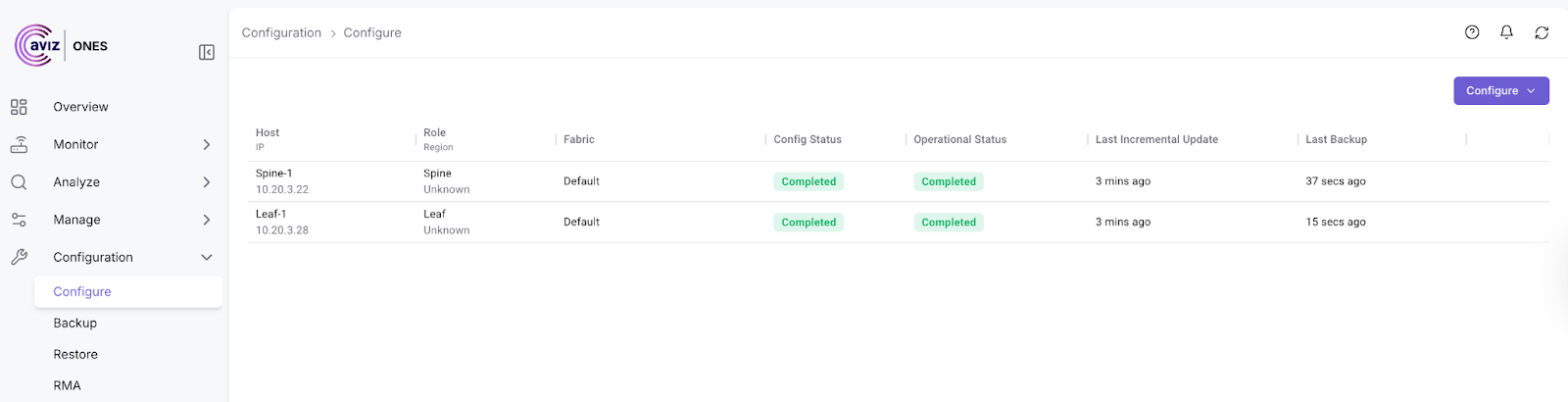
ONES provides real-time updates when the devices are being configured and validates the configurations automatically to ensure the network is ready to use.
You will see the below screen, after the configurations are successfully verified:
### FRR config Issue
{% hint style="warning" %}
With Few versions of FRR, when user gives reboot, existing config is erased and default config is pushed to FRR. This will lead to missing the configuration for users.\
below is the workaround config in this situation
{% endhint %}
* Go inside BGP Container & Open docker\_init.sh
root@Leaf-1:/# vi /usr/bin/docker_init.sh
* Look for "Split" Keyword & **Comment out** the statemets inside that with **if conditions**
elif [ "$CONFIG_TYPE" == "split" ]; then
      #echo "no service integrated-vtysh-config" > /etc/frr/vtysh.conf
      rm -f /etc/frr/frr.conf
* Add a new line which writes Service integrated in **vtysh.conf**
elif [ "$CONFIG_TYPE" == "split" ]; then
      #echo "no service integrated-vtysh-config" > /etc/frr/vtysh.conf
      echo "service integrated-vtysh-config" > /etc/frr/vtysh.conf
      rm -f /etc/frr/frr.conf
* Comment **rm -f /etc/frr/frr.conf** & save the changes
elif [ "$CONFIG_TYPE" == "split" ]; then
      #echo "no service integrated-vtysh-config" > /etc/frr/vtysh.conf
      echo "service integrated-vtysh-config" > /etc/frr/vtysh.conf
      #rm -f /etc/frr/frr.conf
### Various fields shown in the top right corner of the above slide are explained below:
## Sub-options per device
### Connect
Configuration Page allows a user to connect to the device using console access or using SSH method too.
**Navigate >> Configuration >> Configure >> \ >> Connect**
User can choose SSH or console option to access the device.
### Console Logs
Console Logs show the exact configuration loaded on the device and the overview of the config loaded as per YAML & Derived Host IP Range can be viewed from the "Derived\_Config:" section
**Navigate >> Configuration >> Configure >> \ >> Console Logs**
* Click on the Console Log of the device
### Config
This section describes the configuration feature of ONES using which you can check the applied and running configurations.
**Navigate >> Configuration >> Configure >> \ >> Config**
* **Click on Config**
### Compare Configuration
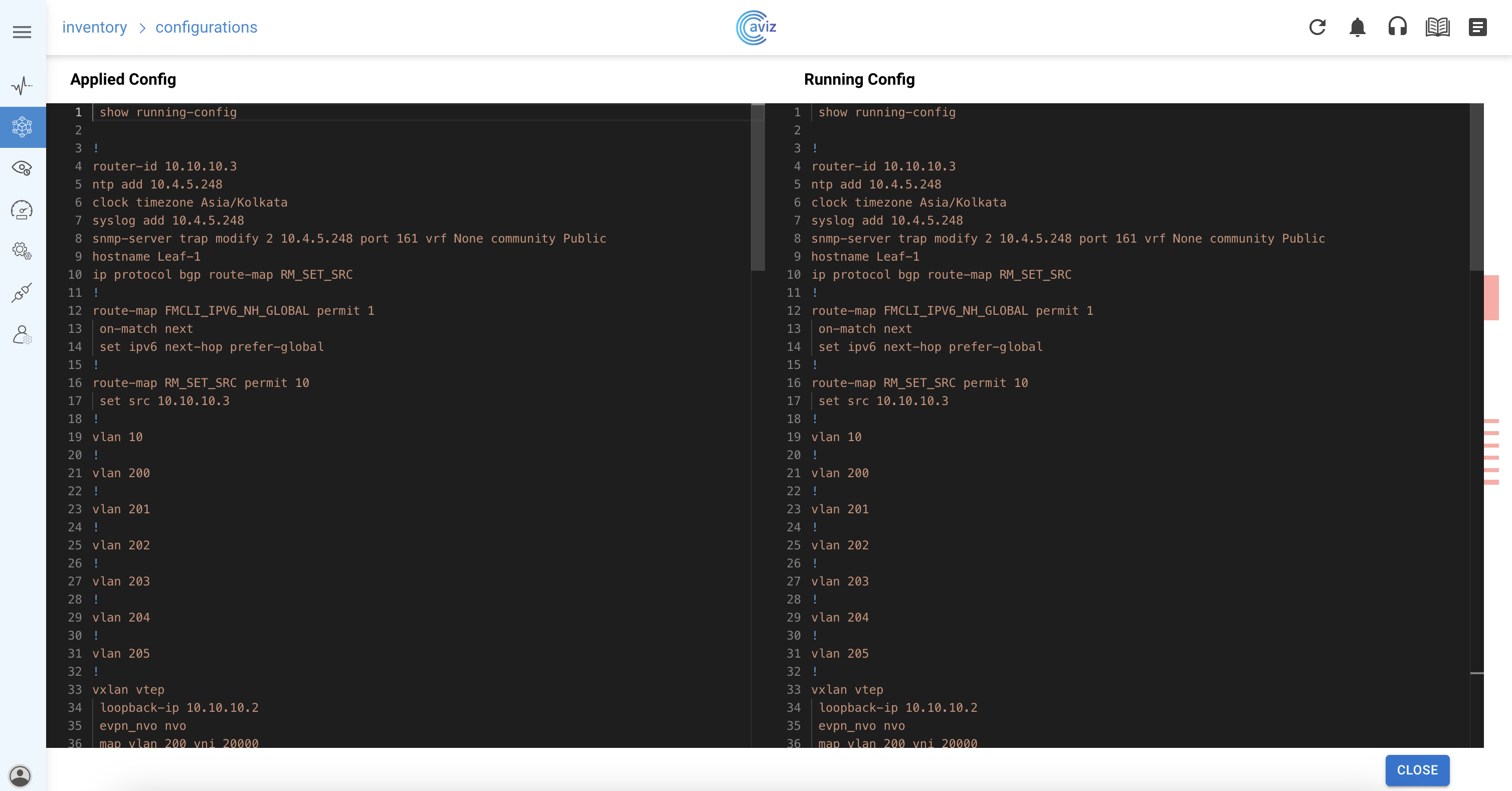
This section describes the compare configuration feature of ONES using which you can compare the applied and running configurations.
**Navigate >> Configurations >> Configure >> \ >> Compare Configs**
* **Compare Config**
This page allows the user to compare applied configurations to the running configuration of a selected device.
The user should select only one device from the list and perform 'Compare Config' on this page, it may take several minutes to fetch the running configuration from the device
YAML Editor will appear with two windows comparing applied and running configurations as depicted in the below picture
The difference in configuration is highlighted with colour coding in the respective window of the configuration
### Config
**Navigate >> Configurations >> Configure >> \ >> Compare Configs**
This option allow a user to do Day-N operation or any customized config per device.