Loading...
A Windows machine/VM with the below minimum requirement:
2 vCores (available for FlowVision VM)
8 GB RAM
40 GB HDD
Download Oracle VM virtual box from the below link
Install Oracle VM Virtual box
Import the OVA file in Oracle VM virtual box
Click the start button to power-on the virtual machine
Log in to the FlowVision VM with default credentials
Username: aviz
Password: Aviz@123
Get the IP address of the VM through ip address show
ip address show
Access the GUI through the above IP using your favourite browser with http port: 8093
https://<VM_IP>:8093/
Username: admin
Password: admin
The FlowVision Controller can be installed using the following methods:
An ESXi Host with the below minimum requirement available for FlowVision:
2 vCores
4 GB RAM
20 GB HDD
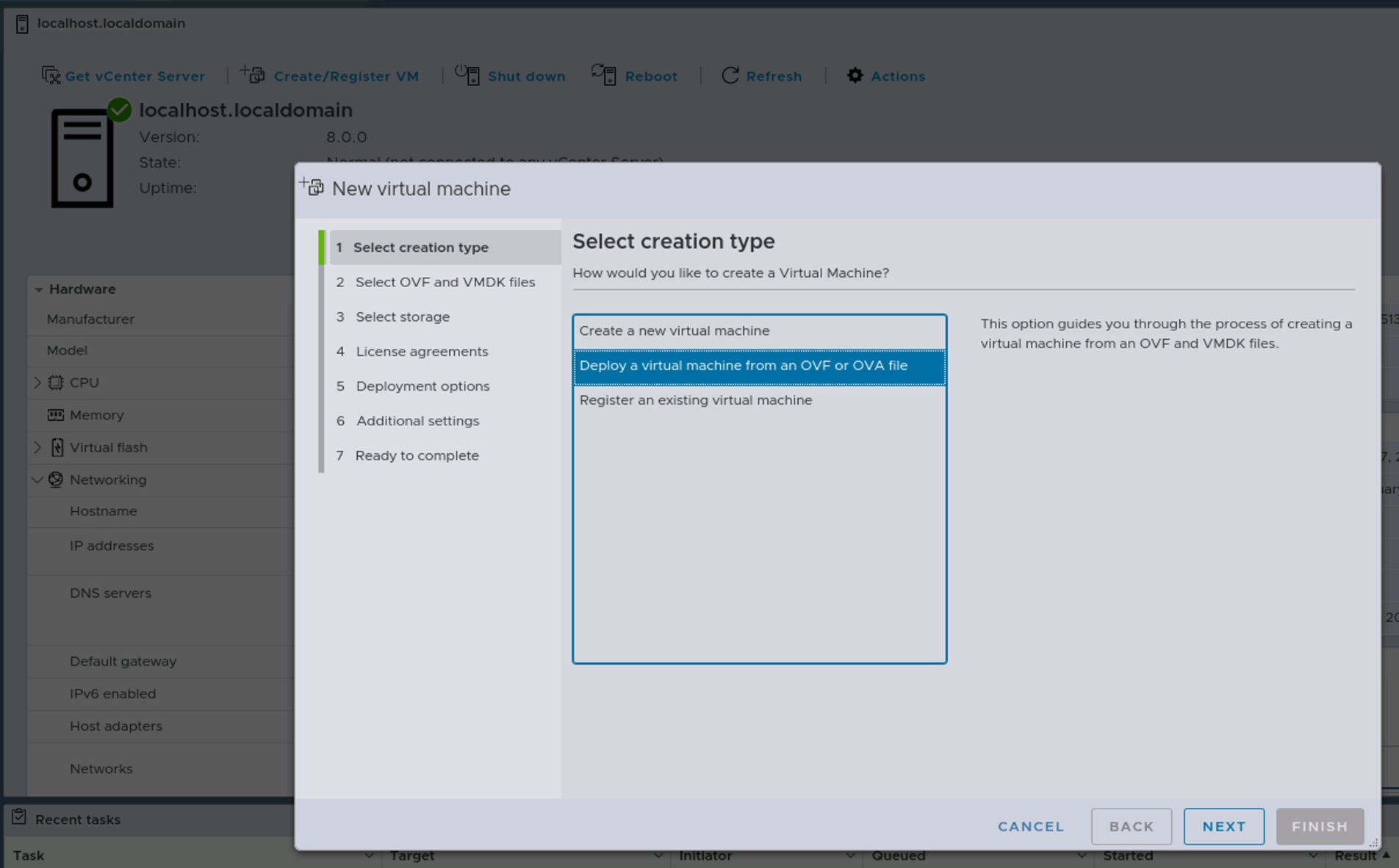
Log in to the ESXi Host and click on 'Create/Register VM'
Click on 'Deploy a virtual machine from an OVF or OVA file'
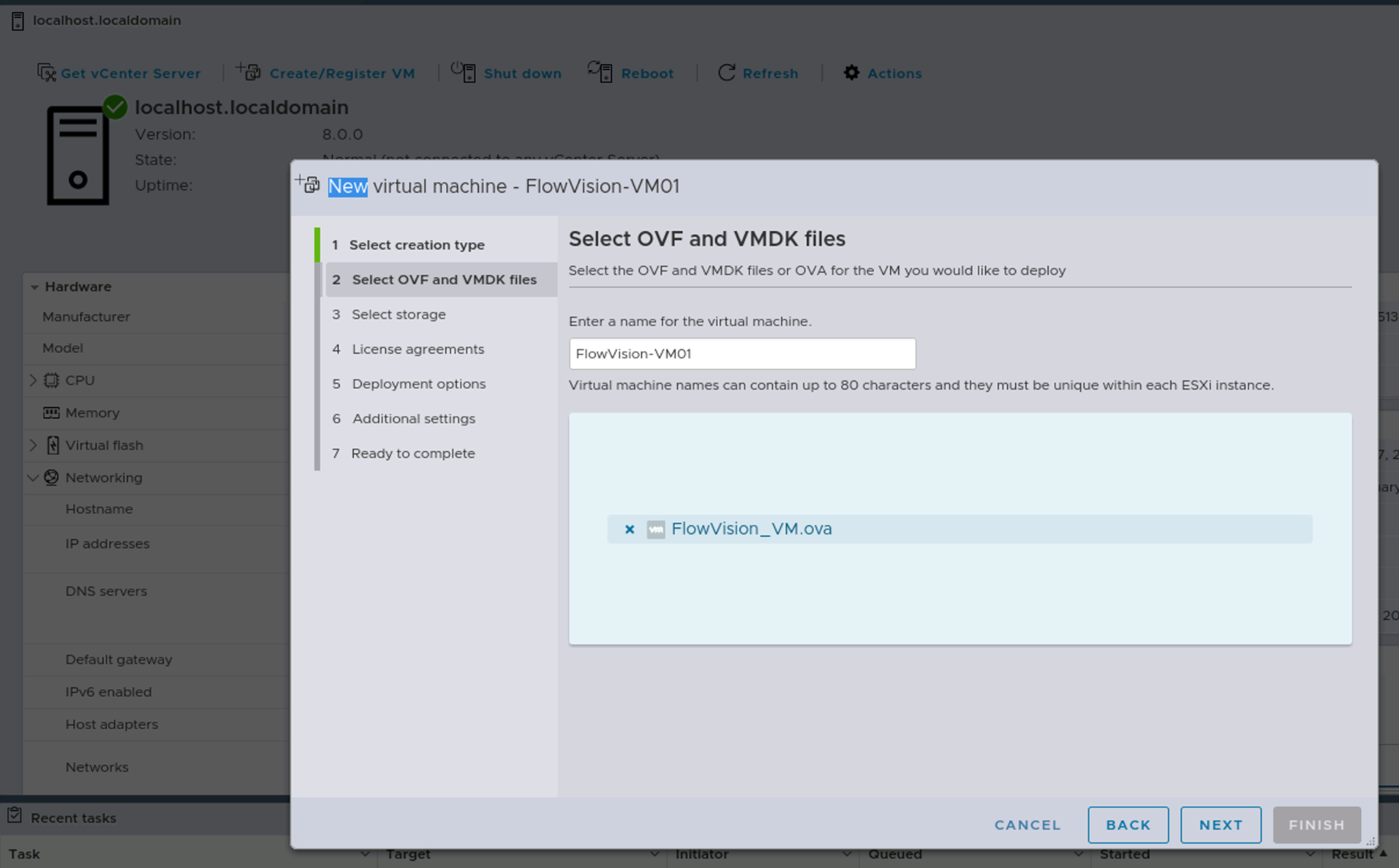
Name the VM and select the downloaded 'OVA' file
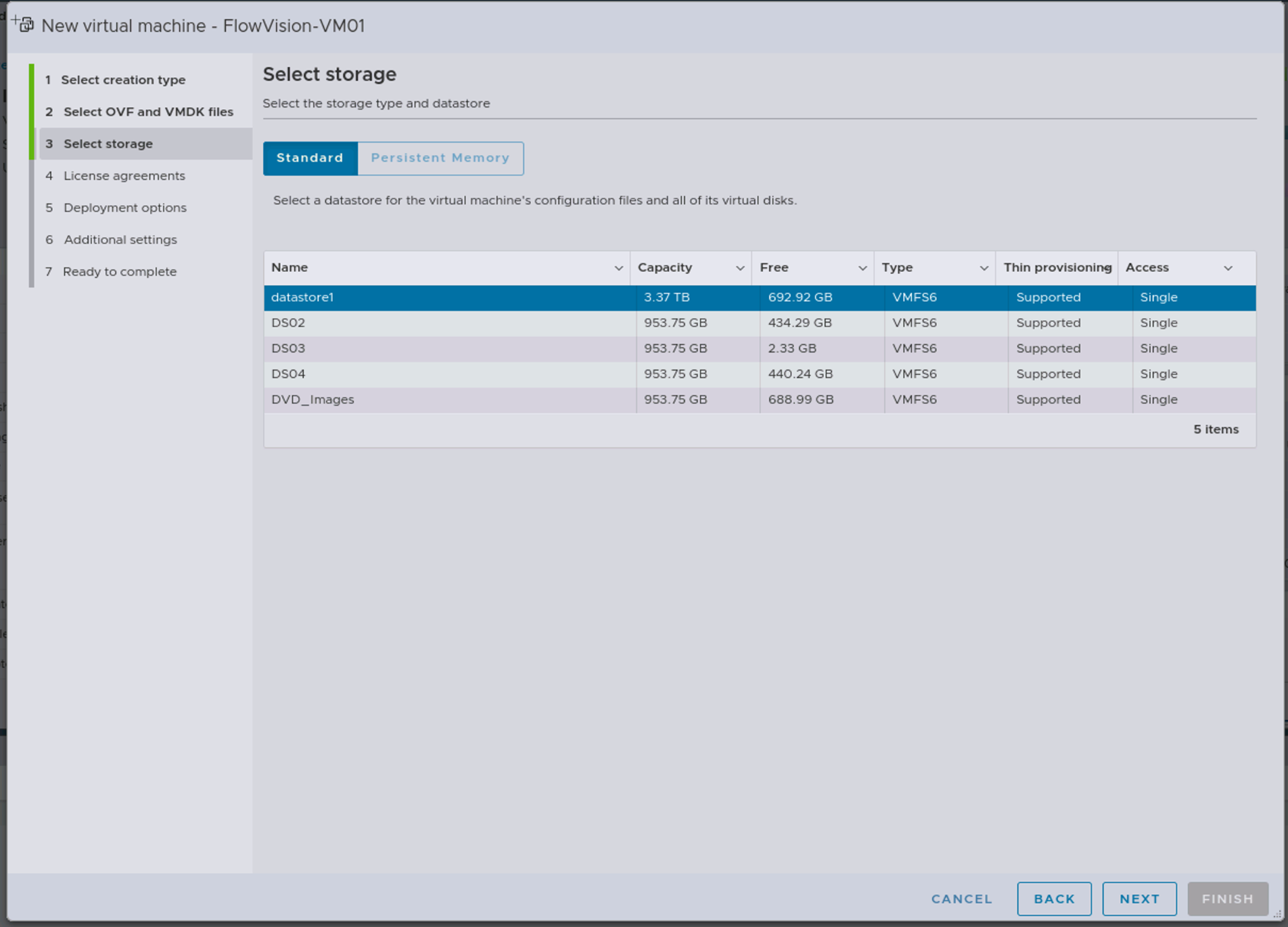
Choose the 'datastore' where you want to install the VM
Select the 'VM-Network' to ensure that the VM is reachable
Review the configuration and click on 'FINISH'
Wait for the OVA file to upload; Check the status in 'Recent tasks' at the bottom of the screen
'Power on' the VM
Login to the VM with default credentials
User: aviz
Verify the DHCP-assigned IP on the VM using the command: ip a.
ip a
Login to the Web-GUI at https://<VM-IP>/ with default credentials
User: admin