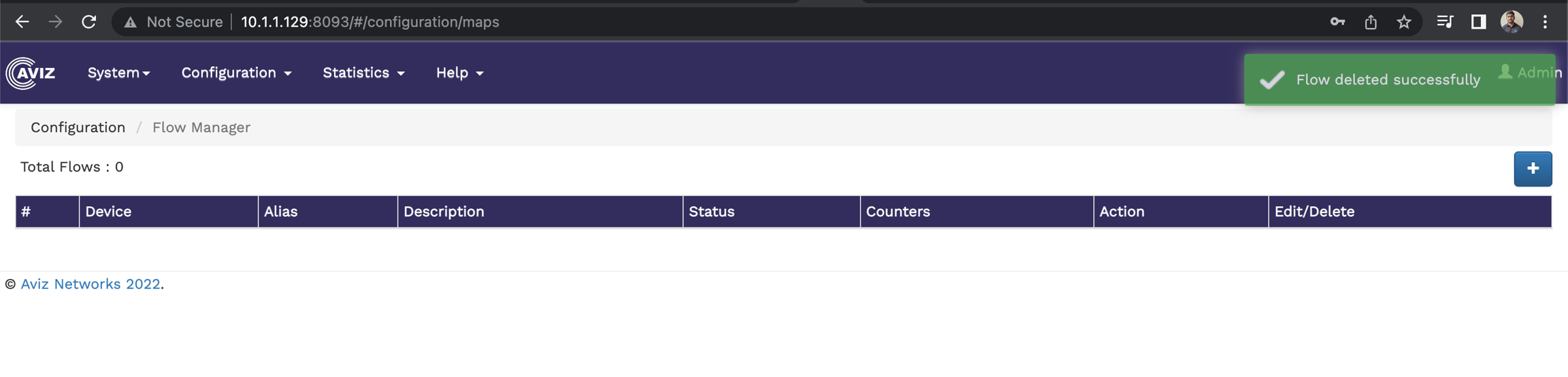
To create and configure flows from the FlowVision GUI, click Configuration > Flow Manager.
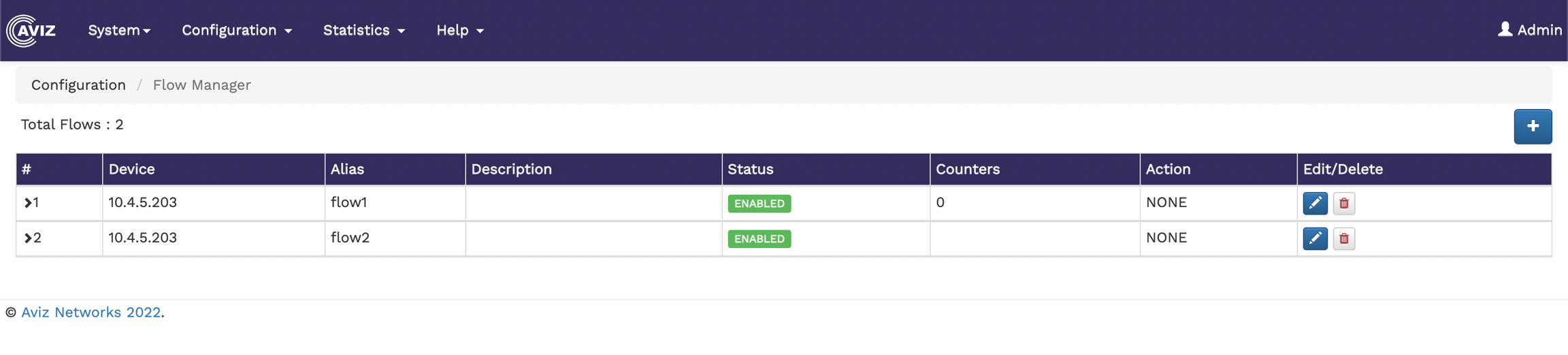
The Flow Manager page shows the number of existing flows and a table showing the flow details, such as device ID, alias, description of the flow, status, the available counters, the action performed, and an option to edit and delete flows.
The following image shows the Flow Manager page:
Creating New Flows
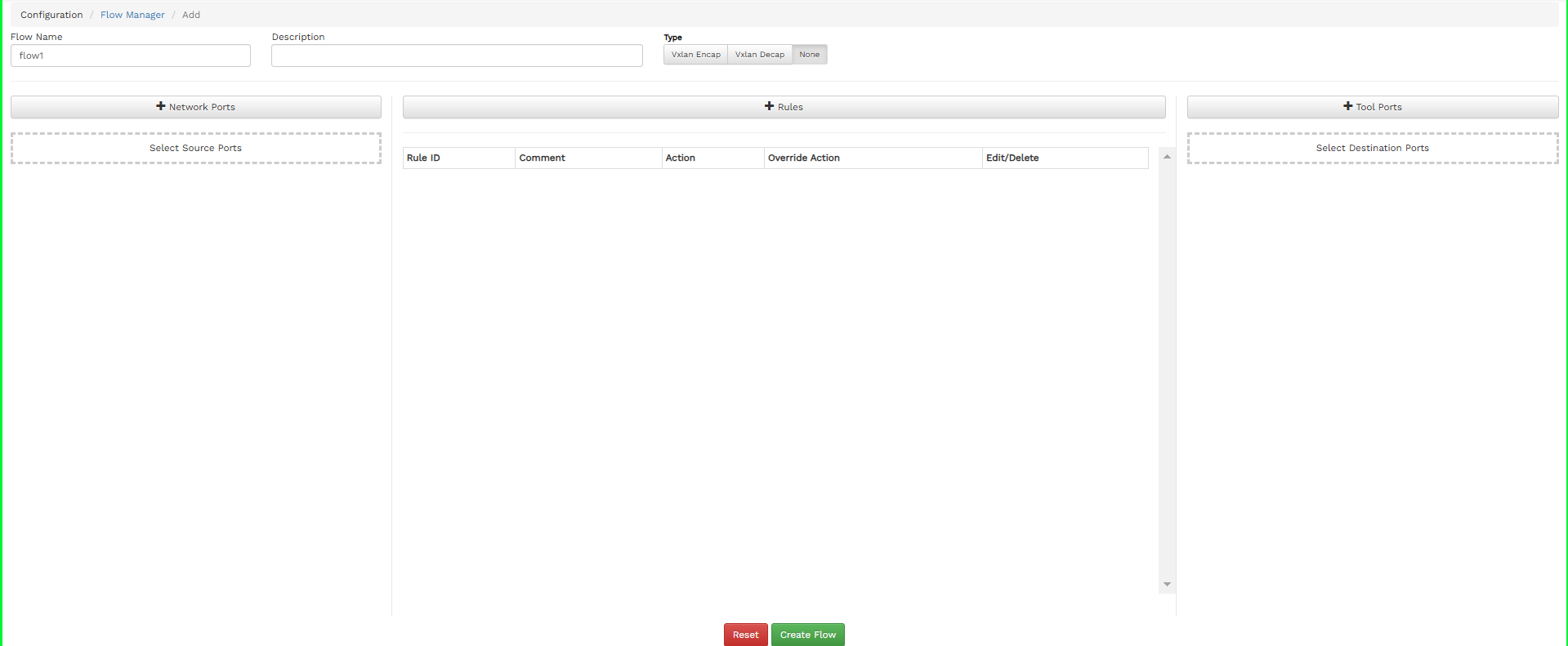
To create a new flow, click the  button on the top right corner of the Flow Manager page. The Add Flow page displays.
Specify the Flow Name, Description for the Flow, and select the Action.
Adding Source Ports
To add source ports
Click the Network Ports button on the Add Flow page.
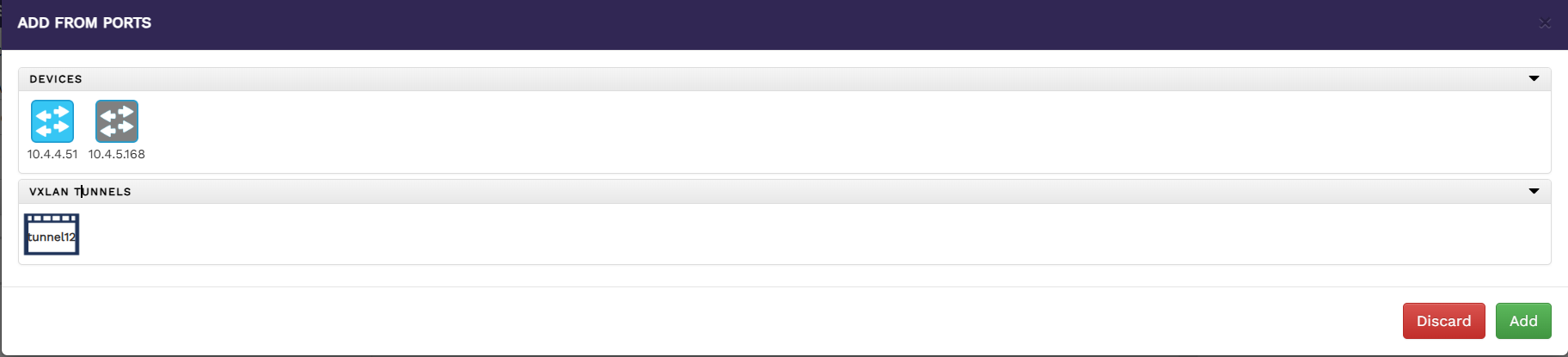
The Add From Ports window will appear as below
Select a device to list all the ports available for that device.
Select the ports you need to add as source ports.
Click Add to include the selected ports in the source ports list.
The added ports are displayed in the field below the Network Ports button on the Add Flow page.
To add source ports as Vxlan Tunnel for Vxlan Decapsulation
To configure a VXLAN tunnel as a source port for VXLAN Decap:
Set the Flow Type to VXLAN Decap as shown below.
Click Network Ports button on the Add Flow page.
The Add From Ports window will appear.
From port addition page for tunnel Select a device to list the available Vxlan tunnel for that device.
Choose the VXLAN tunnel you want to add as a source port.
Click Add to add the tunnel to the list of source ports.
The added tunnel will be displayed in the field below the Network Ports button on the Add Flow page.
To add rules,
Click the Rules button on the Add Flow page.
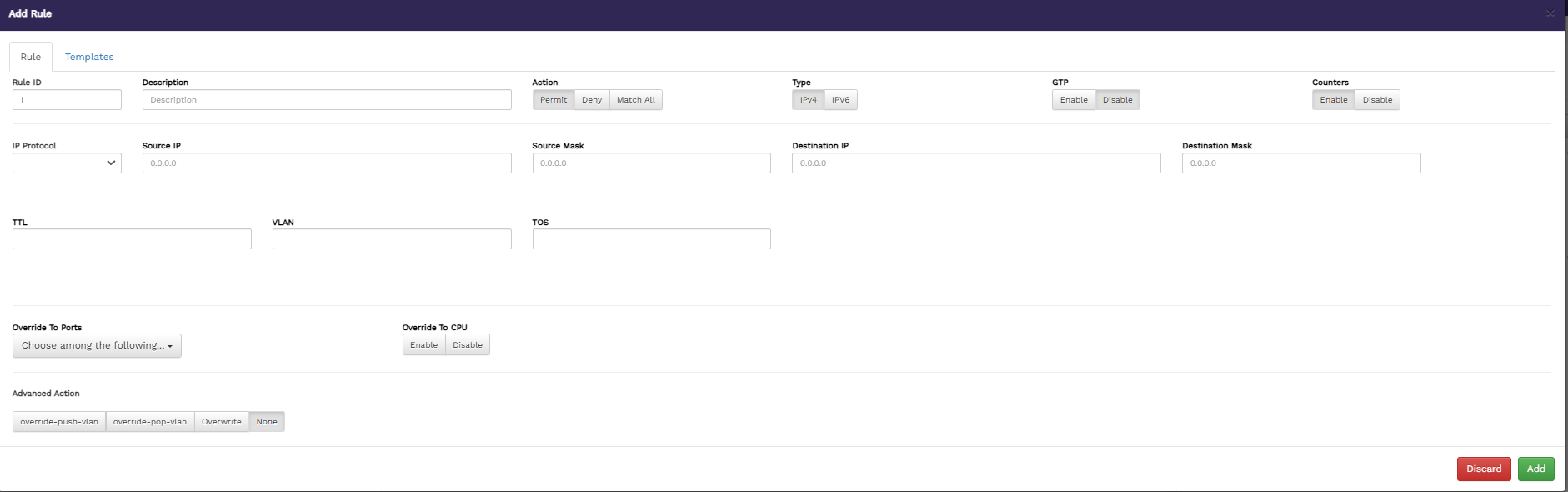
The Add Rule window displays with GTP disable.
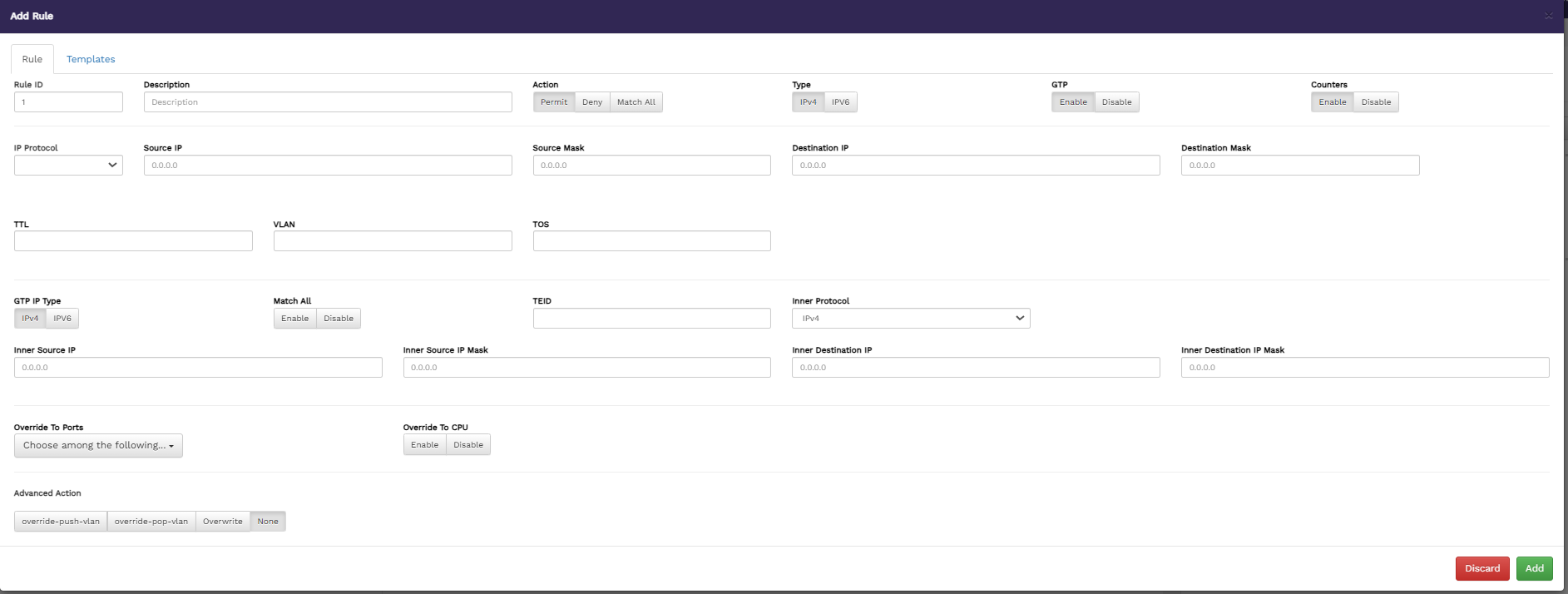
The Add Rule window displays with GTP enable.
Add rule pop-up window with gtp enable Specify values for the following, in the Rule tab:
Rule ID - specify a name for the new rule.
Description - enter a description of the new rule to show its purpose.
Action - select an action for the rule. The available options are Permit, Deny, Match All.
Type - select the IP address type. Available options are IPV4 and IPV6.
GTP - enable or disable the GTP-based filter option on a rule, when gtp enable provide GTP IP Type, Match All, TEID, Inner Protocol, Inner Source IP, Inner Source IP Mask, Inner Destination IP and Inner Destination IP Mask to match upon.
Counters - enable or disable counters.
IP Protocol - select the IP protocol for the rule. The available options are - IP, TCP, UDP,RSVP,GRE,SCTP and other. if you select others then we must provide protocol number.
Source IP - specify the source IP for the rule.
Source Mask - specify the source mask for the rule.
Destination IP - specify the destination IP for the rule.
Destination Mask - specify the destination mask for the rule.
TTL - specify the time-to-live value for the packets in the system.
VLAN - specify the VLAN details.
TOS - specify the type of service.
Override To Ports - select the override option for ports.
Advanced Action - specify the override actions. The available options are override-push-vlan, override-pop-vlan, and Overwrite. If you select override-push-vlan, you must also provide the VLAN ID, in the VLAN ID field. And if you select Overwrite ,then you must provide Destination IP or Destination mac or Destination Port.
Specify values in the Template tab. Either specify the rule options in the first tab or select the pre-defined template on the second tab. For details on the template, refer to Template
Click Add to add the rule.
The added rules are displayed in the table below the Rules button on the Flow Manager page.
Added rule displayed under Rules tab Adding Destination Ports
To add destination ports,
Click the Tool Ports button on the Add Flow page.
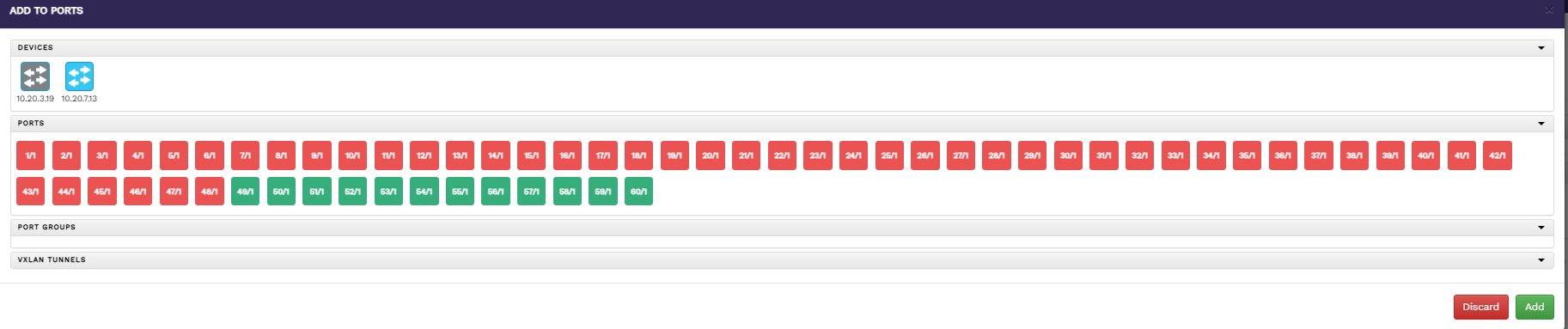
The Add To Ports window displays.
Select a device to list all the ports available for that device.
Choose the ports you want to add as destination ports.
Click Add to include the selected ports in the destination ports list.
The added ports are displayed in the field below the Tool Ports button on the Add Flow page.
To add destination ports as Vxlan Tunnel
To configure a VXLAN tunnel as a destination port:
Set the Flow Type to VXLAN Encap.
Click Tool Ports button on the Add Flow page.
The Add To Ports window will appear.
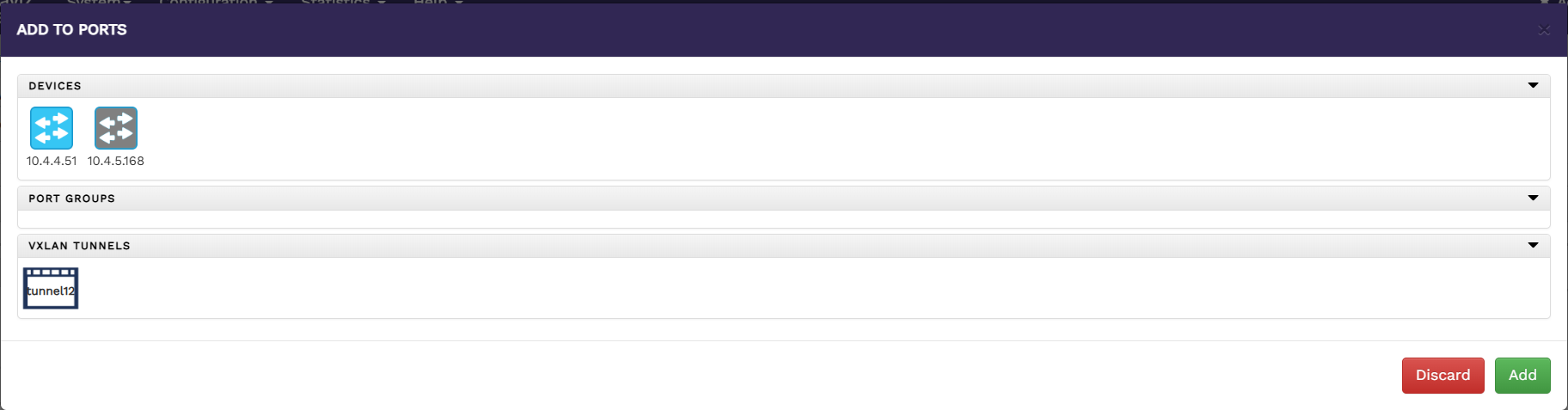
Tool port addition page for tunnel Select a device to list the available Vxlan tunnel for that device.
Choose the VXLAN tunnel you want to add as a destination port.
Click Add to include the selected tunnel in the destination ports list.
The added tunnel will be displayed below the To Ports button on the Add Flow page.
After adding the source ports, destination ports, and rules, click Create Flow on the Add Flow page. This action creates a new flow.
Editing and Deleting the existing Flow
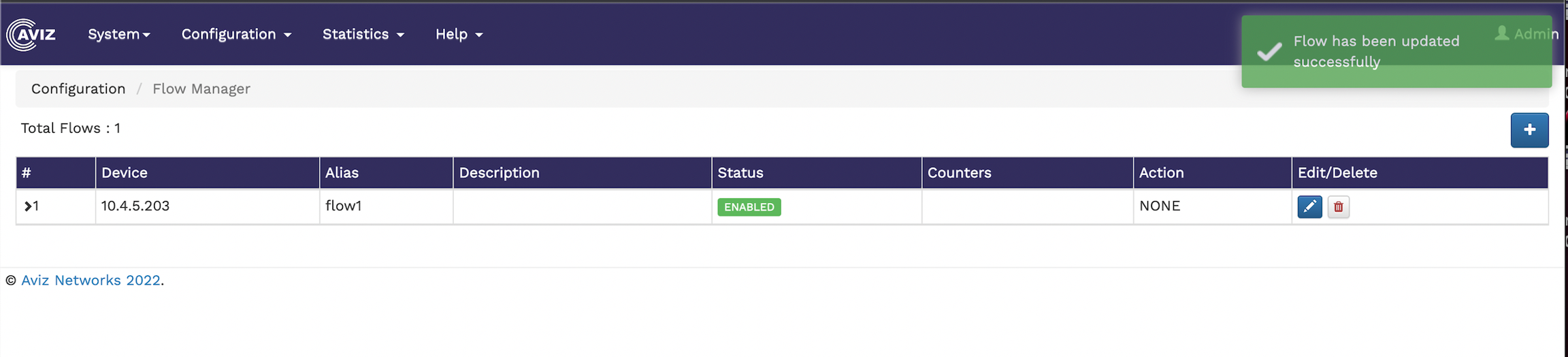
To edit an existing flow, click the  icon and make your changes in the flow page. Once the modification is done, click the update button
Flow updated successfully To delete the existing flow, click the  icon.
icon.
Flow deleted successfully