Viewing the Dashboard
The Dashboard is the default home page of the FlowVision GUI. To return to the dashboard view from any other page, click System > Dashboard.
The Dashboard shows you the following data:
OPB Fabric Information
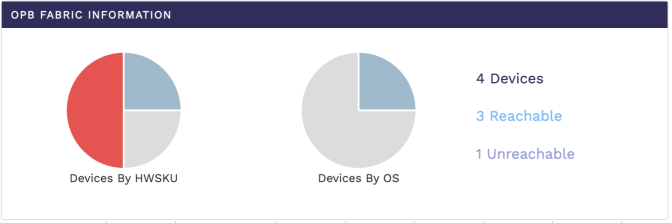
This pie chart shows you the device information based on HwSKU and the device OS. You can hover the mouse pointer over the charts to display a tooltip with more relevant information.
The following image shows the OPB fabric information charts:
Platform Health
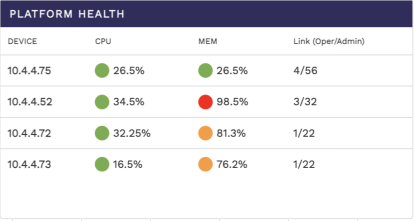
The platform health table shows you the CPU usage, memory availability, and link status for each connected devices. From this data you can infer the overall health of the platform.
The following image shows the platform health table:
Link Information
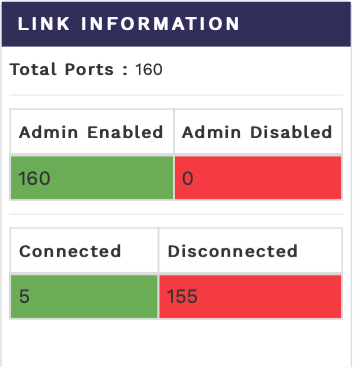
The link information table shows you the total number of ports from all the connected devices, the number of ports that are enabled with admin privileges, and the number of ports that are connected at any given moment.
The following image shows the link information table:
Top 5 Ports by Traffic
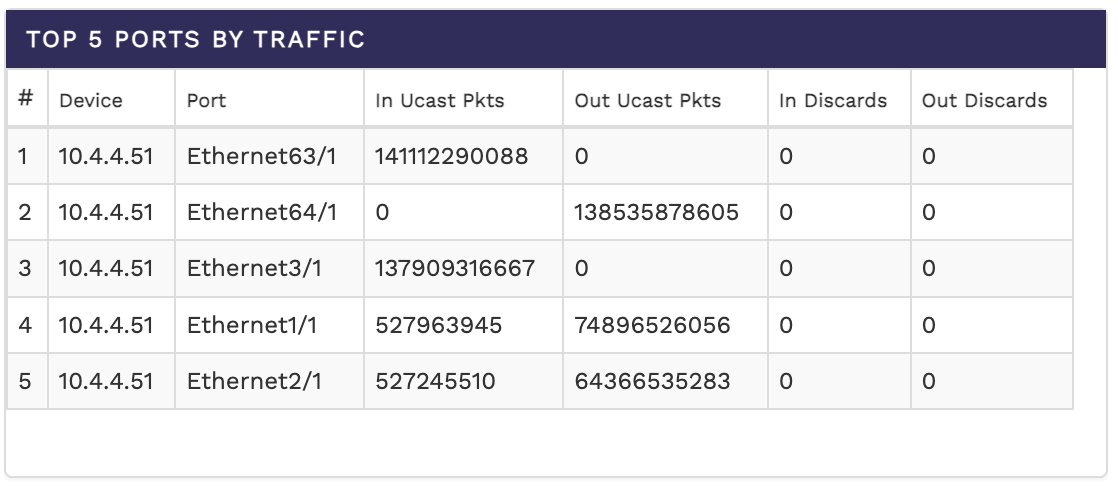
The top 5 ports by traffic shows you the top 5 ports across all connected devices sorted on the basis of their traffic rate. The table shows you the device, port number, the number of In Ucast packets, the number of Out Ucast packets, the number of In Discards, and the number of Out Discards.
The following image shows the top 5 ports by traffic table:
Top 5 Devices by Flow
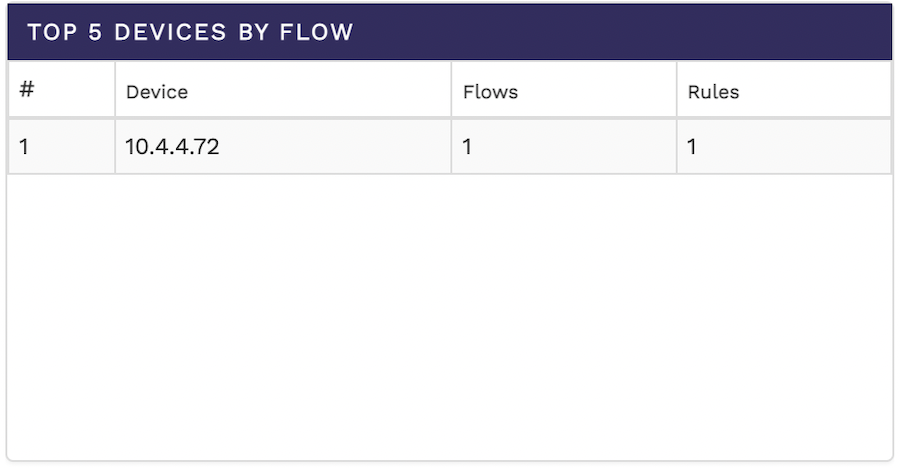
The top 5 devices by Flow shows you the top 5 devices sorted on the basis of the number of flows they have. The table shows the device IP, the number of flows, and the number of rules.
The following image shows the top 5 devices by flow table:
Top 5 Flows by Traffic
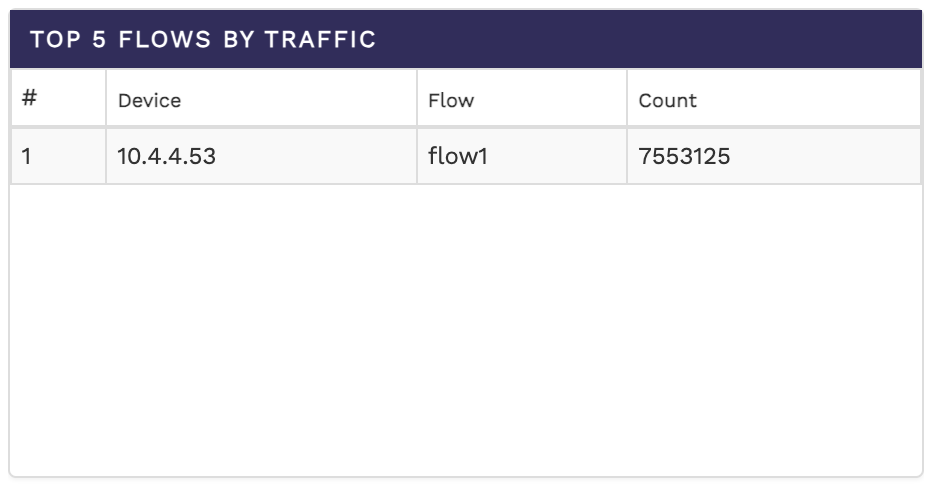
The top 5 flows by traffic shows you the top 5 flows across all connected devices sorted on the basis of their traffic rate. The table shows you the device IP, flow alias, and the count.
The following image shows the top 5 flows by traffic table:
Docker Statistics
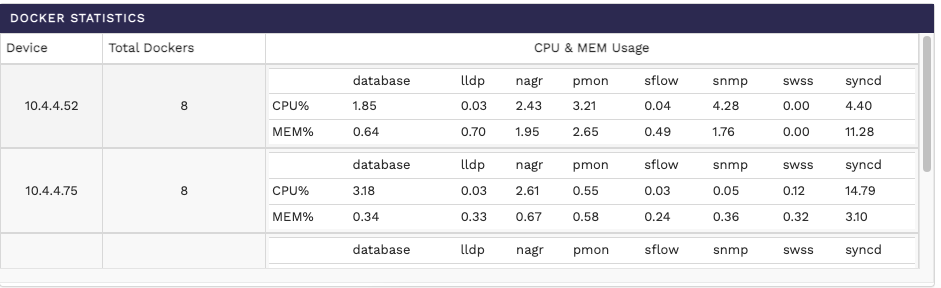
The docker statistics table shows you the docker statistics across all connected devices along with the CPU and memory usage for each device.
The following image shows the docker statistics:
Syslog Statistics
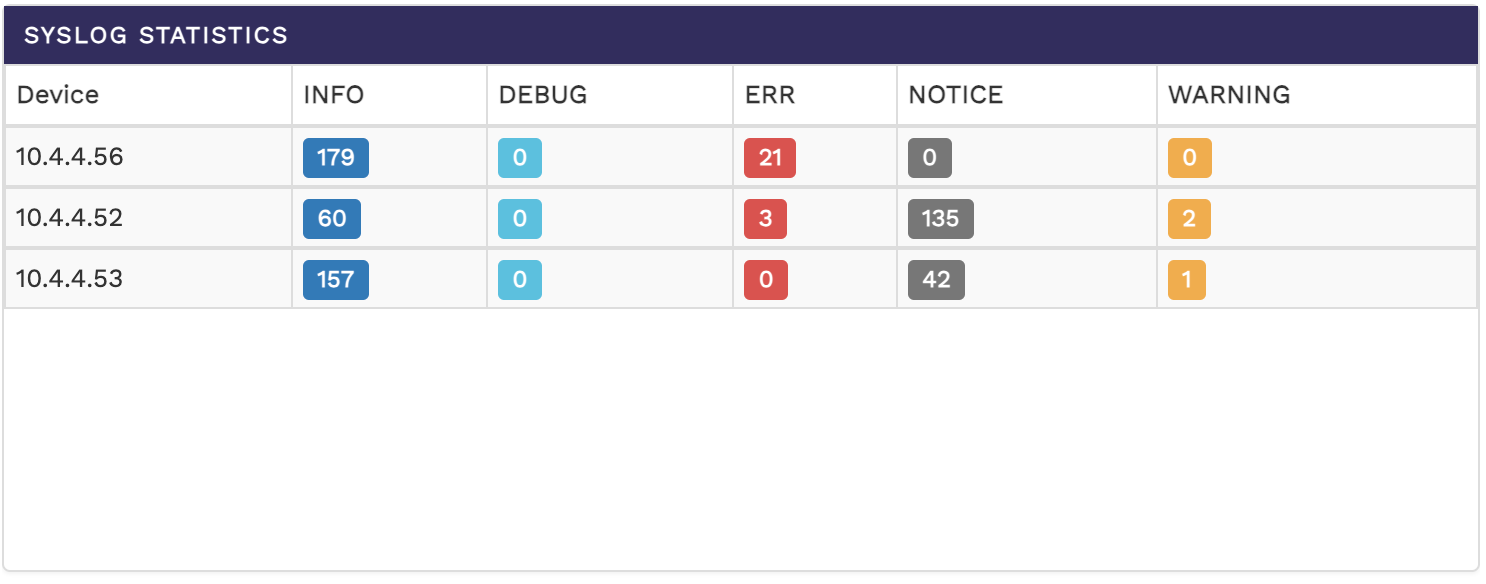
The syslog statistics table shows you the system log statistics of all connected devices. The table shows the number of messages in the info, debug, error, notice, and warning categories for each device.
The following image shows the syslog statistics: