# FV VirtualBox Installation

## Pre-Requisit&#x65;**:**

* A Windows machine/VM with the below minimum requirement:
  * 2 vCores (available for FlowVision VM)
  * 8 GB RAM
  * 40 GB HDD
* Download Oracle VM virtual box from the below link
  * [![](https://www.virtualbox.org/favicon.ico)Downloads – Oracle VM VirtualBox](https://www.virtualbox.org/wiki/Downloads)
* Install Oracle VM Virtual box
  * [![](https://www.virtualbox.org/favicon.ico)](https://www.virtualbox.org/wiki/Downloads)[VirtualBox Installation Guide](https://www.virtualbox.org/manual/UserManual.html#installation)

## Importing OVA: <a href="#ova-booting-steps" id="ova-booting-steps"></a>

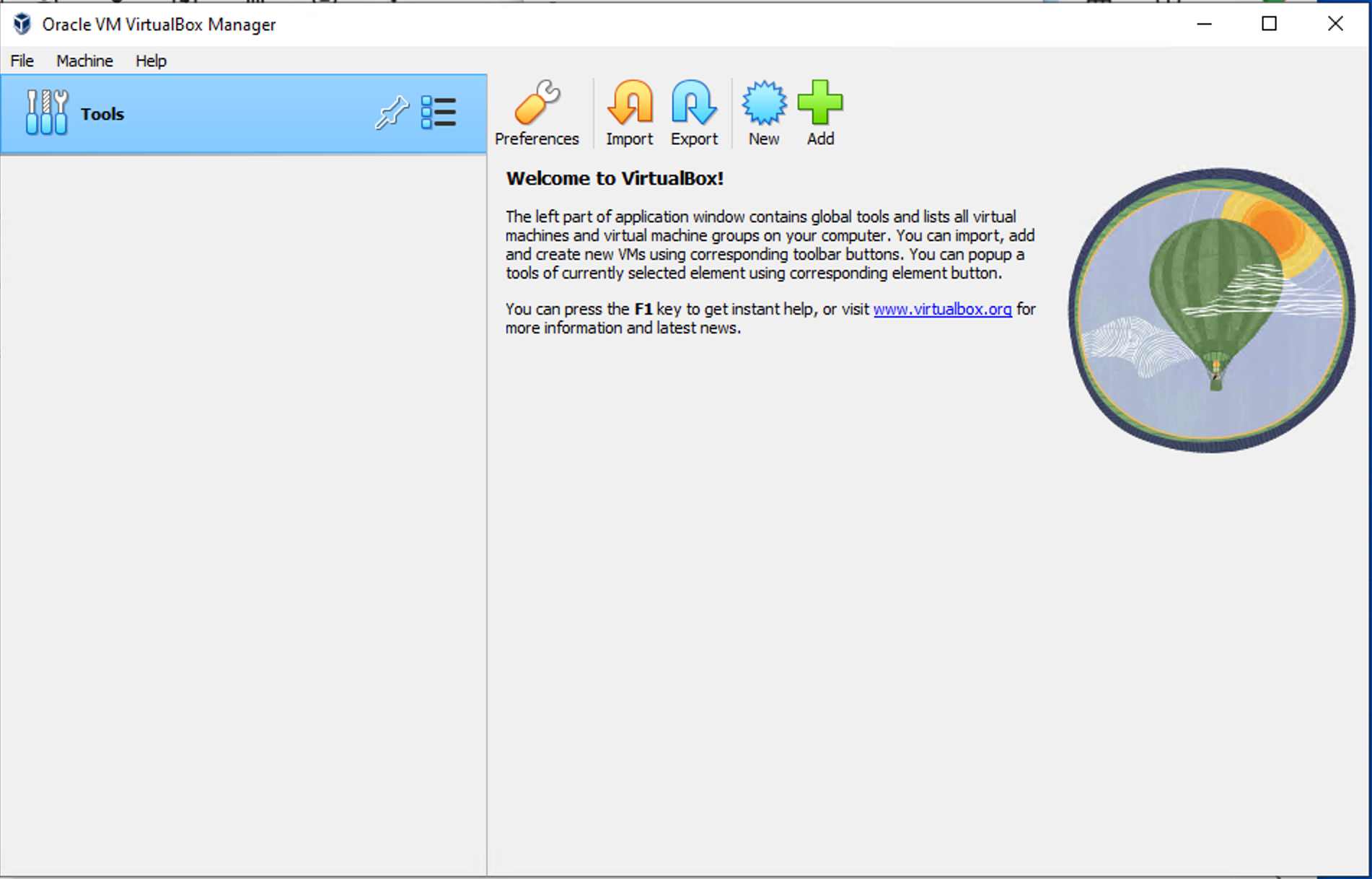
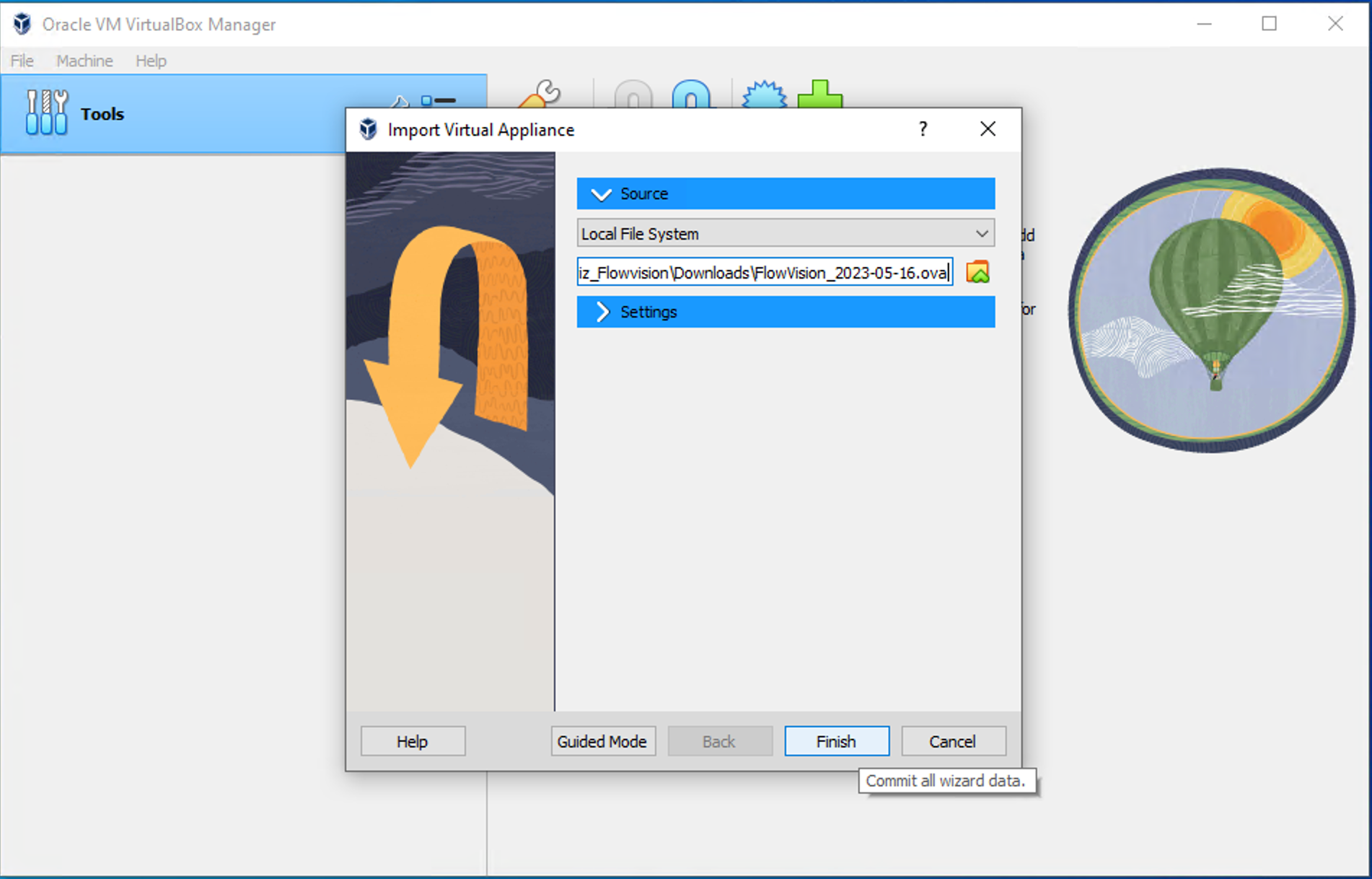
* Import the OVA file in Oracle VM virtual box

<figure><img src="https://content.gitbook.com/content/moNcceKhbbta4BgME4L5/blobs/gWXjn90n38FK88SuYSbP/9b34e94a-3549-406a-8bd5-4a50e084b333.png" alt=""><figcaption><p>VirtualBox Main Windows for Importing OVA</p></figcaption></figure>

<figure><img src="https://content.gitbook.com/content/moNcceKhbbta4BgME4L5/blobs/XMcfKD1t6o6JTv7qRIfX/20b05150-2379-4542-b6db-7ec35e3ca7d4.png" alt=""><figcaption><p>Select the FlowVision OVA</p></figcaption></figure>

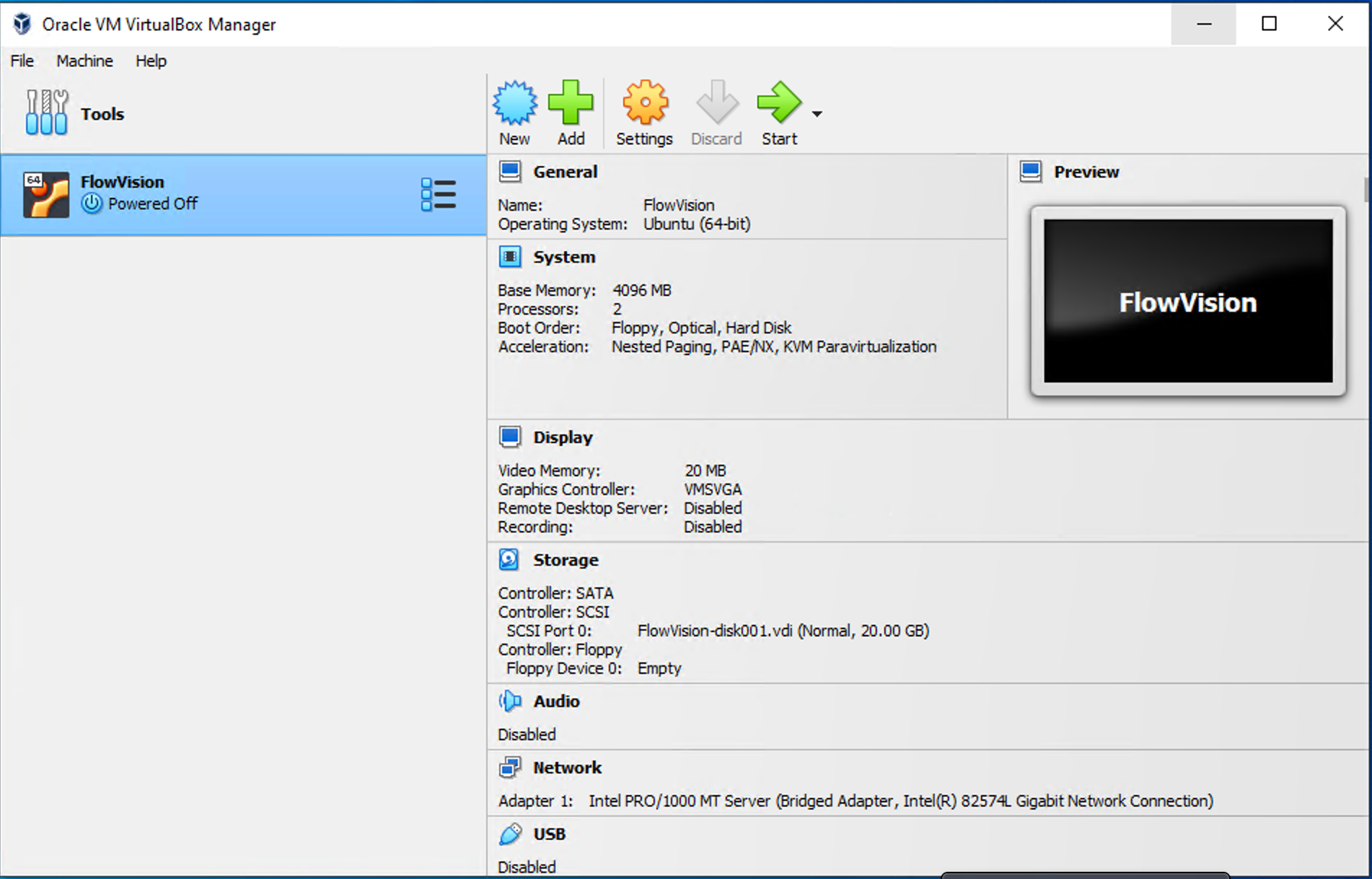
<figure><img src="https://content.gitbook.com/content/moNcceKhbbta4BgME4L5/blobs/QxxrSsiWomzjJ4a1y9Pe/4d0fec03-884c-4fe1-b293-7fbc3f668d9c.png" alt=""><figcaption><p>FlowVision VM</p></figcaption></figure>

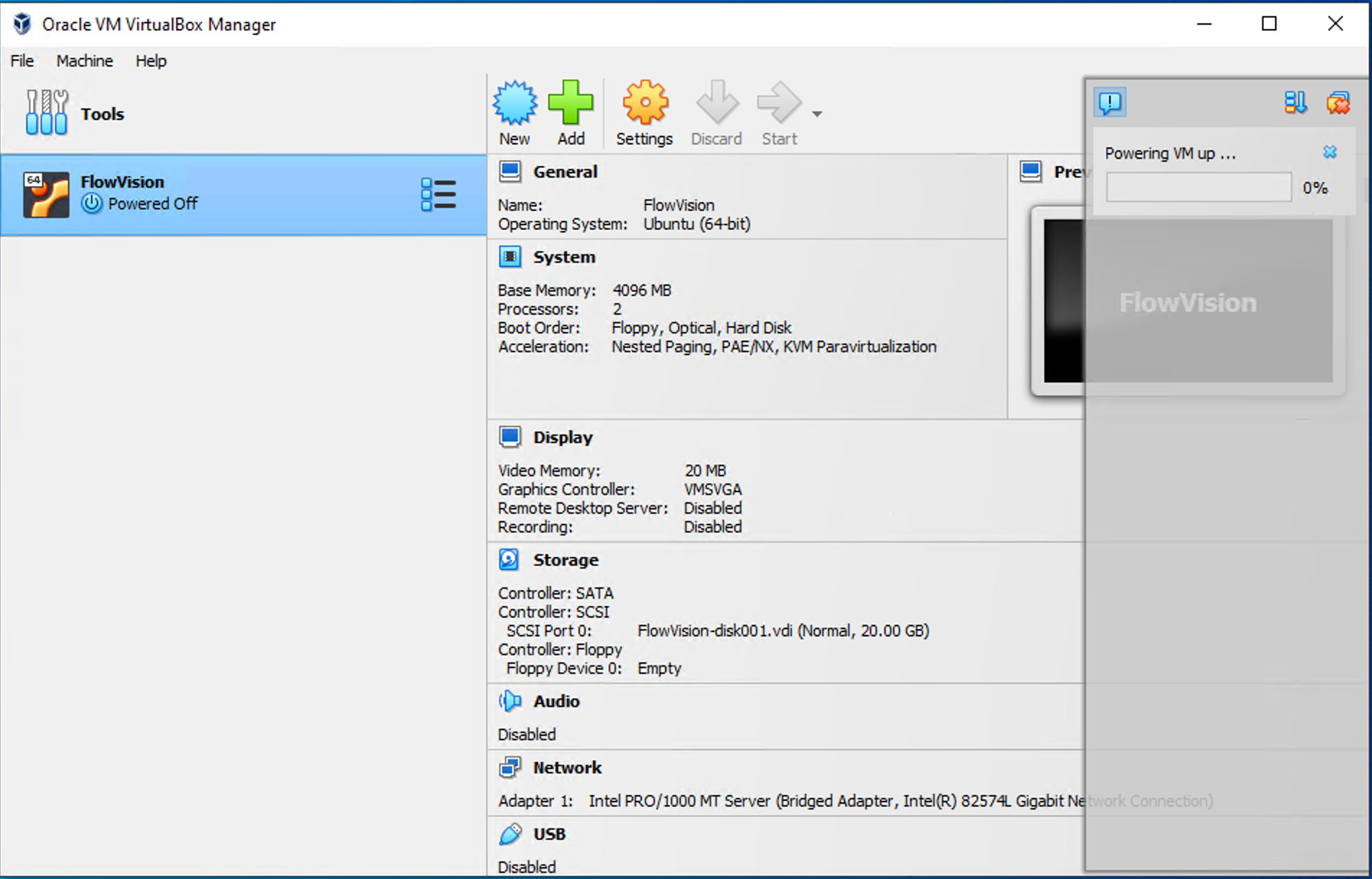
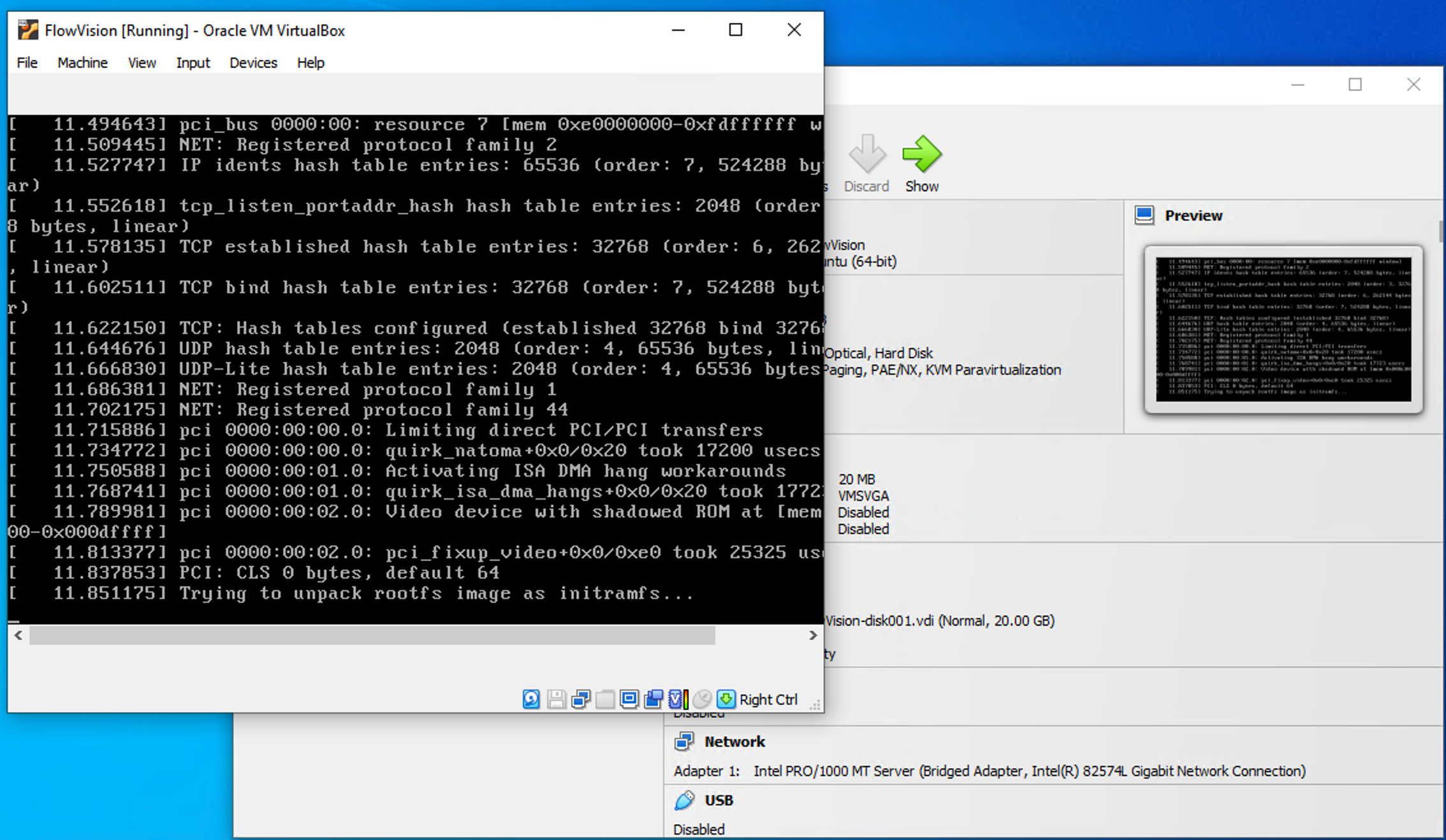
* Click the start button to power-on the virtual machine

<figure><img src="https://content.gitbook.com/content/moNcceKhbbta4BgME4L5/blobs/9l72CvoBxGHfOIZlNaSt/280d82ed-310b-4811-b232-1c6a88d87177.png" alt=""><figcaption><p>Starting the FlowVision VM</p></figcaption></figure>

<figure><img src="https://content.gitbook.com/content/moNcceKhbbta4BgME4L5/blobs/EUokSU4nGKnWf1hG9Wi1/668476ee-591c-427a-b12f-72b8a37df4aa.png" alt=""><figcaption><p>FlowVision boot logs</p></figcaption></figure>

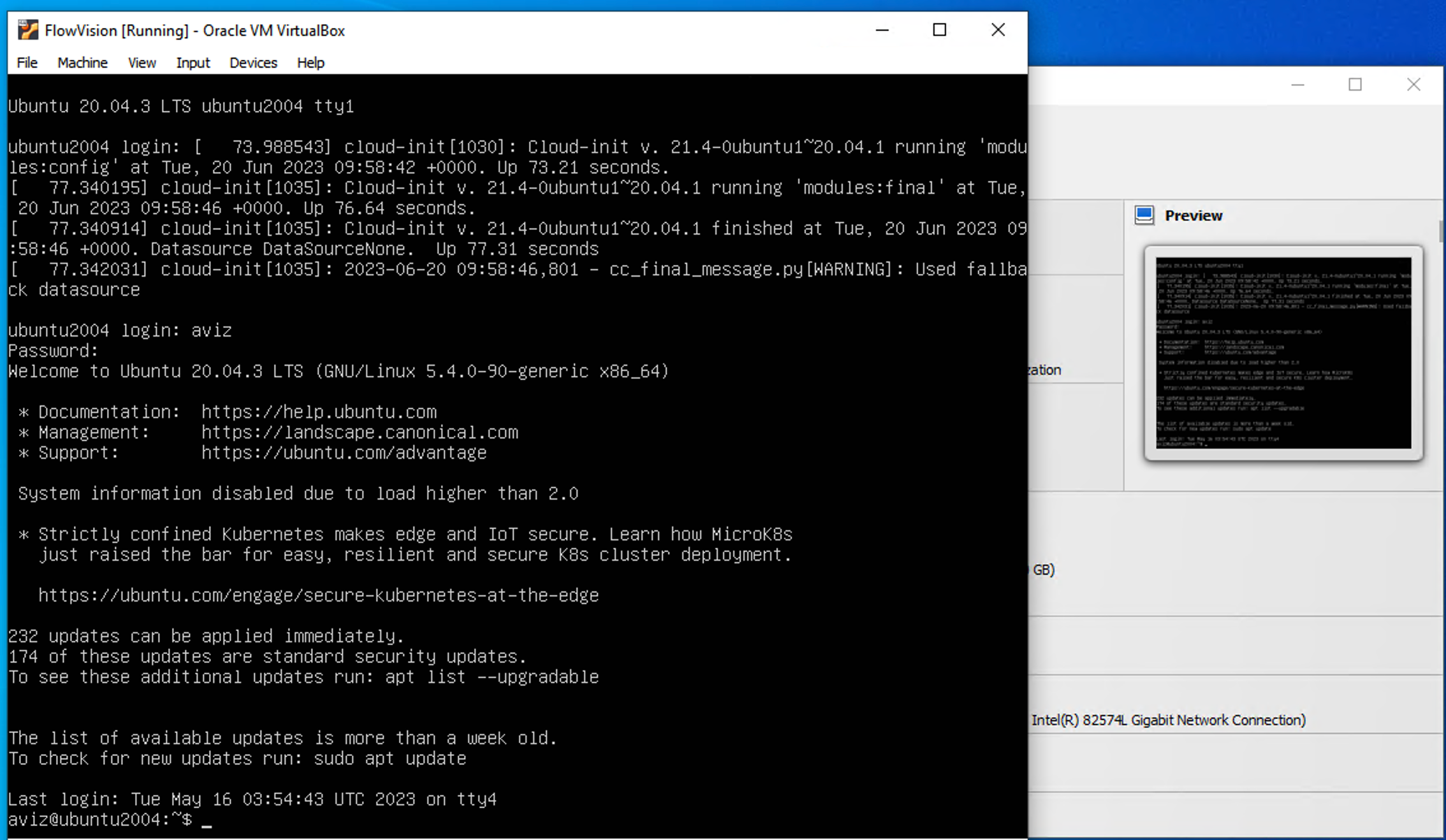
* Log in to the FlowVision VM with default credentials
  * <mark style="color:purple;">Username</mark>: aviz
  * <mark style="color:purple;">Password</mark>: aviz\@123

<figure><img src="https://content.gitbook.com/content/moNcceKhbbta4BgME4L5/blobs/QJq6MMtAQKW1UZCypvjI/f5166a19-f015-41b2-beb8-16877a458b57.png" alt=""><figcaption><p>FLowVision CLI</p></figcaption></figure>

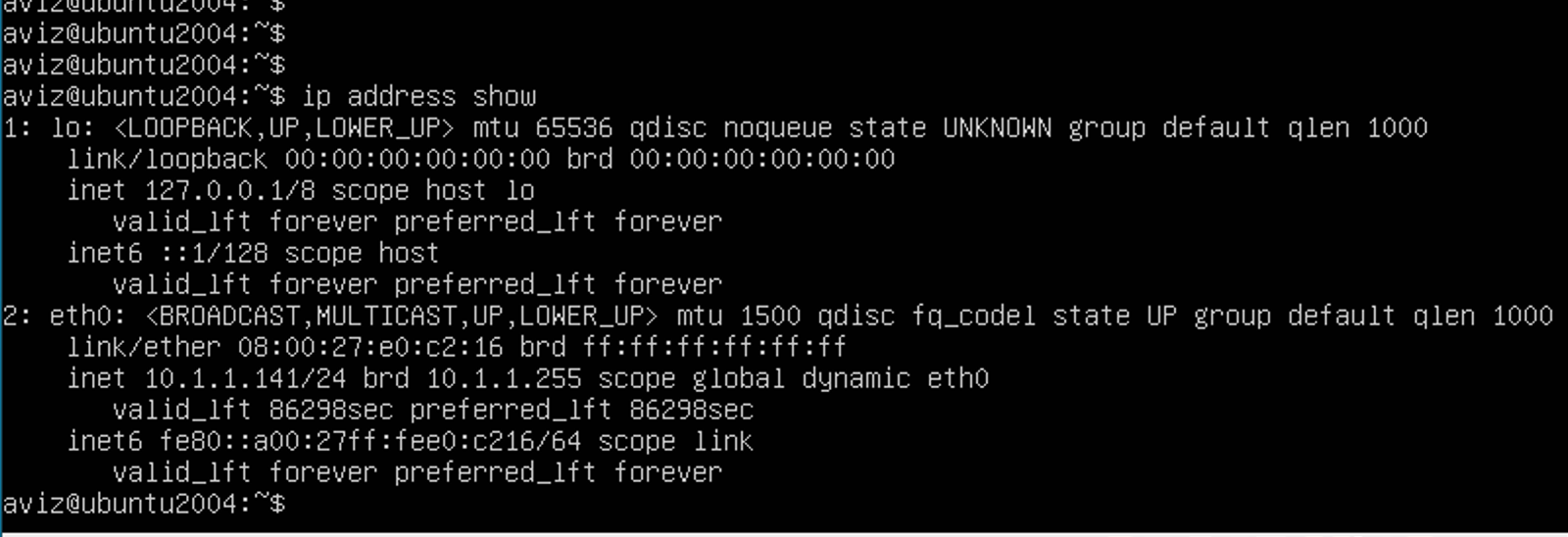
* Get the IP address of the VM through `ip address show`

<figure><img src="https://content.gitbook.com/content/moNcceKhbbta4BgME4L5/blobs/JpVx88XwNzS77CDIJXzI/f6295bfd-628b-4e5e-b99f-735b6689012b.png" alt=""><figcaption><p>Check IP address</p></figcaption></figure>

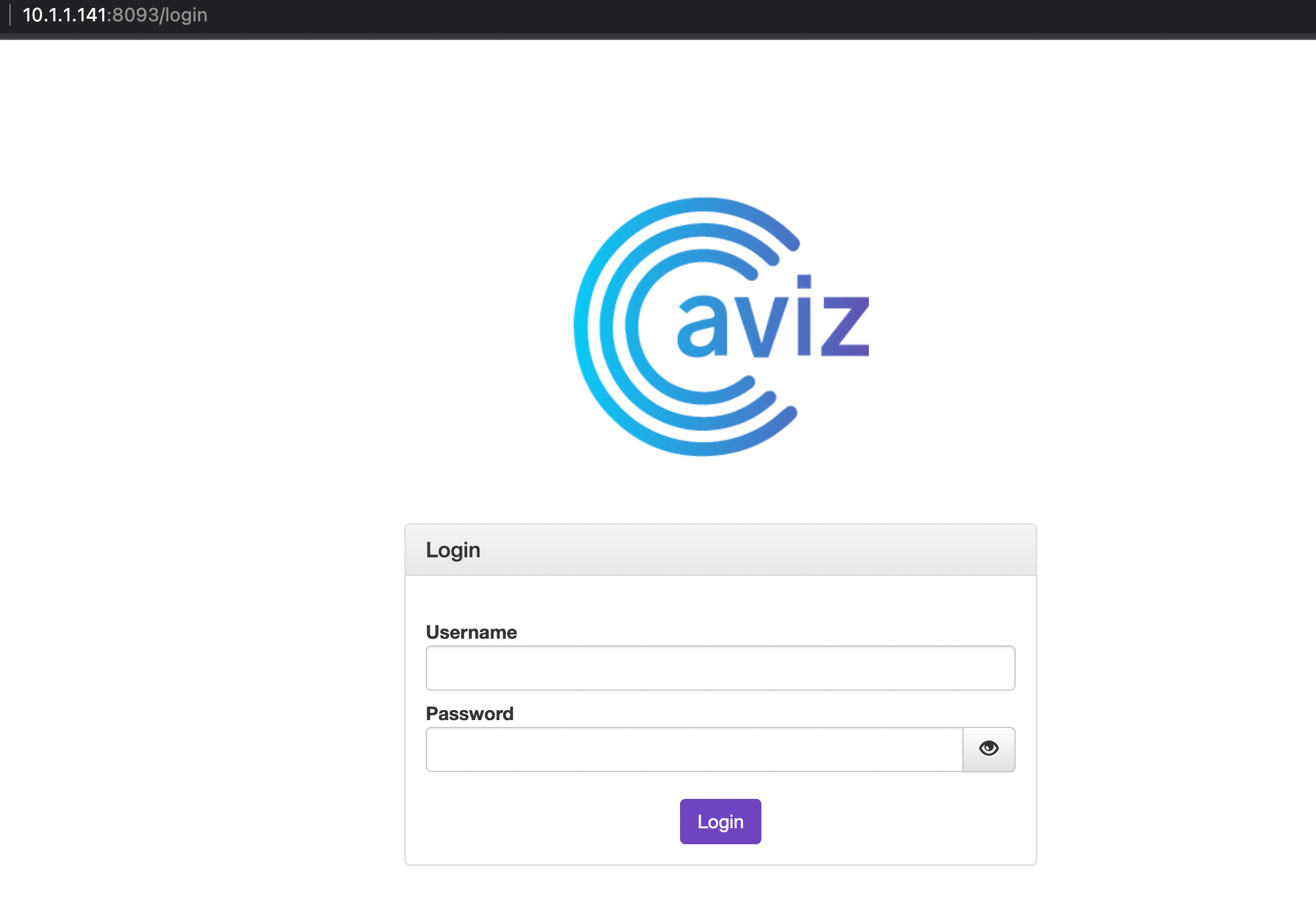
* Access the GUI through the above IP using your favourite browser with http port: <mark style="color:orange;">8093</mark>
  * <mark style="color:blue;">https\://\<VM\_IP>:8093/</mark>

<figure><img src="https://content.gitbook.com/content/moNcceKhbbta4BgME4L5/blobs/5DqicdnRjHHK8B5vCV5k/1ff9181b-5933-4700-9a45-4c334e979d60.png" alt=""><figcaption><p>FlowVision web GUI</p></figcaption></figure>

* Login to the GUI with the default credentials&#x20;
  * <mark style="color:purple;">Username</mark>: admin
  * <mark style="color:purple;">Password</mark>: admin

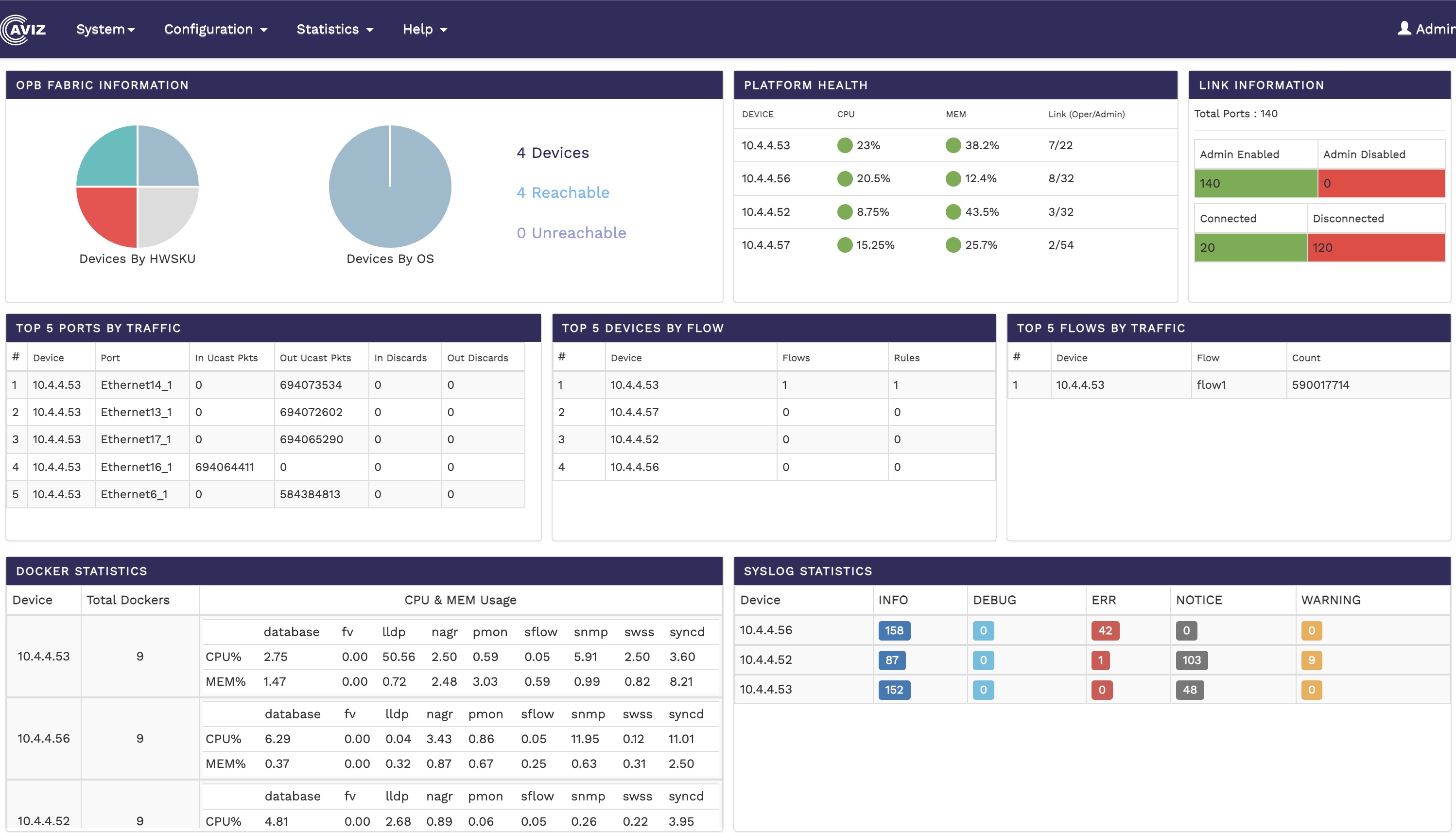
<figure><img src="https://content.gitbook.com/content/moNcceKhbbta4BgME4L5/blobs/DR9ACRpAx9vlMi82euay/Untitled.jpg" alt=""><figcaption><p>FlowVision GUI homepage</p></figcaption></figure>