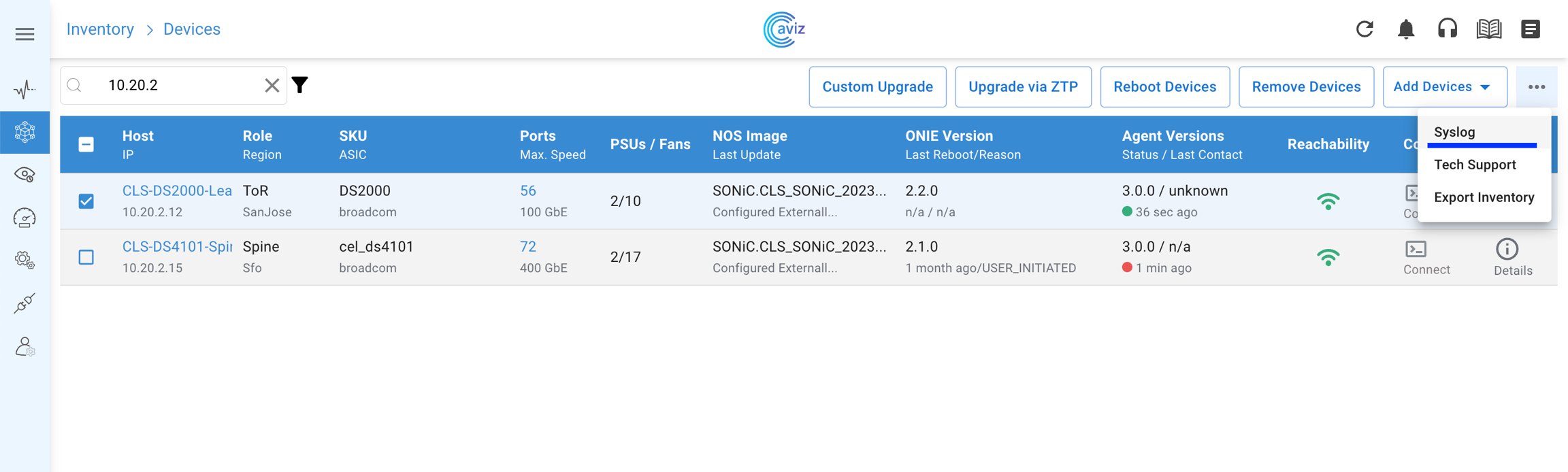
SKU / ASIC: Shows the device hardware SKU and ASIC vendor
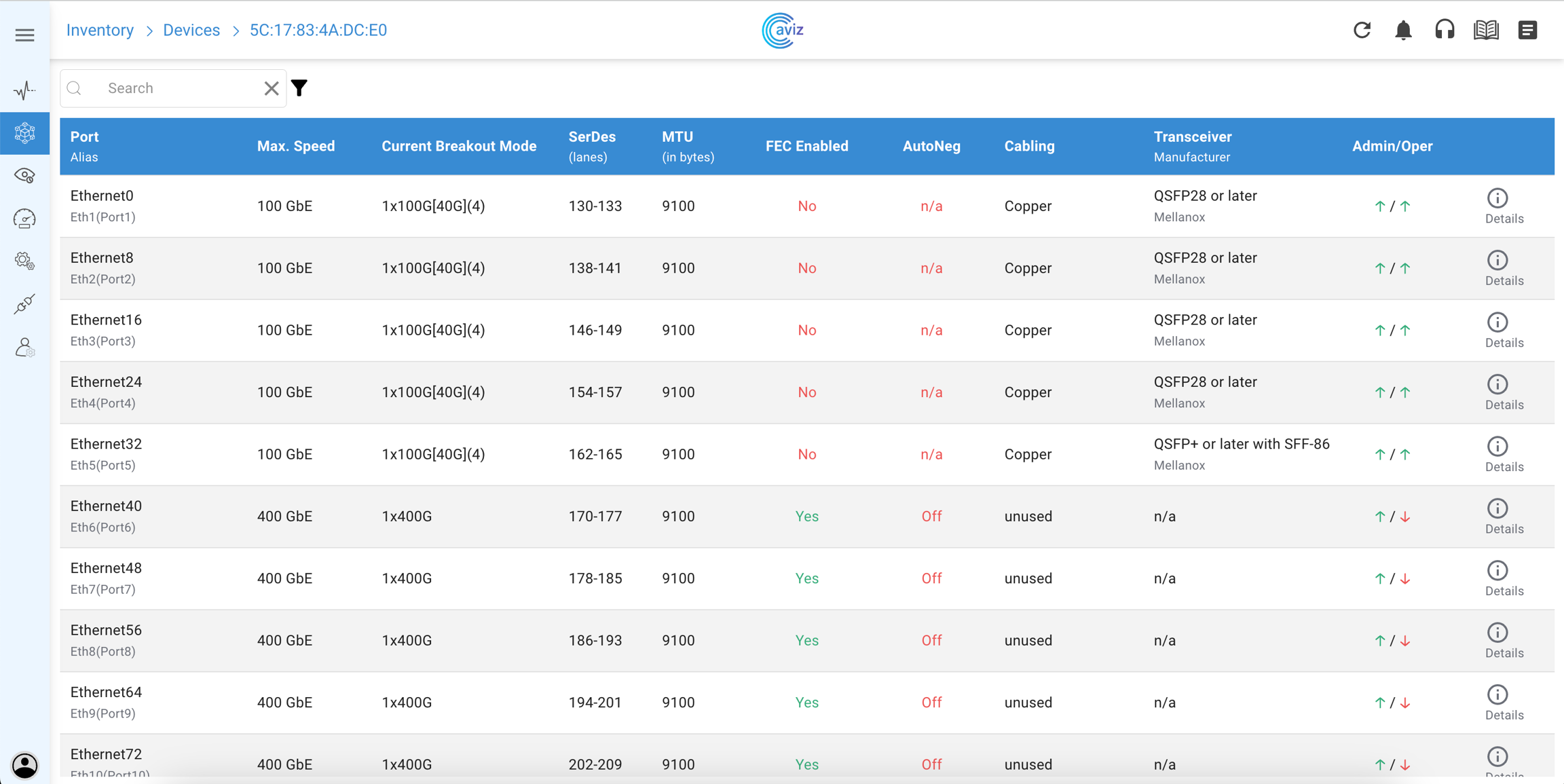
Port / Max Speed
PSUs / Fans: Shows the total number of Power supplies and Fans present on a particular device
NOS Image: Shows the details of the network operating system running on the device and when it was last updated
ONIE Version: Shows which ONIE version is running on the device and when the last reboot time of the device
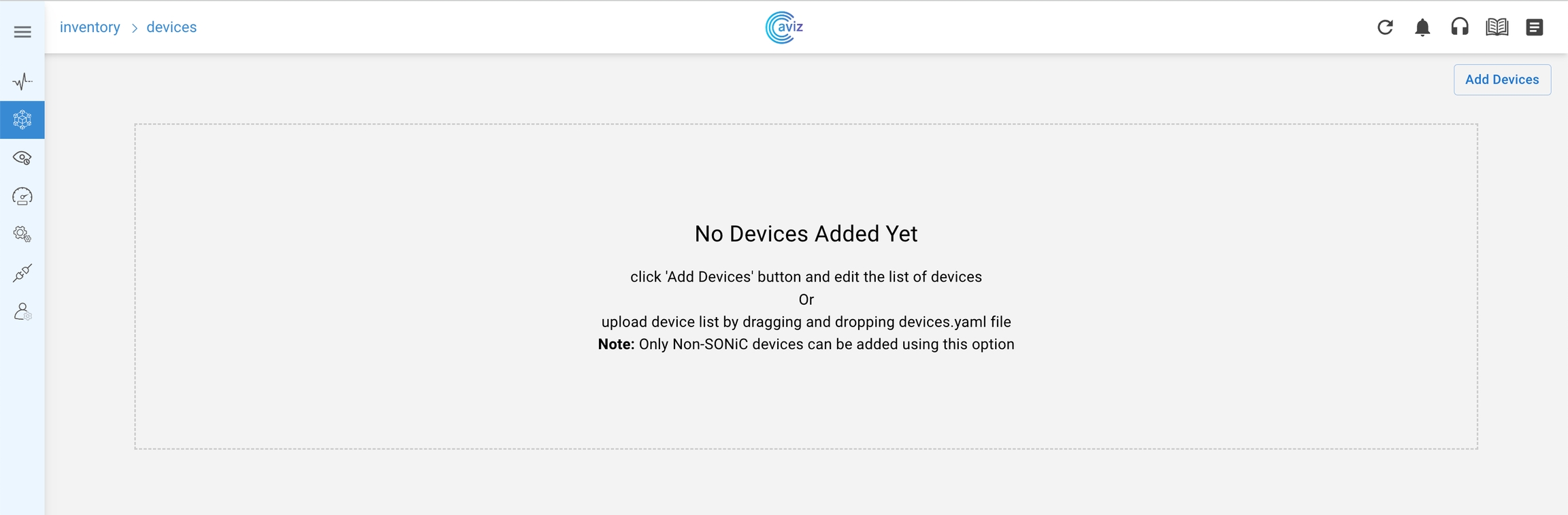
Remove Devices from the ONES Application
Navigate to Inventory >> Devices >> Remove Devices
Choose the devices to be removed & confirm
once the user clicks on confirm, the Inventory page will remove the device
If the devices are agent-based they will get added again after some time,
if the user wants to remove the agent-based devices, then the user needs to uninstall the agent from the device
Now the selected devices have been removed from the ONES application
Custom Upgrade
This feature gives the control to upgrade the device to the new version
An HTTP image link is required to use the custom upgrade
Select any of the devices to upgrade to the new version
Click on Custom Upgrade
put the new Image URL and thenSubmit
It will show the status as In Progress
HTTP image URL should be accessible
This image will be downloaded to the device and configured as the next boot image and devices will be reloaded
Once the device comes up with the new image, the ONES application will install Telemetry and Fabric manager agent
when we upgrade any device that will be locked to do any further changes after a successful upgrade user can again use the same device for another task
Upgrade via ZTP
Using this page a user can directly upgrade the box
Select any of the devices to upgrade via ZTP
Click on Upgrade via ZTP
Click on Yes
when we upgrade any device that will be locked to do any further changes, after a successful upgrade user can again use the same device for another task
Reboot Device
Here we will see how we can reboot a device using
We have the option to choose one or multiple devices at a time to reboot
Choose one of the devices that we want to reboot
Click on Reboot
Click on Yes
While rebooting the device, the device will be locked to do any other task, once the reboot is successful, the lock will be removed and the user can take any new action
Sub-options
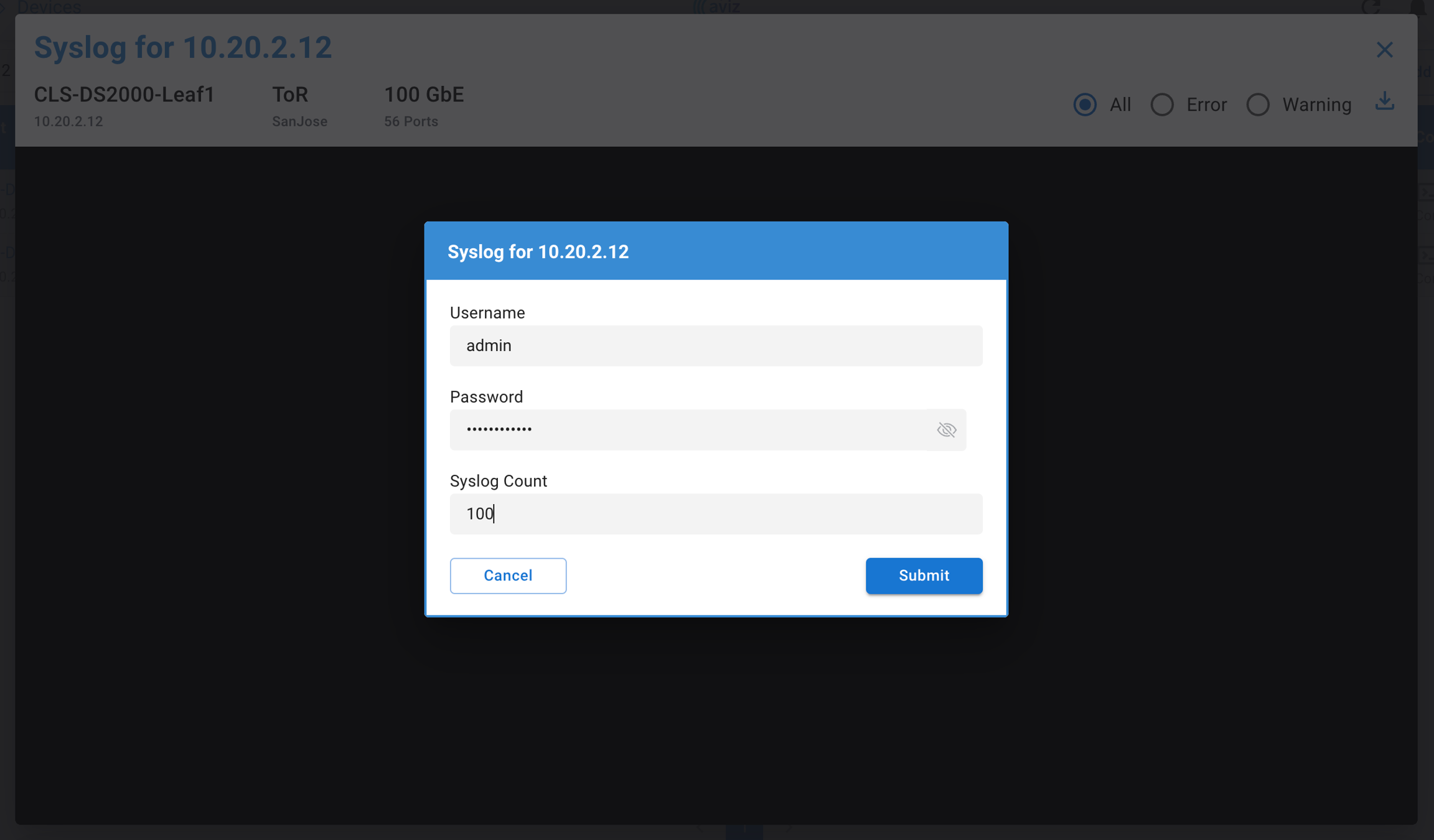
Syslog
User will have option to choose count of the logs and can filter as per only Error or Only Warning or all the logs
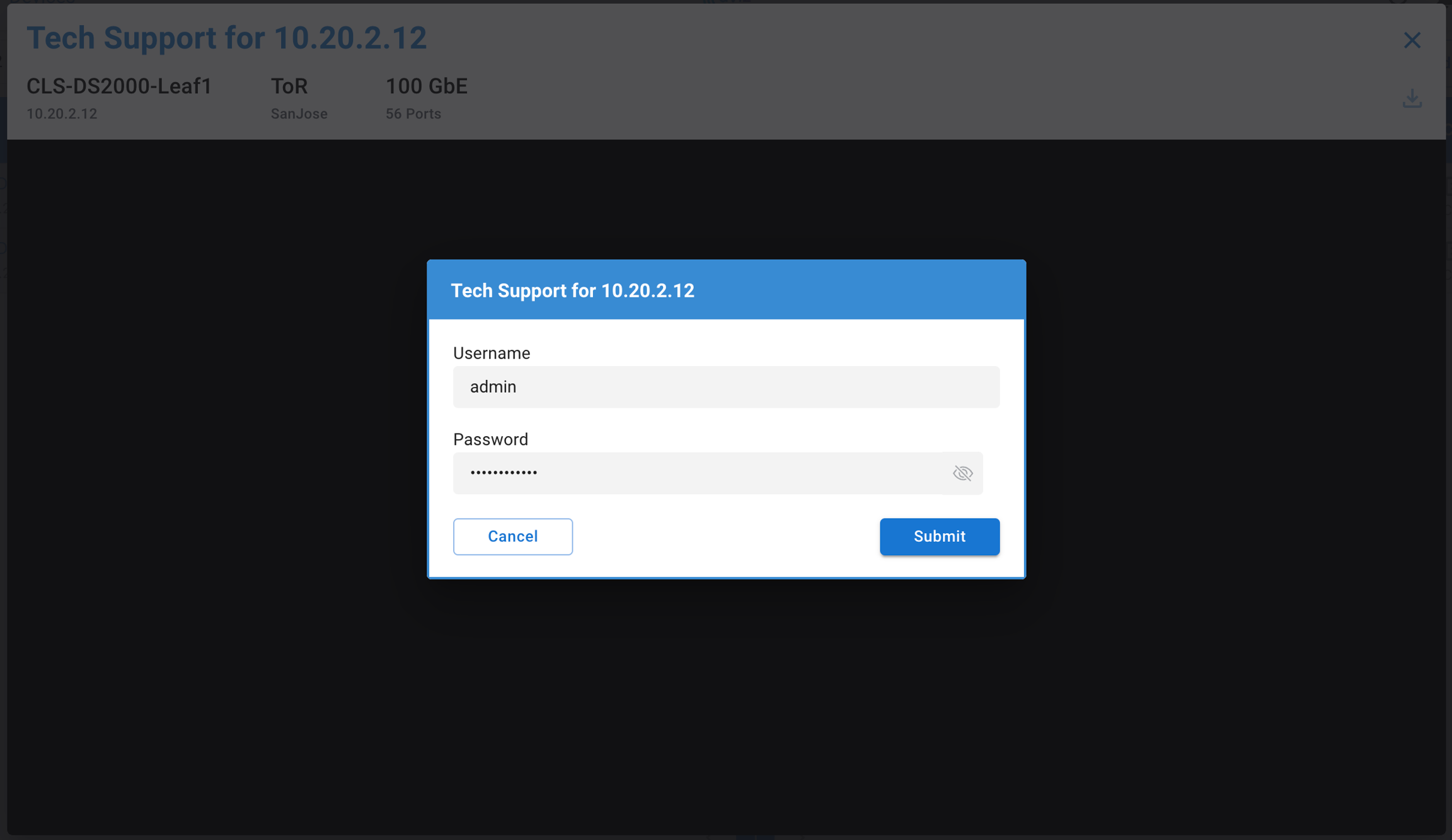
Tech Support
Export Inventory
Upgrade the device using ZTP (Zero Touch Provisioning)
Reboot individual devices or multiple devices by selecting them in one click
Remove the devices
Tech-Support download
Complete Inventory can be downloaded in CSV format
containing the device list
Use the below format to add devices to the application
Server: server
Use the below format to add devices to the application
Shows the number of ports per device and max port speed on the device
Click on the number of ports to get a detailed view of all the ports on a particular device
Agent Version / Network OS: Shows the agent version running on the device and the current active OS version on the device
Agent status / Last contact: Latest status of the Agent and when it was last communicated with that Agent.
Connect: Using this feature we directly get the CLI access of the device
SSH Connect
Console Connect
Details: This last option we can again use to get the details of the device
Once the image is loaded, the ONES application will show the last image details and time stamp
User can find the Inventory file in download directory