# User Management

## Overview

Use this feature to&#x20;

* Create new users and roles
* Remove and suspend existing user one by one&#x20;
* Remove and suspend multiple users at the same time &#x20;
* Password reset of existing users

Only super admin or Enterprise admin can perform these actions

## Users

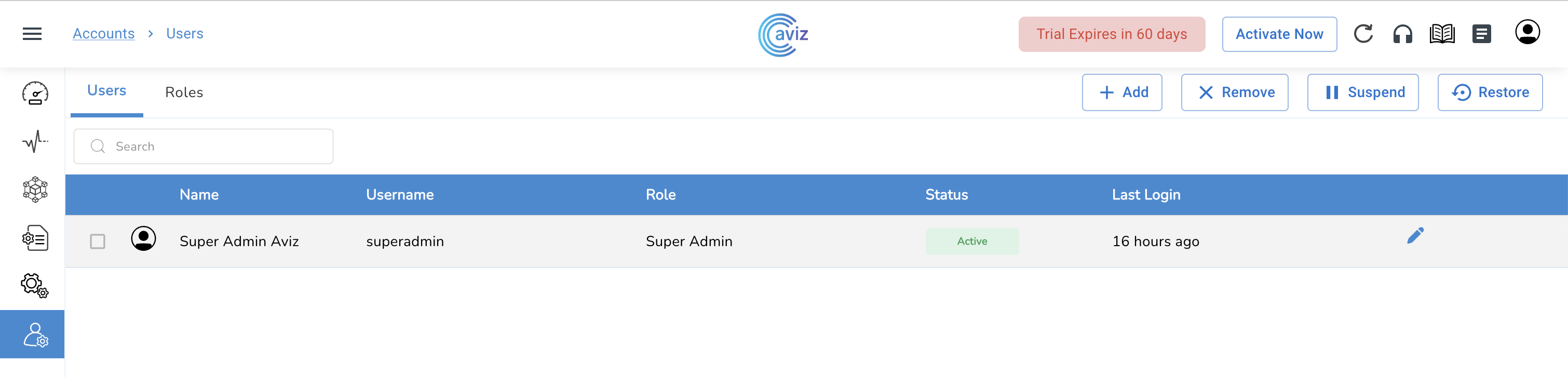
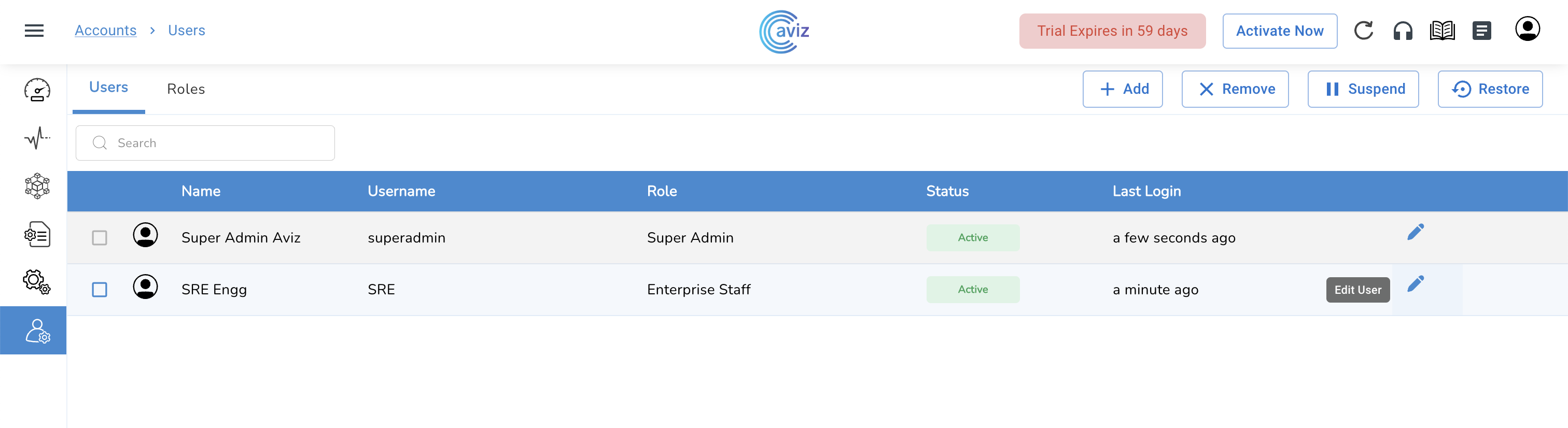
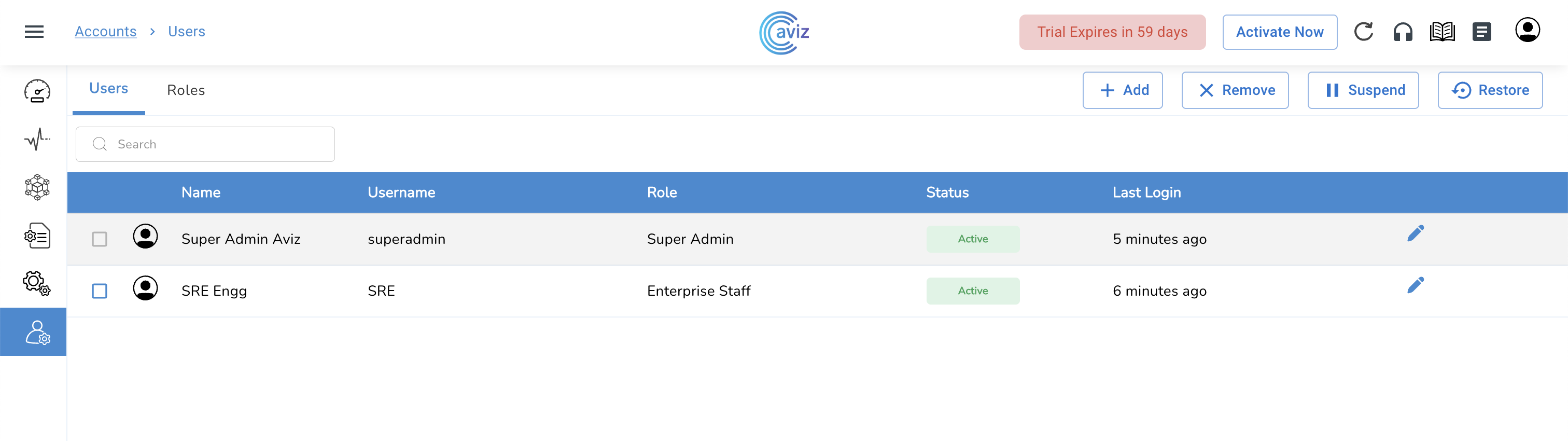
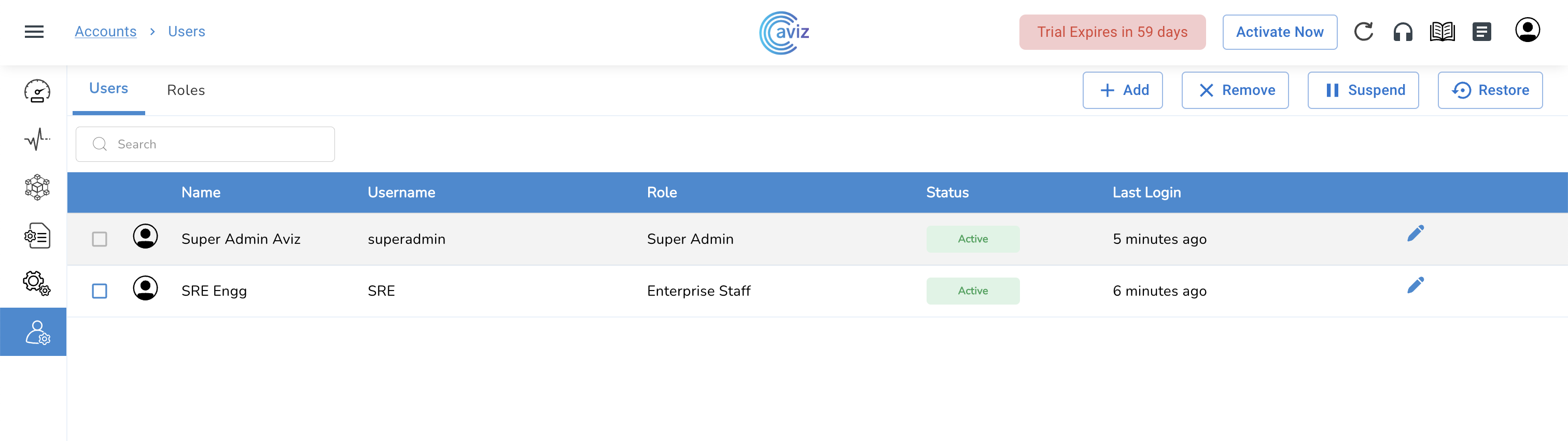
* Navigate to <mark style="color:blue;">**User Management >> Accounts >> Users**</mark>

<figure><img src="https://content.gitbook.com/content/sjMG8ERI8JuFHFkm9MpV/blobs/EORnOvzYSnuxyL65cfUv/Screenshot%202023-02-05%20at%204.08.54%20PM.png" alt=""><figcaption></figcaption></figure>

* Initially, we get one default Admin User Credential&#x20;
* In this view, we get the User status and Role given to it and the Last login time by the user.&#x20;
* On this User tab, we can Add new users and can remove or suspend any existing users

### Users - Add New

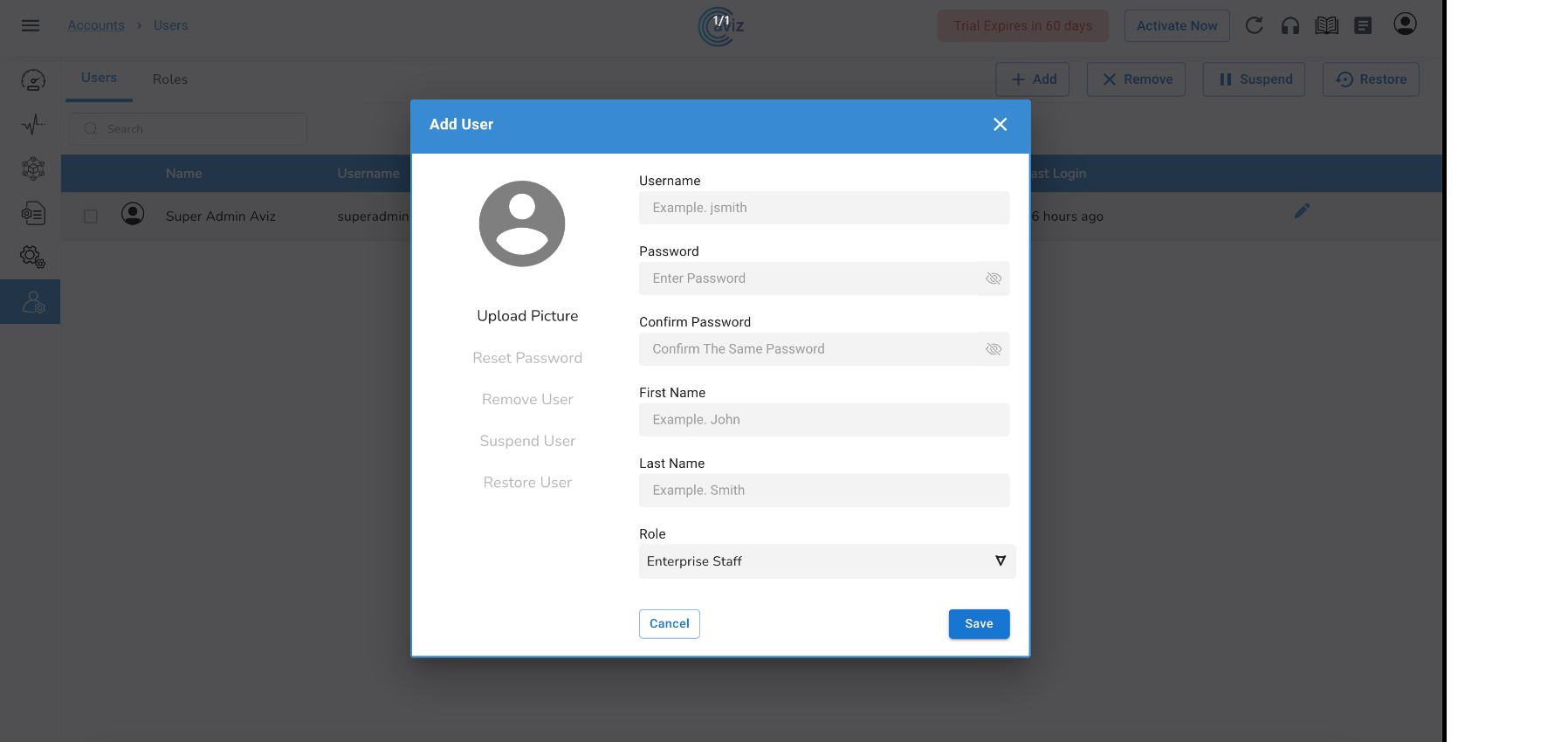
* Navigate to <mark style="color:blue;">**Accounts >> Users >> Add**</mark>

<figure><img src="https://content.gitbook.com/content/sjMG8ERI8JuFHFkm9MpV/blobs/hgGnDqRFMt8zpfnfiqon/userimage.png" alt=""><figcaption></figcaption></figure>

* Admin can add&#x20;
  * Profile picture&#x20;
  * Username&#x20;
  * Password
    * **`Password should contain:-`**

      `Minimum Password Length - 8 characters`

      `Maximum Password Length - 24 characters`&#x20;

      `Character Support - Alpha Numeric`

      `Special Characters - (# @ $ ! & % only)`

      `Character Rule - At least one Upper Case and one special character`
  * First and Last Name
  * Role
* Enter all the required details&#x20;
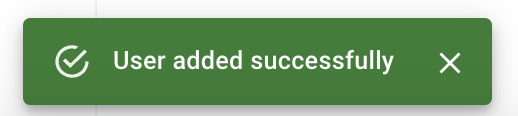
* Click `Save`

<figure><img src="https://content.gitbook.com/content/sjMG8ERI8JuFHFkm9MpV/blobs/V8a8xSZ9D5njnZnJz5Zg/image.png" alt=""><figcaption></figcaption></figure>

<figure><img src="https://content.gitbook.com/content/sjMG8ERI8JuFHFkm9MpV/blobs/ApUC0RKihsIqo6o1Xxh7/Screenshot%202023-02-05%20at%204.10.50%20PM.png" alt=""><figcaption></figcaption></figure>

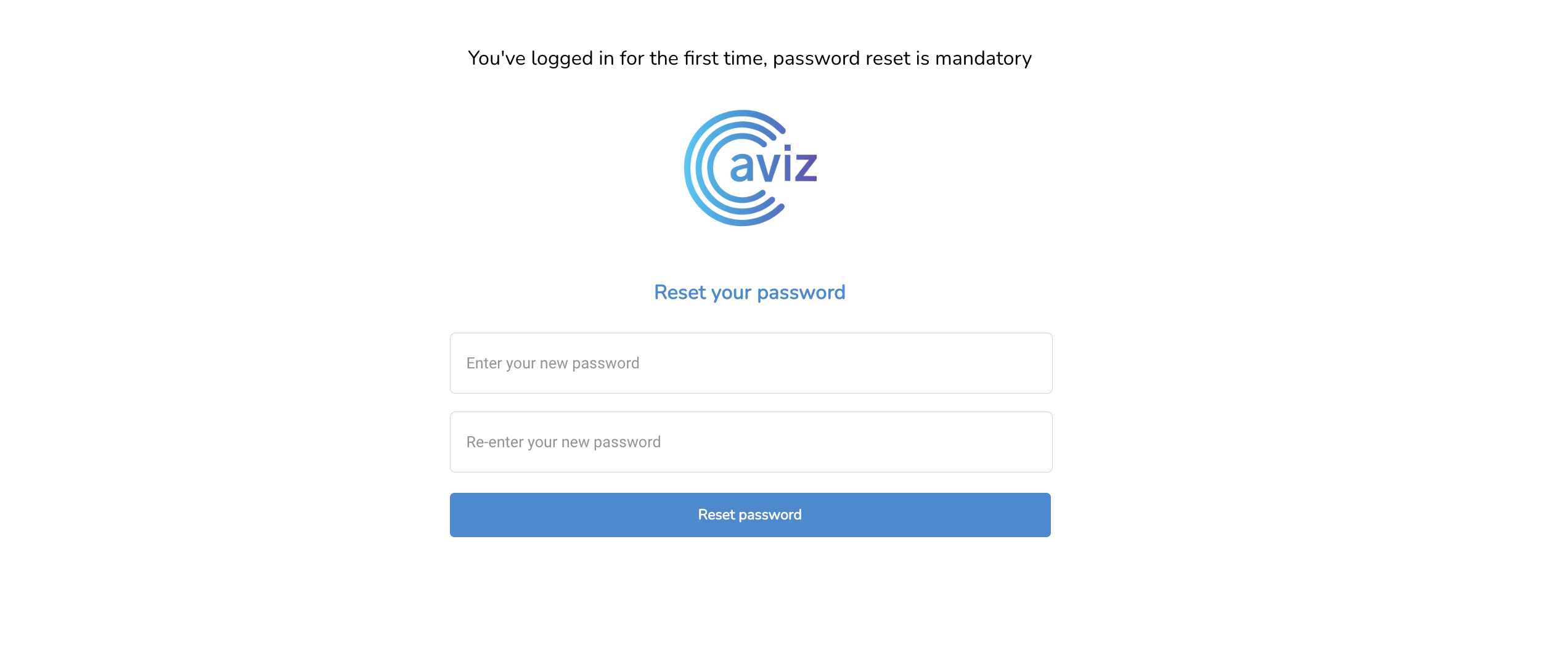
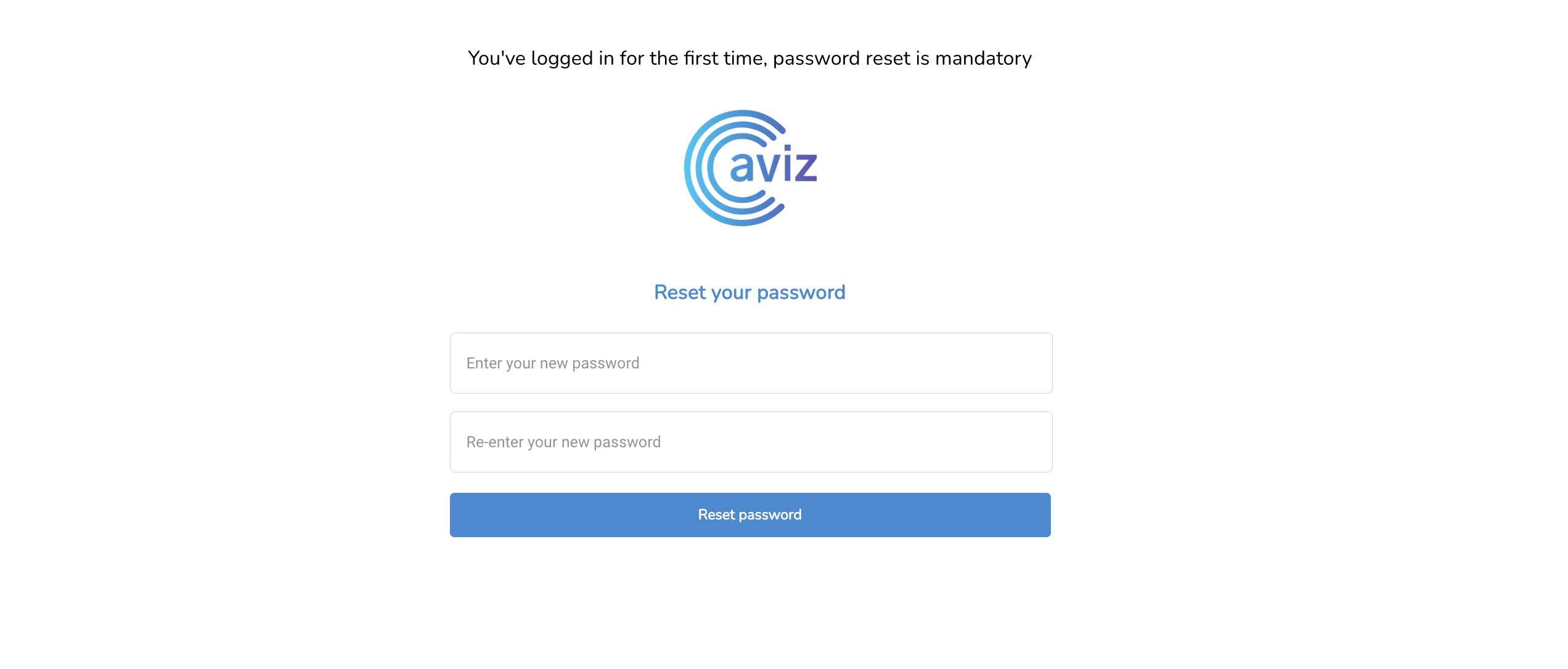
**"on the first login by the user with given details, ONES application prompt with a screen to rest the password**

<figure><img src="https://content.gitbook.com/content/sjMG8ERI8JuFHFkm9MpV/blobs/SUg7NLp9peA6tEDf9vo4/image.png" alt=""><figcaption></figcaption></figure>

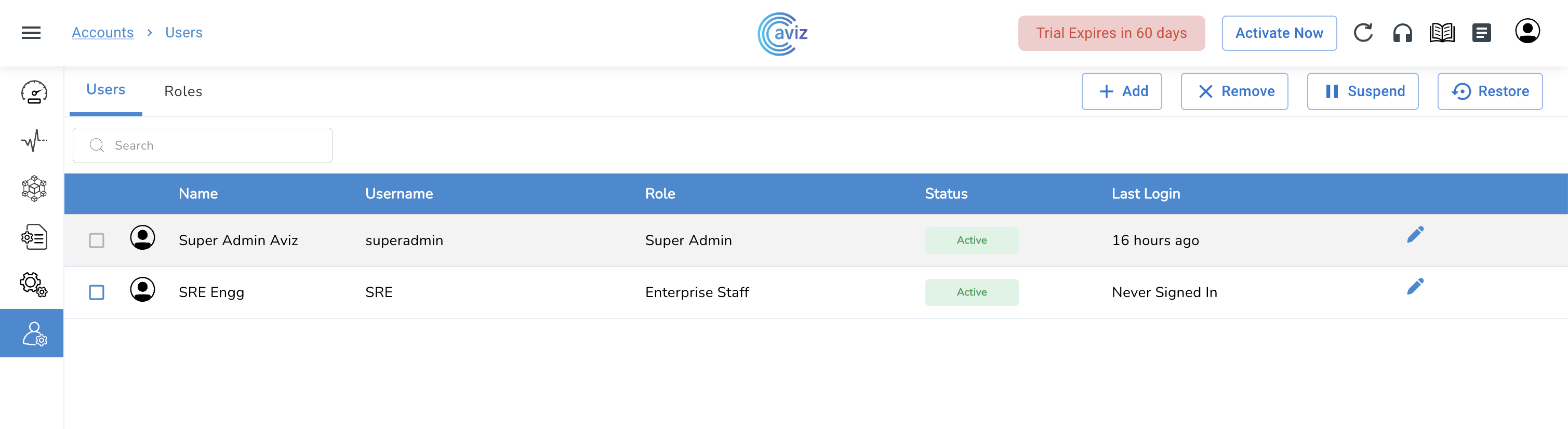
* Now User is ready to login with valid credentials

### Users - Reset Password

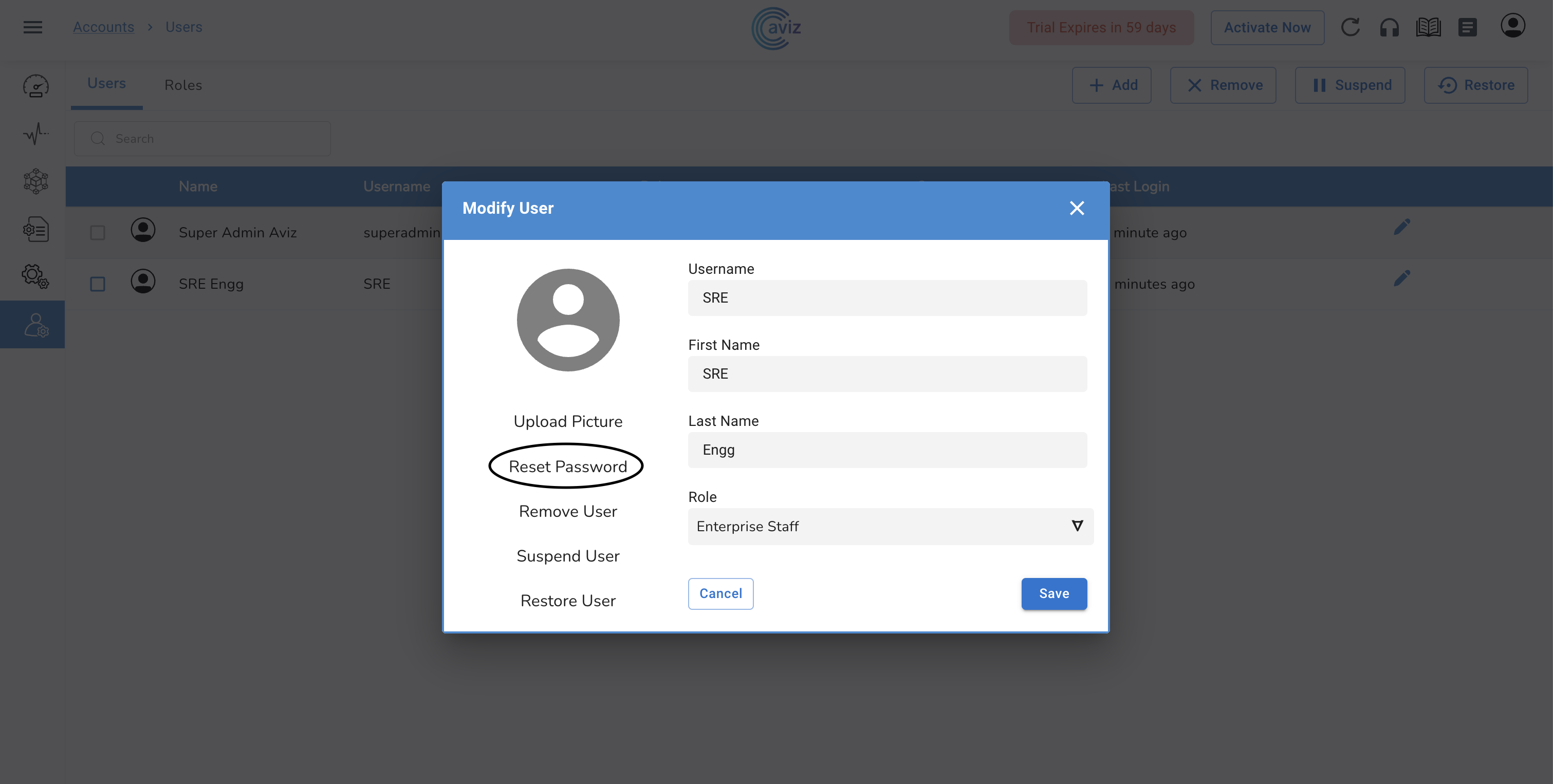
* Navigate to <mark style="color:blue;">**Accounts >> Users >> Edit User >> Reset Password >> Yes**</mark>&#x20;
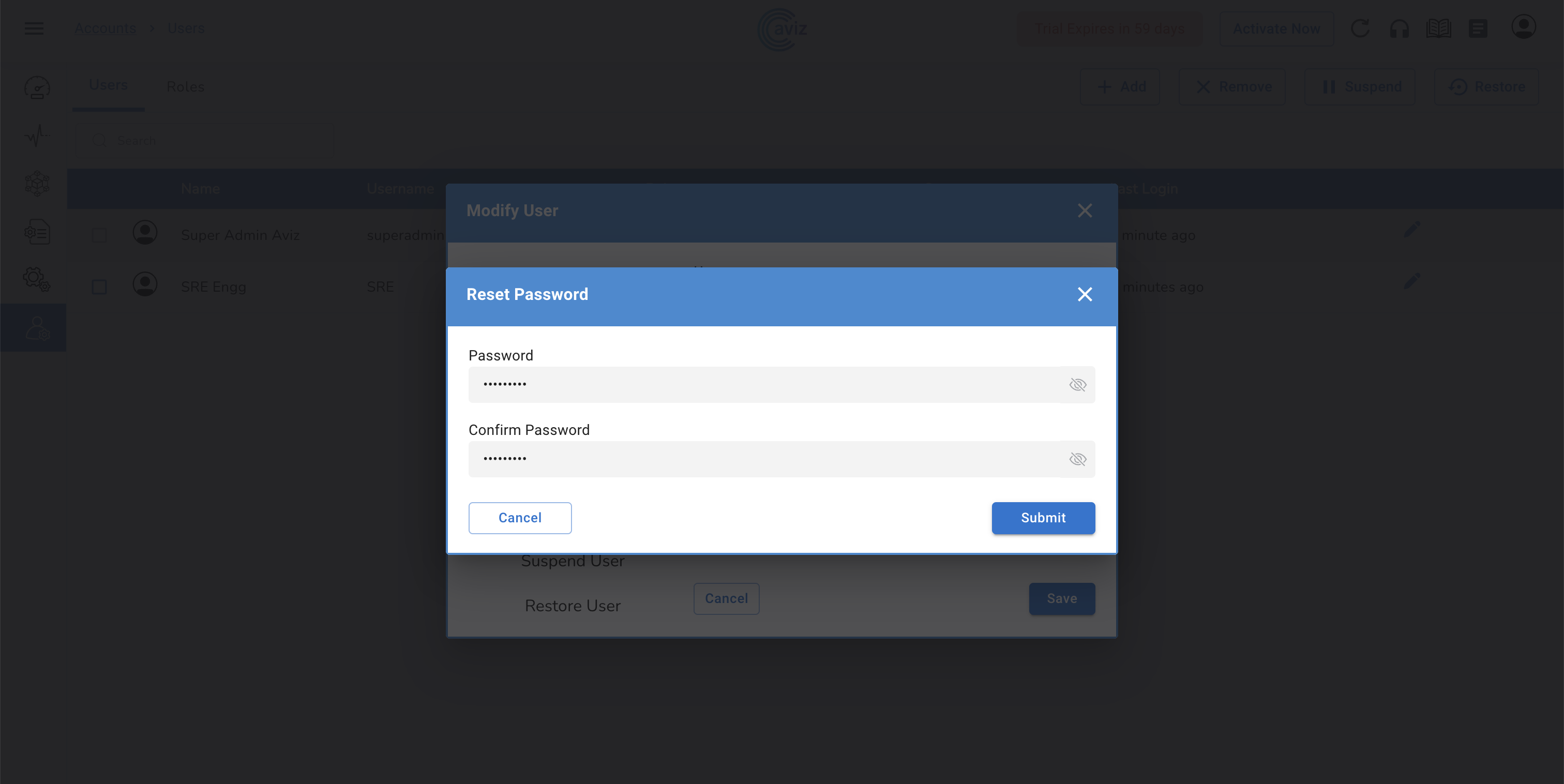
* Using Admin credentials you can reset the user password

<figure><img src="https://content.gitbook.com/content/sjMG8ERI8JuFHFkm9MpV/blobs/EYnFj94bYSNE58ihELB3/Screenshot%202023-02-05%20at%204.13.25%20PM.png" alt=""><figcaption></figcaption></figure>

* Click on <mark style="color:blue;">**Reset Password**</mark>

<figure><img src="https://content.gitbook.com/content/sjMG8ERI8JuFHFkm9MpV/blobs/hY6sWksBWbP8jjnXiPiP/Screenshot%202023-02-05%20at%204.14.07%20PM.png" alt=""><figcaption></figcaption></figure>

<figure><img src="https://content.gitbook.com/content/sjMG8ERI8JuFHFkm9MpV/blobs/OYuvC9SgSqJYqN9bhx7m/Screenshot%202023-02-05%20at%204.16.45%20PM.png" alt=""><figcaption></figcaption></figure>

* `Submit` & `Save`
* After this user can try login with the temporary password, on the first login, ONES application actively asks to change the password

<figure><img src="https://content.gitbook.com/content/sjMG8ERI8JuFHFkm9MpV/blobs/aajqCR0X5VWBBPZwRKfX/image.png" alt=""><figcaption></figcaption></figure>

### Users - Remove User

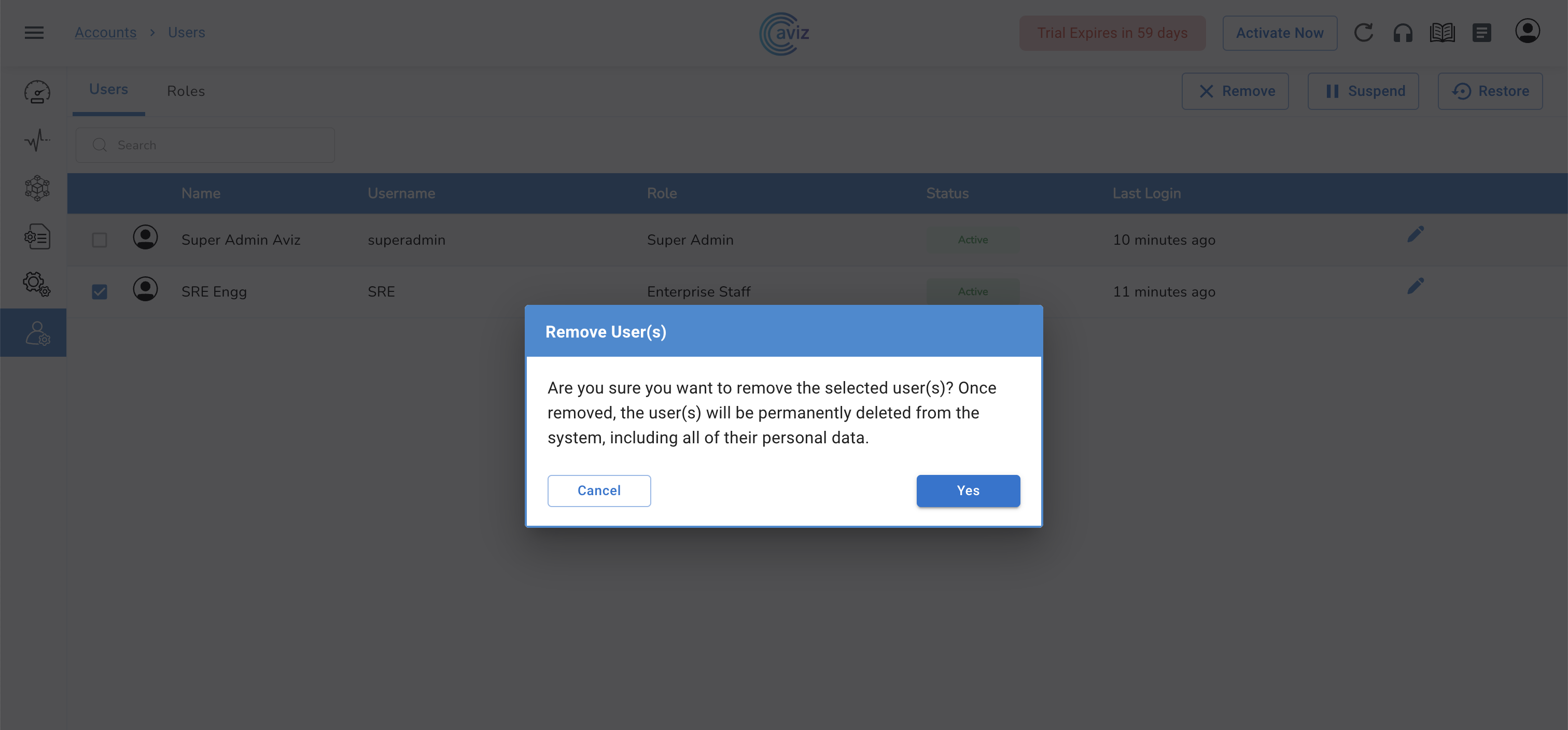
* Navigate to Accounts >> Users >> ((Select Users you want to remove)) >> remove >> Yes
* We can remove multiple users at a time

<figure><img src="https://content.gitbook.com/content/sjMG8ERI8JuFHFkm9MpV/blobs/3fsyoPuEtVo4s0cn8f1m/Screenshot%202023-02-05%20at%204.17.37%20PM.png" alt=""><figcaption></figcaption></figure>

<figure><img src="https://content.gitbook.com/content/sjMG8ERI8JuFHFkm9MpV/blobs/ZDoD0c1CUnsBxKH4tiKx/Screenshot%202023-02-05%20at%204.22.33%20PM.png" alt=""><figcaption></figcaption></figure>

<figure><img src="https://content.gitbook.com/content/sjMG8ERI8JuFHFkm9MpV/blobs/vti2C8GGw5yMUV0djceE/Screenshot%202023-02-05%20at%204.23.00%20PM.png" alt=""><figcaption></figcaption></figure>

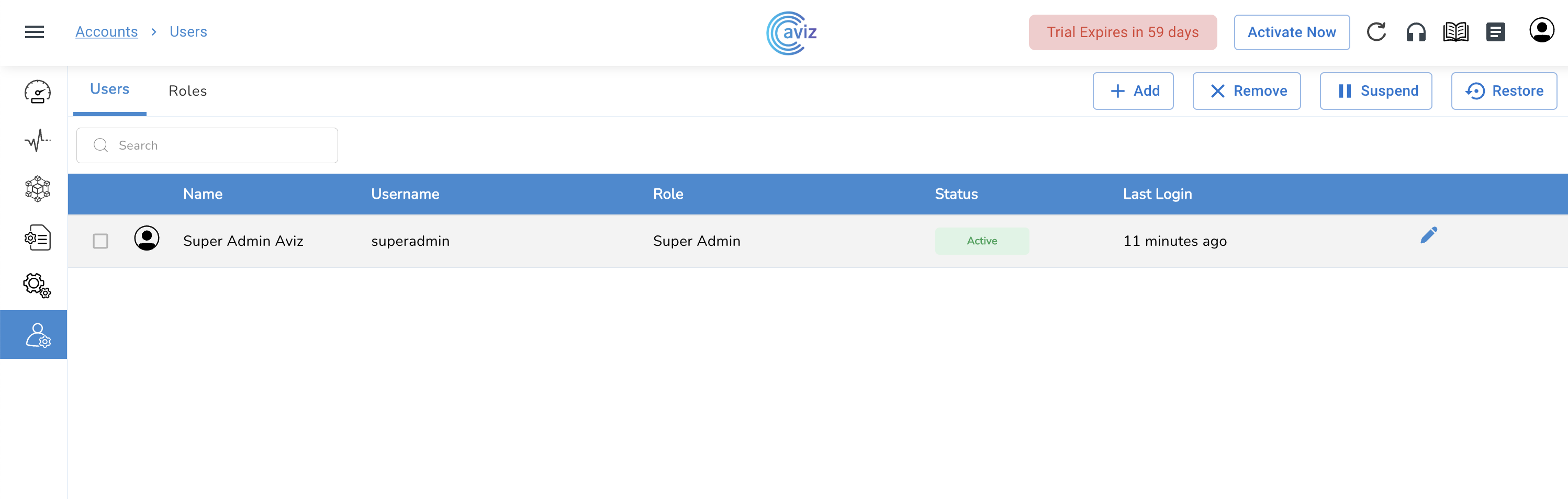
* After this, the user will be removed from the database and cannot use credentials to login again

### Users - Suspend User

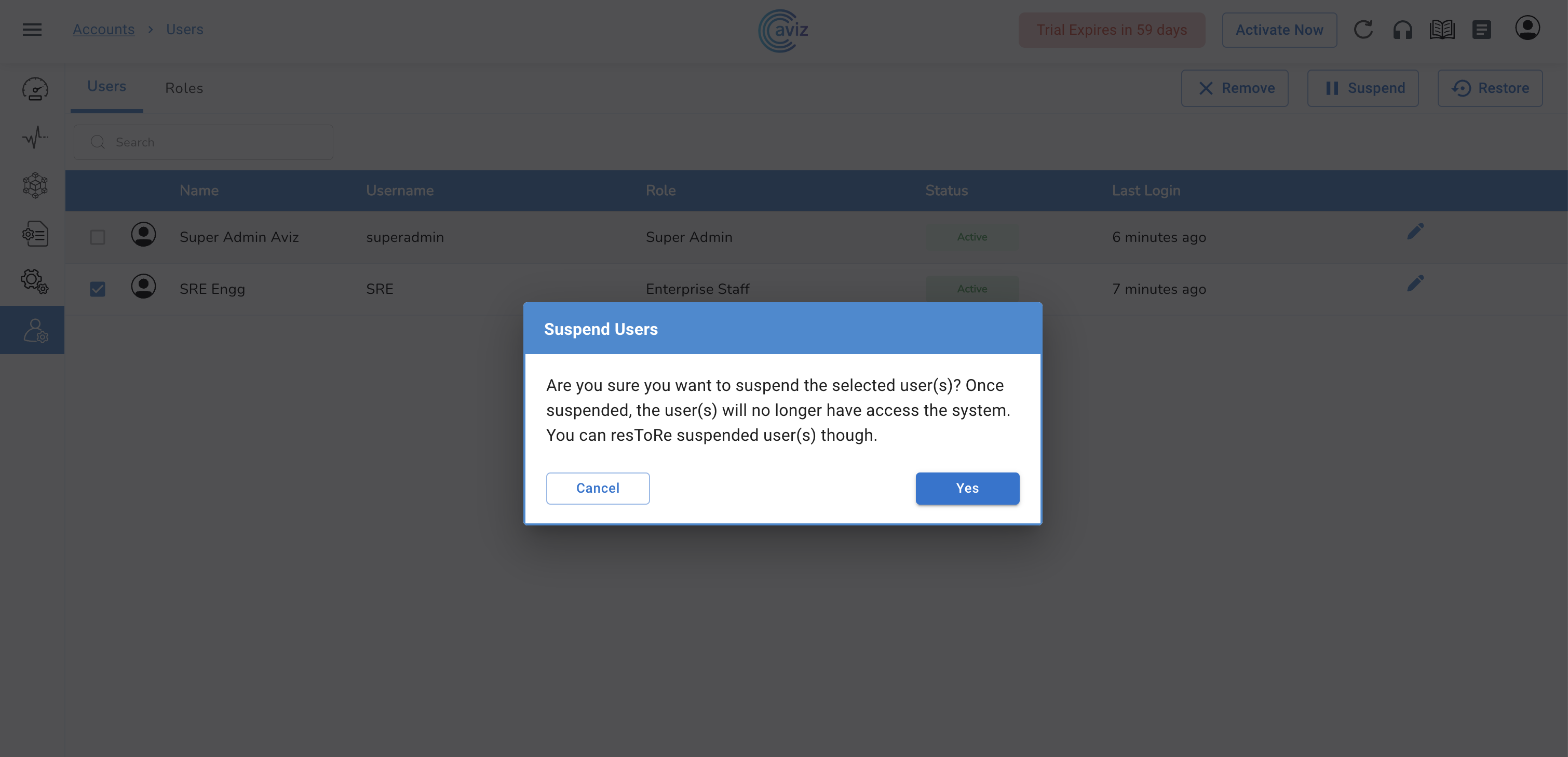
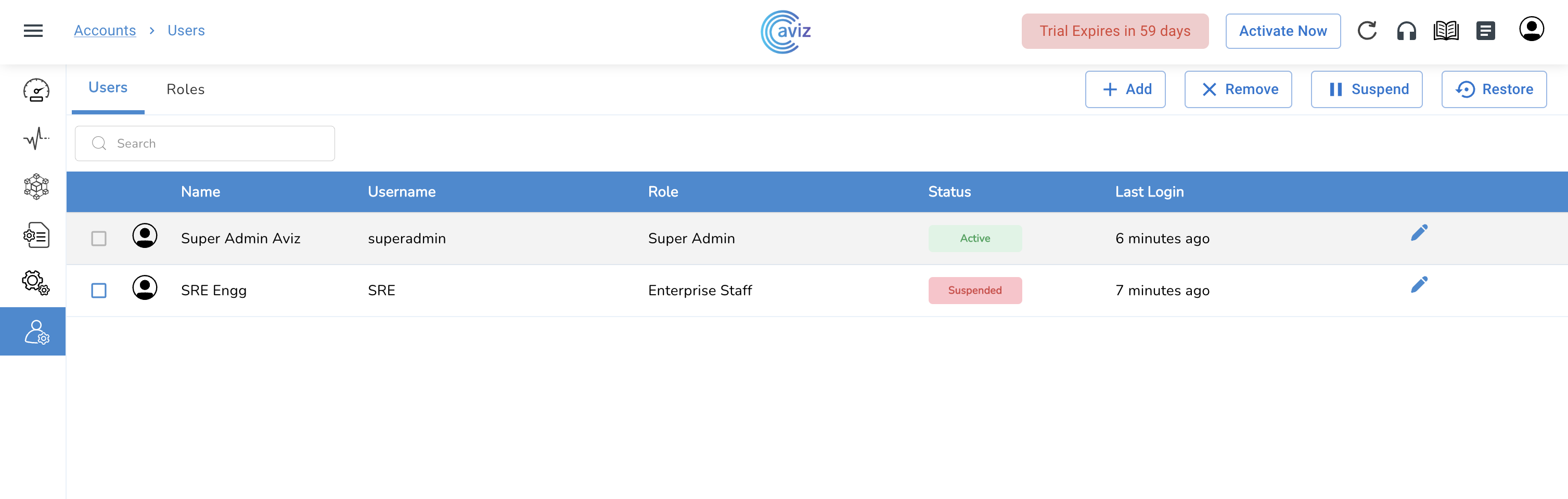
* Instead of removing any user, we can also suspend the user&#x20;
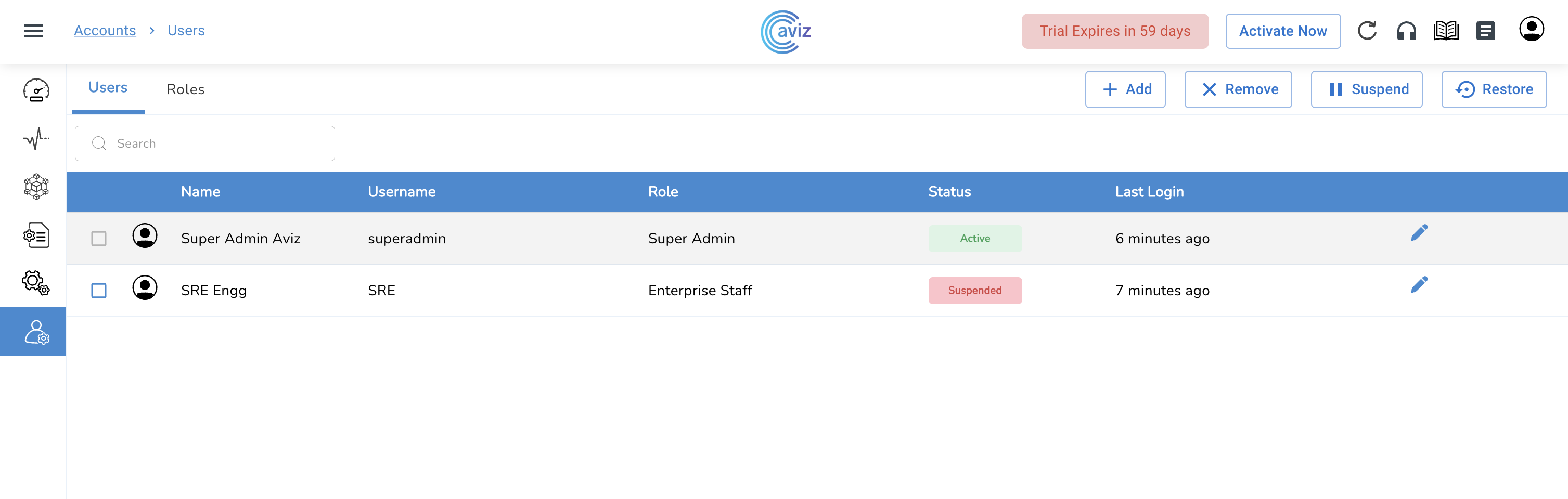
* Once we suspend a user it will not be removed from the database but it will be in an Inactive state in the database&#x20;
* Later if we need we can restore the user to its active state
* Navigate to <mark style="color:blue;">**Accounts >> Users >> ((Select Users you want to suspend)) >> Suspend >> Yes**</mark>

<figure><img src="https://content.gitbook.com/content/sjMG8ERI8JuFHFkm9MpV/blobs/ZWY4hnRtic6mj17jBYyh/image.png" alt=""><figcaption></figcaption></figure>

* Choose users & click on <mark style="color:blue;">**`Suspend`**</mark>

<figure><img src="https://content.gitbook.com/content/sjMG8ERI8JuFHFkm9MpV/blobs/idKWsjDLFJlpfBDGdaID/image.png" alt=""><figcaption></figcaption></figure>

<figure><img src="https://content.gitbook.com/content/sjMG8ERI8JuFHFkm9MpV/blobs/u4QQVcW0LsIaIb1lSIkA/image.png" alt=""><figcaption></figcaption></figure>

### Users - Restore User

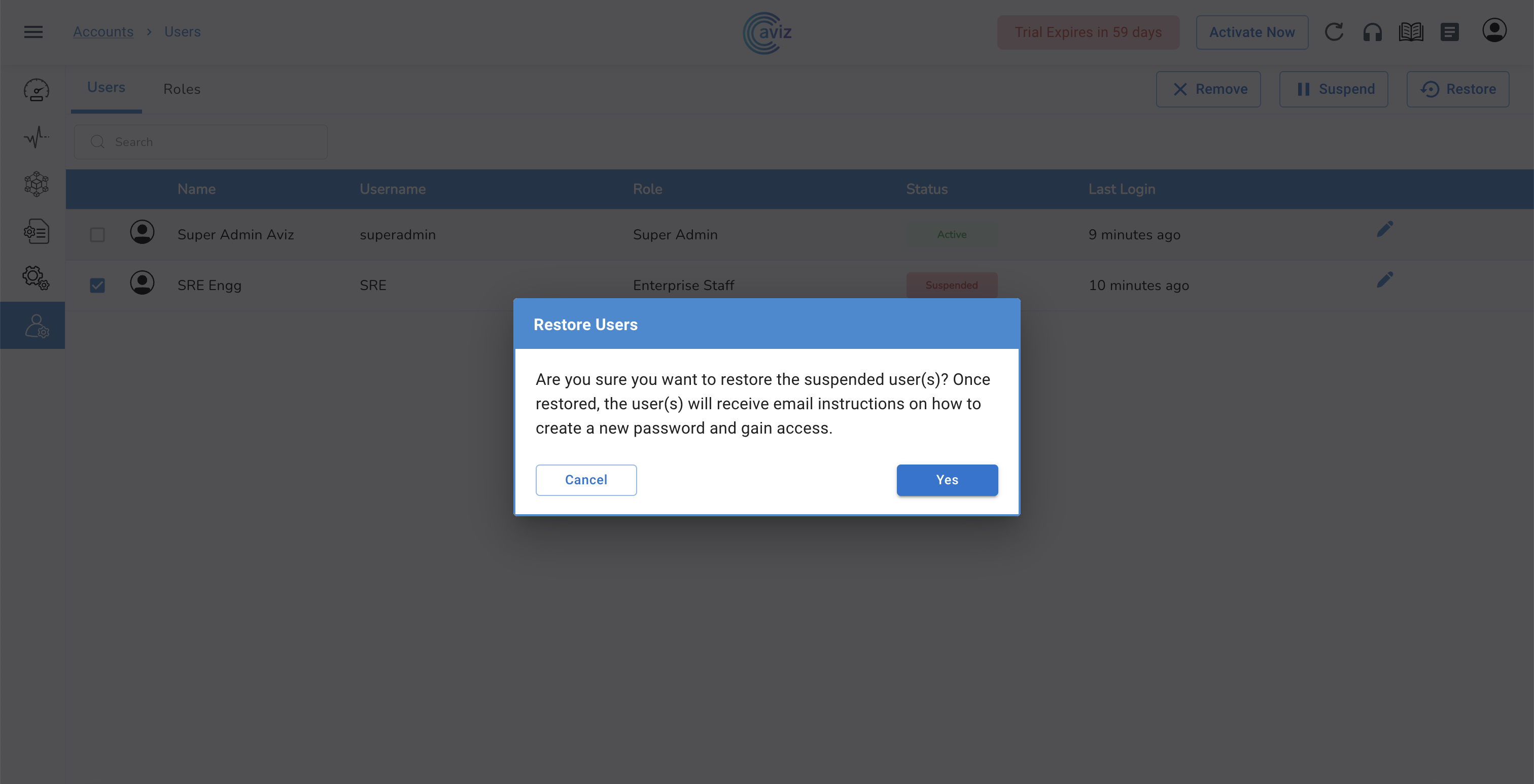
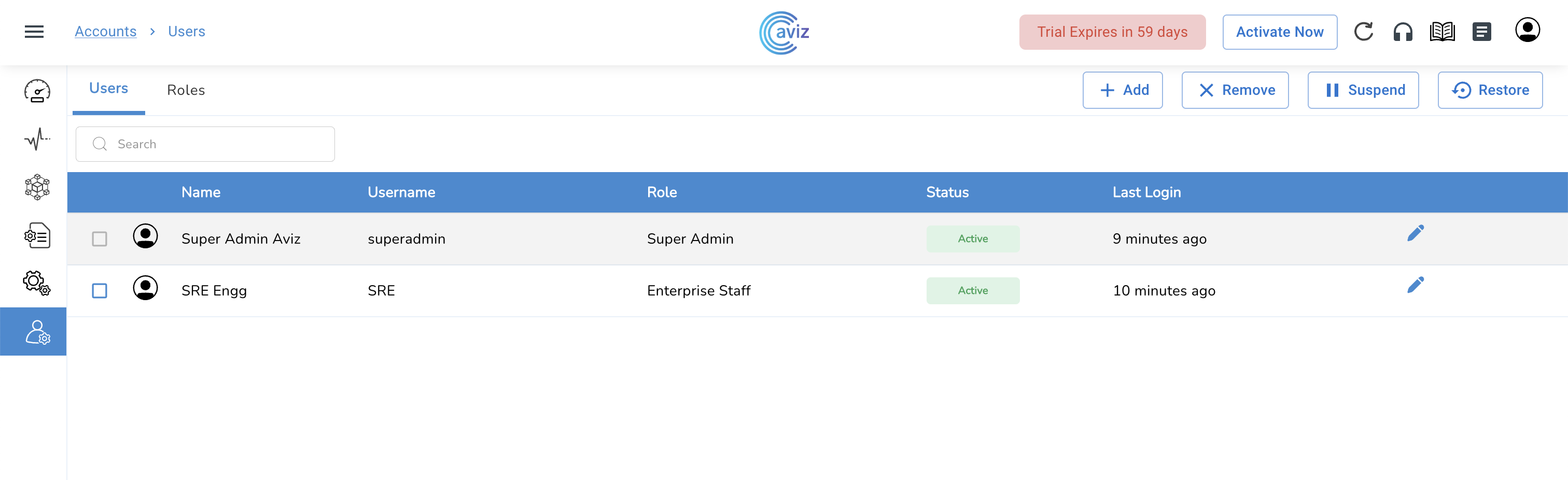
* Navigate to <mark style="color:blue;">**Accounts >> Users >> ((Select Users you want to restore)) >> Restore >> Yes**</mark>

<figure><img src="https://content.gitbook.com/content/sjMG8ERI8JuFHFkm9MpV/blobs/8IHtW37GdR2hjxa5iopx/image.png" alt=""><figcaption></figcaption></figure>

<figure><img src="https://content.gitbook.com/content/sjMG8ERI8JuFHFkm9MpV/blobs/nuSG4LBZZFGNBHq688pS/Screenshot%202023-02-05%20at%204.21.34%20PM.png" alt=""><figcaption></figcaption></figure>

<figure><img src="https://content.gitbook.com/content/sjMG8ERI8JuFHFkm9MpV/blobs/aUTJoLHO9uiRCimqXUgz/Screenshot%202023-02-05%20at%204.21.59%20PM.png" alt=""><figcaption></figcaption></figure>

## Roles

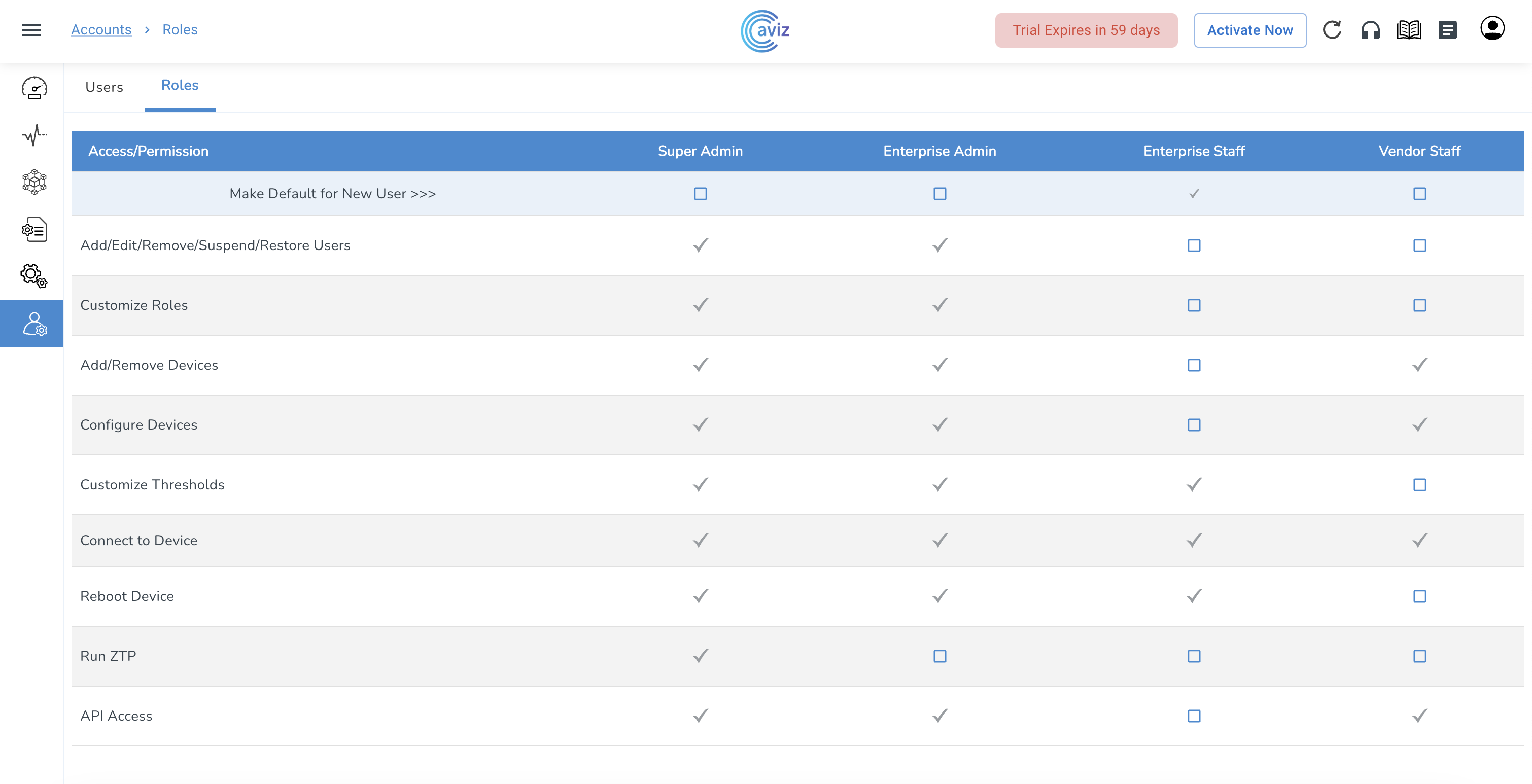
* Navigate to <mark style="color:blue;">**Account >> Roles**</mark>

<figure><img src="https://content.gitbook.com/content/sjMG8ERI8JuFHFkm9MpV/blobs/hwwm9R1giF1HXU4IbueV/Screenshot%202023-02-05%20at%204.24.08%20PM.png" alt=""><figcaption></figcaption></figure>

* By default, the device comes with these 4 Roles
  * Super Admin
  * Enterprise Admin
  * Enterprise Staff
  * Vendor Staff
* As per the new user access requirement, we can assign limited access to user roles&#x20;

### Roles - Add User Roles

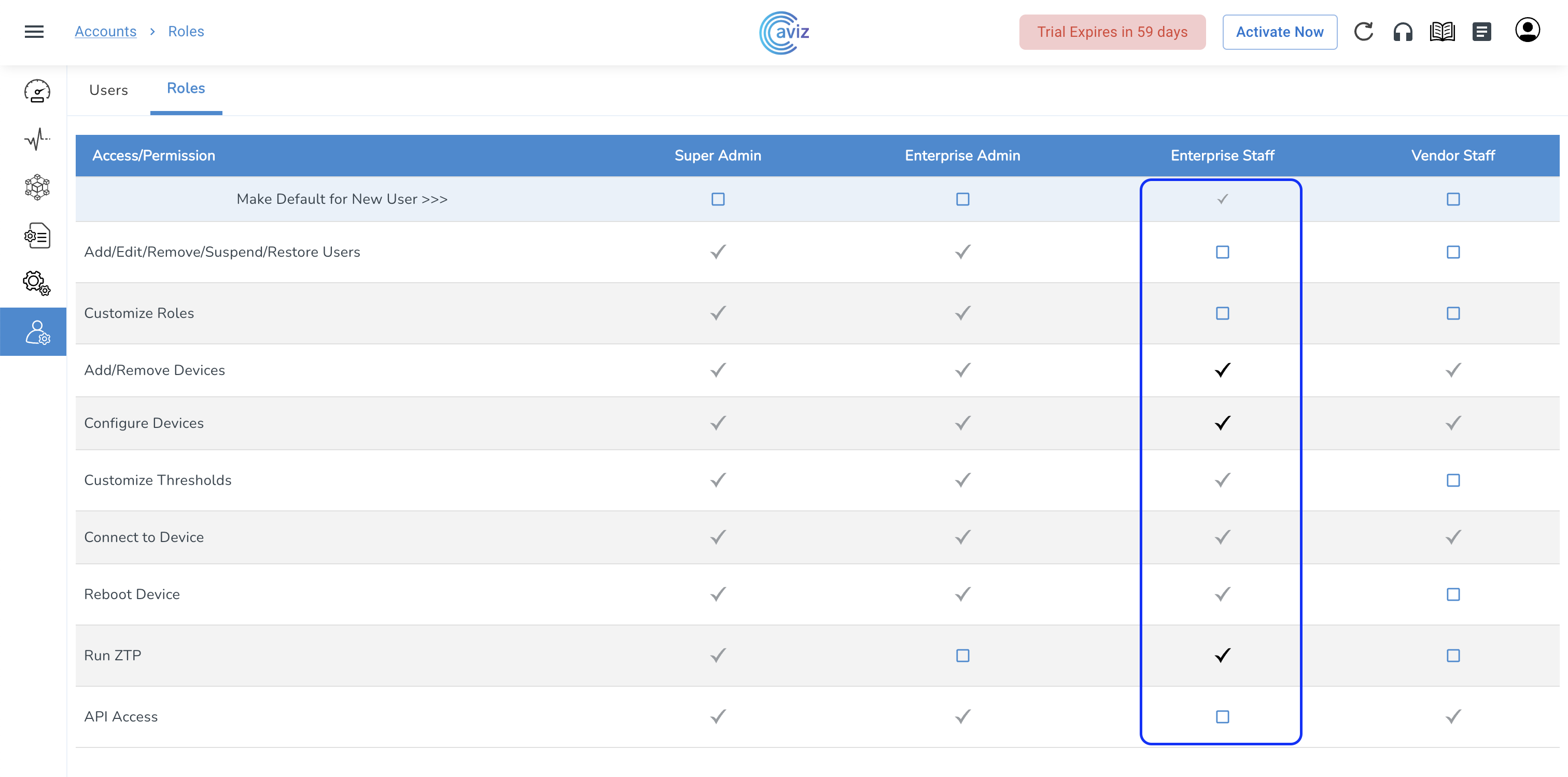
* Navigate to <mark style="color:blue;">**Accounts >> Roles**</mark>
* Now let's add few extra permissions
  * Add/Remove Devices
  * Configure Device
  * Run ZTP

<figure><img src="https://content.gitbook.com/content/sjMG8ERI8JuFHFkm9MpV/blobs/SEietClyg1phcWpr4Ceg/Screenshot%202023-02-05%20at%204.24.52%20PM.png" alt=""><figcaption></figcaption></figure>

{% hint style="info" %}
After giving permissions, the user can be added to this role in the user section.
{% endhint %}