# Monitor

## Overview

The monitor widget in ONES:

* Shows the complete topology view of the fabric
* The Topology view can be filtered by:&#x20;
  * Region &#x20;
  * Brick &#x20;
* This page shows all the links and information connected to each other&#x20;
* Low and high utilization of all components&#x20;
* Input / Output errors on links&#x20;
* ASIC detailed view of all managed devices&#x20;
* BGP status&#x20;
  * Neighbour Count&#x20;
  * Neighbor status (Up/Down)&#x20;
  * Prefixes (Total/Advertised)&#x20;
  * ASN
* Traffic View
  * input/output packets in million per sec
  * Errors and Discard packets per interface

**NOTE**: If all the managed devices have the same Region/Brick ID, we do not get any filter ribbon

## Topology

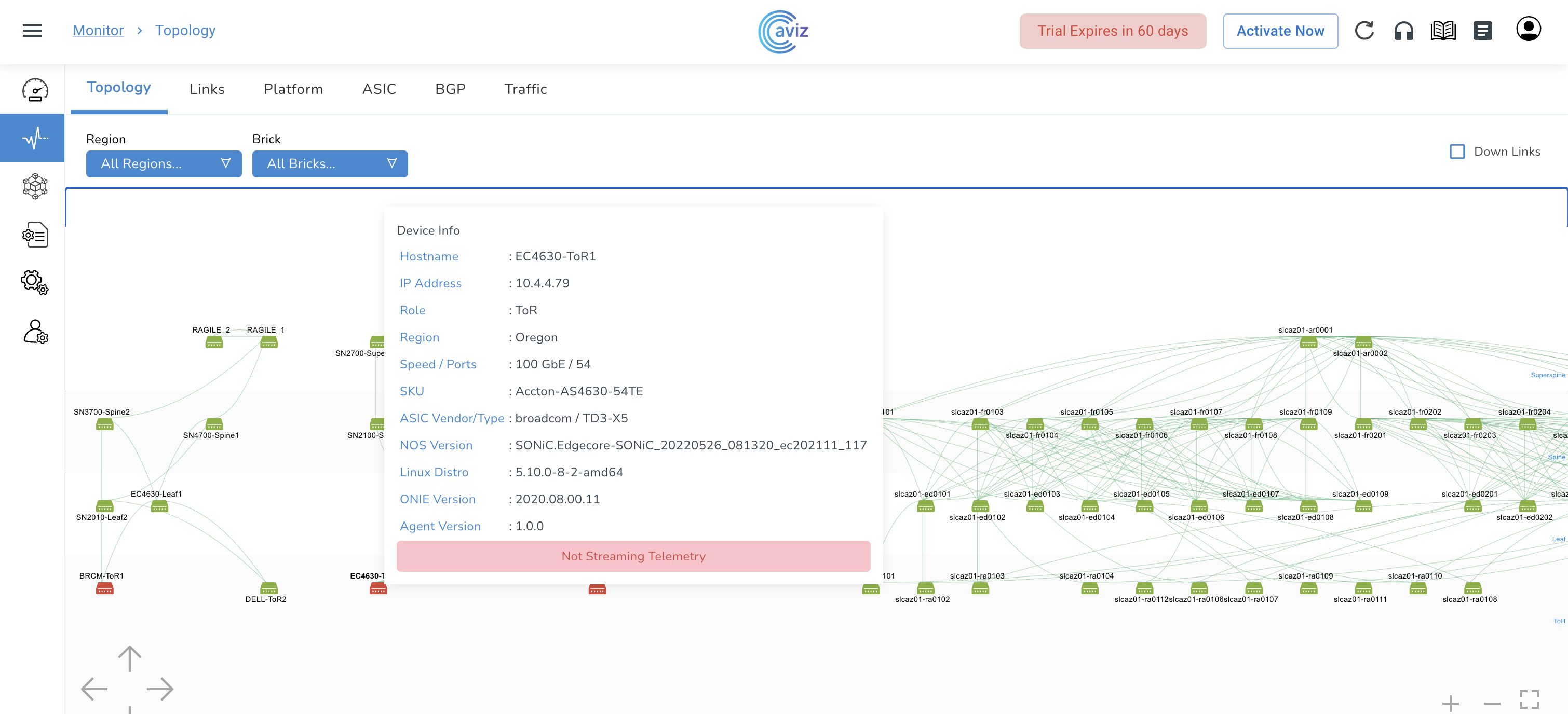
* Navigate to <mark style="color:blue;">**Monitor >> Topology**</mark>

<figure><img src="https://content.gitbook.com/content/sjMG8ERI8JuFHFkm9MpV/blobs/WhPVlfh38COl2FjZ7ndw/Topology%201.png" alt=""><figcaption></figcaption></figure>

* This shows the complete Topology view, how the devices are connected and to which role they belong to&#x20;
* We can put the filters to check the customized view of the Diagram by: Region Availability Zone Brick ID

**NOTE**: we do not get filter ribbon if all devices belong to the same Region/Availability Zone/Brick ID

* We can also check Down Links to check the topology those are having links in the shutdown state as per Role&#x20;
  * Super Spine&#x20;
  * Spine&#x20;
  * Leaf&#x20;
  * ToR&#x20;
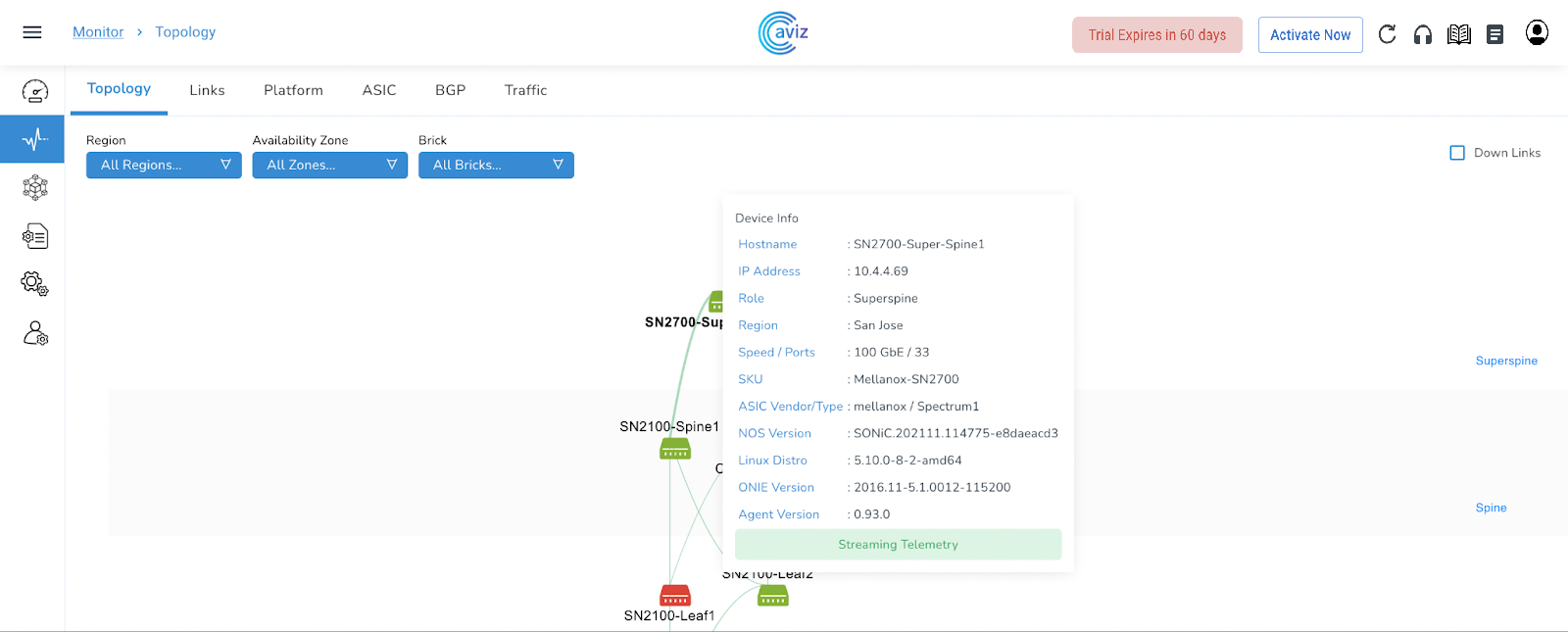
* When we hover the cursor over any device, we get the device status and device details popup

<figure><img src="https://content.gitbook.com/content/sjMG8ERI8JuFHFkm9MpV/blobs/Pl5q2Qzj8WNL73Bd3q5K/Topology%202.png" alt=""><figcaption></figcaption></figure>

* Users can easily filter the view as per the Region, Availability zone and Brick ID

## Links

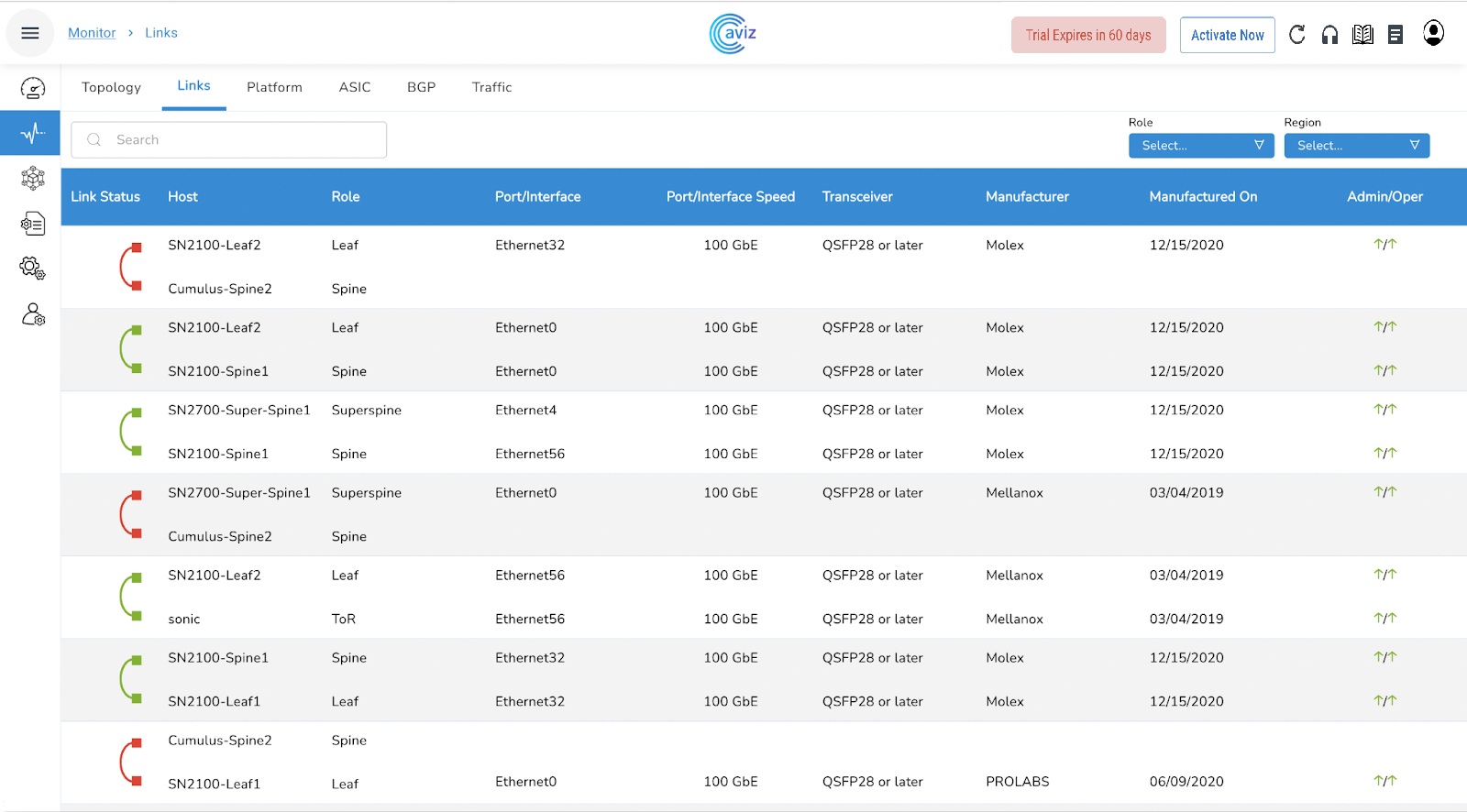
This page gives a view to the user for all the possible connected links between devices with a few more capabilities

* Navigate to <mark style="color:blue;">**Monitor >> Links**</mark>

<figure><img src="https://content.gitbook.com/content/sjMG8ERI8JuFHFkm9MpV/blobs/masc8ZBjor1vuQP9UWAm/Topology%203.png" alt=""><figcaption></figcaption></figure>

| Feature                   | Use                             |
| ------------------------- | ------------------------------- |
| Hostname                  | Hostname of the managed device  |
| Role                      | Role of the device              |
| Port/Interface            | Interface details               |
| Port Speed                | Link speed of connected devices |
| Transceiver               | SFP/QSFP Optics statuts         |
| Manufacturer              | Device Manufacturer             |
| Manufactured Date         | Date of Manufacturing           |
| Admin and Operator status | Local and Remote status of link |

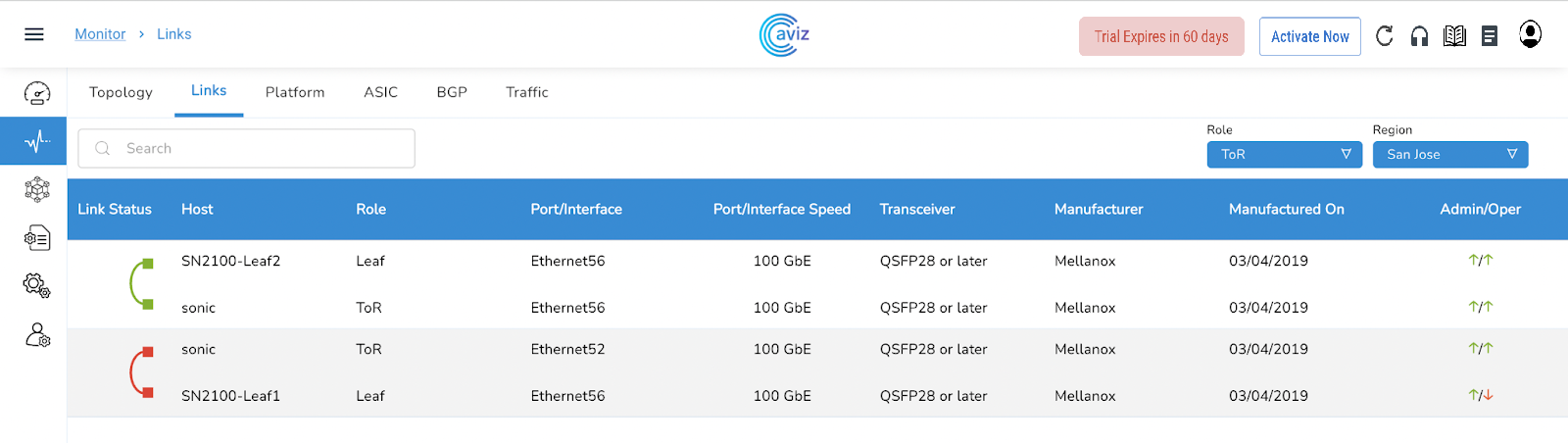
* This page helps a user to get the best view of the number of connections between devices with speed and other manufacturer details
* This page gives the exact view of the interface name, interface speed, transceivers and admin & operator status&#x20;

### Links View with Filter Ribbon

<figure><img src="https://content.gitbook.com/content/sjMG8ERI8JuFHFkm9MpV/blobs/oRfIPdboEoLDqRZ9s4sw/Topology%204.png" alt=""><figcaption></figcaption></figure>

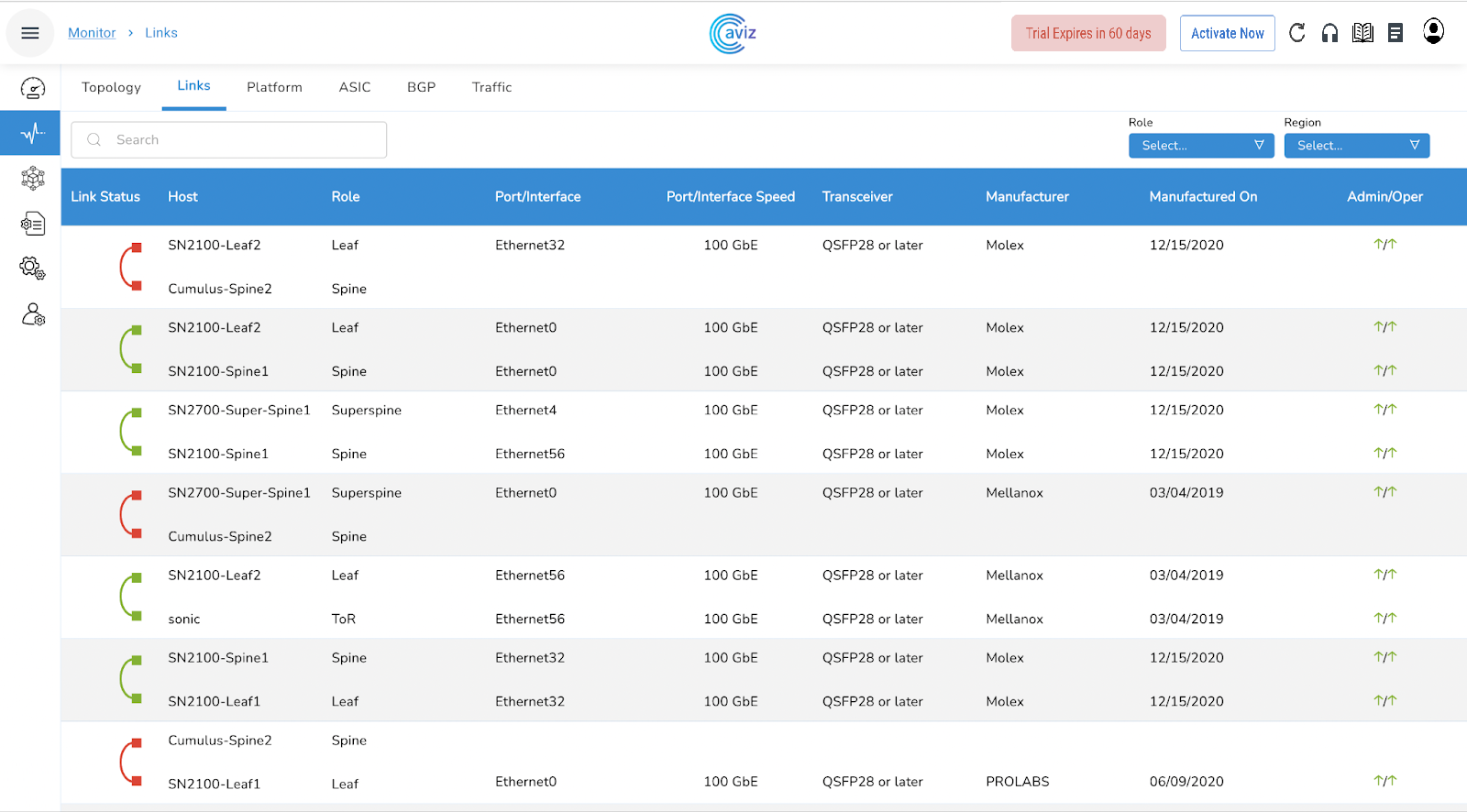
* We can also have a filtered view of links
* Choose a specific Role and Region to filter&#x20;
* let's choose:
  * Role: ToR
  * Region: San Jose

<figure><img src="https://content.gitbook.com/content/sjMG8ERI8JuFHFkm9MpV/blobs/2iaxkUycrdec0mYhZs75/Topology%205.png" alt=""><figcaption></figcaption></figure>

## Platform

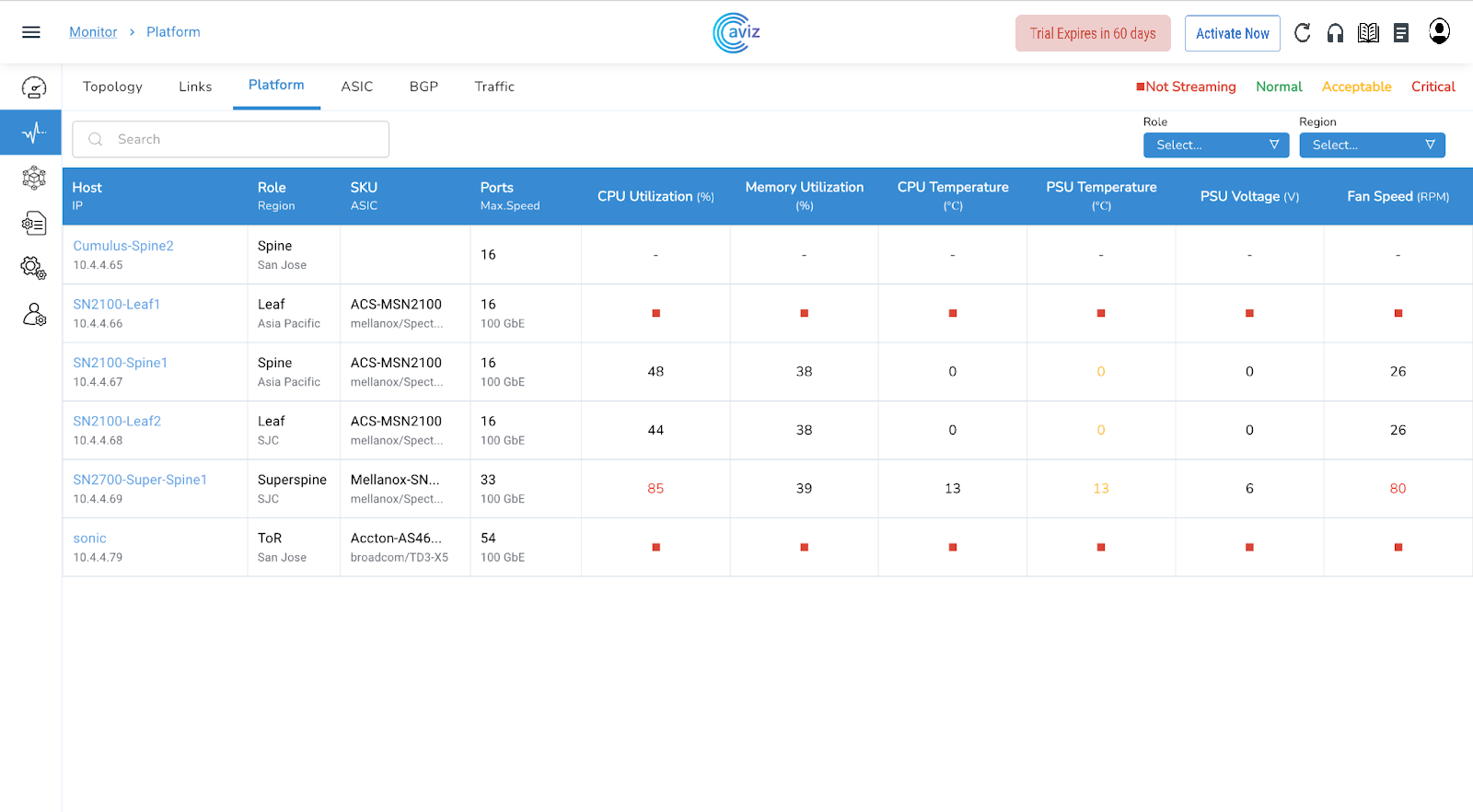
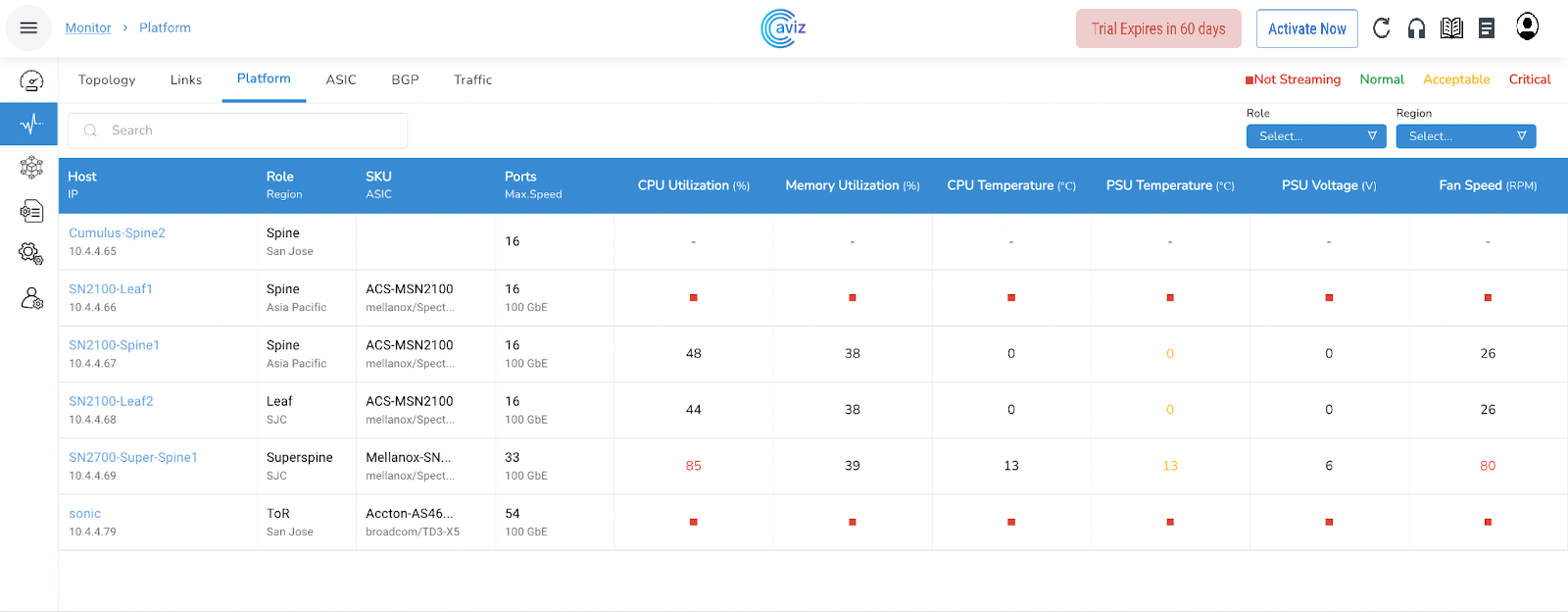
This page shows the latest utilization of the devices with CPU & Memory utilization, Temperature & Voltage of PSU, and fan speed in RPM

* Navigate to <mark style="color:blue;">**Monitor >> Platform**</mark>

<figure><img src="https://content.gitbook.com/content/sjMG8ERI8JuFHFkm9MpV/blobs/9NEQ33ujPAkWtXUu8WH8/Topology%206.png" alt=""><figcaption></figcaption></figure>

### Platform Status

Platform Status is reported for the following components

* Roles
* SKU/ASIC
* Ports/Max Speed
* CPU Utilization (%)
* Memory Utilization (%)
* CPU Temperature (℃)
* PSU Temperature (℃)
* PSU Voltage (V)
* Fan Speed (RPM)

<table data-header-hidden><thead><tr><th width="218">Feature</th><th>Uses</th></tr></thead><tbody><tr><td>HOST / IP</td><td><ul><li>Device Name</li><li>Device IP</li></ul></td></tr><tr><td><p></p><p>Roles/Region</p></td><td><ul><li>Device Role</li><li>Device Region</li></ul></td></tr><tr><td>SKU/ASIC</td><td><ul><li>SKU (Stock Keeping Unit)</li><li>ASIC</li></ul></td></tr><tr><td>Port/Max Speed</td><td><ul><li>Total number of ports available</li><li>Speed of ports</li></ul></td></tr><tr><td>CPU Utilization (%)</td><td><p>CPU Utilization reported in 4 states</p><ul><li>Normal</li><li>Acceptable</li><li>Critical - Action needed</li><li>Not Streaming - Agent is not up</li></ul><p>Click on any device to get the view/status of all the components related to that device<br></p></td></tr><tr><td>Memory Utilization (%)</td><td><p>Memory Utilization reported in 4 states</p><ul><li>Normal</li><li>Acceptable</li><li>Critical - Action needed</li><li>Not Streaming - Agent is not up</li></ul><p>Click on any device to get the view/status of all the components related to that device</p></td></tr><tr><td>Average CPU Temperature (C)</td><td><p>Details of the temperature of the CPU across all the devices in degrees celsius</p><ul><li>Any device that breaches the configured acceptable or critical value will be shown here </li><li>Click on any device to get the view/status of all the components related to that device</li></ul></td></tr><tr><td>Average PSU Temperature (C)</td><td><p>Power Supply Temperature in degrees celsius</p><ul><li>Any device that breaches the configured acceptable or critical value will be shown here </li><li>Click on any device to get the view/status of all the components related to that device</li></ul></td></tr><tr><td>PSU (Voltage)</td><td><p>Power Supply Voltage readings in volts</p><ul><li>Any device that breaches the configured acceptable or critical value will be shown here </li><li>Click on any device to get the view/status of all the components related to that device</li></ul></td></tr><tr><td>Average Fan Speed (%)</td><td><p>Fan Speed in % of maximum supported RPM</p><ul><li>Any device that breaches the configured acceptable or critical value will be shown here </li><li>Click on any device to get the view/status of all the components related to that device</li></ul></td></tr></tbody></table>

### Customized View

* We can check the health of the device as per some customization&#x20;
* We can filter the devices by:&#x20;
  * Roles&#x20;
  * Region

#### Role-based Customization

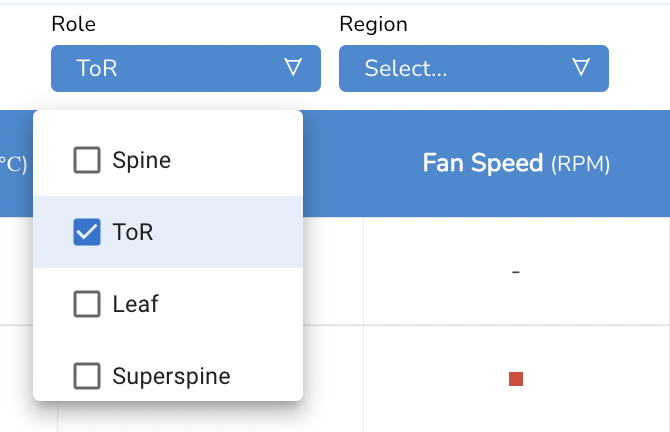
* We can choose a role using the available Role-based option
* 4 Roles available
  * Super Spine
  * Spine
  * Leaf
  * ToR
* Let’s check it with a ToR filter

<figure><img src="https://content.gitbook.com/content/sjMG8ERI8JuFHFkm9MpV/blobs/udvsmWhecf5c1zzFVhRr/image.png" alt=""><figcaption></figcaption></figure>

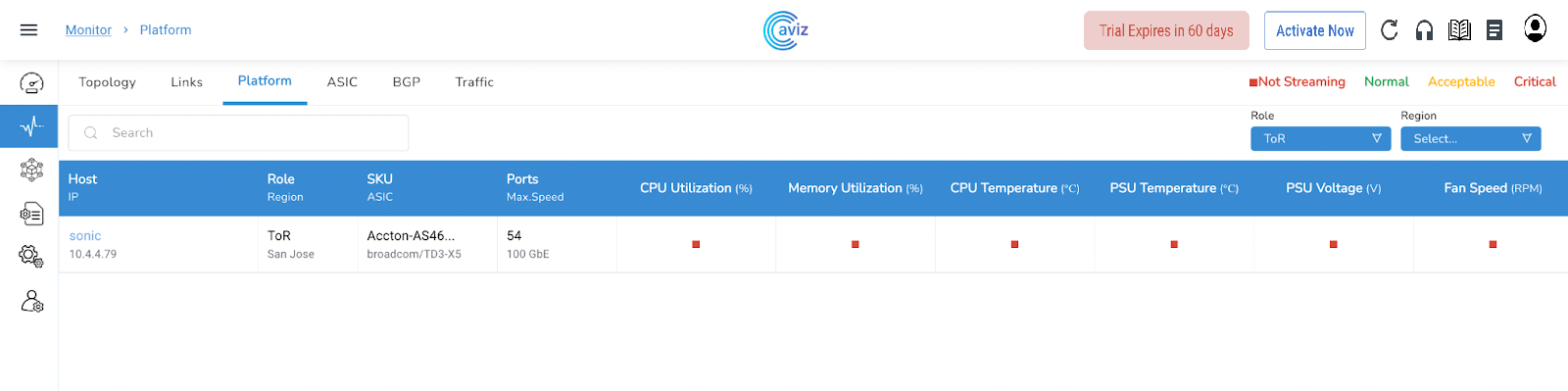
* After selecting ToR input, here is the new view of only devices that belong to the ToR Role

<figure><img src="https://content.gitbook.com/content/sjMG8ERI8JuFHFkm9MpV/blobs/iOVFqfOfdIdhE6mQfUi4/Topology%207.png" alt=""><figcaption></figcaption></figure>

#### Region-based Customization

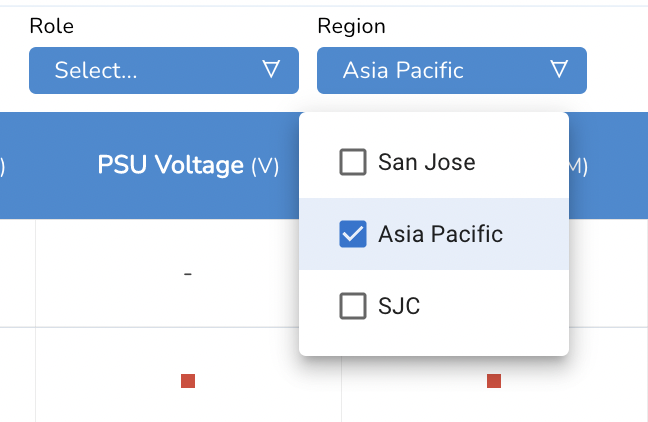
* We can choose a role using the available Region-based option
* Two roles available
  * San Jose
  * Asia Pacific
* Let’s check it with Asia Pacific Region

<figure><img src="https://content.gitbook.com/content/sjMG8ERI8JuFHFkm9MpV/blobs/cQXLTtIsG1hcW076OYba/image.png" alt=""><figcaption></figcaption></figure>

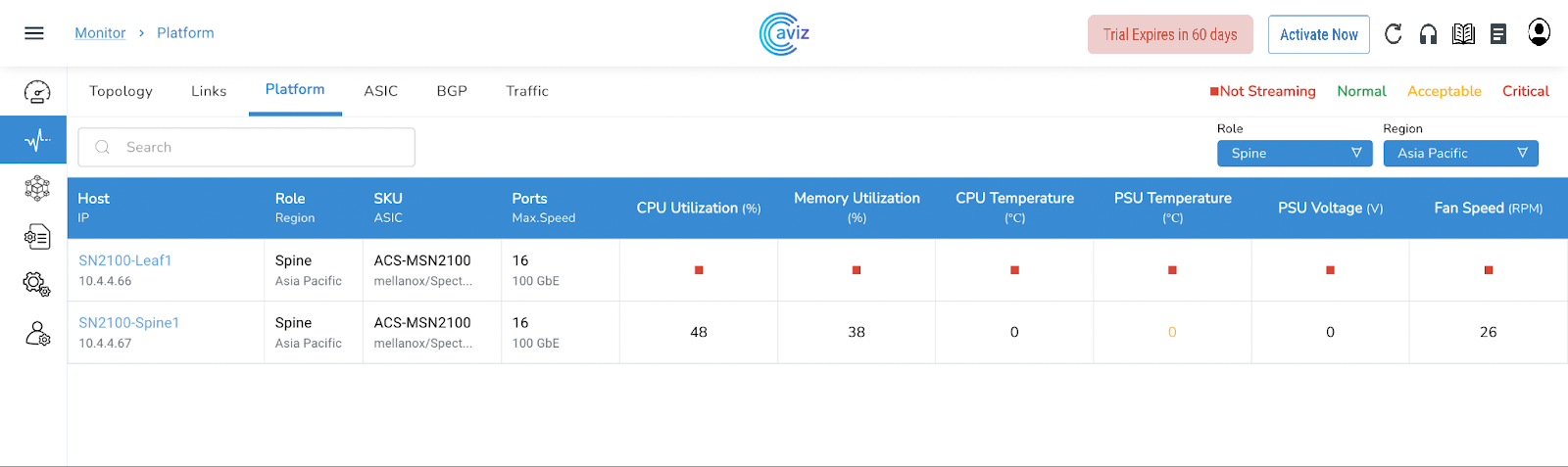
* After selecting Asia Pacific input, here is the new view of only devices that belongs to the Asia Pacific Region

<figure><img src="https://content.gitbook.com/content/sjMG8ERI8JuFHFkm9MpV/blobs/nVtcEtUXnZvBX2QhX32h/Topology%208.png" alt=""><figcaption></figcaption></figure>

#### Role / Region based Customization

* We have the liberty to do the filtering by both combination Role-based and Region based at the same time
* As of now, we have two Region available
  * San Jose
  * Asia Pacific
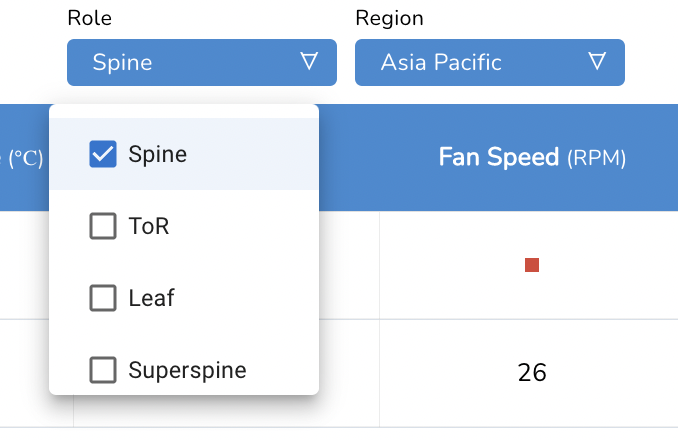
* 3 Roles available
  * Super Spine
  * Spine
  * Leaf
  * ToR
* Let’s check it with a combination of Asia Pacific & Spine Role

<figure><img src="https://content.gitbook.com/content/sjMG8ERI8JuFHFkm9MpV/blobs/CWMDyiOnCAQusssCLuKU/image.png" alt=""><figcaption></figcaption></figure>

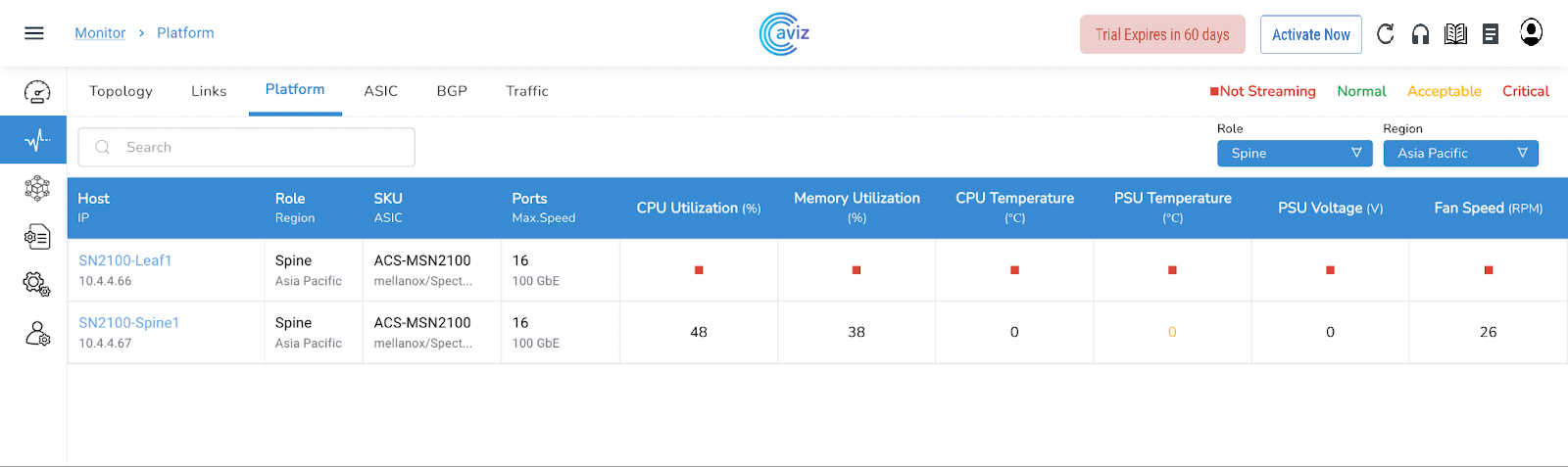
* After selecting both Roles and Region-based filter, here is the new view of the device that belongs to the Spine role and parallel belongs to Asia Pacific Region

<figure><img src="https://content.gitbook.com/content/sjMG8ERI8JuFHFkm9MpV/blobs/U9pYv4Vcd1De1xGzacYA/Topology%209.png" alt=""><figcaption></figcaption></figure>

### Per Device Status

* This Platform Widget also gives the option to check the extended capability view of the device&#x20;
* Apart from this monitoring view, we can also verify/check extended feature sets like:
  * PSU Current (A)&#x20;
  * PSU Power (W)&#x20;
  * Services Running&#x20;
  * Services CPU/Memory Consumption (%)&#x20;
* To view per device status including these new widgets, click on any of the device statuses present on the Platform tab

<figure><img src="https://content.gitbook.com/content/sjMG8ERI8JuFHFkm9MpV/blobs/kTG0JnEUC7VTxeWqKtUv/Topology%2010.png" alt=""><figcaption></figcaption></figure>

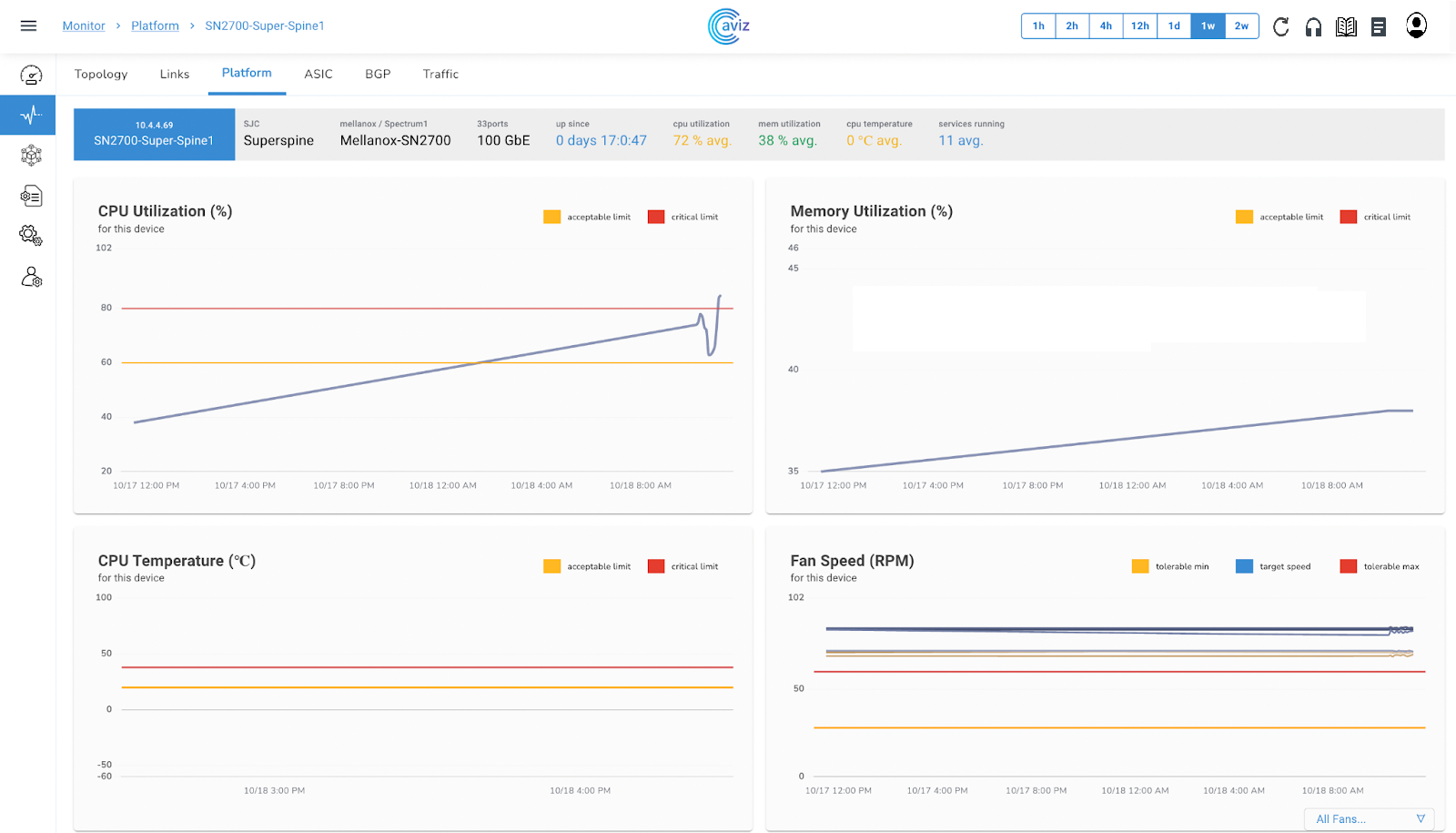
* When we choose a specific device we get an output like this

<figure><img src="https://content.gitbook.com/content/sjMG8ERI8JuFHFkm9MpV/blobs/Z1obayecuKg0UFAvdIKv/Topology%2011.png" alt=""><figcaption></figcaption></figure>

<figure><img src="https://content.gitbook.com/content/sjMG8ERI8JuFHFkm9MpV/blobs/lxbd87RGMFy5ygS59VBs/image.png" alt=""><figcaption></figcaption></figure>

<figure><img src="https://content.gitbook.com/content/sjMG8ERI8JuFHFkm9MpV/blobs/dUfy6DOTIHFtg6iR9QUl/image.png" alt=""><figcaption></figcaption></figure>

#### Device Info Ribbon

<figure><img src="https://content.gitbook.com/content/sjMG8ERI8JuFHFkm9MpV/blobs/RvrKHGNbmidFP9nr7Hot/Topology%2012.png" alt=""><figcaption></figcaption></figure>

<table><thead><tr><th width="121">Feature</th><th>Use</th></tr></thead><tbody><tr><td>1</td><td>Time Frame: Check Utilization Trends based on Time Range<br>The application has the capacity to store up to 2 weeks of data</td></tr><tr><td>2</td><td>Refresh Component Status</td></tr><tr><td>3</td><td>Raise a Ticket for Technical Support </td></tr><tr><td>4</td><td><p>Device Details</p><ul><li>Platform</li><li>Number of Ports and Speed</li><li>Agent Version</li><li>Uptime</li><li>CPU Utilization</li><li>Memory Utilization</li><li>CPU Temperature</li><li>Services running on the device</li></ul></td></tr></tbody></table>

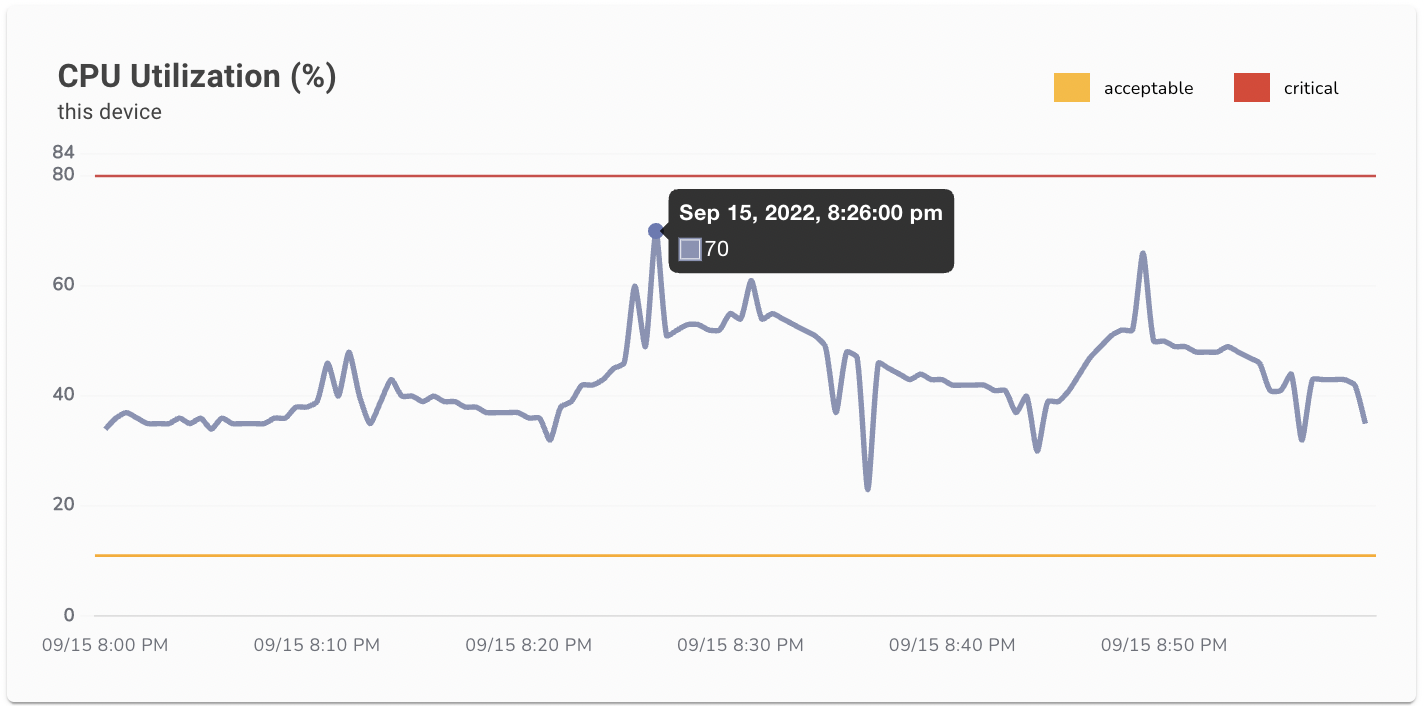
#### CPU Utilization (%)

* Here we get the complete status of CPU utilization with a time range A complete status What was the utilization from starting to end

<figure><img src="https://lh5.googleusercontent.com/5E94oqErqMncDcLC4nBCAJ_iG2MN9TpKSm-EYm0LG7reyhr66Xzonue2KTys64e64zLn_Nb01YCBrLbMILFhR5MvUaiS0bG-bhELpX_4TaBcRVjERXpeLMOHoGfBz7v_RG9ZSYNSSGH9iHW0yrwcKTgd3K0NLtk-BGlAz1d-J5ExcoVMqgnZ9fz9ug" alt=""><figcaption></figcaption></figure>

* To check a specific time detail we can hover the cursor to any level

<figure><img src="https://content.gitbook.com/content/sjMG8ERI8JuFHFkm9MpV/blobs/avs7K8dhJve1Y5f58yoC/image.png" alt=""><figcaption></figcaption></figure>

#### Memory Utilization (%)

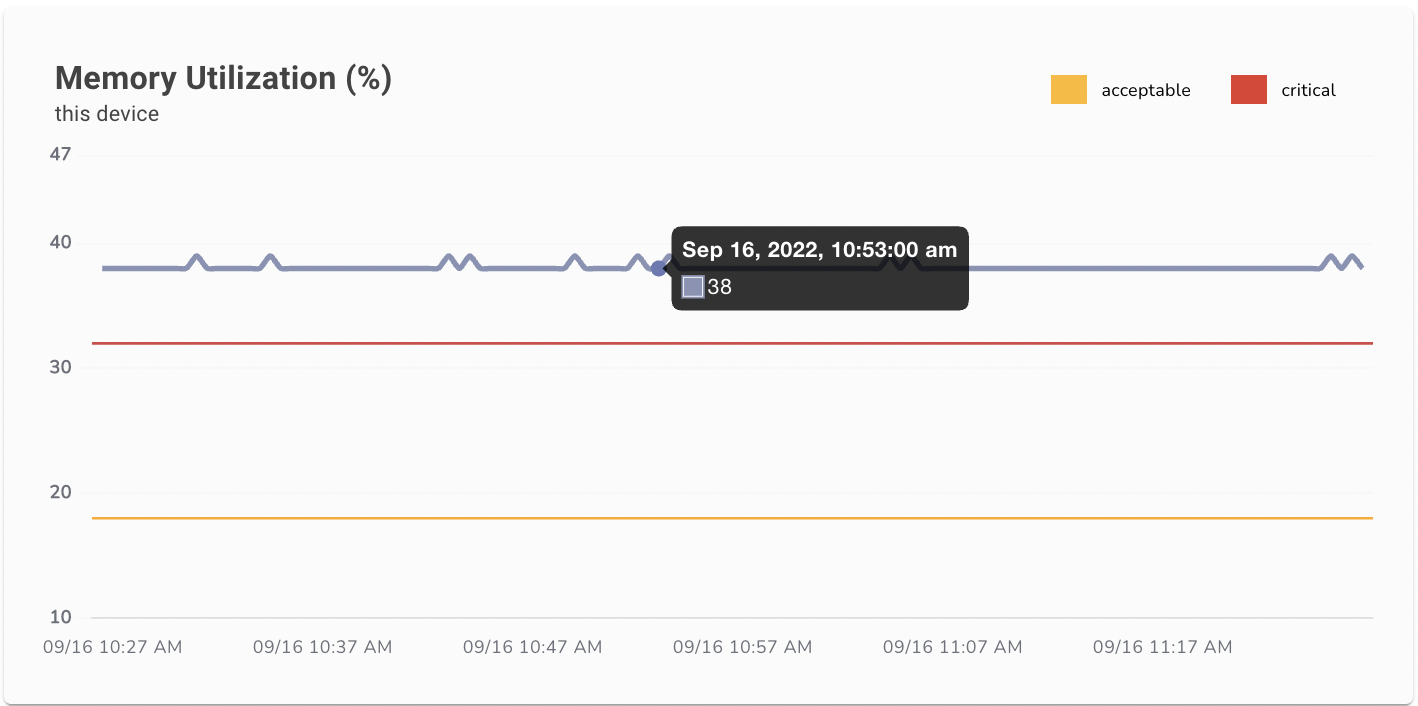
* Now here we get the status of memory utilization of selected device

<figure><img src="https://lh3.googleusercontent.com/nSecrG-4-HGkttOnZx89f7iY6ix8ooz4ppyiYOCIklWj0GHDeRzgP4bcC3AyNmYBaNzMHA9RlM583gSKwpW6cr_oYL7huf0psthHLn0y94-fUPe_S_AoLGc7t9MeIU3tk4BkgihUPOfJc8lQQisVLqOPCNLw6q7XgH5rRZyX9-cb081cmx4SFnFfwQ" alt=""><figcaption></figcaption></figure>

* To check a specific time detail with memory utilization, we can hover the cursor to any level

<figure><img src="https://content.gitbook.com/content/sjMG8ERI8JuFHFkm9MpV/blobs/jNWFUJkmMdaPAZzsd5ct/image.png" alt=""><figcaption></figcaption></figure>

#### CPU Temperature (C)

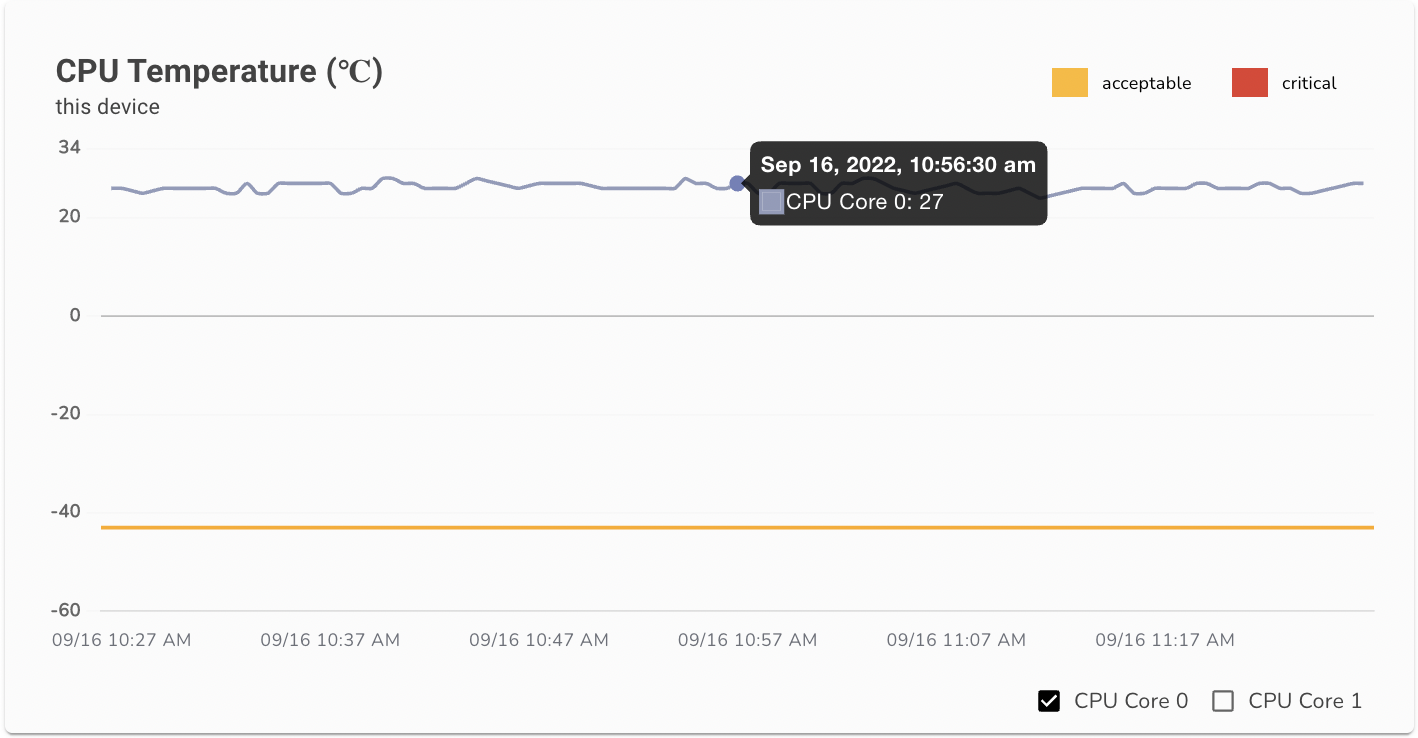
* This template shows the status of CPU temperature in degree celsius&#x20;
* Here we get the status of all the CPU and Core running on the device

<figure><img src="https://lh5.googleusercontent.com/Scmq-B3PrI2DhrCWUl1ep3OPVWSJG9XhAjl1qQOEZtyCP7sYNOjhATK2AxMDbipnzyiiOzIN9tzKJfFKPAMon6GdyotKm3ro6UXa_FbBEg9NSb61mb9eOoFrBzvz6ghvwUj_Vdv5Oxyn5LHIN8ha7lLOrxdkRKcxCAwoof8J38c_CZIkIqISZFq5Fg" alt=""><figcaption></figcaption></figure>

* To check a specific time detail for all the CPU/Cores, we can hover the cursor on any level

<figure><img src="https://lh5.googleusercontent.com/W16HXaMwfycP8S1Oxz1K8h0iGTmr2_SCdzJYMT-PI5pxYtsiHipRetv9qlTseiUz4s0KTBs75rDQ81t-nex9DKXXnHUqux_4N_b5hRLWNu-G3HDn56rmWDMfU_nVW_dKcs6z871AGHqVu9zfboo2mio1JtJaP9Wmh6rKJs6px0Y0a2vmDFT9UfUjhA" alt=""><figcaption></figcaption></figure>

* We can also check Per CPU Core details&#x20;
* We can see here the customized view per CPU Core

<figure><img src="https://content.gitbook.com/content/sjMG8ERI8JuFHFkm9MpV/blobs/NTgsjSM3kNZqxwXohRnY/image.png" alt=""><figcaption></figcaption></figure>

#### Fan Speed (%)

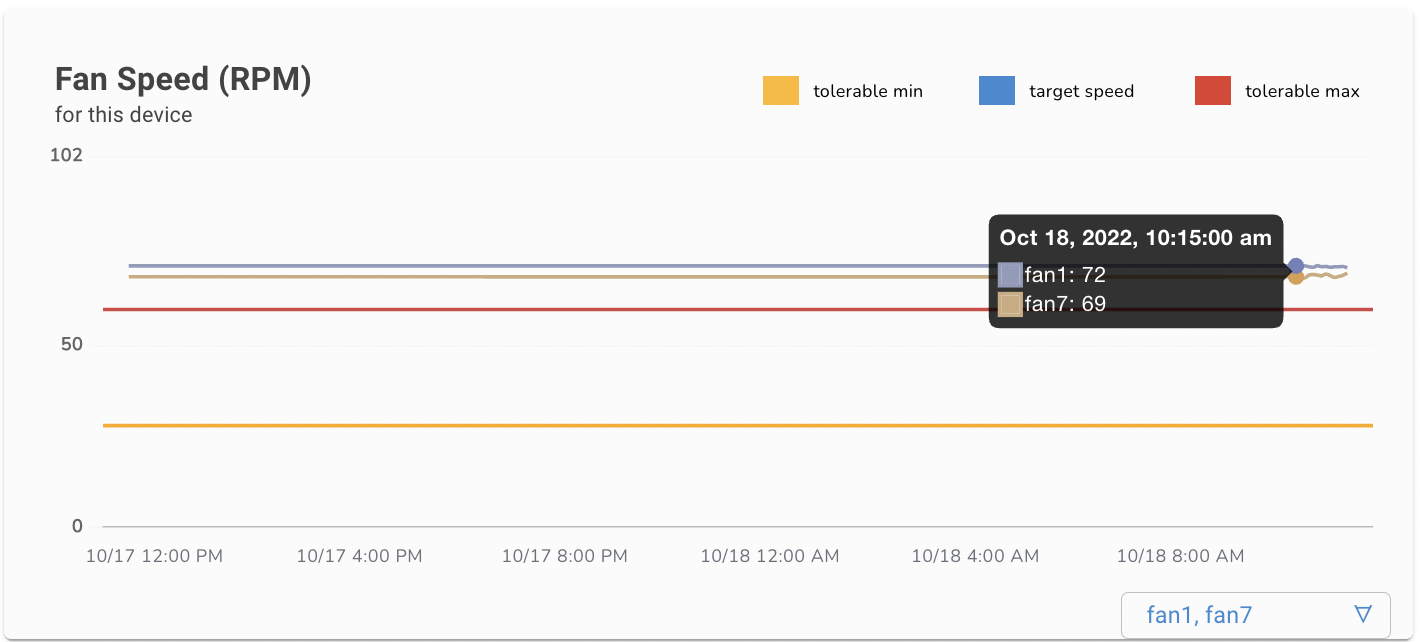
* Here we get the status of the FAN speed percentage level across all fans available on the device

<figure><img src="https://lh6.googleusercontent.com/vCysMzD6U1RwtZ_cSX2aHliIRTygLBnPqENQEjkj_p0iiWefgxFzcD8CW4FIyFGMpRMlass-Y0KiYxF7UfQuyjB5iHIMe_bCBNDzQupzuwcATDRAL9_RATgJVYylZ8zcaoR1BEMgUq3JKtoQ2dll1MFwEt1YaIGMyQc9XbHweVp9wcIUYNnJcesm_Q" alt=""><figcaption></figcaption></figure>

* To check a specific time detail we can hover the cursor on any level

<figure><img src="https://lh3.googleusercontent.com/Ack4wPZkf6pZrBrycBBk5riMA_VkrxhDuIvGF8Qbm7t6SOmBuI-iZVbw678piuNB8j8UR21dkL3oWDlwpL5ME8QFu_kDA_4xauuRfLYIErL3mzU_H1pml_G4FkBLetQU26D3NhTqjAUb9oIE73ygHl5yAccBwL3sDaA03dA2u7rXcwANnUaVpK2YCw" alt=""><figcaption></figcaption></figure>

* We can choose to view the customized view of a few fans at once&#x20;
* Here we can see the output of fan1 and fan7 in this customized view&#x20;
* When we move the cursor to check the exact status of fans at a particular time

<figure><img src="https://content.gitbook.com/content/sjMG8ERI8JuFHFkm9MpV/blobs/IekXH9HGXRVGIyflSXcl/image.png" alt=""><figcaption></figcaption></figure>

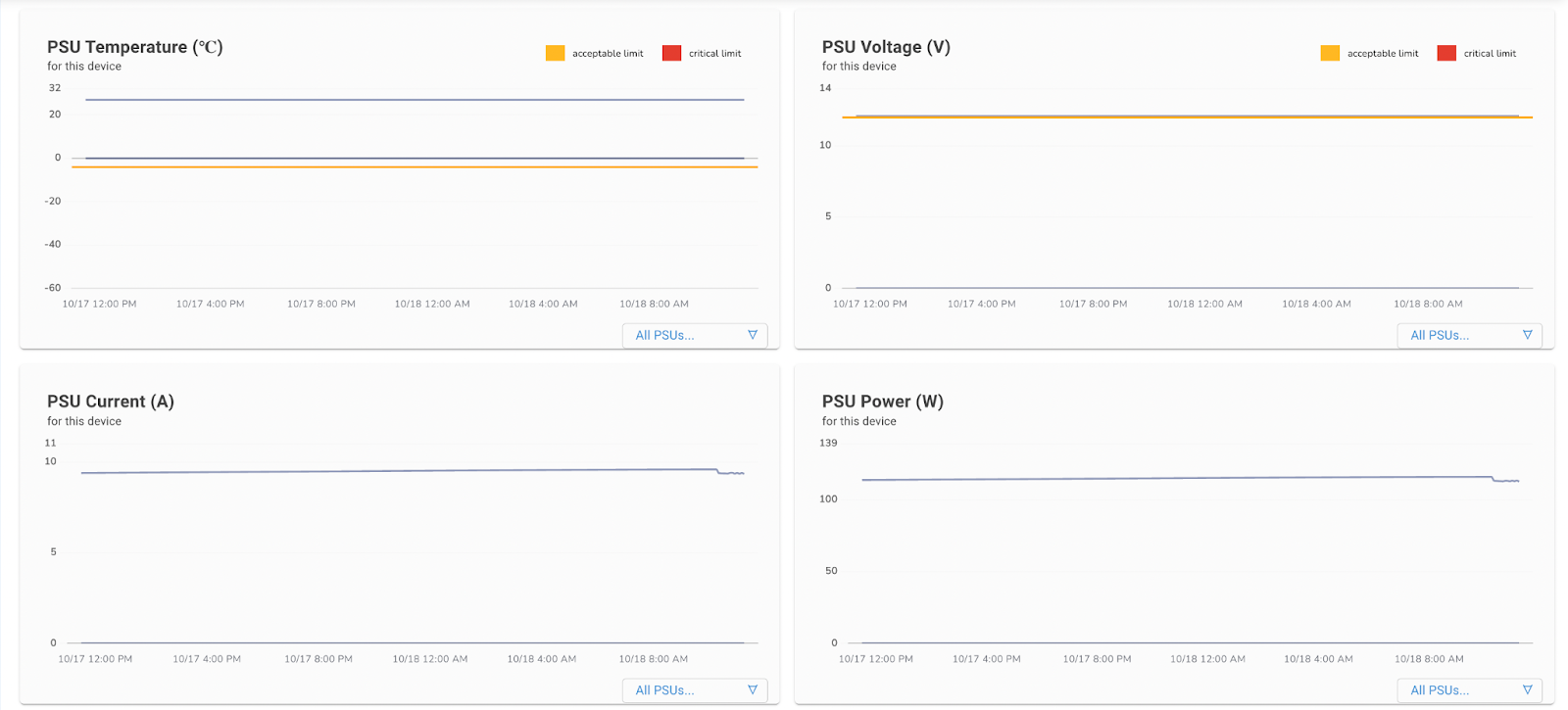
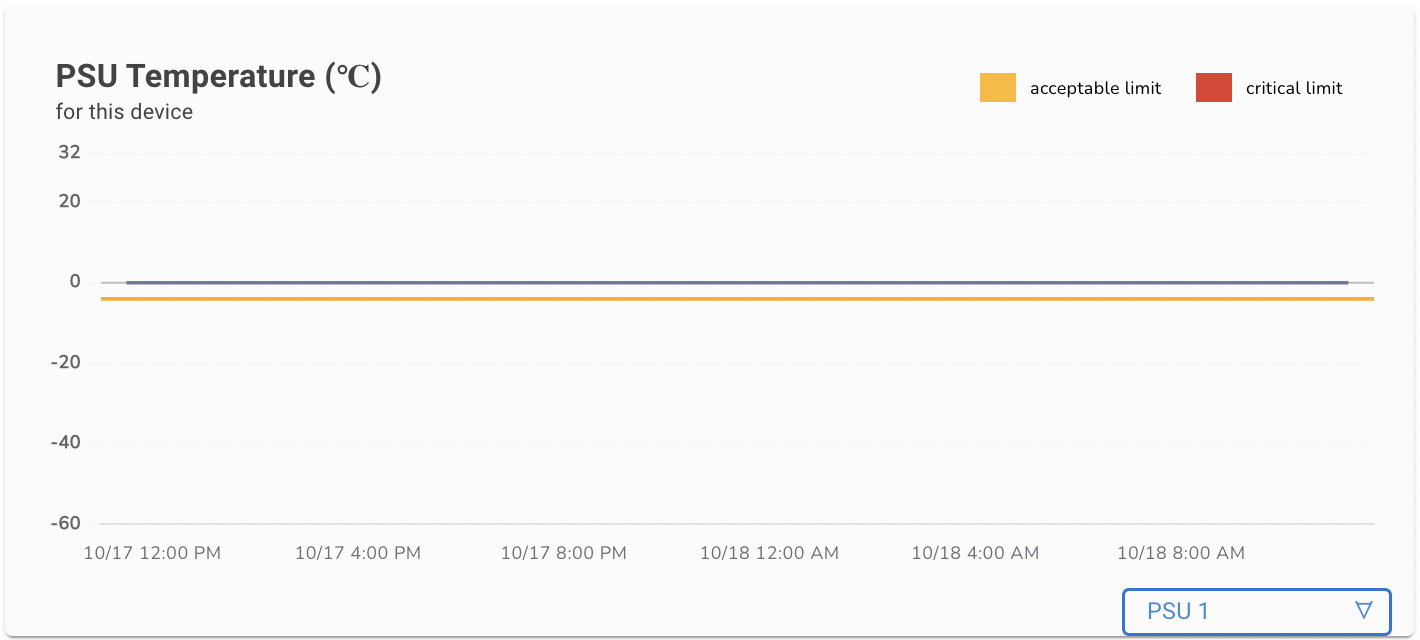
#### PSU Temperature (C)

* This widget provides the status of the Power Supply Unit (PSU) temperature (in degree celsius) across all power supplies available on a particular device.

<figure><img src="https://lh6.googleusercontent.com/gff0CyknH5cQxFRvYveL_g_tejPfMRRI3e7yfFRO1KTjRHX8NTkT6mT_DQxeQmibbZygLEe0RmU6apdXQQhEkzXkK26yV3ZSZJ_hRMs7AyvtdMwgjG74vbrYc6yDdHWhTTsw4Hf6OE71Z4di6dOIhsBprrMZSg3_zdVN2_pm--9Xc84qPydrbv2Wdg" alt=""><figcaption></figcaption></figure>

* To check a specific time detail we can hover the cursor on any level

<figure><img src="https://lh6.googleusercontent.com/K0PR4W9oYcFC2FwmfvmS9XnMZrl5xaG3U93_lBvu836aIP1xb-dVg7kxH6R2ZPxjfHKcoGo4HUsUcLv1XHe1dvTmkFk9RecvQyAA9qCeqdq3y350XI3CW1Ssl7ciLgS2Hk8WHdNdu9JPTCaLLiGuLqeMu-cmFGqH93UIYi3au0U3NA_ZKns7nWV0Jg" alt=""><figcaption></figcaption></figure>

* We can choose to view the customized view of a few PSUs at once&#x20;
* In our case, we have 2 PSUs, so now let's choose one of them and check the output
* When we move the cursor to check the exact status of the PSU at a particular time

<figure><img src="https://content.gitbook.com/content/sjMG8ERI8JuFHFkm9MpV/blobs/4JYEkJlJtVQfwhDRPTSZ/image.png" alt=""><figcaption></figcaption></figure>

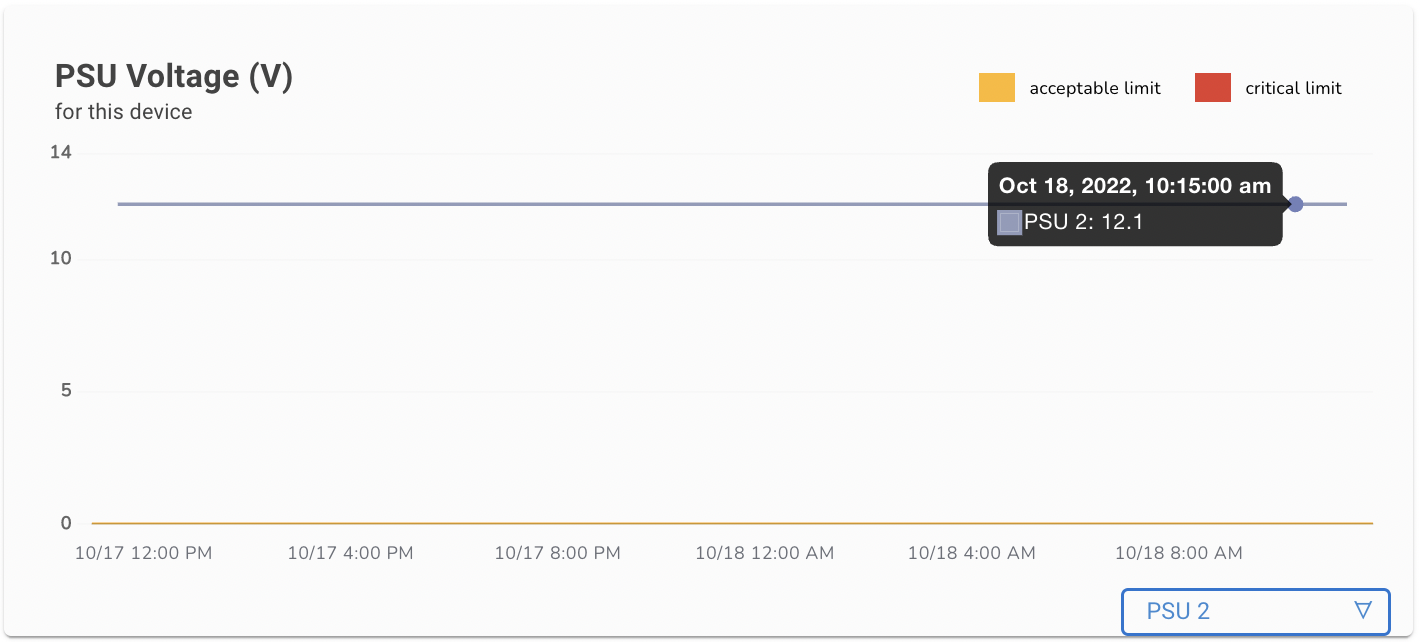
#### PSU Voltage (V)

* This widget provides the status of the Power Supply Unit (PSU) voltage across all power supplies available on a particular device.

<figure><img src="https://lh5.googleusercontent.com/Y8DsOsGqScSiTUZAjHFm8sz-ldDMvNqTA3f8cF_hUwzkbNV5iOR246VSNYEkVyLg8EsZ8WLDOLkFkLKxfyHFPkGEKurVXDeze0SdjCK2Avc8KnJAazbGNXNyYpSKoJmjiwVyP2x-a58UVxE_1WbWm4QMpWp8_SPNE_PhVBFnTgW0WbO10nRoyd-PPg" alt=""><figcaption></figcaption></figure>

* To check a specific time detail we can hover the cursor on any level&#x20;
* Same we can check the customized view by choosing one or two PSUs

<figure><img src="https://lh3.googleusercontent.com/FUm9FlpioOIU87Fq2oQGSYrurIr-PxJ3Bu944nPki9PGLVAWWLaeF1LaTCCXEGKvZ2Uc50N5ciJts59N0wHt8FP7TBY6nDGBDHNawmKSjce0P9_c9WrvtKu6RU3JURl--HUy_zm8IAIGWm1PxlnGVO6yGEjgnNOrludqMIhUwuGH0zbfCIh5rWDDJQ" alt=""><figcaption></figcaption></figure>

* Let us choose one of the PSU to check individual Voltage, so here we have taken PSU2 to check individual Voltage

<figure><img src="https://content.gitbook.com/content/sjMG8ERI8JuFHFkm9MpV/blobs/jaJ3u7triqYQtNTHxOwI/image.png" alt=""><figcaption></figcaption></figure>

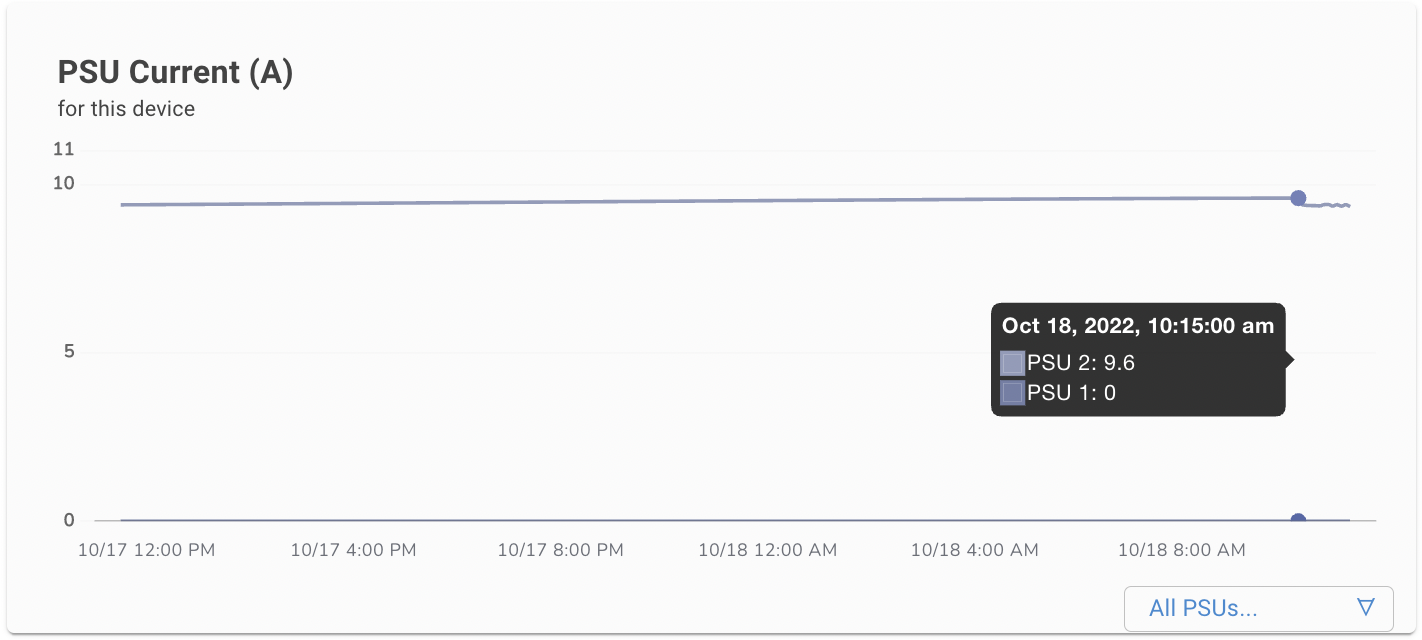
#### PSU Current (A)

* This widget provides the status of the Power Supply Unit (PSU) current in Amperes, across all PSUs available on a particular device.

<figure><img src="https://lh3.googleusercontent.com/hwdOnwE-b-DDsaaqVUIzicwC1jNVYh0Nn0v6eHiVMffRqbpUPgW9e8aPYBBmuYkoCvnE7xnPxhIAspF1EkNG7PG-KXB5jYd15mmZHKVInjk3Ig6NDuUaeYlOCHmUJLbTzSJ1HOnpwCs4NDWXrj6ZJN8-YW7liHf5eKQoZtXOjo1QYKUIpu7J4baE9g" alt=""><figcaption></figcaption></figure>

* To check a specific time detail, hover the cursor on any level&#x20;
* Same here as per other power supply customized views we can also check the customized view here by choosing specific PSUs

<figure><img src="https://content.gitbook.com/content/sjMG8ERI8JuFHFkm9MpV/blobs/VGSgXMFP746AlxjsVVfL/image.png" alt=""><figcaption></figcaption></figure>

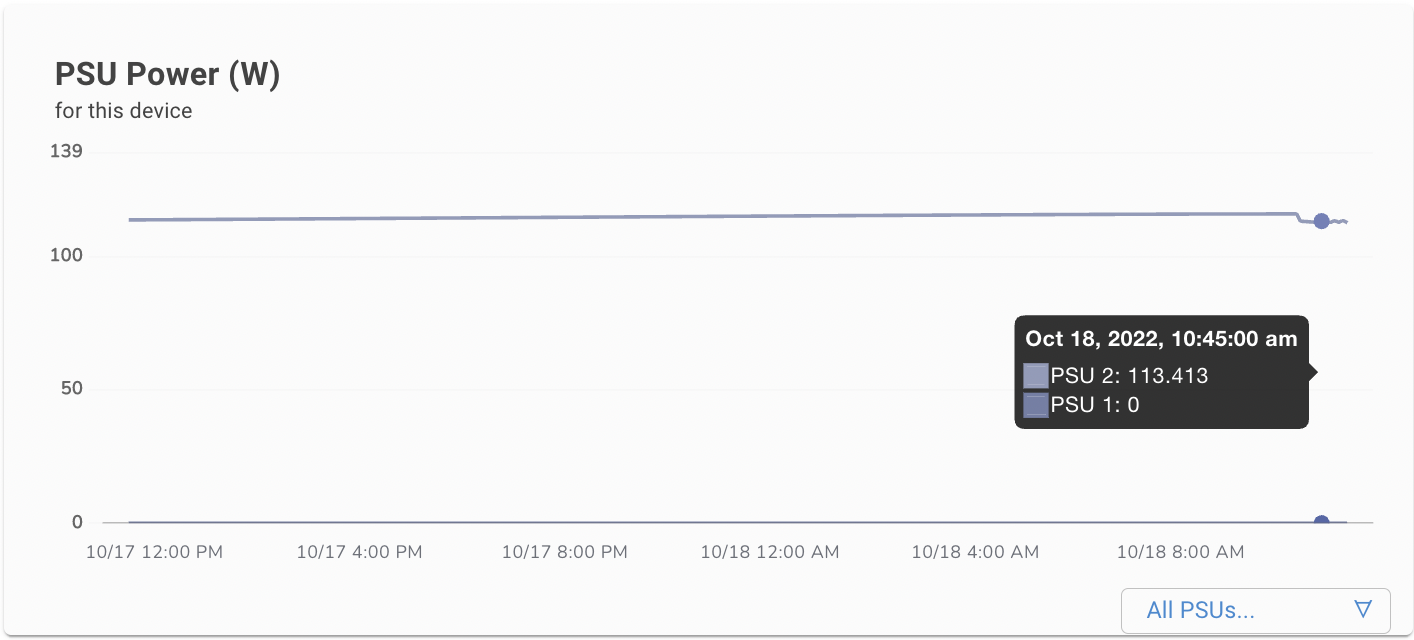
#### PSU Power (W)

* Here we get the status of Power supply power in Watt across all power supply present on the device

<figure><img src="https://lh3.googleusercontent.com/P9MtsvkrGOeeCKeDklgiOqQLHGfWtDlBlT1E19r91RWON_WMLllcRFGR4GFCUfjE0Y4KD8yb_Oo7VT_4hhotNzsAVfRQiqh90T-b-xv2JWmNikqIX5b8bw_KXtE_6EyfeLq0oMj1UW1WvTlGszgC-cHzm_DPW2J9Wq74OQn7O6EKEm-zpD95SvBKFg" alt=""><figcaption></figcaption></figure>

* To check a specific time detail we can hover the cursor on any level&#x20;
* We can also check the customized view of this

<figure><img src="https://content.gitbook.com/content/sjMG8ERI8JuFHFkm9MpV/blobs/s3WczNrlvvrEkroPiq5G/image.png" alt=""><figcaption></figcaption></figure>

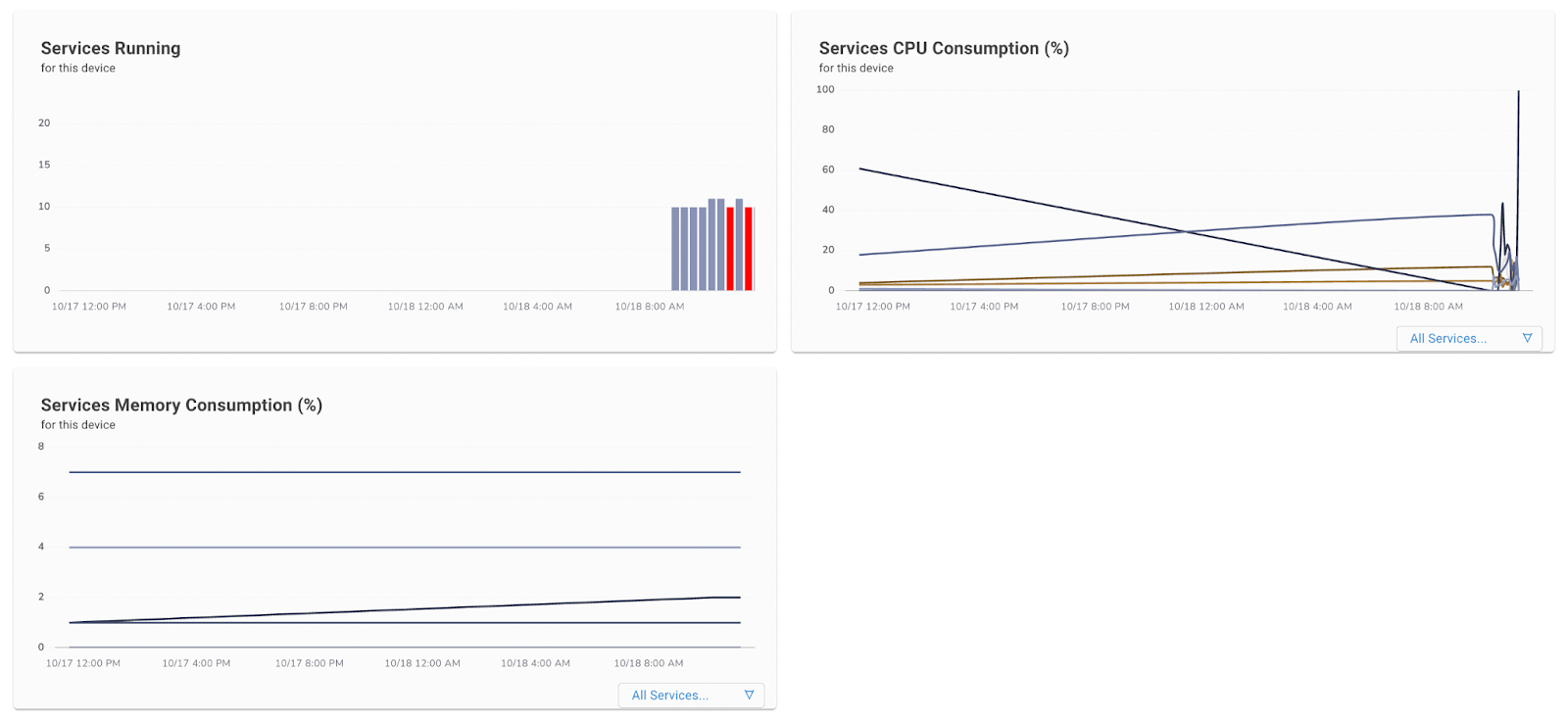
#### Services Running

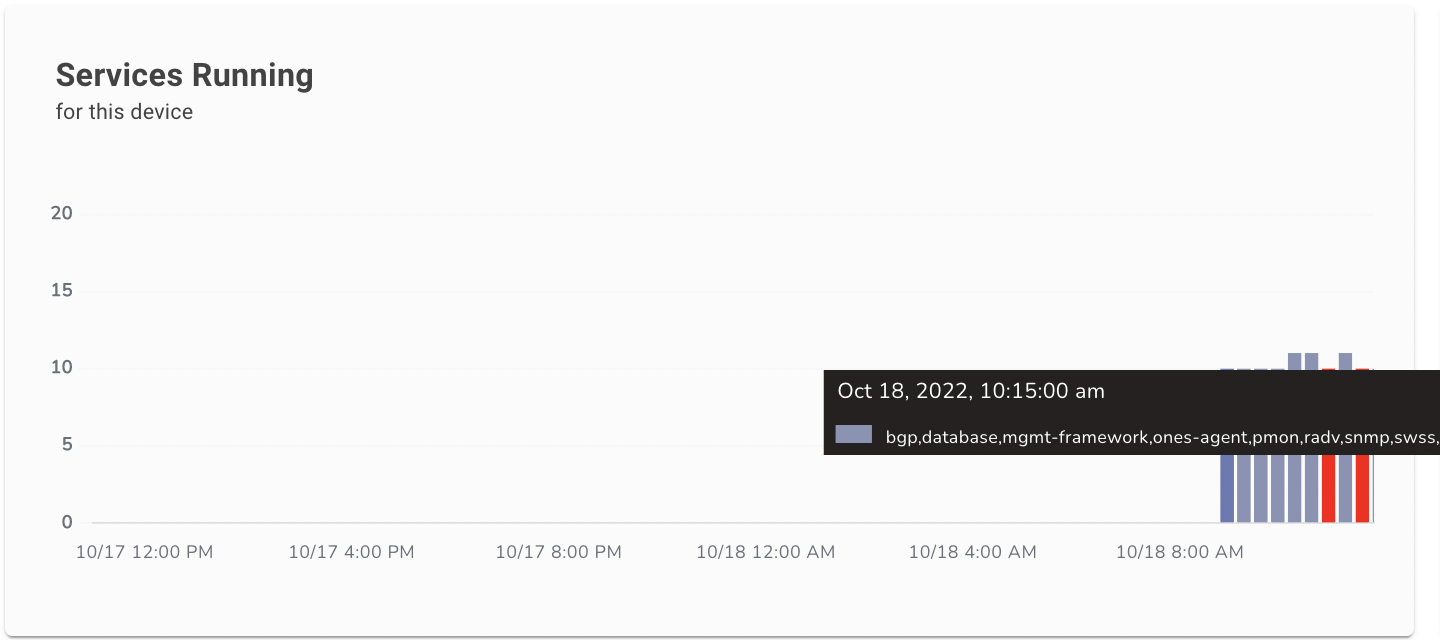
* The best widget here for Services
* We can also check the total number of count of services running on the platform
* This graph shows the red colour bar, red colour show at what time one of the services went down

<figure><img src="https://lh6.googleusercontent.com/zayq8nT3xJ6aDjMNIng_hTqD_tCjkBsmhdLk79b36gz0DRPRUKFFVW2cB5ah0WAXq1FVgurSv5CYFmoPf8m3DNqWrdtcYxxMgXdgwOdiOoslCQ_Wh9Ww-Of-26T4FlpHv0dPQT47042XX88n1d20HpMH0MU2spNykhyBzwXrYFZ1Nw6etVcoA732Sw" alt=""><figcaption></figcaption></figure>

* To check a specific time detail we can hover the cursor on any level&#x20;
* Here we get the name and count of all the services running on the platform

<figure><img src="https://content.gitbook.com/content/sjMG8ERI8JuFHFkm9MpV/blobs/LAHqKAEJNtTmzvOj9nEa/image.png" alt=""><figcaption></figcaption></figure>

#### Services CPU Consumption (%)

* This widget shows us the CPU consumption percentage level of all services / per service.&#x20;
* Here we can see we have the option to check the consumption view of CPU&#x20;

<figure><img src="https://lh4.googleusercontent.com/cNV-0JDLhWwUlzOuQnFAlGXbr8_OxmfIHnNZ9BVEbu4rHp9kXxuOAzlWjx3omftTeAgbFrSTaYgsefHtXC84obXFzytFhnc0OPL6rnQuK9VsJE8NPzAPJdoN9ocxdPgqo6SgoSBBGpBnWjcGHO9LNwepDAjwywJ8llDkjckvRkD15Ntd9fdicrPcsA" alt=""><figcaption></figcaption></figure>

* To check a specific time detail we can hover the cursor on any level&#x20;
* When we get this output we get a clear view of both CPU Utilization per service based

<figure><img src="https://lh6.googleusercontent.com/sV9run7jd-_EMriUNBXILj202fMf9Ay-Ca7pdKnmHhou5Nx_Xuf9RucO8ZWfdo0MzEznf5O7BpoplhvzBeOCQMRxdmin2z-2iGATbKwe8couD2Yt2tXZ5QSTwLHEDQ3Gu0cl1YNLWtashPOcU0RK1DGCbiKMkFgZemyK2_f6HN36AcrmjgFY5jrzJQ" alt=""><figcaption></figcaption></figure>

* We can also customise the view of this widget by choosing some specific application&#x20;
* We have all the services button here to choose
* Again we can check the view of all the services we need

<figure><img src="https://lh3.googleusercontent.com/dIxMprwqvnjw64koSlJWtGqi42SMIW47RyErsKddmIfzLgpsFGt0f6QXAvTONQDdCtrq8tah0ROmuE3i-tDWDdRVykt65ul-sG5McZQcjgWfZZn9cahKekie4ceowibHXxCmm4oZ_ZdJipvufkwhOYhmKZK7jKlZYV7H1lySzluUG1uIvWItRiWQjA" alt=""><figcaption></figcaption></figure>

* So here is the view of only the BGP service&#x20;
* We can see the CPU and Memory consumption for these 2 services

#### Services Memory Consumption (%)

* This widget shows us the Memory consumption percentage level of all services / per service.&#x20;
* Here we can also check the consumption view of only Memory.

<figure><img src="https://lh6.googleusercontent.com/W0XXceUcit4kCfB9OF-8th9XFfWkvjbCXuDImtagsC9lMkSeej1XNLfMwCKOHkoGUJ5gka8OYtDafDapAqw_NvwvoG7oX1P_TgUZOUPZ3YwdHCPPPeZtvHFUWF1tanGW1nT2i3j0z0JCVmyIJuK_JE1fwId54JeZseRUkVfS889S7mSwA8C5jEP7sg" alt=""><figcaption></figcaption></figure>

* To check a specific time detail we can hover the cursor on any level&#x20;
* Here we get a clear view of  Memory Utilization per service based

<figure><img src="https://lh6.googleusercontent.com/iGaLbkoUmXNGr5j1k_CQyEEjhN0f7e9hbOe2RpKxCD2bfvOboNwzBg1MLmbEHhZp8YALtIIUF28uU1qPR-2lFU6NySAVl9fGrVWAryumZID5l4PGfpBeBbtsaL85JBF7_MCtFcvtk1y7cx69WA_XNF7khT6M5Hjd87mnOfZD6DVb5mapYEdGGbUxHw" alt=""><figcaption></figcaption></figure>

* We can also customise the view of this widget by choosing some specific application&#x20;
* We have all the services button here to choose

<figure><img src="https://lh4.googleusercontent.com/35E_67EuLLf_XwRmxXfPj7QEPEWf49N-2htFBqgclXuM46labBCen8vN4bWGZHos39PtzBc3TofJmXI5iVslfmi0YjJv6FPp03B10jtaYM-jsRXrDCEWzvZmFafQO7XCxsKZPPuIUmPxn2t6HyupNw3Av17YTUEKc8YUFf1axug6iIeLWc4tF798iw" alt=""><figcaption></figcaption></figure>

* So here is the view of only the BGP service

## ASIC

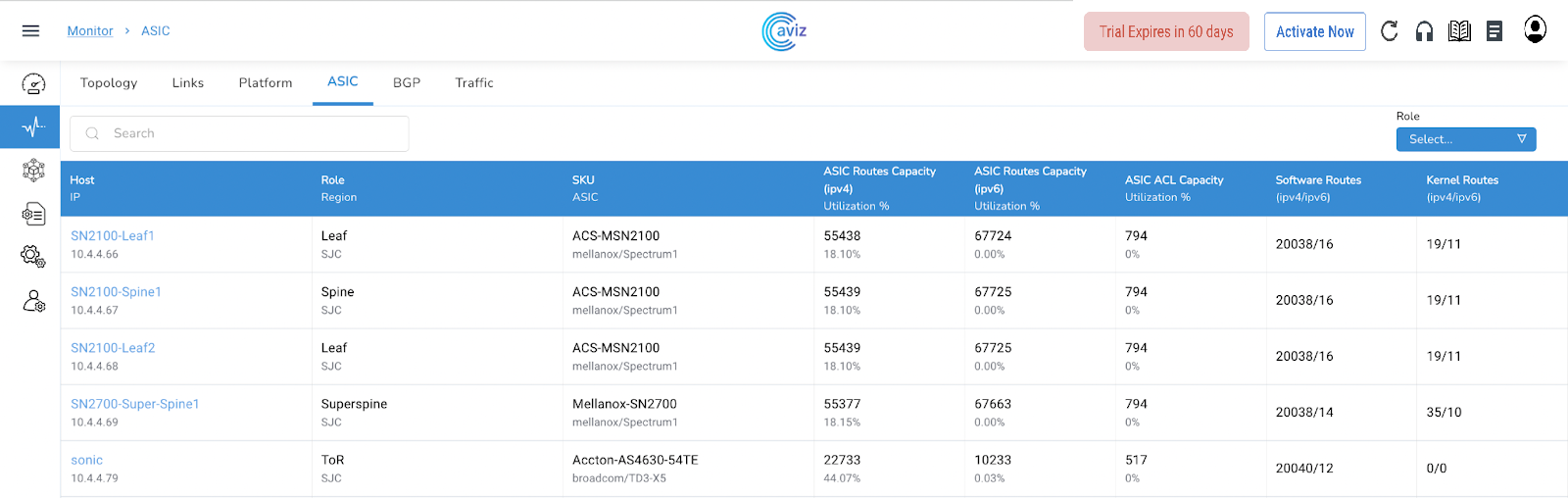
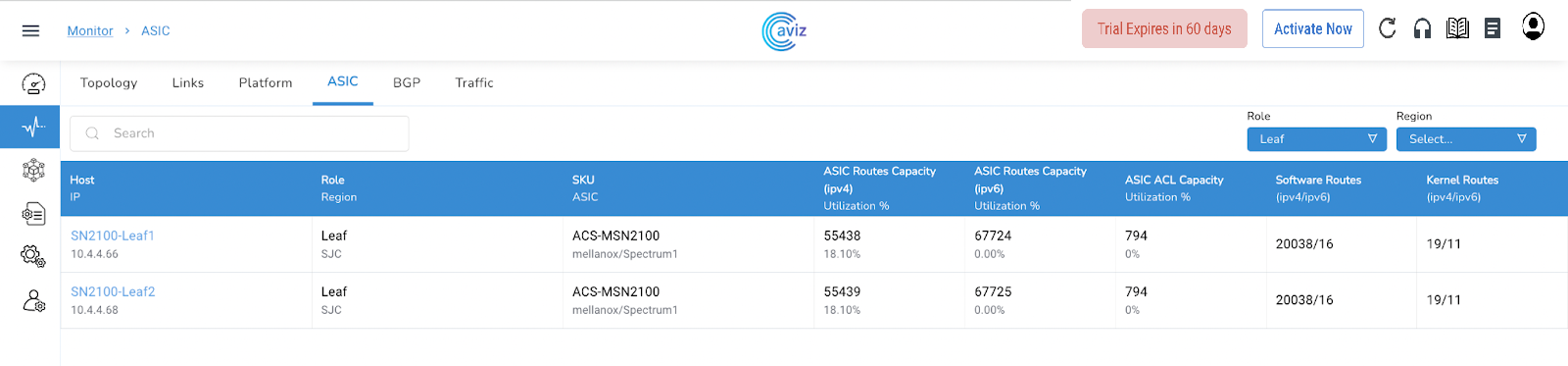
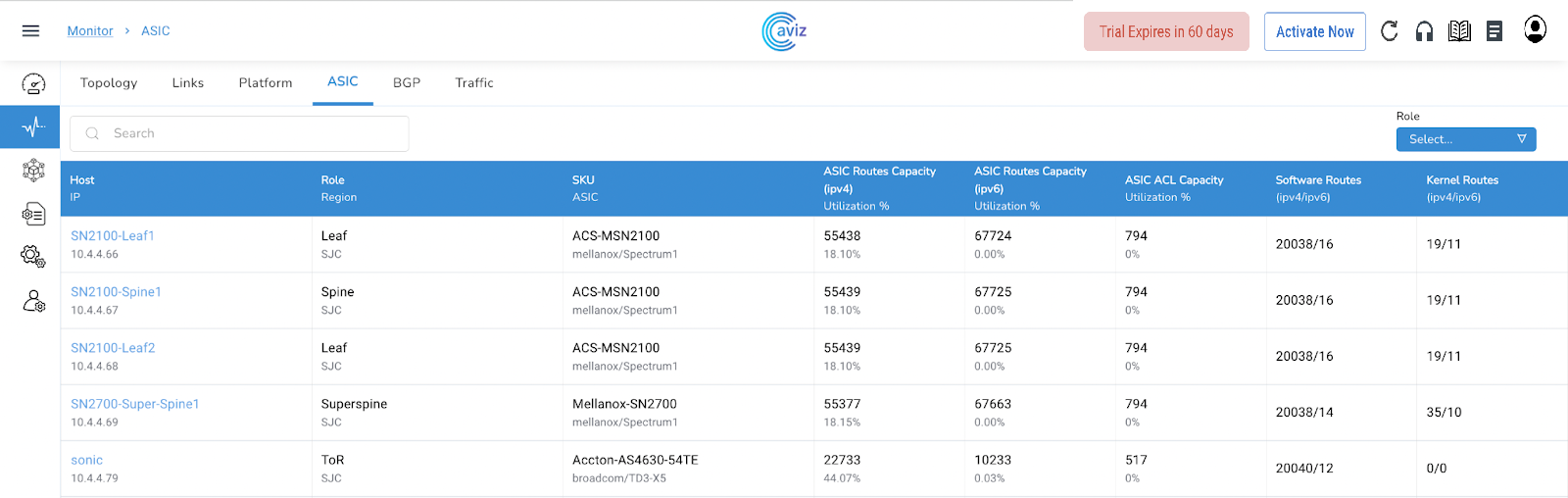
This page shows the view of ASIC Capacity and a few more details related to ASIC

<figure><img src="https://content.gitbook.com/content/sjMG8ERI8JuFHFkm9MpV/blobs/x8WWts6FV7HmHPYSSV8r/image.png" alt=""><figcaption></figcaption></figure>

* This widget Shows
  * Roles/Region per device
  * SKU and ASIC details per device
  * ASIC Route Capacity in IPv4 & current utilization
  * ASIC Route Capacity in IPv6 & current utilization
  * ASCI ACL capacity & utilization
  * Software routes for IPv4 and IPv6
  * Kernel Routes for IPv4 and IPv6

| Feature                                                                                   | Details                                                                                                                                                                                                                           |
| ----------------------------------------------------------------------------------------- | --------------------------------------------------------------------------------------------------------------------------------------------------------------------------------------------------------------------------------- |
| Roles/Region per device                                                                   | ![](https://lh5.googleusercontent.com/MwYA6xqRDPDHyCqqdEG7Ecs5v85KEZzTdyQGDabzngDHqWd3tkqn1UERi7PgceX7ftY1O2qXI0_h5s4HFXxRb7A7-ta3FEC2GE3FSEAtQMxSEnniViCn30_SamKYS2Xr6qJ6MU1-tJcWTYZZdQoruvkT1-qb7gYuG8nRdWRoibAye0pYWrWtinnNJQ) |
| SKU and ASIC details per device                                                           | ![](https://lh5.googleusercontent.com/PXjNuooDhCEMs-V17ZQ4CSfzx81nl3mjEds_bSeitNOFfG_YmRSY4qqfzPc9GD31eJi4plD448rx41e9E3pUgmOMb3teYlwTR4m29SmT8n8ZAY-2zcz7bndFeKcshmIBupq3wIt28kmrZaqeS6dSCzuSoPNyRV6IU6OLW85RusNcaQw9VXgU0KTgWw) |
| ASIC Route Capacity in IPv4 & current utilization                                         | ![](https://lh5.googleusercontent.com/UREeh0Nj1Qq4LU9E5rWU5K2nw8mwcWio5a4SUFRIUWbZ8AXINwhc_heQDL7Y3lEpQSZBDITcnx24iYGOKGFagJMU9exvEwJOCD1-3C-h5F6OGyVvRJDhIy_MHmsBxgWAeSWqloh1dtsyyd6p9dp3DOMUa4oQgfu8H084mdLiGStunQzl6rzicjNnng) |
| ASIC Route Capacity in IPv6 & current utilization                                         | ![](https://lh3.googleusercontent.com/CDMaK49PhbcpolvyspxpDTzqaL4lxqqI709i1kipr0FkoYhV9jEgEmgh7XS-1FwEDrJLJvJcEO5uznjHpvGHcNvLQCUu4QtZHRDAcxXAMN0WQbZS_5so0skmUOLptoWv1gwy9V-9VwubsWZvm0t2pINarA-5wTsvNCdN4Mo8AeuBHPhpmiPf0JAPuA) |
| ASCI ACL capacity & utilization                                                           | ![](https://lh6.googleusercontent.com/X6qozF4T3stMH9fpjO0HnLGo9q4avHd8XjRdRNC-2e7T57MODtp-7NJlKkDNS4JSiB4VnsAosVpoKIjhFOOiErijzEq_H76KYmtw1hzYYHeA3ZCJTdHVfcipWNa9d_l5x50_8vDcgsS3gjHBMrXZZT1IIziX6zZiJyzU2UiE8N8ezRLUSzyLs-U7gg) |
| <p>Software routes for IPv4 and IPv6<br>routes we get in BGP table</p>                    | ![](https://lh5.googleusercontent.com/WtU77OocPpjTiAka2lXmKT3DNghBLmVhJH3DYAHO6RCVL4czPQ59Hy_IDNhaQF5qBcjmztjNFfHClYdsk2nkg_bdpGxsGGE0VUHOdbWIRyAypRO81JYtFC7PBSn6Y3LqVy2z4reRPcCjO4gyowVtnmpxEeaCLDK7of-zftorHulh1tGDtFMmLBUBdA) |
| <p>Kernel Routes for IPv4 and IPv6<br>routes that are installed in main Routing table</p> | ![](https://lh4.googleusercontent.com/t4IuGs1IsMhw-TgcuNoUXrdHvK-7Hh_FIzoHKUF6Ilcr1j-P3E2SSMHau33V1EwgIADgTiLhldYnsdjHQgfIaZVLjPmYI024dLOnq71V13OKFBR1I49vIZ5V7RhQPHCshPHjtZ0pMv1Y_UZMRvWxm5U2yVgjWLKzQ103vs8g2MnSk4JGBVKIPe0Umw) |

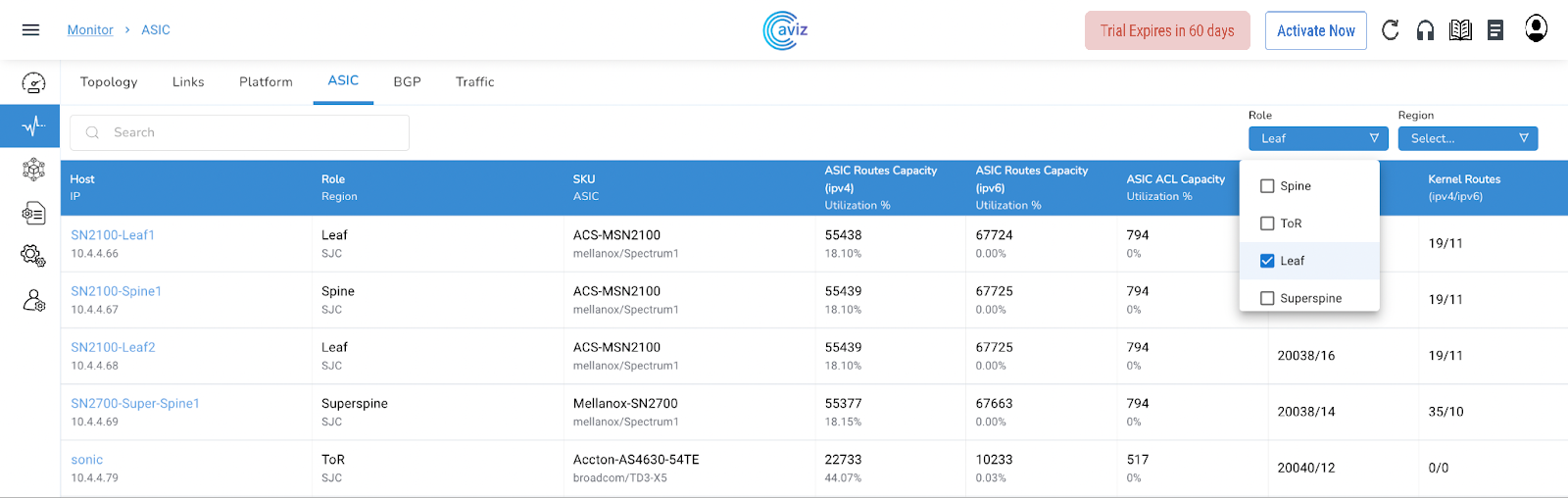
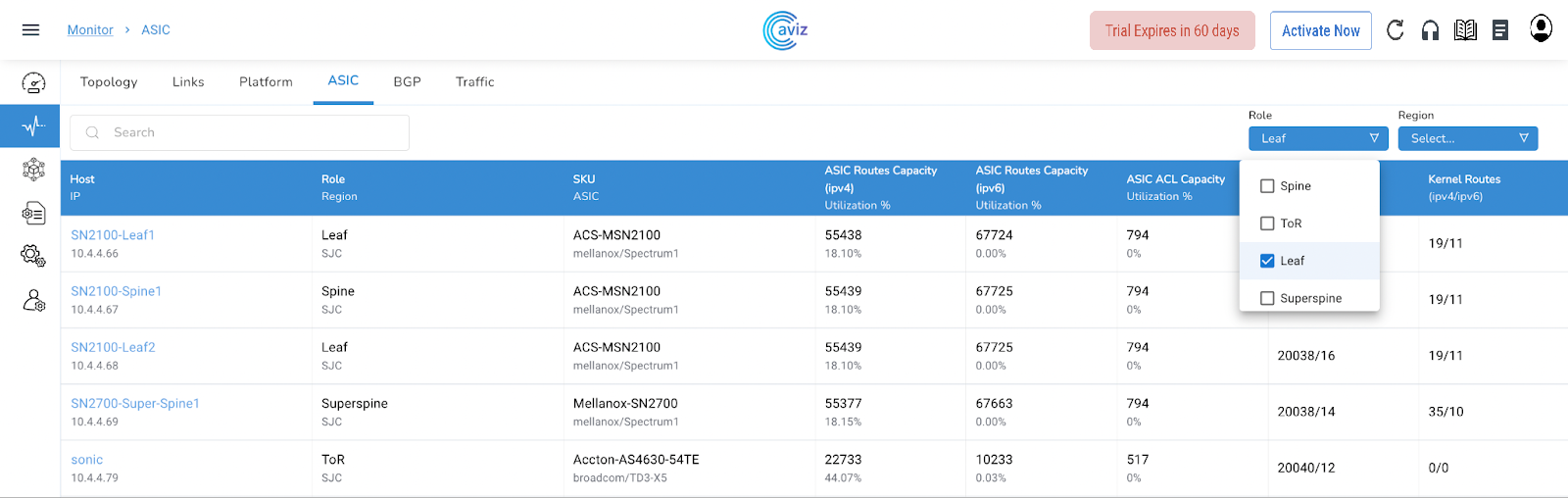
This ASIC Widget give us the control to get the output per Role and Region basis also

* Let's choose Leaf Role to get the customized view

<figure><img src="https://content.gitbook.com/content/sjMG8ERI8JuFHFkm9MpV/blobs/Rat2zJW4SbMYLJ70FReJ/Topology%2013.png" alt=""><figcaption></figcaption></figure>

<figure><img src="https://content.gitbook.com/content/sjMG8ERI8JuFHFkm9MpV/blobs/FQbDgmojYZPRljj6CzYL/Topology%2014.png" alt=""><figcaption></figcaption></figure>

<figure><img src="https://content.gitbook.com/content/sjMG8ERI8JuFHFkm9MpV/blobs/1TLmgqJNwdKY9S07uJcl/Topology%2015.png" alt=""><figcaption></figcaption></figure>

* **In the same way, we can customize the view by Region**

{% hint style="info" %}
This is the extended view of the device capacity for all the IPv4 and IPv6 ASIC routes, ACL utilization, software, and kernel routes

Using this page a user will be able to troubleshoot the protocol or any misbehavior happening on the devices due to any capacity issue of routes
{% endhint %}

### Per Device Status

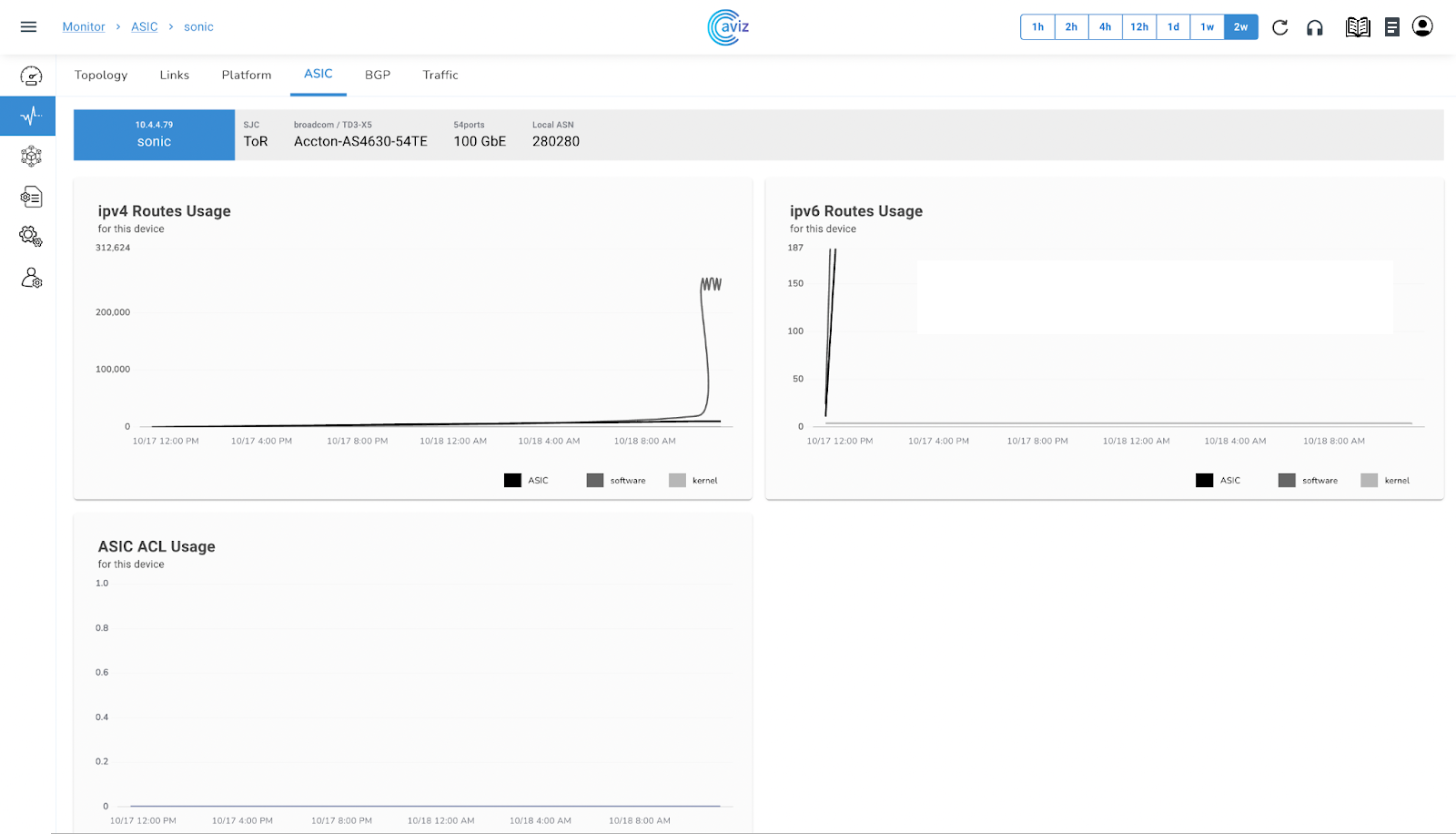
This widget gives us the capability to check the extended view of the Routes & ACL usage with a range of time

<figure><img src="https://content.gitbook.com/content/sjMG8ERI8JuFHFkm9MpV/blobs/zwZkRe9dWRqWqEriE2Wf/Topology%2016.png" alt=""><figcaption></figcaption></figure>

Click on any of the devices to get the extended view

<figure><img src="https://content.gitbook.com/content/sjMG8ERI8JuFHFkm9MpV/blobs/YzmTgh1ZR3Z7c4M19AUT/Topology%2017.png" alt=""><figcaption></figcaption></figure>

| Feature                                                                                                                                                                                                                             | Use                                                                                                                                                          |
| ----------------------------------------------------------------------------------------------------------------------------------------------------------------------------------------------------------------------------------- | ------------------------------------------------------------------------------------------------------------------------------------------------------------ |
| ​![](https://lh3.googleusercontent.com/8SQd2UuHdrVZKWkpafSWtllKD54vkxMs2Wy0IBAXM__PvLsA92QxNLKSZQ8KhS72GE7KORHbXUnGtgqsCwV7Blg98kgjeyDGFnFDj3UpUa9ysyxnsgPwLKC1qdiprOSu6sYRT1XZ6jf_HZ5cxnEuedBwnIU7WPMmZHPCraoxK4oLu0PyVyEMTamBfA)​ | <p>​</p><ul><li><p>When we move the cursor to metrics this gives the usage view of ipv4:</p><ul><li>ASIC</li><li>Kernel</li><li>Software</li></ul></li></ul> |
| ​![](https://lh4.googleusercontent.com/tcAlent-uPSIDd_Bba1HmyUbzLNu5foNix90NnYJyqFG3gsW7GI2FilzJlzb3vjb0Q1bEaBS07nPkcFPjARpVggz3p01pGuX9dILNRTfDfwWhq3scRHZj6cZnLGZrlEvBkEsgxV57h0tbiCQXwtnLHci8_Iydqjj8FBsVcKkQgg7oKqZMxXT1ieeIg)​ | <p>​When we move the cursor to metrics this gives the usage view of ipv6:</p><ul><li>ASIC</li><li>Kernel</li><li>Software</li></ul>                          |
| ​![](https://lh3.googleusercontent.com/jr8zvKRXc5lmVq_ef0YAORrm4vR7-tdDilWWB23vsxagA_tzdDsWenQM9OcoBMYUC_Badb4blr9c8gKawgdxGMackxP-YwjgsILdL5Y9Jrj-p-JfkcATK6pOq1WdcY6dgga55-Mq1SJ5dDWZOZZ3T0tM9WIB1QAPGbiMXPe736uz3SZQoyiUxCpveg)​ | <p>​When we move the cursor to metrics this gives the usage view of ACL:</p><ul><li>ASIC</li><li>Kernel</li><li>Software</li></ul>                           |

## BGP

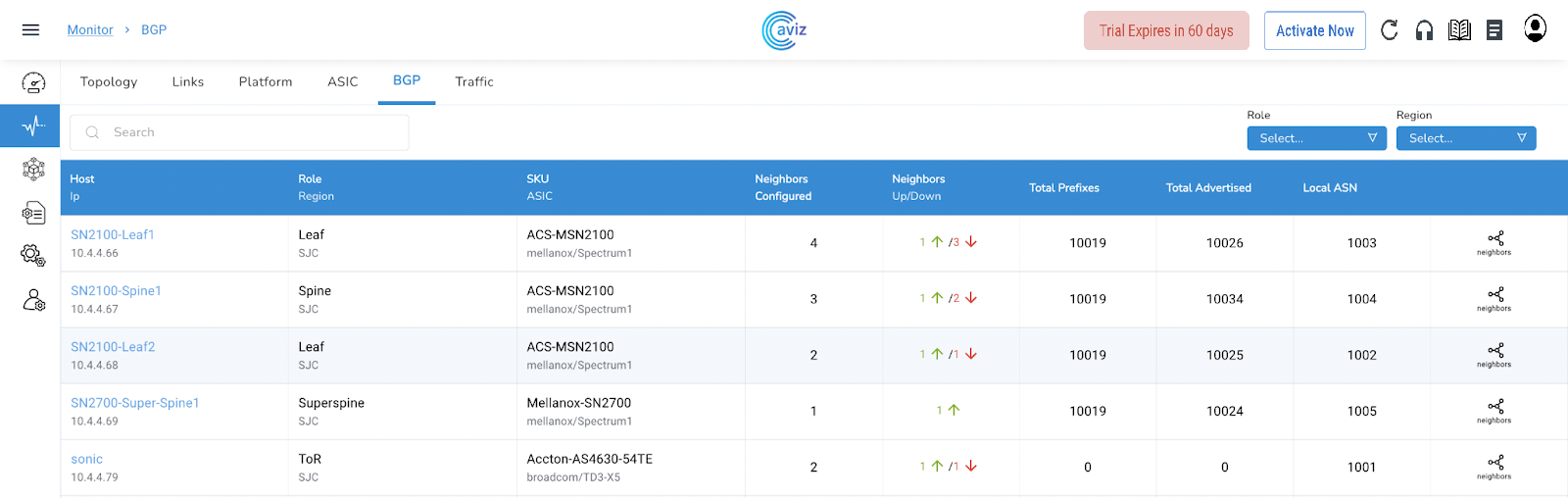
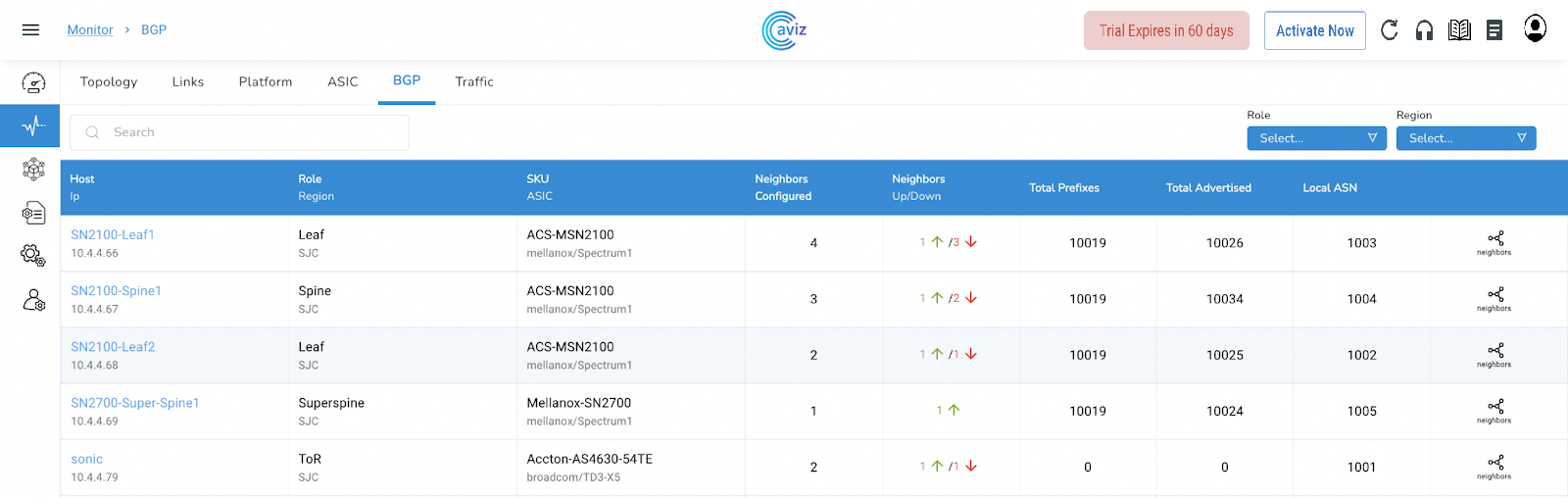
This BGP Page shares the data of BGP neighbours present across managed devices

<figure><img src="https://content.gitbook.com/content/sjMG8ERI8JuFHFkm9MpV/blobs/2Js4oJw5fLWkHAzkgaiY/Topology%2018.png" alt=""><figcaption></figcaption></figure>

<table><thead><tr><th width="364">Feature</th><th>Feature</th></tr></thead><tbody><tr><td><img src="https://lh3.googleusercontent.com/a4gNhsTBrVQjWYEi8IHCUXTYt0i9Bc6M9YkZxBxsg1-X-LL8BzFx6RJeasryaatyYchaeAbNZ43dC08xXFvr9mo2BkdAxP6bfJw-hXi36hpmg1fENogUQhSEMiCjzuKLEAAiVTlGiSQiuPeHXuaDb0NZ1lTlu8qLERk7ltLY7fA8jdupr1JbBXpArg" alt=""></td><td><p></p><ul><li><p>Here we can get:</p><ul><li>Device name</li><li>Device IP</li></ul></li></ul></td></tr><tr><td><p></p><ul><li><p>Here We get the view of:</p><ul><li>Roles and Region</li></ul></li></ul></td><td><img src="https://lh4.googleusercontent.com/hQrhJm6Tv0r6Ytgk4k7UD29AAgw5_dCK5qD1Mx-wJdiNm6hyqXO3Ucc34IncCG6PeReeo9Kqbji19om70ioKjo-PyQ8kkPcMmdfbecZG5CEK5bXyQbHD55spAP3zS9PDm_PmXON1occ7fP4b_EpFtoLzRRQRkdPcM3I5PMRJP-xn6HXVmS1N1sa5Rw" alt=""></td></tr><tr><td><img src="https://lh6.googleusercontent.com/XVNjdY5uK-zrnqNIgB0yZGInj-rhvwDuxd9lYcPni_EBqU1mSXgH9spvKB8PXtm994wHs8ZTwwZyWo5SRNdtwXn0LF6DiOigzmMJFy-LukhecMJUhzPYtkMcfAJU5RnW7GrlpPShy8SAtHunLHzMjPqcWZ7Bg_oZ9xyVPUXVDL9QvvcwAj97_SoNgA" alt=""></td><td><p></p><ul><li><p>this column shares the details of:</p><ul><li>SKU</li><li>ASIC</li></ul></li></ul></td></tr><tr><td><p></p><ul><li>This shared the count of total BGP neighbours </li></ul></td><td><img src="https://lh4.googleusercontent.com/ZzvHFnz3J7fia-DZNDa6DoI5zUTf4hng00iMz4U4mgAuWefx8TDg-mM-Fyf5tTzNItIciaHKvRBWL6vsCK2Ymbgo_xEKXAyseXIkTC1IxlgzRtcMAE6TVyHq6bwedKzWbNJaP1eSAH6T6PxiE_pQjBsgWaUOjY6uvStjpURFlvPqhntp9rQJMwZJOQ" alt=""></td></tr><tr><td><img src="https://lh3.googleusercontent.com/ixI_CyCSKo9VIO46v8qLcYuX6jK0PaF2GeVCb5p8yw2vIOatCBRUQJMtLGMtDrezoai4oq-UVTtSlwnFVFnRXaBWajoHQbo2Y3PRVZGDe-MMV5N7uf7-5cTTRVzc4eqJO4DfpryvAEP0Ziva9Pb-v48vmMFNR74G82Z7ZOWWSMYTSmkpM8fBunlJbA" alt=""></td><td><p></p><ul><li><p>This column share the status of</p><ul><li>how many BGP neighbours are UP and running</li><li>How many BGP neighbours are in Down state</li></ul></li></ul></td></tr><tr><td><p></p><ul><li>This column shares the Total Prefixes Present in BGP</li></ul></td><td><img src="https://lh4.googleusercontent.com/X1o0FvGweP5ZcsjDU5rTnoInYkMJ99t2ckQYsuFhkRMSW83NCszM1m3XE33g3Hrfiy2UEFFs1Rp-8JoXHg6eh6SOlKt4NuQPbYGbTO0HJQ9l4GCvnnqj_S_FeXOG6GcpMiti6l_tepuhkZURFhdzMOHzZeO_II3QFQSfRiNwbdgkDADlWOj6G9jRJg" alt=""></td></tr><tr><td><img src="https://lh4.googleusercontent.com/9MEcymCgF0I8vP41Ptsr3KaXxWeeZ9NPsiuIilLI44p-P4tFtX65a_4b0RR-ccWgqeGftJo1M3NSHTKUUGPzMRN0mZamCxSF-axiKqlqwMjLqpC3_NCReuOqGTQxOquyOPWiRw1vxKeQBnuJIVH5mqUNU1kLHrZV1nXQUWZ2kDXjfbCg0BT8moZwZg" alt=""></td><td><p></p><ul><li>These are the total number of advertised prefixes by the router to other BGP neighbours</li></ul></td></tr><tr><td><p></p><ul><li>This is the Local BGP AS number</li></ul></td><td><img src="https://lh6.googleusercontent.com/I71bt_OgMak1gWKGLbFgw3iW82ESY2pPhf-JivzJN4YR2mNrIjuO1B1nYGkEcPzJroguFTNaJbEsS-SK8AHE2ey3_N1pYJnkd9OIMXW6FFkMIAS4C1tIzT-qZ091DS6-MeY9Ha6bYlctKs2V3lWLm8RvvHVOXS5YTfAtLMOp7dJO90I_djUHNauUaA" alt=""></td></tr><tr><td><img src="https://lh4.googleusercontent.com/7Z3vvHSq5U5rlTEXVn24hEmAHG4K-sIgQ-XoFwP5CF5fCFG09tUIpP8g5cswk1wTFyIMrKXaqpevZzlDrnyTku1PCP2W48bqY8MUd-LvAFib5aY5Q8HMraR3FXKFZ7tQOiO5ifBkMLjFkk1LkIXzGcUeshwH4U360xgR1wsk-RTXzRNzY4OkJWKDyQ" alt=""></td><td><p></p><ul><li>Here we have the control to check more details on neighbours</li></ul></td></tr></tbody></table>

{% hint style="info" %}
This page gives the best details of the BGP neighbours connected with the devices and possible metrics/values a user can use to troubleshoot a BGP neighbour
{% endhint %}

### Neighbor View

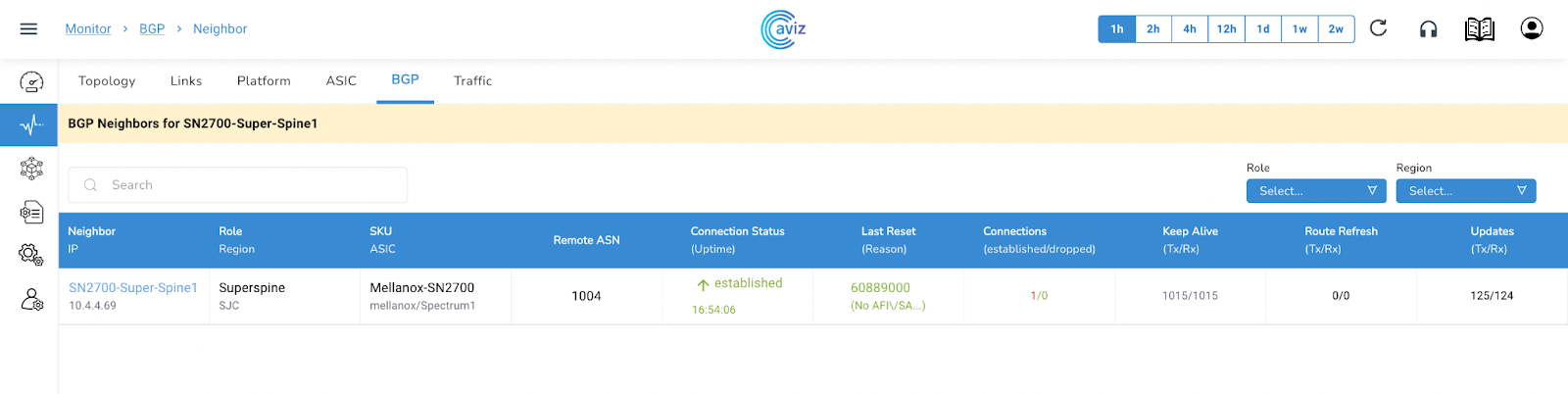
This shows the status of the neighbour's details, the total number of neighbours, received routes, neighbour RID, BGP AS number & much more​​We have the option here to check the neighbour details and status of Routes​​We can click on neighbours to get more details about all neighbours connected

<figure><img src="https://files.gitbook.com/v0/b/gitbook-x-prod.appspot.com/o/spaces%2Fbktog6UAuCkbWI1IJww0%2Fuploads%2FcoS8DaXb0V7VE14yAFp8%2Fbgp%20neighbor%20view%202.png?alt=media&#x26;token=9fb7b134-cc08-483b-b5d7-f80b17bfe89c" alt=""><figcaption></figcaption></figure>

| Feature                                                                                                                                                                                                                             | Feature                                                                                                                                                                                                                                                     |
| ----------------------------------------------------------------------------------------------------------------------------------------------------------------------------------------------------------------------------------- | ----------------------------------------------------------------------------------------------------------------------------------------------------------------------------------------------------------------------------------------------------------- |
| ​![](https://lh5.googleusercontent.com/LHYBf2-3_y6F1bf6bPdOIcGdDqtQbastxV3XZPerlwIk3ssglj6up8yQaQhzDAn7IZKvAj51zBfft5zhYUSstKyBrKwbpFACS3TI1Akq77mnEdB2PRIKpEcJZ73x73dHBPfSf_3Bkw4zQ7hiIfJ6xdMJ2cCFrQBVTawIBMHWw0TneTGSWSjCZYy6CA)​ | <p>​</p><ul><li><p>Here we get the details of connected neighbours</p><ul><li>Neighbour Device Name</li><li>Neighbour IP</li></ul></li></ul>                                                                                                                |
| <p>​</p><ul><li>This is the view Roles and Region per neighbour basis</li></ul>                                                                                                                                                     | ​![](https://lh6.googleusercontent.com/5qRyfR3s0ApK1DyQBoZ_EolM762ow1hzbBKgDlPYynPXZJv0LwKgU1OH-P2LvDEa-t6BXvmaF5AfQFDiIpYnE1_1QhFj4dDrqaew1oVcNslvhMANrW6zlbH_K2d4NfeYr86imrWJ_sazANV2xq7BFz2rbLSO81xmjVoYBXU0ovzGvxQ2X79ZFPDxxA)​                         |
| ​![](https://lh4.googleusercontent.com/0WitZGzTXfaOZM0n8ytSmOF3ExIZokGqy5gfOAHZ_-XXV6uo-s5bfS_HeHp9CmJOKyYJfAeeFMl_nzv5DYc70p3OKDo7HnVIeEUbcoo1AxxHFfsVlaRrT99PFY7eftvKtuZ3Yi5g5cfMrpBmgD34TNG4upPTJzGtQSsGV_KKJVnnGt7wYMKqaRvwKQ)​ | <p>​​</p><ul><li><p>This column shares the neighbour:</p><ul><li>SKU details per neighbour</li><li>ASIC details per neighbour</li></ul></li></ul>                                                                                                           |
| <p>​</p><ul><li>Here we get the Neighbour BGP AS number</li></ul>                                                                                                                                                                   | ​![](https://lh4.googleusercontent.com/-bKZfid-kWIRdynEeE0lWObJbJWnkILeYx8M08kn3LBMY_svzmkLFl0hlR01pdJdpQOb_HoePP6LgSveysKFER10wVQBXprJmQ7jC5wabAoK05yrWmt31tWz1jO12zDNRGGj3aUzs-JwNti26E9E188eppGrcIynpPLJRSwFL9TI0a9QVQhnmg5IoQ)​                         |
| ​![](https://lh6.googleusercontent.com/B8B0guLJ4Y7meGji2lCVMfkYesCbEO5sMbD4ZnCcviG7KgXsF4ankBjsTngUdnyR4aGXcV7I1zCPuhtpqA-83hEORx4qSlFaOPxRybne8xp0EwYUAvKmHKp5kt4t-ND216hF9uvYpcmRYOQp9-BsVB92lFV6XpQIwSJgIknQVkj_R5uEwMR22SWFIw)​ | <p>​</p><ul><li>This shares the neighbour status of uptime, from how long the neighbour is connected</li></ul>                                                                                                                                              |
| <p>​</p><ul><li>Here we get the detail of the last neighbour reset timer</li></ul>                                                                                                                                                  | ​![](https://lh3.googleusercontent.com/0phZSVyTe1laY5zBzZqunw_95vgeeypr5WRUYe9ldm15ZIx8WSUMwga4QgRHLPxFodU-dry5plQW6sQQI0phURN6QPu1X8XMipCkjVurWYiw-o2Tv62H8HYko0ClvUA6d_yzz9fIVfyDm4ldEo5_UBrx0YS3freOgNTQ64ggh96YC577y7Y-30buyg)​                         |
| ​![](https://lh4.googleusercontent.com/aQKa3fGY1e_gQq-RKGfh7nOwbqkOCToOEJKGS1TO-_tePIqE7kY6hrv6APvjp0YWloKz-OwRzuaCLpuyP3N5mRNXoeIHvArqD4PsgNPbg116qWKQDHcGND5KrVs3KJUPMZ-u0tdzx-N5K6t0qSCVV15bXLxdNKfLQn76pXbhrlKMGyEVkZMdqACnKg)​ | <p>​</p><ul><li>This share the count of established and dropped connections per neighbour</li></ul>                                                                                                                                                         |
| <p>​</p><ul><li><p>Here is the view of the Keep Alive timer:</p><ul><li>Tx: how many keepalives have been transmitted</li><li>RX: how many keepalives have been received</li></ul></li></ul>                                        | ​![](https://lh5.googleusercontent.com/mow47zGOlu1LVz36Of_54UMxl1ug7FIj2qrdRq30WYJtg-nLvfqOUYWGhpubp9vwwSXeVbA9ICFAFIzYliemtpzlLSBtRQqkWa1I4sjsiFsZwih4lL9tuvTj7w5e6NCoK8WGQ5EHUYmz9KToBFtGnmC6GvqLEovBA2S00Oe5VxFsD9BenMDwtUjrBw)​                         |
| ​![](https://lh3.googleusercontent.com/LEBLTcOgDwES5VLotH9N5MzfqzpU8NptJmSH183RvIJf16qLfw90YE1N0k6gR1ye_st0eh5S2V9AamooULzRm4kC1gaAzVv1b1JsDagS3fOLk1GRHvGa8Mcn8uj0oxK2qzBDL9uhkeR2tesj5UMI5NuShb1ai6Lu_ONlUjG4zh-nmXN465D2i1MOYQ)​ | <p>Here is the view of the Route Refresh messages count:</p><ul><li>Tx: how many Route-Refresh messages have been transmitted</li><li>RX: how many Route-Refresh messages have been received</li></ul>                                                      |
| <p>Here is the view of the Updates Count:</p><ul><li>Tx: how many times updates have been transmitted</li><li>RX: how many times updates have been received</li></ul>                                                               | <p>​<img src="https://lh6.googleusercontent.com/86BWZbWJXms6rS53SExOplKu0mAiUWFAeM2xHTxJtRwNKammUWsLkpGAJYsOd-2dMgfqcep3kQF8Z9WxSgdxHx4kERYk1HITPttGtWXM8D5ZnbL0P3HL_UUCtcNKEIVnGrY2oy4tYFqWNohsVi0BwoEwRbSJqa_8GcCGNlCv6KKz503gnKs0OG0B_g" alt=""><br></p> |

## Per device status (Neighbour's & Announcement)

<figure><img src="https://content.gitbook.com/content/sjMG8ERI8JuFHFkm9MpV/blobs/1mSE8VC8Pd8U68vmLWAL/image.png" alt=""><figcaption></figcaption></figure>

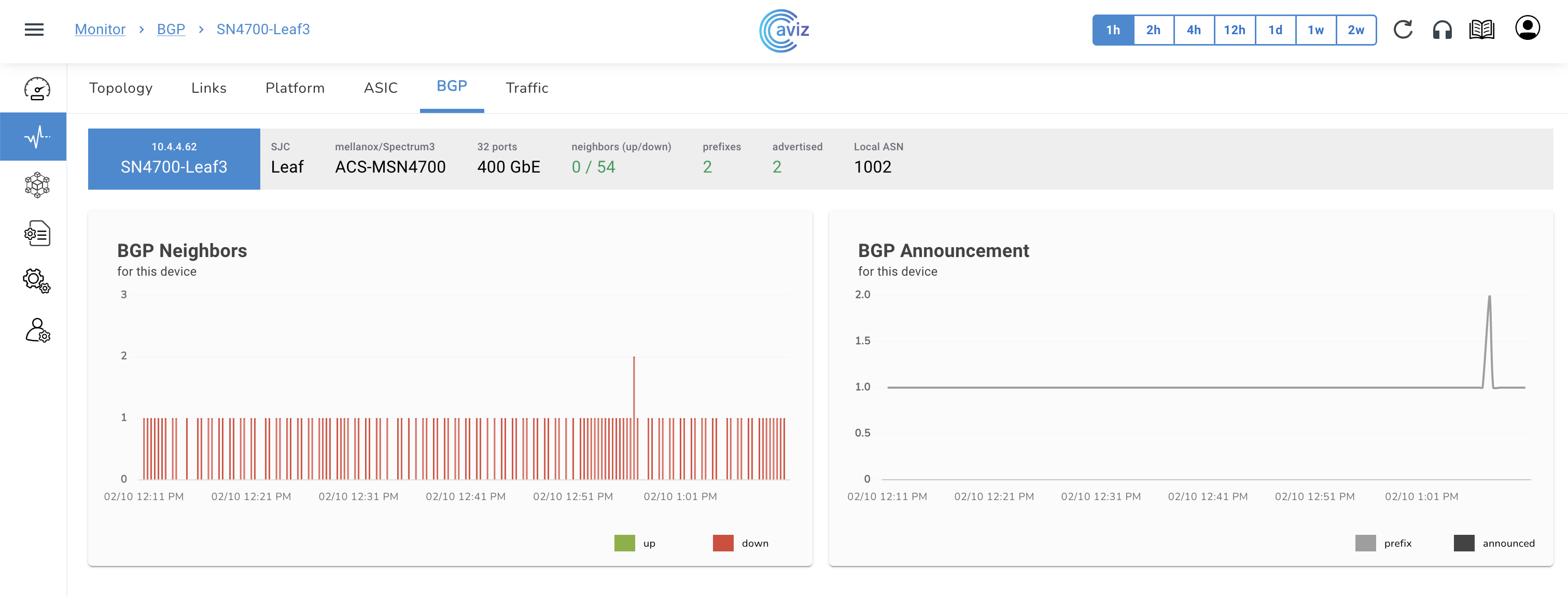
**The user can get per-device status by choosing a particular neighbour**

* Click on the device name to get the status

<figure><img src="https://content.gitbook.com/content/sjMG8ERI8JuFHFkm9MpV/blobs/gCtjyezwfWjXsUlUr0FW/Screenshot%202023-02-10%20at%201.14.05%20PM.png" alt=""><figcaption></figcaption></figure>

* This new page shows the status of BGP neighbours about **UP** and **Down** status
* On right side it shows the BGP announcements and the local prefixes present in BGP table

## Customized view

* This page gives us the power to check neighbours as per Roles and Region-based
* Let's check how we can filter as per Role-based
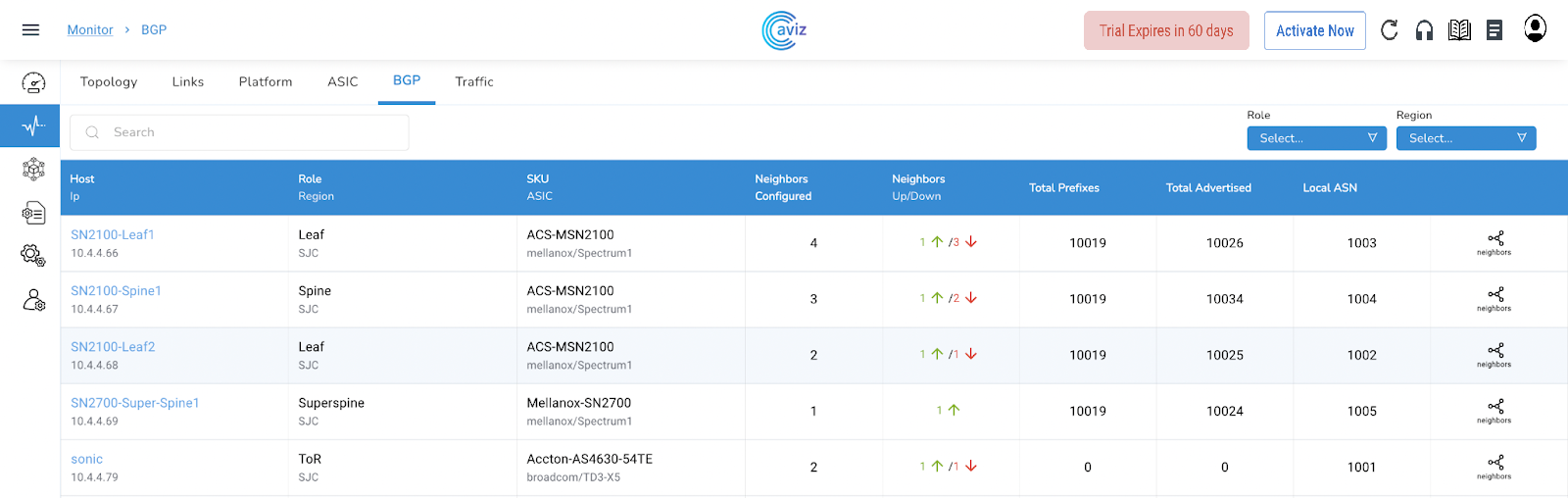
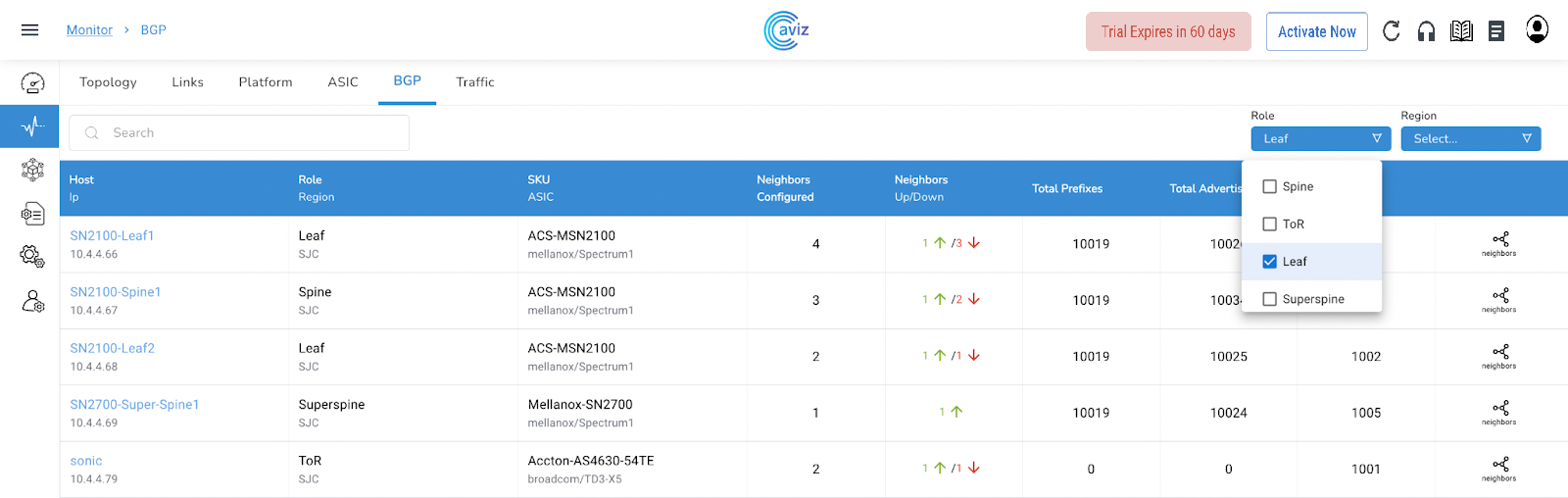
* Here is the global view of all the Devices with BGP status

<figure><img src="https://content.gitbook.com/content/sjMG8ERI8JuFHFkm9MpV/blobs/sDXQPaDuPOAIXF8D9YGl/Topology%2018.png" alt=""><figcaption></figcaption></figure>

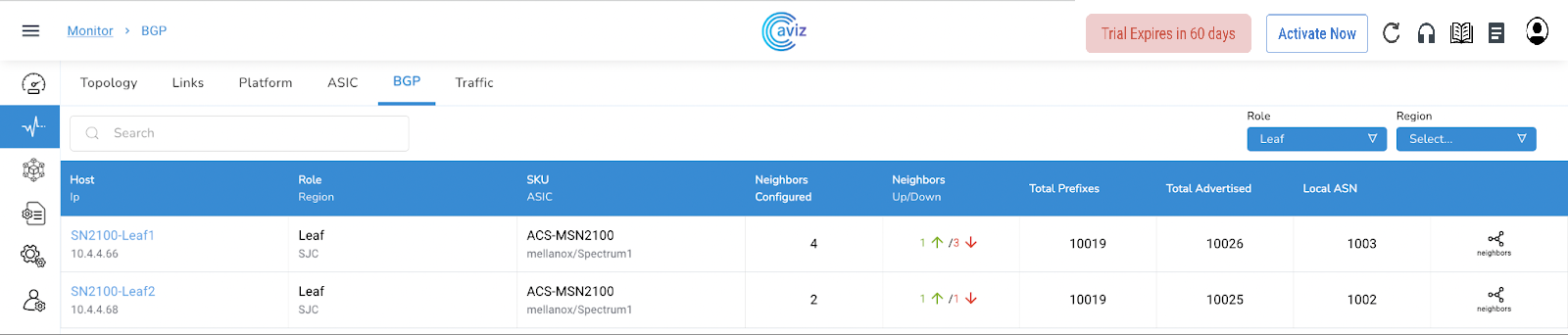
* Choose Leaf Role to check customized view

<figure><img src="https://content.gitbook.com/content/sjMG8ERI8JuFHFkm9MpV/blobs/dTFWHNSWN6gFfuhggn0l/Topology%2019.png" alt=""><figcaption></figcaption></figure>

* After having only Leaf Roles here is the modified output

<figure><img src="https://content.gitbook.com/content/sjMG8ERI8JuFHFkm9MpV/blobs/cJg7BgvgPDbbW3juykGa/Topology%2020.png" alt=""><figcaption></figcaption></figure>

## Traffic

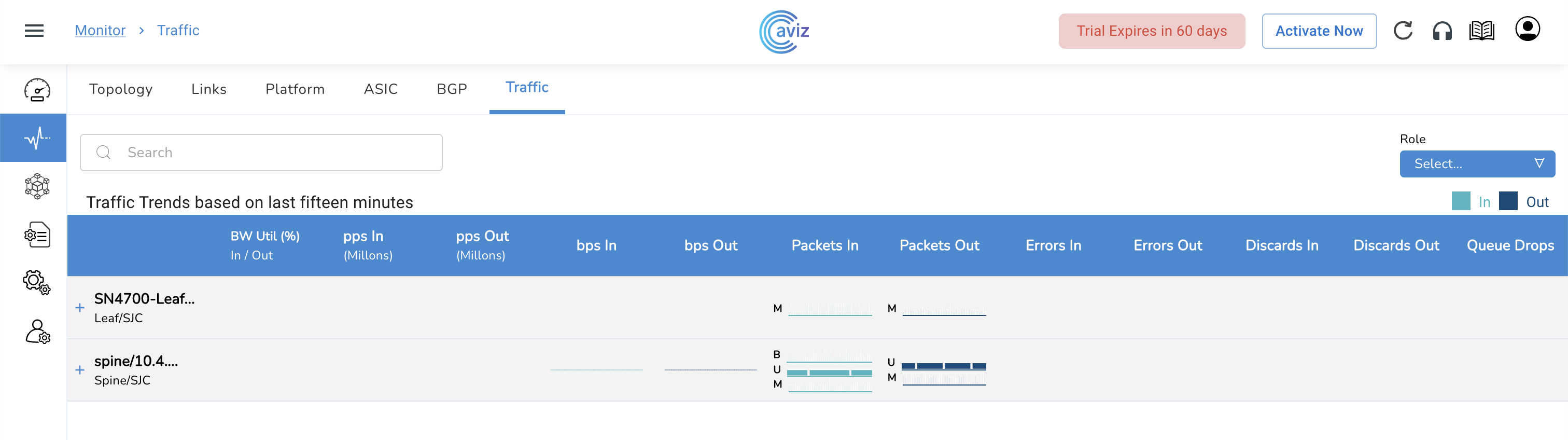
* Using this widget we can check the input and output errors across all the devices&#x20;
* This widget also shows the input and output packet per device&#x20;
* Navigate to <mark style="color:blue;">**Monitor >> Traffic**</mark>

<figure><img src="https://content.gitbook.com/content/sjMG8ERI8JuFHFkm9MpV/blobs/YD2ztf3L3POzj5Ma7Fsr/Screenshot%202023-02-10%20at%2011.44.31%20AM.png" alt=""><figcaption></figcaption></figure>

* This page shows the information:&#x20;
  * Bandwidth utilization in percentage
  * Input packets per second in millions
  * Output packets per second in millions
  * Input packets&#x20;
  * Output packets&#x20;
  * Input and Output discards&#x20;
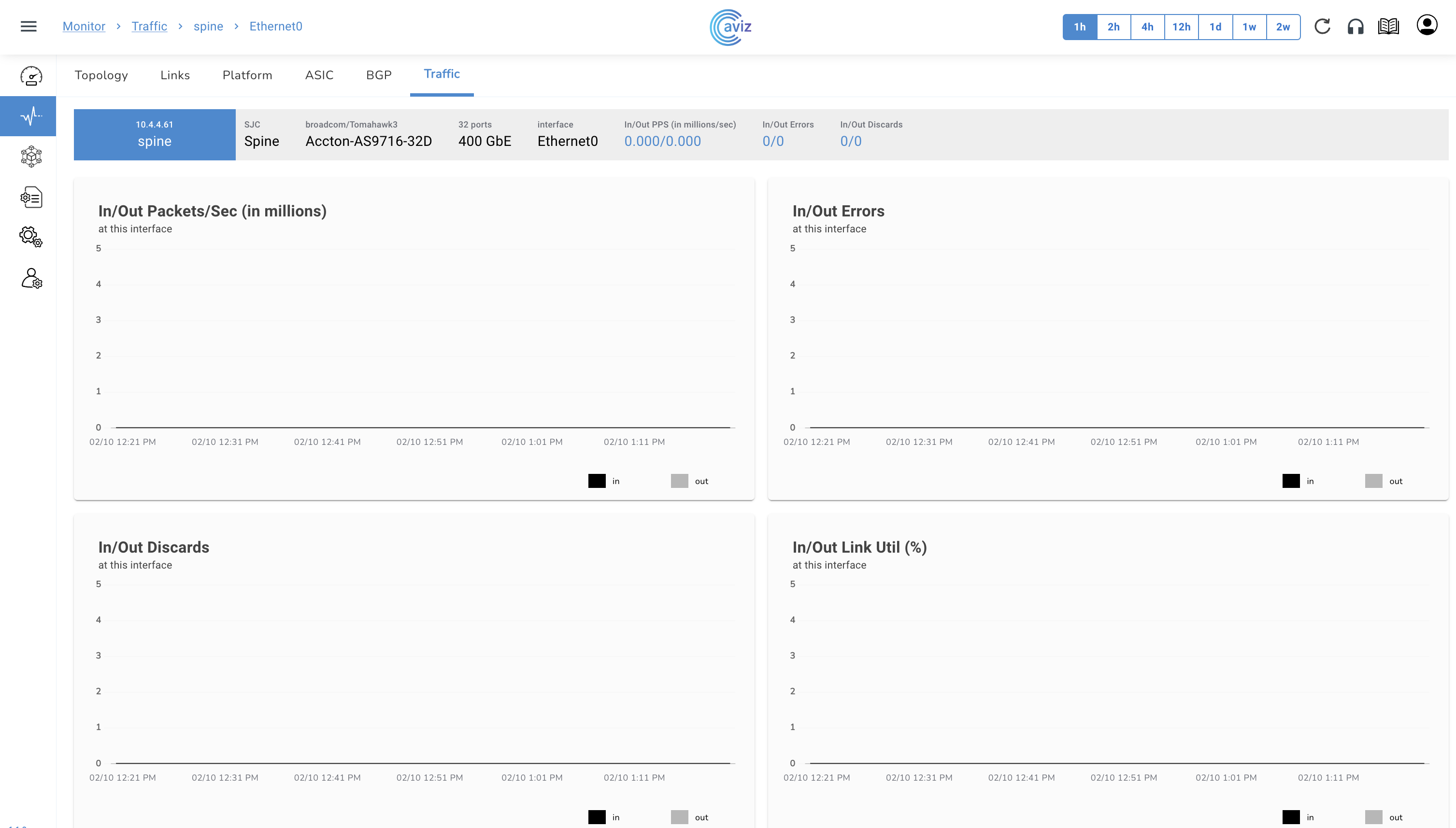
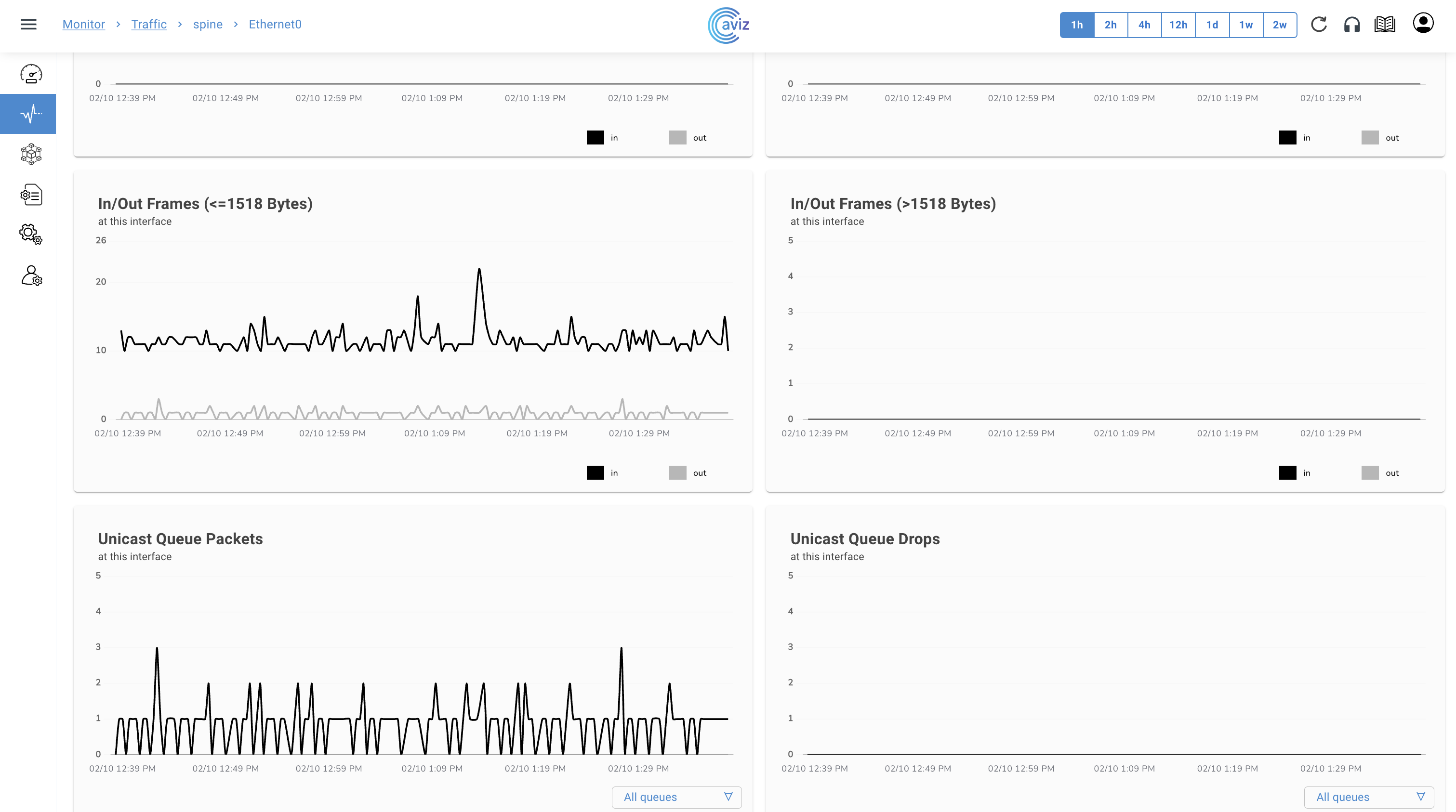
* When we click on any particular interface it gives the timescale of the inputs and output packets with Errors and Discards & all metrics in detail

<figure><img src="https://content.gitbook.com/content/sjMG8ERI8JuFHFkm9MpV/blobs/gHs8F5trrsur2S85jAIY/Screenshot%202023-02-10%20at%201.22.00%20PM.png" alt=""><figcaption></figcaption></figure>

<figure><img src="https://content.gitbook.com/content/sjMG8ERI8JuFHFkm9MpV/blobs/1p9UVvA1ZONRTzxo6TOs/Screenshot%202023-02-10%20at%201.38.29%20PM.png" alt=""><figcaption></figcaption></figure>

* This page shows the traffic drop rate per interface based and will be very useful while doing any troubleshooting for a traffic drop&#x20;
* Using these details a user can check more details inside to fix the issue of dropping/discarding packets