# File Management

The Files module in NCP allows users to upload and manage data files for analysis, ingestion, or reference within the platform.

Uploaded files can be tagged and scoped for visibility across users or limited to specific roles.

{% hint style="info" %}
&#x20;File processing may take up to 30 seconds. Max file size: 100MB.
{% endhint %}

<figure><img src="https://2948110985-files.gitbook.io/~/files/v0/b/gitbook-x-prod.appspot.com/o/spaces%2F4CAWWzJyXXOO1e10en45%2Fuploads%2FXqBGLkHjxzMo3hUrLwE5%2FScreenshot%202026-03-19%20at%2016.32.44.png?alt=media&#x26;token=770ce5c5-b4b5-4bab-98a0-f22e9caf19c4" alt=""><figcaption></figcaption></figure>

**Step 1: Navigate to the Files Section**

* Go to:\
  Toggle `Admin View` → `Files`
* You will see a table listing previously uploaded files (if any), including metadata like source, access level, and timestamp.

<figure><img src="https://2948110985-files.gitbook.io/~/files/v0/b/gitbook-x-prod.appspot.com/o/spaces%2F4CAWWzJyXXOO1e10en45%2Fuploads%2FThcQMylzQUqxfa90utO5%2FScreenshot%202026-03-19%20at%2016.31.29.png?alt=media&#x26;token=f6bc1631-8f56-468b-8e25-f887ed8ec874" alt=""><figcaption></figcaption></figure>

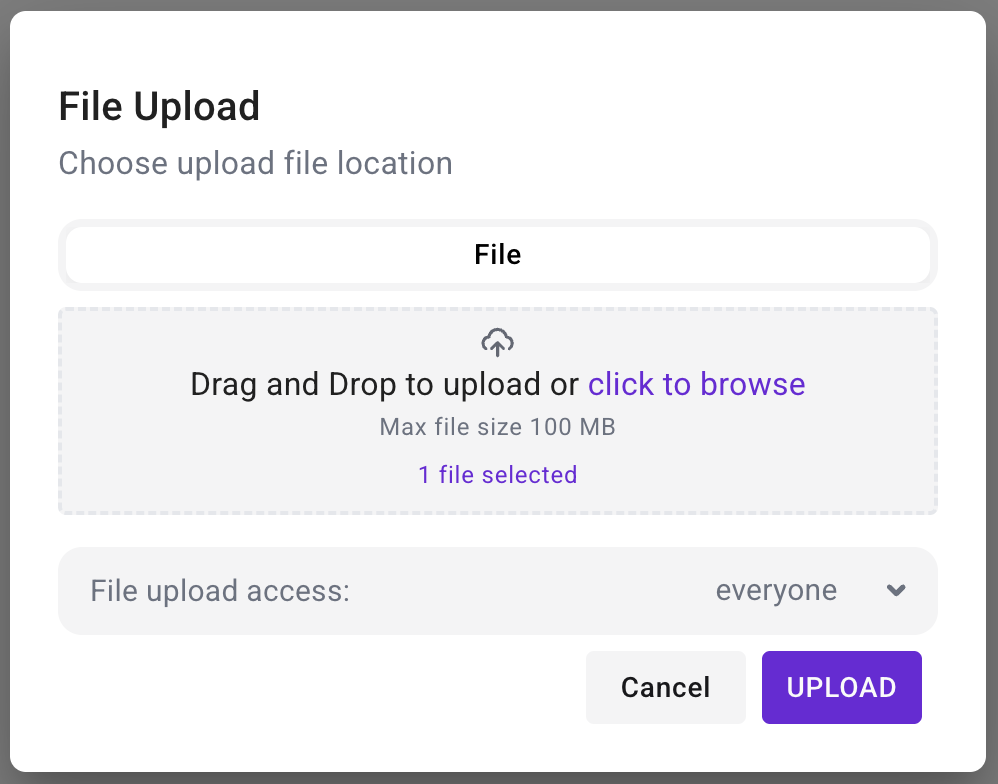
**Step 2: Upload a File**

* Click the **Upload File** button at the top right
* In the popup window:
  * Either drag and drop a file or click **Browse** to select one
  * Set **File upload access** (e.g., `everyone` or `restricted`)
  * Click **Upload**

<div align="left"><figure><img src="https://content.gitbook.com/content/4CAWWzJyXXOO1e10en45/blobs/Kijs0pHOxq5FstfT8ET4/Screenshot%202025-07-18%20at%205.07.37%E2%80%AFPM.png" alt="" width="245"><figcaption></figcaption></figure></div>

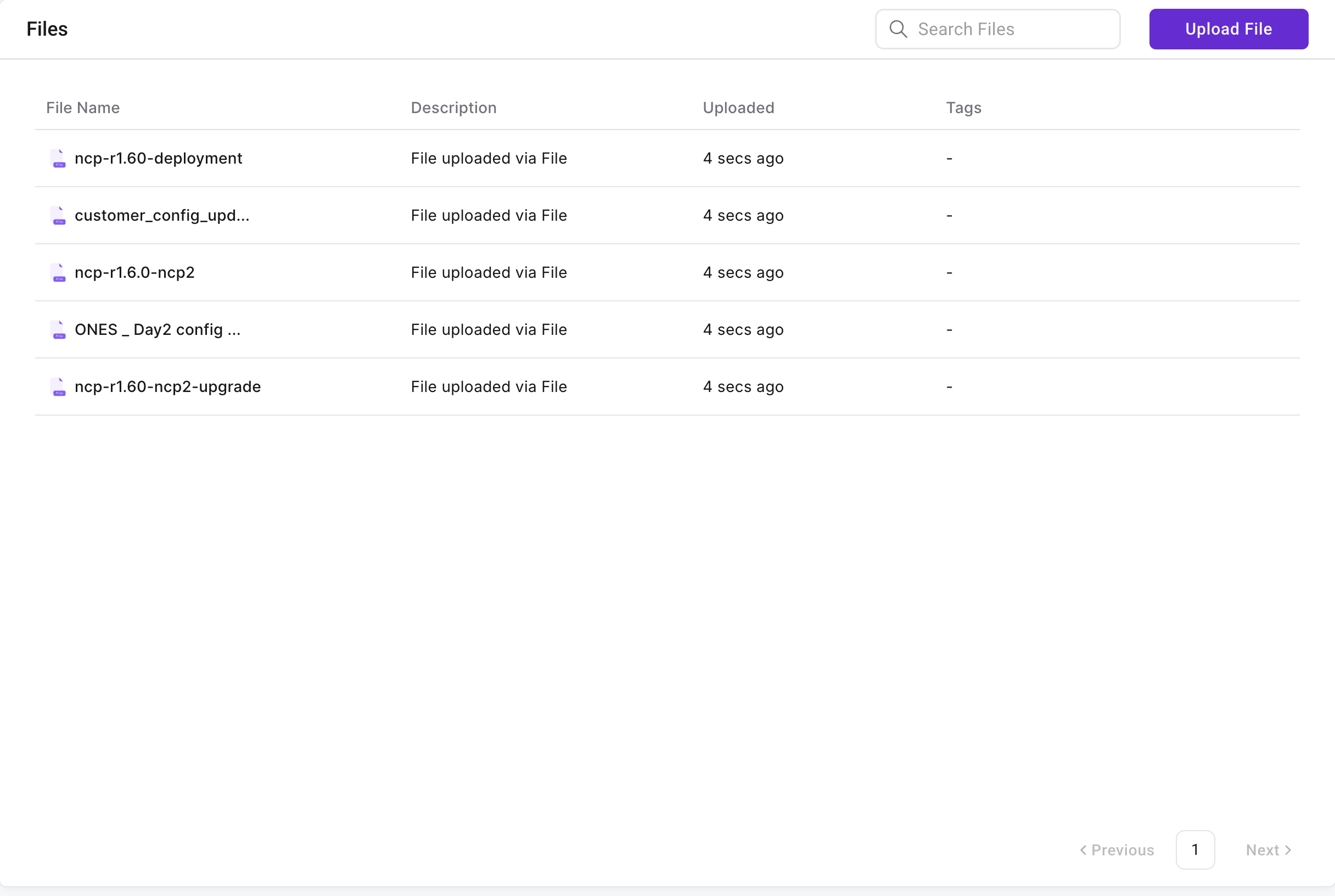
**Step 3: Confirm Upload**

* Once uploaded, the file appears in the table with:
  * File name
  * Upload time
  * Access level
  * Tags (if any)
<div align="left"><figure><img src="https://content.gitbook.com/content/4CAWWzJyXXOO1e10en45/blobs/jScDK9Tc2kVKyUoARvKx/Screenshot%202025-07-18%20at%205.08.19%E2%80%AFPM.png" alt="" width="563"><figcaption></figcaption></figure></div>