arrow-left

All pages
gitbookPowered by GitBook
1 of 25

Loading...

Loading...

Loading...

Loading...

Loading...

Loading...

Loading...

Loading...

Loading...

Loading...

Loading...

Loading...

Loading...

Loading...

Loading...

Loading...

Loading...

Loading...

Loading...

Loading...

Loading...

Loading...

Loading...

Loading...

Loading...

FV VirtualBox Installation

hashtag
Pre-Requisite:

  • A Windows machine/VM with the below minimum requirement:

    • 2 vCores (available for FlowVision VM)

    • 8 GB RAM

    • 40 GB HDD

  • Download Oracle VM virtual box from the below link

  • Install Oracle VM Virtual box

hashtag
Importing OVA:

  • Import the OVA file in Oracle VM virtual box

  • Click the start button to power-on the virtual machine

  • Log in to the FlowVision VM with default credentials

    • Username: aviz

    • Password: Aviz@123

  • Get the IP address of the VM through ip address show

  • Access the GUI through the above IP using your favourite browser with http port: 8093

    • https://<VM_IP>:8093/

  • Login to the GUI with the default credentials

    • Username: admin

    • Password: admin

Downloads – Oracle VM VirtualBoxarrow-up-right
arrow-up-right
VirtualBox Installation Guidearrow-up-right
VirtualBox Main Windows for Importing OVA
Select the FlowVision OVA
FlowVision VM
Starting the FlowVision VM
FlowVision boot logs
FLowVision CLI
Check IP address
FlowVision web GUI
FlowVision GUI homepage

Viewing the Dashboard

The Dashboard is the default home page of the FlowVision GUI. To return to the dashboard view from any other page, click System > Dashboard.

The Dashboard shows you the following data:

hashtag
APB Fabric Information

This pie chart shows you the device information based on HwSKU and the device OS. You can hover the mouse pointer over the charts to display a tooltip with more relevant information.

The following image shows the APB fabric information charts:

hashtag
Platform Health

The platform health table shows you the CPU usage, memory availability, and link status for each connected devices. From this data you can infer the overall health of the platform.

The following image shows the platform health table:

hashtag
Link Information

The link information table shows you the total number of ports from all the connected devices, the number of ports that are enabled with admin privileges, and the number of ports that are connected at any given moment.

The following image shows the link information table:

hashtag
Top 5 Ports by Traffic

The top 5 ports by traffic shows you the top 5 ports across all connected devices sorted on the basis of their traffic rate. The table shows you the device, port number, the number of In Ucast packets, the number of Out Ucast packets, the number of In Discards, and the number of Out Discards.

The following image shows the top 5 ports by traffic table:

hashtag
Top 5 Devices by Flow

The top 5 devices by Flow shows you the top 5 devices sorted on the basis of the number of flows they have. The table shows the device IP, the number of flows, and the number of rules.

The following image shows the top 5 devices by flow table:

hashtag
Top 5 Flows by Traffic

The top 5 flows by traffic shows you the top 5 flows across all connected devices sorted on the basis of their traffic rate. The table shows you the device IP, flow alias, and the count.

The following image shows the top 5 flows by traffic table:

hashtag
Docker Statistics

The docker statistics table shows you the docker statistics across all connected devices along with the CPU and memory usage for each device.

The following image shows the docker statistics:

hashtag
Syslog Statistics

The syslog statistics table shows you the system log statistics of all connected devices. The table shows the number of messages in the info, debug, error, notice, and warning categories for each device.

The following image shows the syslog statistics:

System

The System menu lets you perform the following actions:

  • Viewing the Dashboard

  • Accessing the General System and Device Information

FV ESXi Host Installation

hashtag
Pre-Requisite:

  • An ESXi Host with the below minimum requirement available for FlowVision:

    • 2 vCores

    • 4 GB RAM

    • 20 GB HDD

hashtag
Deploying OVA:

  • Log in to the ESXi Host and click on 'Create/Register VM'

  • Click on 'Deploy a virtual machine from an OVF or OVA file'

  • Name the VM and select the downloaded 'OVA' file

  • Choose the 'datastore' where you want to install the VM

  • Select the 'VM-Network' to ensure that the VM is reachable

  • Review the configuration and click on 'FINISH'

  • Wait for the OVA file to upload; Check the status in 'Recent tasks' at the bottom of the screen

  • 'Power on' the VM

  • Login to the VM with default credentials

    • User: aviz

    • Password: Aviz@123

  • Check DHCP assigned IP on the VM with 'ip a'

  • Login to the Web-GUI at https://<VM-IP>/ with default credentials

    • User: admin

    • Password: admin

Managing Users

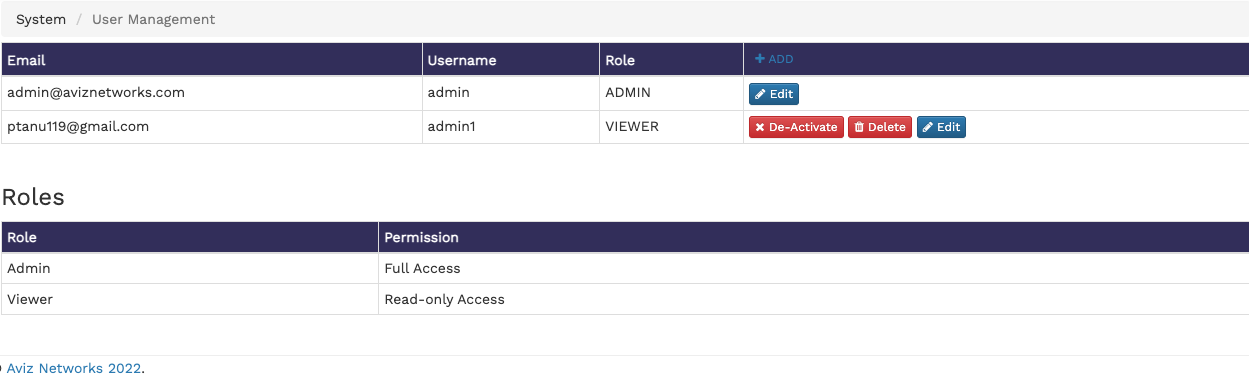
To manage users from the FlowVision GUI, click System > User Management.

The User Management page shows the details of all the users of the system and their user previleges and roles. From the User Management page, you can add new users, edit user roles and permissions, de-activate a user, and delete a user.

circle-info

You must have admin previleges to add, edit, or delete a user.

The following image shows the User Management page:

Managing Topologies
Managing Devices
Viewing System Log
Managing Users
Performing Backup and Restore
Viewing Audit Logs
Tables showing users, roles, and management options

hashtag
Adding a New User

To add a new user,

  1. Click the ADD button on the header of the user management table at the top. The New User window displays.

  2. Specify the Email address, Username, Password, and Role of the new user in their respective fields. The Role drop-down field has two options - Admin and Viewer. The Admin role has full access and the Viewer role has read-only access.

  3. Click Save to create the user.

hashtag
Editing Existing Users

To edit an existing user,

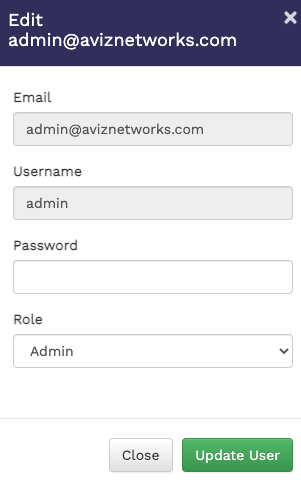
  1. Click the Edit button against the user in the User Management table. The Edit User window displays.

  2. Edit the required details in the Email, Username, Password, and Role fields.

  3. Click Update User to update the user details.

hashtag
De-Activating or Deleting Users

In the User Management table,

  • Click the De-Activate button to deactivate a user.

  • Click the Delete button to delete a user.

Pie chart showing the details of fabric based on HWSKU and OS
Table showing the health information
Table showing link information
Table showing top 5 ports by traffic
Table showing Top 5 devices by Flow
Table showing Top 5 Flows by Traffic
Table showing Docker Statistics
Table showing syslog statistics
ESXi Host
Deploy the OVA
Select the OVA
Select the datastore
Select VM network
VM configuration
Wait for OVA upload
Power-ON VM
FlowVision VM
FlowVision DHCP IP
FlowVision Web-GUI

Managing Devices

To manage connected devices from the FlowVision GUI, click System > Devices.

The Devices screen shows all the connected devices and their connection status. The devices that are online are shown with a green status and the devices that are offline are shown in a red status. You can click the icon to reboot an online device. To delete a device, click the icon.

The following image shows the Devices page:

Devices screen showing connected devices

hashtag
Adding New Devices

To add a new device,

  1. Click the icon at the top right corner of the Devices page. The Add New Device window displays.

  2. Specify the values for IP Address, Username, and Password in their respective fields.

  3. Click Save to apply your changes and add the device. Click Discard

Configuration

The configuration menu helps you perform the following:

  • Configuring Ports

  • Configuring Port Groups

Aviz FlowVision Graphical User Interface Guide

hashtag
Introduction

This guide provides you with information on how to use the FlowVision graphical user interface to manage devices.

The FlowVision GUI has the following menu options at the top level:

circle-exclamation

FlowVision uses TCP port 443 for its Web-GUI and TCP port 8091 for communication with the APB switches.

The following image shows the home page of the Aviz FlowVision GUI:

Managing Topologies

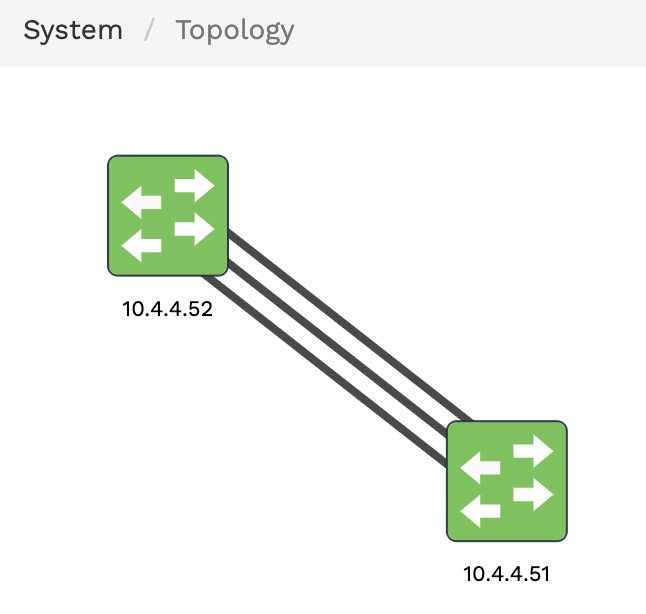
To manage connected topologies from the FlowVision GUI, click System > Topology.

The topology screen shows all the connected devices. The devices that are online are shown in green and the devices that are offline are shown in red. Hover the mouse pointer over the device icons to get more information, such as, the IP address, RAM, CPU, SSD, and so on.

The following image shows the topology of devices in the FlowVision GUI:

hashtag
Configuring Device Properties in the Topology

You can change the device properties, refresh a device, or delete a device by accessing the Device Control window from the topology page.

  1. Click the device icon in the topology screen. The Device Controls window displays.

  2. Click the icon at the bottom of the Device Controls window. The Device Properties window displays.

  3. Drag the sliders to the desired point to configure the threshold values for CPU, RAM, and SSD.

Other than changing the device properties, you can also reboot a device or delete it from the Device Controls window:

  • Click the icon to reboot the device.

  • Click the icon to delete a device.

circle-info

If you open the Device Controls window of a device shown in red in the topology screen, you cannot configure the device properties, as the device is not reachable. You have an option to remove the device, if need be. Click the REMOVE button to remove the device.

Accessing System and Device Information

To access the system and device information, click System > General.

hashtag
System Information

The system information table shows you the product name, version information, and technical support information for the system.

The following image shows you the system information tab:

hashtag
Devices Information

The devices information table shows detailed information and properties of each connected device. For each device, the table shows the IP address, the MAC address, the platform on which the device is running, the HWSKU information, the SONiC version of the device, the PBNOS version, and the device uptime in days, hours, and minutes.

hashtag
Editing Device Properties

You can edit device properties from the Devices Information table:

  1. Click the Edit button corresponding to the required device on the Devices Information table. The Device Properties window displays.

  2. Change the required device property value in the editable fields. Currently, you can edit the Hostname, ZTP Status, and GTP value.

  3. Click Save Changes to apply your changes.

Click the Reboot Device button, if you want to reboot the device.

Configuring Port Groups

You can group ports from a device together and create port groups. To get to the port groups page from the FlowVision GUI, click Configuration > Port Groups.

The Port Groups page shows you the connected devices and a table that shows the port groups from each device, the port group ID, the name of the ports that are part of the port group and an option to delete any existing port group.

The following image shows the Port Groups page:

hashtag

Configuring Ports

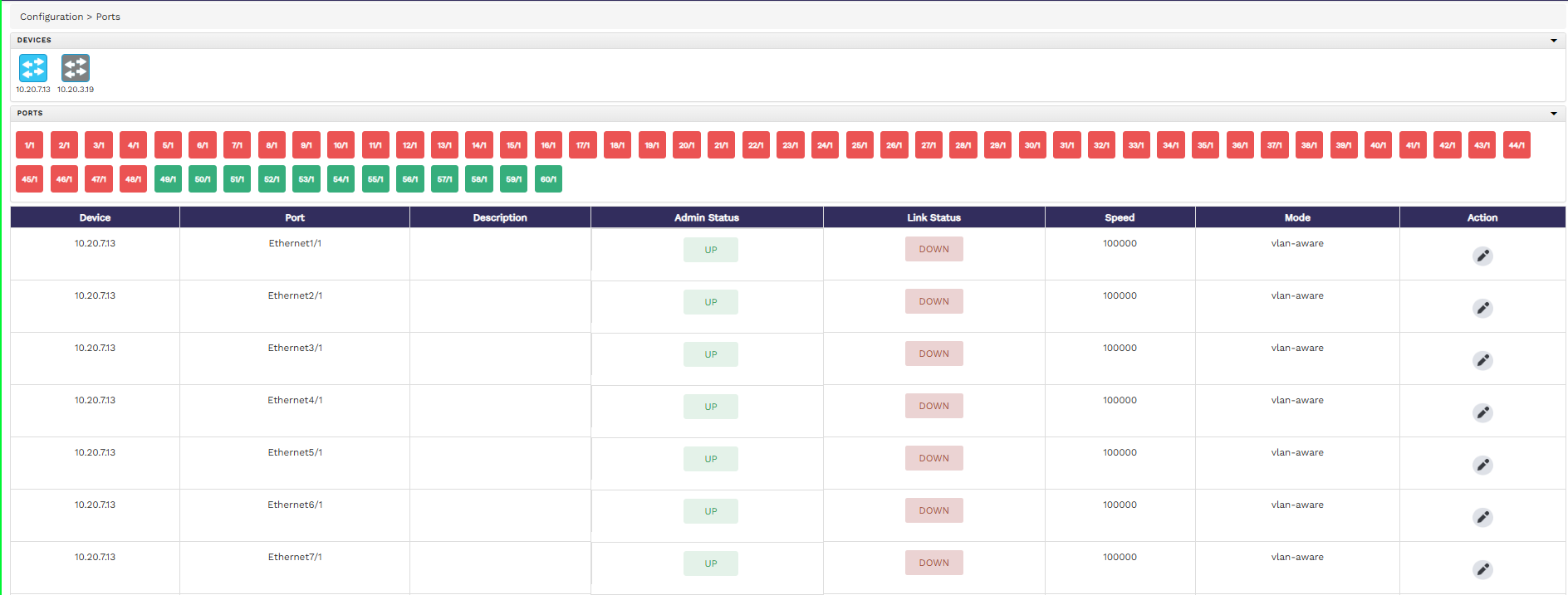
To configure the ports of the connected devices from the FlowVision GUI, click Configuration > Ports.

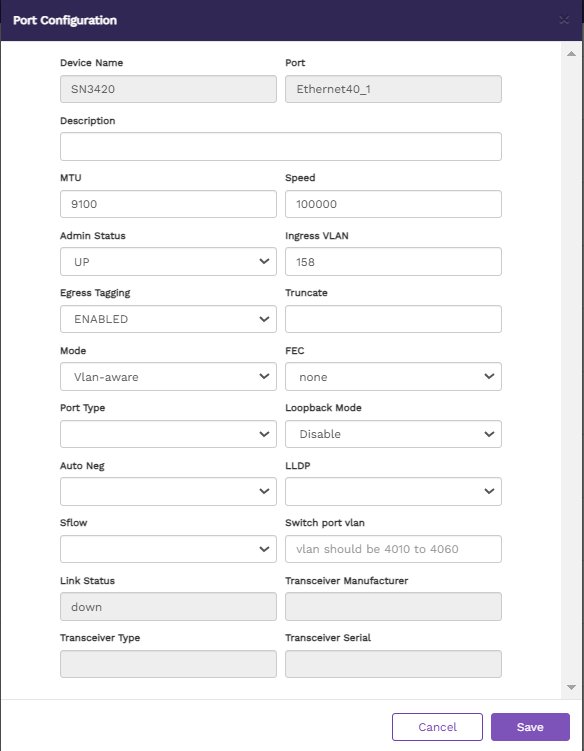
The Ports page shows the connected devices, the ports of each of those connected devices, and a table displaying the details of the ports, such as, the admin status, link status, speed, ingress VLAN, egress tagging, truncation, mode, and the tranceiver details. Note that, the ports that have their link status as 'UP' are shown in green, whereas the ones with the link ststus as 'DOWN' are shown in red. You can hover the mouse pointer over the devices icon or ports icon for more information on that device or port.

By default, when you select a device in the Devices section, the ports table shows you the details of all the ports of the selected device. If you want to get the details of particular ports, click the port number in the Ports section. You can also edit the properties of ports from the ports table.

The following image shows the ports page with device, ports, and port status details:

Statistics

The Statistics menu helps you perform the following:

Configuring Rule Templates
Configuring Flow Manager
Configuring SNMP trap
Viewing Port Statistics
Viewing Flow Statistics
to discard your changes.

Click Save changes to apply your changes.

Creating Port Groups

To create a new port group,

  1. Click the icon at the top right corner of the port groups page. The Port Group window displays.

    Port selection for port group
  2. Select the device where you want to create the port group.

  3. Click the required ports to add them to the port group. The added ports are displayed in the Select ports to create Groups field.

  4. Specify a number i.e. say 1 to 15, for the port group in the Port Group Id field.

  5. Click Save.

Port Groups Page
Ports page showing devices and their ports

hashtag
Editing Port Properties

To edit the properties of a port,

  1. Click the Edit button against the required port in the ports table. The Port Properties window displays.

  1. Update the properties as required. The properties you can update are - Description, MTU, Speed, Admin Status, Ingress VLAN, Egress Tagging, Truncate, Mode, Fec , Port Type, Loopback Mode, Auto Neg, LLDP, sFlow and Switch Port Vlan. You can also see other non-changeable fields with more information about the selected port.

  2. Click Save Changes to apply your changes.

System
Configuration
Statistics
Help
Aviz FlowVision Home Page
Table displaying system information
Table displaying devices information

Viewing Flow Statistics

To view the flow statistics of the connected devices from the FlowVision GUI, click Statistics > Flow.

The Flow statistics page shows you the connected devices, the available rule IDs for each devices, the flow alias, and counters.

The following image shows the Flow statistics page:

Flow statistics page

Viewing Audit Logs

To view the audit logs from the FlowVision GUI, click System > Audit Logs.

The audit logs table gives you the details of all the actions performed on the connected systems. The details include the action performed, the date, the IP address of the system, the resource used, the username of the operator that performed the action, and the status of the action.

The following image shows the audit logs table:

Audit Logs table showing the actions performed on the systems

Viewing System Log

To view the system log from the FlowVision GUI, click System > Syslog.

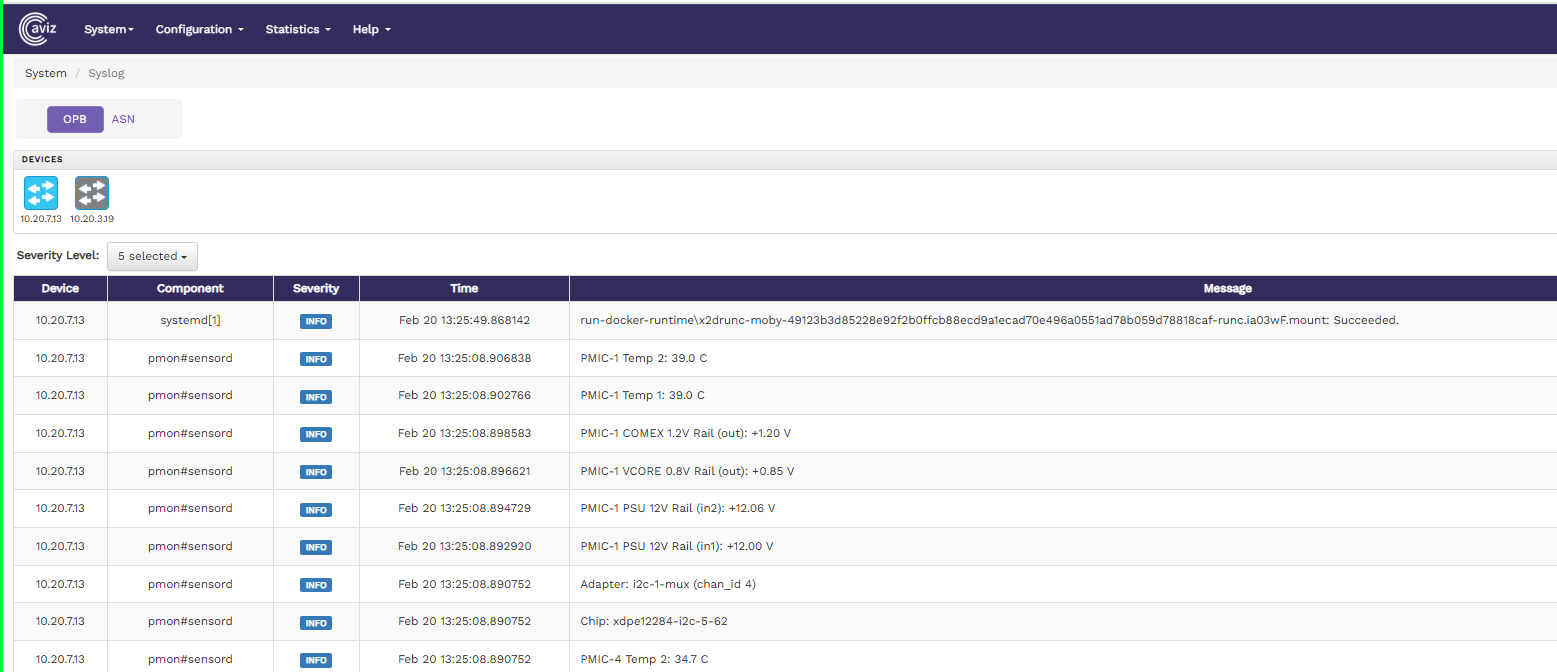
The Syslog page shows the system logs of all the devices that are online. You can click the device icon for each of the online devices to get the system log for that particular device. The system log shows the device IP, component, severity level, time stamp, and the severity level message with more specific information.

The following image shows the system log table of a device:

Table showing system log of a device

You can change the severity level of the messages displayed in the syslog table using the Severity Level drop-down menu. The available options are Debug, Info, Notice, Warning, Err, Critical, Alert, and Emergency. This is a multi-select menu where you can select multiple severity levels to be displayed.

Configuring Rule Templates

To view and configure rule templates from the FlowVision GUI, click Configuration > Rule Templates.

The Rule Templates page shows the total number of existing rule templates and a table showing the details of each of these rule templates, such as the name of the template, the action performed, the override action and also an option to edit or delete a rule template.

The following image shows the Rule Templates page:

Rule Templates page

hashtag
Creating New Rule Templates

To create a new rule template,

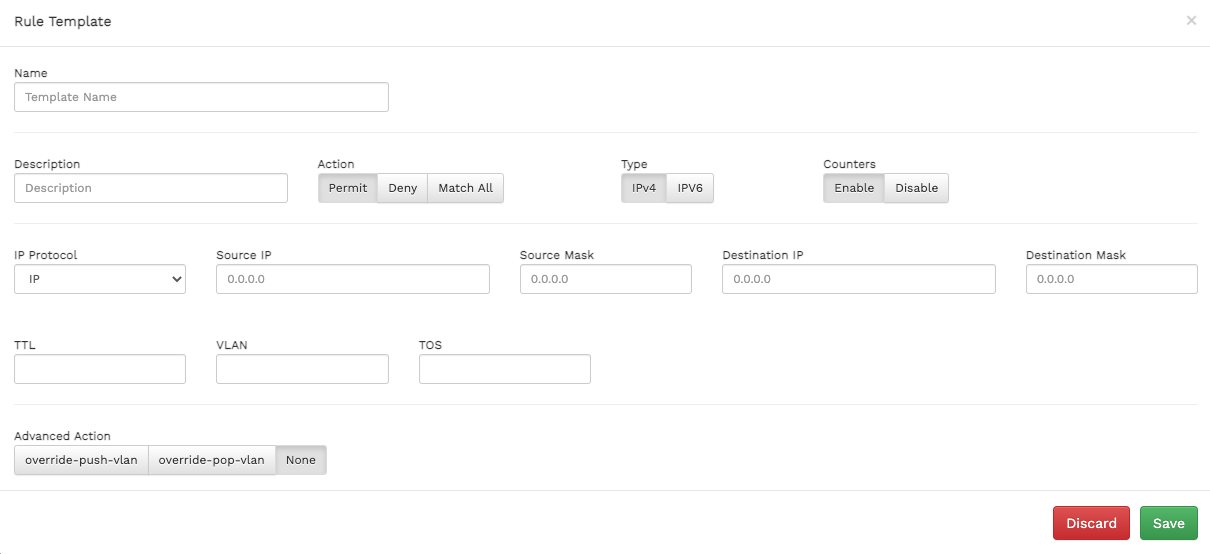
  1. Click the icon at the top right corner of the Rule Templates page. The Rule Template window displays.

  2. Specify values for the following:

    • Name

hashtag
Editing and Deleting Rule Templates

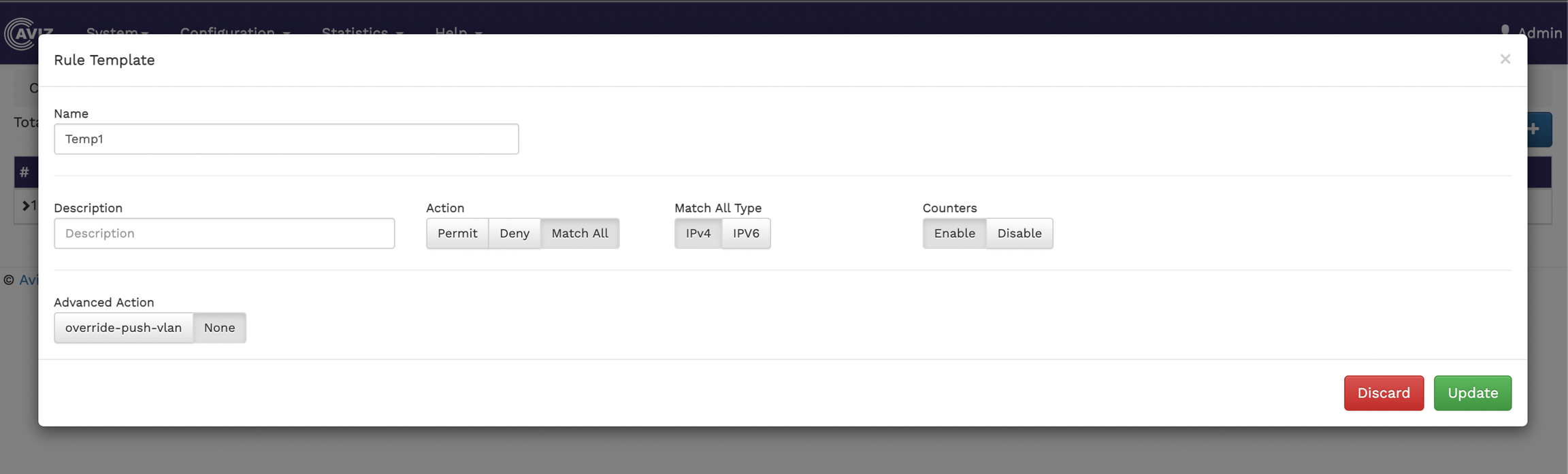
  • To edit an existing rule template, click the icon and make your changes in the Rule Template window.

  • To delete a rule template, click the icon.

Viewing Port Statistics

To view the port statistics of the connected devices from the FlowVision GUI, click Statistics > Port.

The Ports statistics page shows you the connected devices, the available ports on each device, and the counter, traffic rate, and error statistics of the ports. By default, when you select a device the statistics for all the ports in the device are displayed. If you want to get the statistics of a particular port, select the port from the list of ports.

The following image shows the port statistics page:

Port statistics page showing devices, ports, and their statistics

You can get the statistics for Counters, Traffic Rate, and Errors, each shown in a different tab.

hashtag
Counters Statistics

The counter statistics show the counter for received bytes, received packets, transmitted bytes, and transmitted packets for each port.

The following image shows the counter statistics table:

hashtag
Traffic Rate Statistics

The traffic rate statistics show the rate of transmission and reception in bytes for each port.

The following image shows the traffic rate statistics table:

hashtag
Errors Statistics

The error statistics show the In Errors, Out Errors, In Discards, and Out Discards of each port.

The following image shows the error statistics table:

Configuring Vxlan Tunnel

The Tunnel Configuration section in FlowVision allows users to view, create, and manage VXLAN tunnels through a graphical interface.

hashtag
Accessing Tunnel Configuration

To view and configure Vxlan tunnel:

  1. Navigate to Configuration > Tunnel.

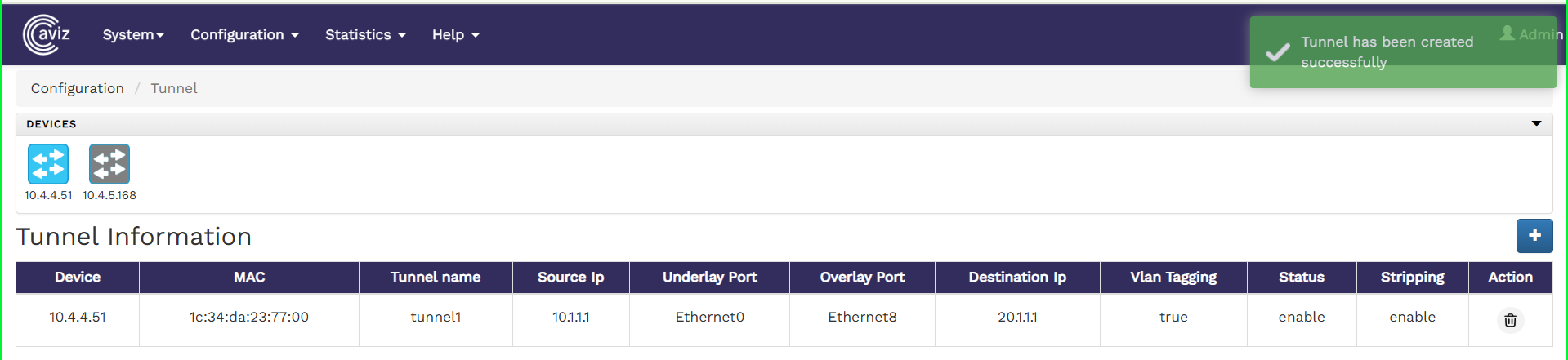
  2. The Tunnel Information page displays:

    • Existing VXLAN tunnels.

    • A table with tunnel details, including:

circle-exclamation

Note:

  • Only one tunnel can be created per device.

The following image shows the Tunnel Information page:

hashtag
Creating New Tunnel

To create a new tunnel,

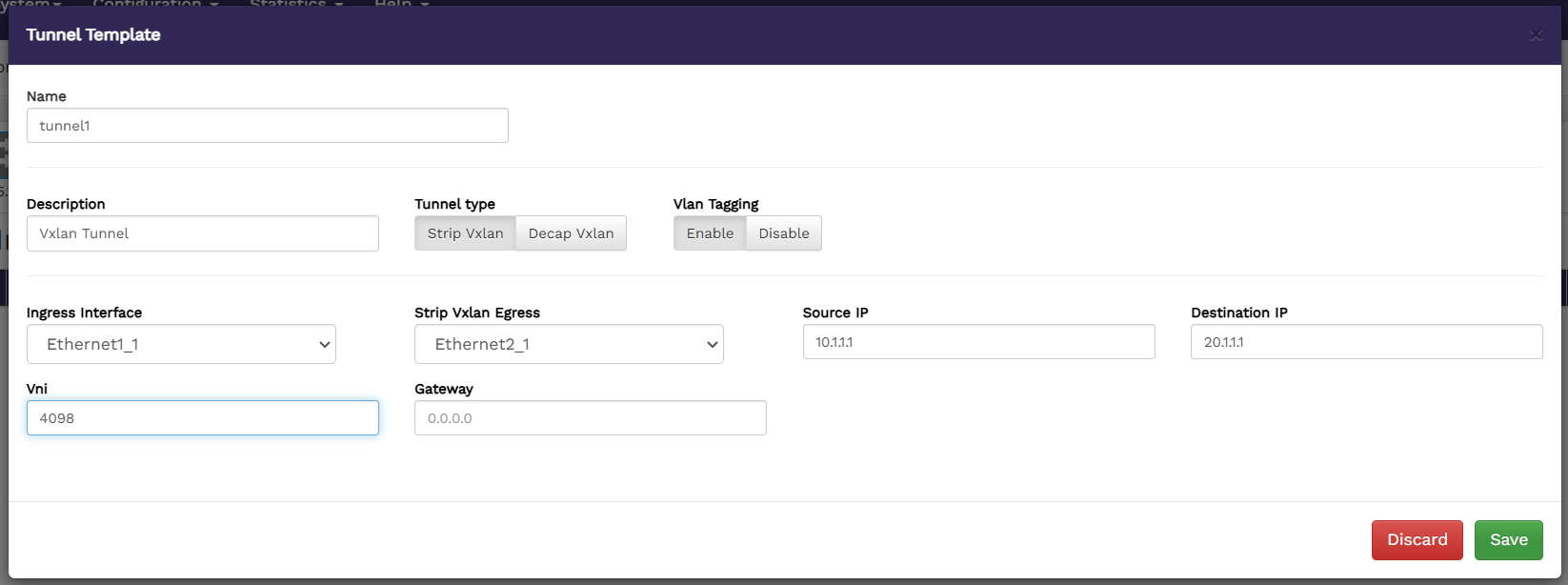
  1. Click the icon at the top right corner of the Tunnel page.

  2. The Tunnel Template window displays.

  3. Specify values for the following:

hashtag
Deleting the existing tunnel

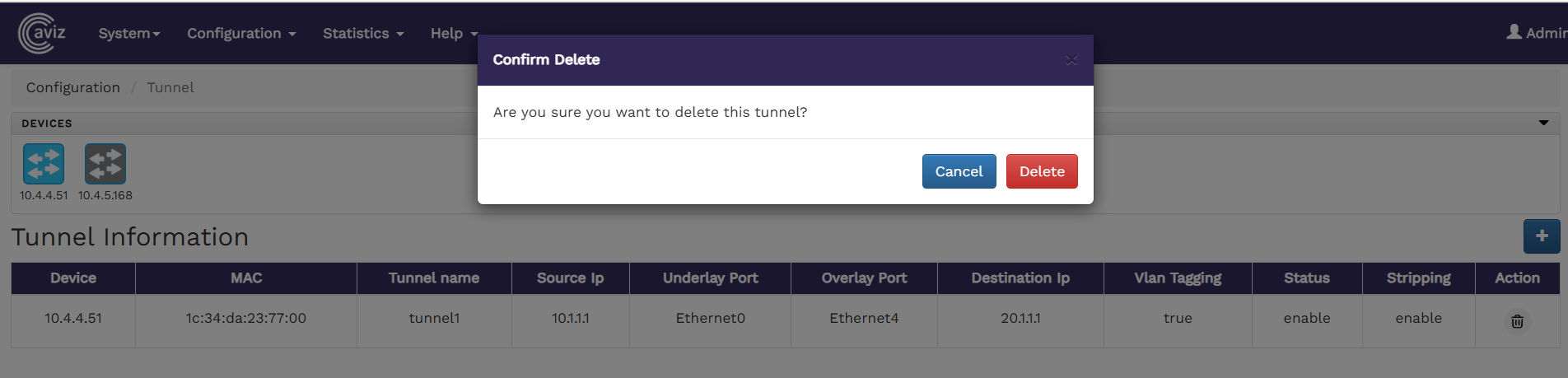
  • To delete a tunnel, click the icon next to the tunnel entry.

Configuring VLAN

The VLAN Configuration section in FlowVision allows users to create, manage, and delete VLANs through a graphical interface.

hashtag
Accessing VLAN Configuration

To configure VLANs from the FlowVision GUI:

  1. Navigate to Configuration > VLAN Configuration.

  2. The Vlan Configuration page will display:

    • The total number of existing VLANs.

    • A table with VLAN details, including Device IP, Interface Type, Ip Address/ Mask ,Any Cast Gateway / mask and options to Delete VLANs.

  3. The following image shows the VLAN Configuration page:

hashtag
Creating New VLANs

To add a new Vlan,

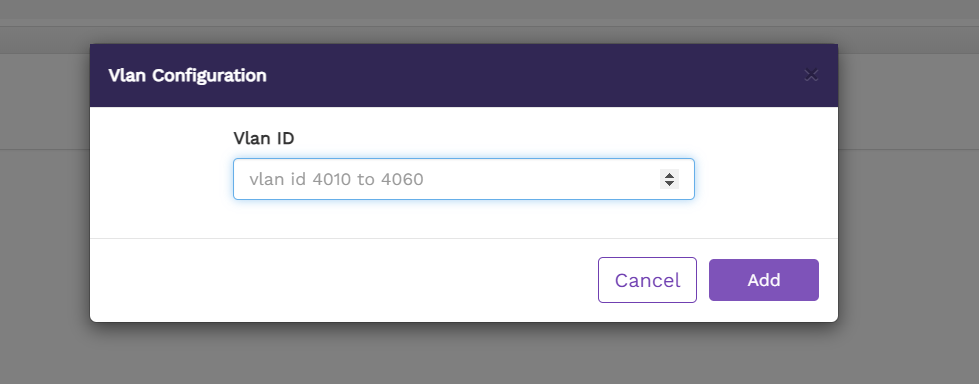
  1. Click the icon at the top right corner of the Vlan Configuration page..

  2. Enter a VLAN ID within the supported range (4010–4060).

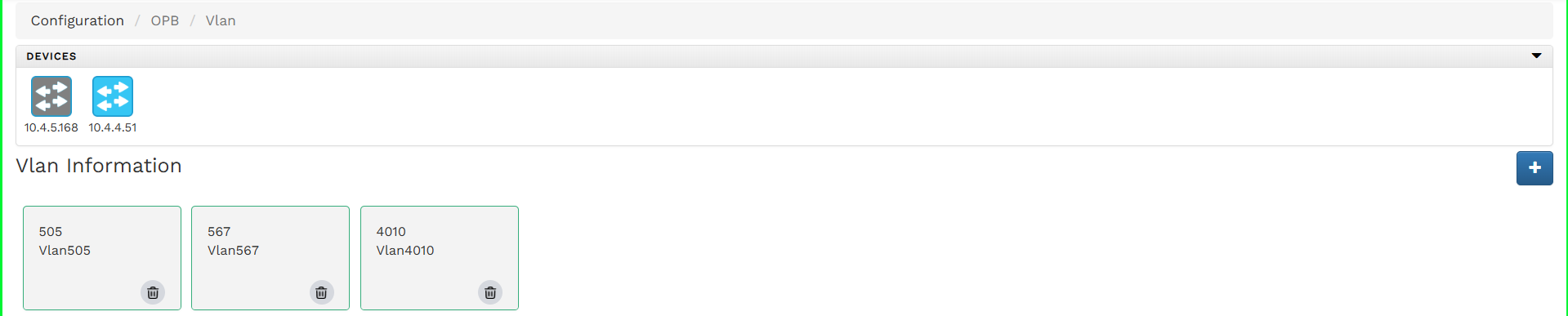
  1. Once created, the new VLAN will be listed under the VLAN Information section.

hashtag
Creating an SVI Interface

To assign an IP address to the newly created VLAN:

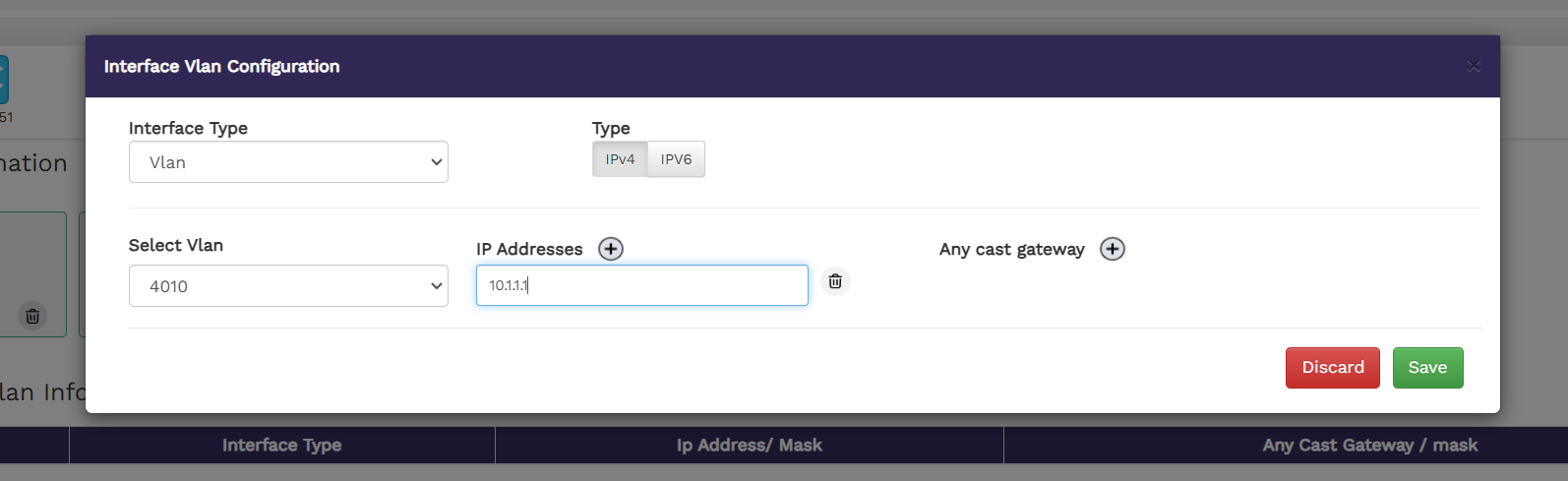
  1. Click the second icon in Interface Configuration section.

  2. Select Interface Type: VLAN from the dropdown menu.

  3. Choose the VLAN ID, assign the IP address, and click Save.

  1. The newly created SVI (Switched Virtual Interface) will appear in the Interface VLAN Information table as show on below

hashtag
Deleting the existing Vlan

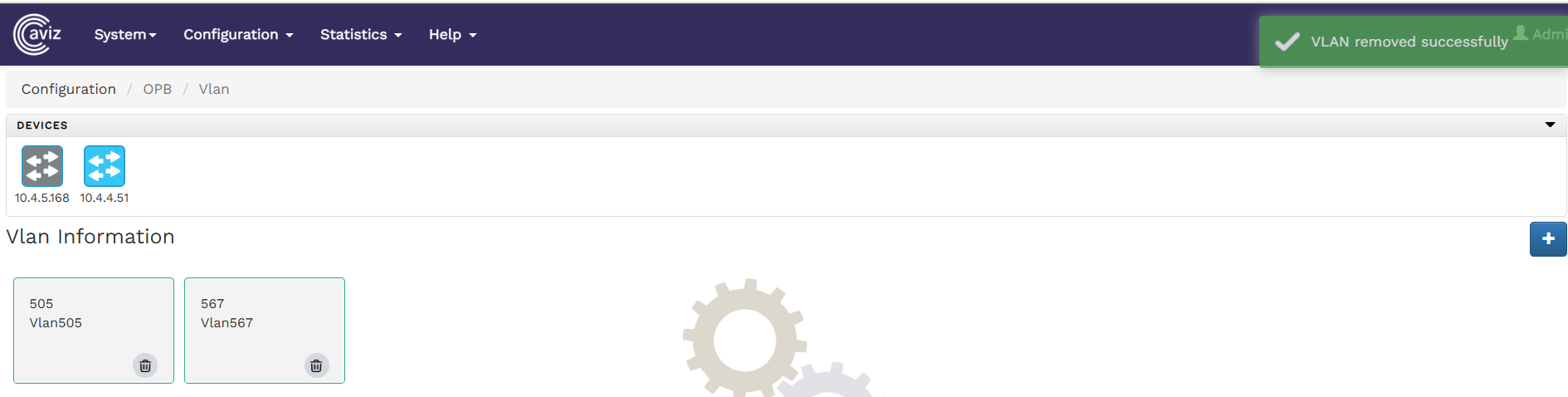
To delete the existing Vlan , click the icon.

triangle-exclamation

Note: Removing an SVI requires deleting the associated VLAN. There is no option to delete only the SVI while retaining the VLAN.

Configuring SNMP Trap

To configure SNMP traps using the FlowVision GUI, navigate to Configuration > SNMP Traps.

The SNMP Traps configuration page lists connected devices and their respective configured SNMP Traps. You can select individual devices and define SNMP traps.

The following image shows the SNMP Trap page with the switches and configured SNMP Traps:

SNMP Traps

hashtag
Configure SNMP Traps

To create an SNMP Trap,

  1. Start by clicking on the button

  2. Select the switch to configure the SNMP Trap

  3. Configure the SNMP trap Server-ID, Version, Destination IP, Destination Port and community string

To delete the existing SNMP Trap, click the icon.

Help

The Help page takes you to the REST API documentation. To get to the REST API from the FlowVision GUI, click Help > REST API.

This action takes you to the Swagger UI page with the FlowVision REST API.

Configuring Flows

To create and configure flows from the FlowVision GUI, click Configuration > Flow Manager.

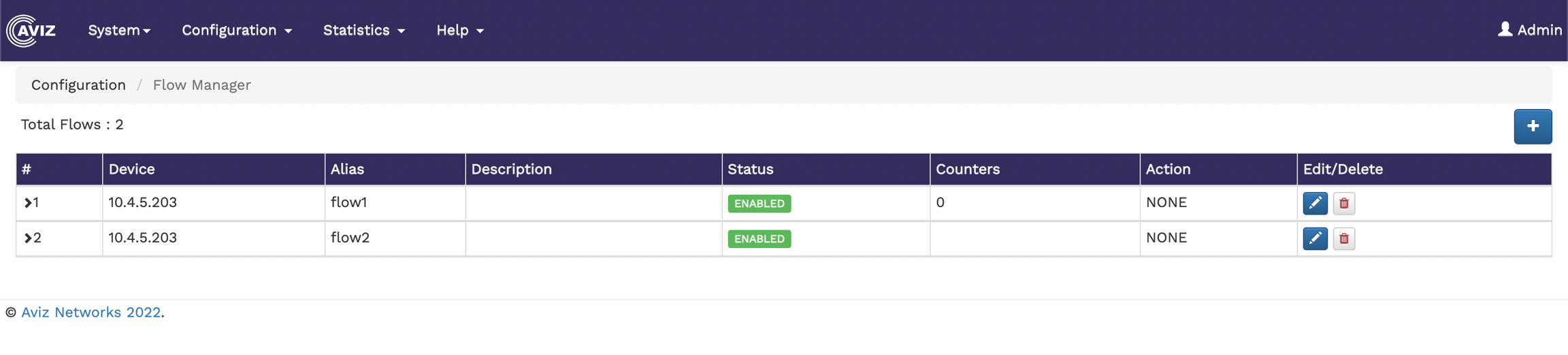
The Flow Manager page shows the number of existing flows and a table showing the flow details, such as device ID, alias, description of the flow, status, the available counters, the action performed, and an option to edit and delete flows.

The following image shows the Flow Manager page:

hashtag

- specify a name for the new rule template.
  • Description - enter a description of the new rule template to show its purpose.

  • Action - select an action for the template. The available options are Permit, Deny, Match All.

  • Type - select the IP address type. Available options are IPV4 and IPV6.

  • Counters - enable or disable counters.

  • IP Protocol - select the IP protocol for the template. The available options are - IP, TCP, UDP.

  • Source IP - specify the source ip for the template.

  • Source Mask - specify the source mask for the template.

  • Destination IP - specify the destination IP for the template.

  • Destination Mask - specify the destination mask for the template.

  • TTL - specify the time-to-live value for the packets in the system.

  • VLAN - specify the VLAN details.

  • TOS - specify the type of service.

  • Advanced Action - specify the override actions. The available options are override-push-vlan, override-pop-vlan, and None.

  • 3. Click Save to apply the changes.

    Template creation page
    Window to edit the existing template
    Template delete window
    Tunnel Name
  • Tunnel Source IP

  • Tunnel Destination IP

  • Underlay Port

  • Overlay Port

  • VLAN Tagging

  • Tunnel Status

  • Tunnel Stripping

  • Delete Option

  • The tunnel name must start with "tunnel".

    Name - specify a name for the new tunnel (must start with "tunnel")

  • Description - enter description of the new tunnel to show its purpose.

  • Tunnel Type - select the tunnel type ,two options are available i.e Encapsulation (Strip VXLAN) or Decapsulation (Decap VXLAN).

  • Vlan tagging- enable or disable vlan tagging for the tunnel.

  • Ingress interface - select the ingress tunnel port.

  • Strip Vxlan Egress - select the egress tunnel port.

  • Source IP- specify the source IP for the tunnel.

  • Destination IP - specify the destination IP for the tunnel.

  • VNI- specify the VxLAN Network Identifier.

  • Gateway- enter the tunnel IPv4 gateway address.

  • 3. Click Save to apply the changes.

    Rule Templates page
    Tunnel template creation page
    Template delete window

    Click on

  • SNMP Trap is now configured

    SMNP Trap
  • SNMP Configuration
    Delete SNMP Trap
    Creating New Flows

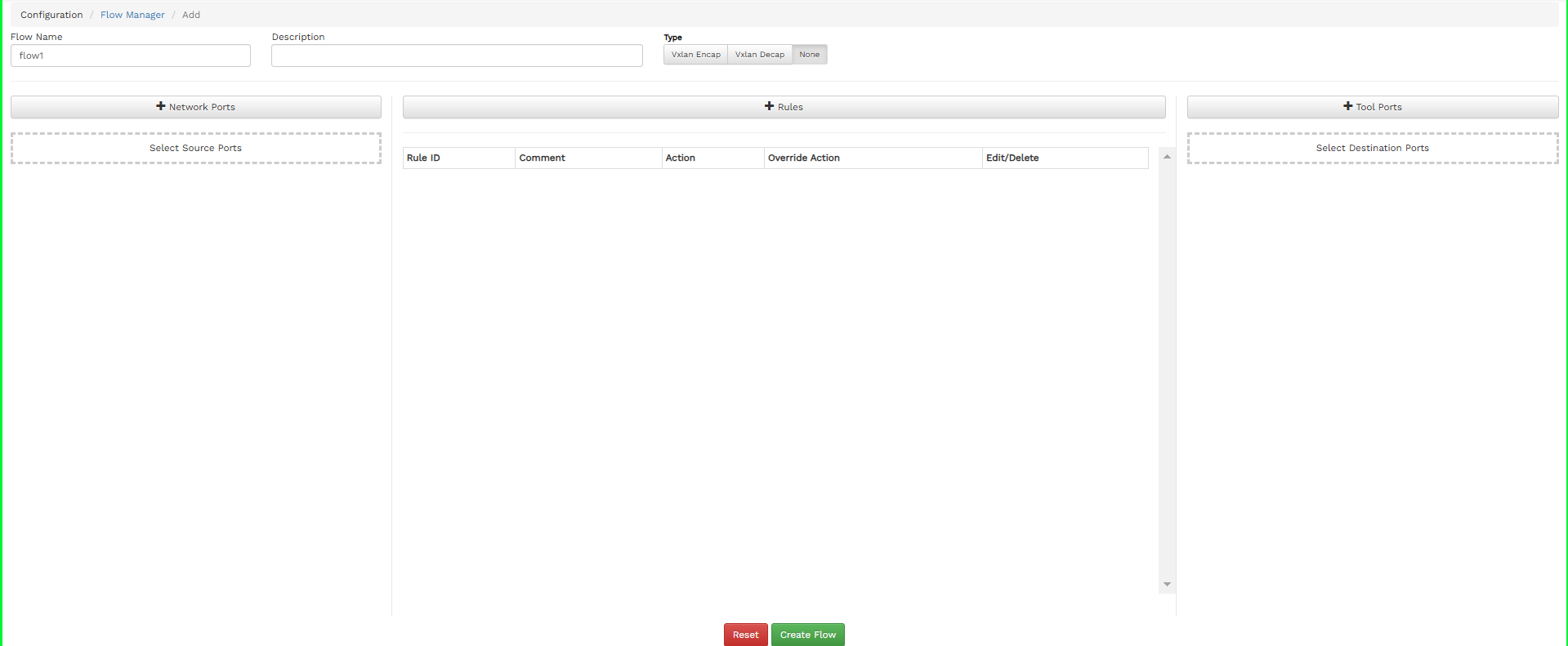
    To create a new flow, click the button on the top right corner of the Flow Manager page. The Add Flow page displays.

    Add Flow Page

    Specify the Flow Name, Description for the Flow, and select the Action.

    hashtag
    Adding Source Ports

    To add source ports

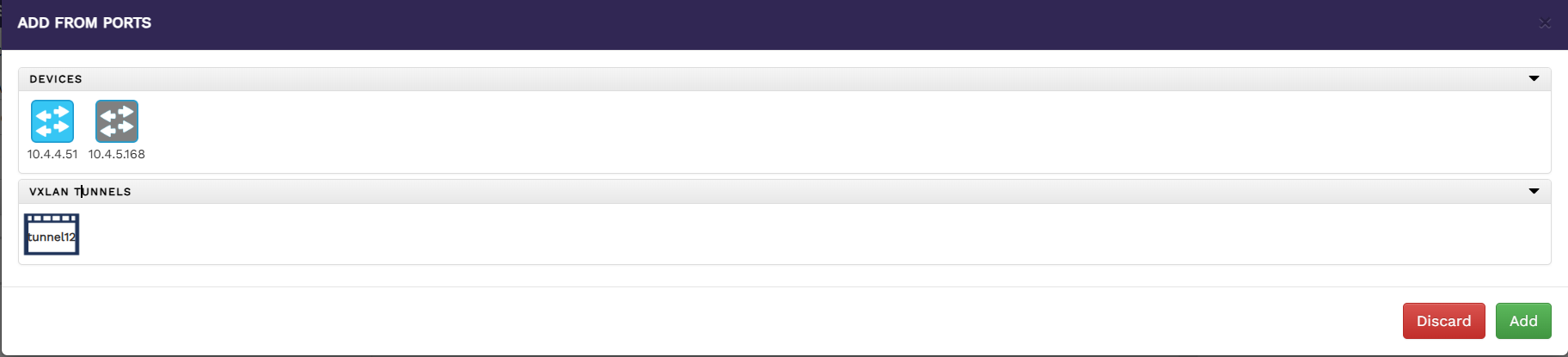
    1. Click the Network Ports button on the Add Flow page. The Add From Ports window will appear as below

      From port addition page
    2. Select a device to list all the ports available for that device.

    3. Select the ports you need to add as source ports.

    4. Click Add to include the selected ports in the source ports list. The added ports are displayed in the field below the Network Ports button on the Add Flow page.

    To add source ports as Vxlan Tunnel for Vxlan Decapsulation

    To configure a VXLAN tunnel as a source port for VXLAN Decap:

    1. Set the Flow Type to VXLAN Decap as shown below.

    1. Click Network Ports button on the Add Flow page.

      1. The Add From Ports window will appear.

    From port addition page for tunnel
    1. Select a device to list the available Vxlan tunnel for that device.

    2. Choose the VXLAN tunnel you want to add as a source port.

    3. Click Add to add the tunnel to the list of source ports.

      1. The added tunnel will be displayed in the field below the Network Ports button on the Add Flow page.

    hashtag
    Adding Rules

    To add rules,

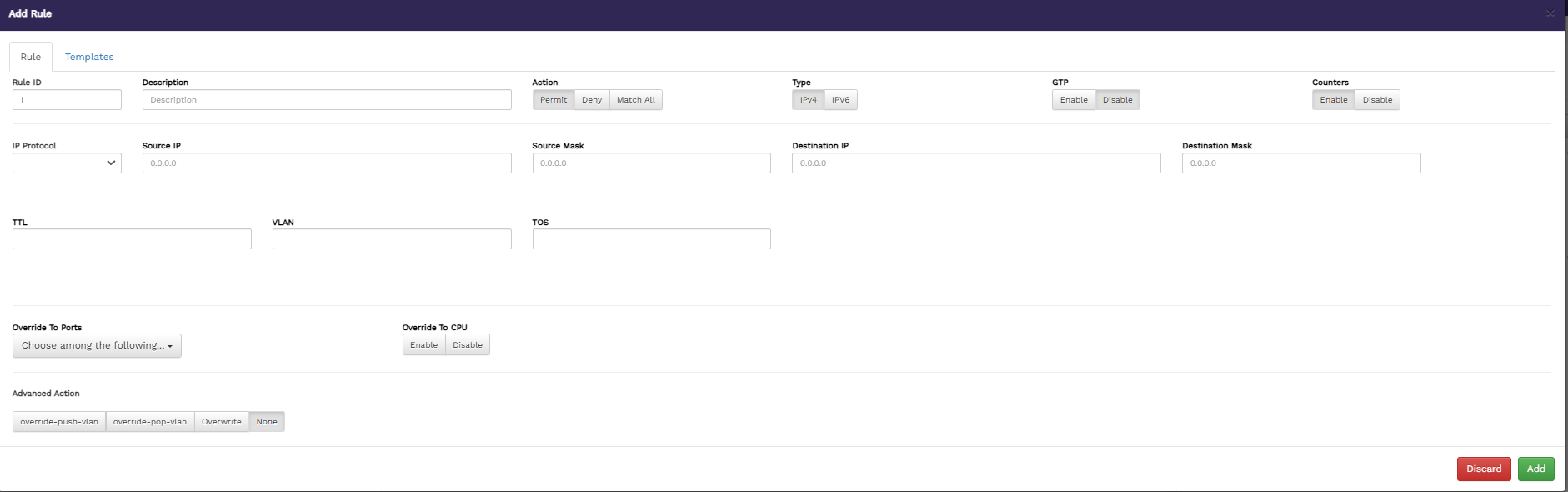
    1. Click the Rules button on the Add Flow page. The Add Rule window displays with GTP disable.

      Add rule pop-up window

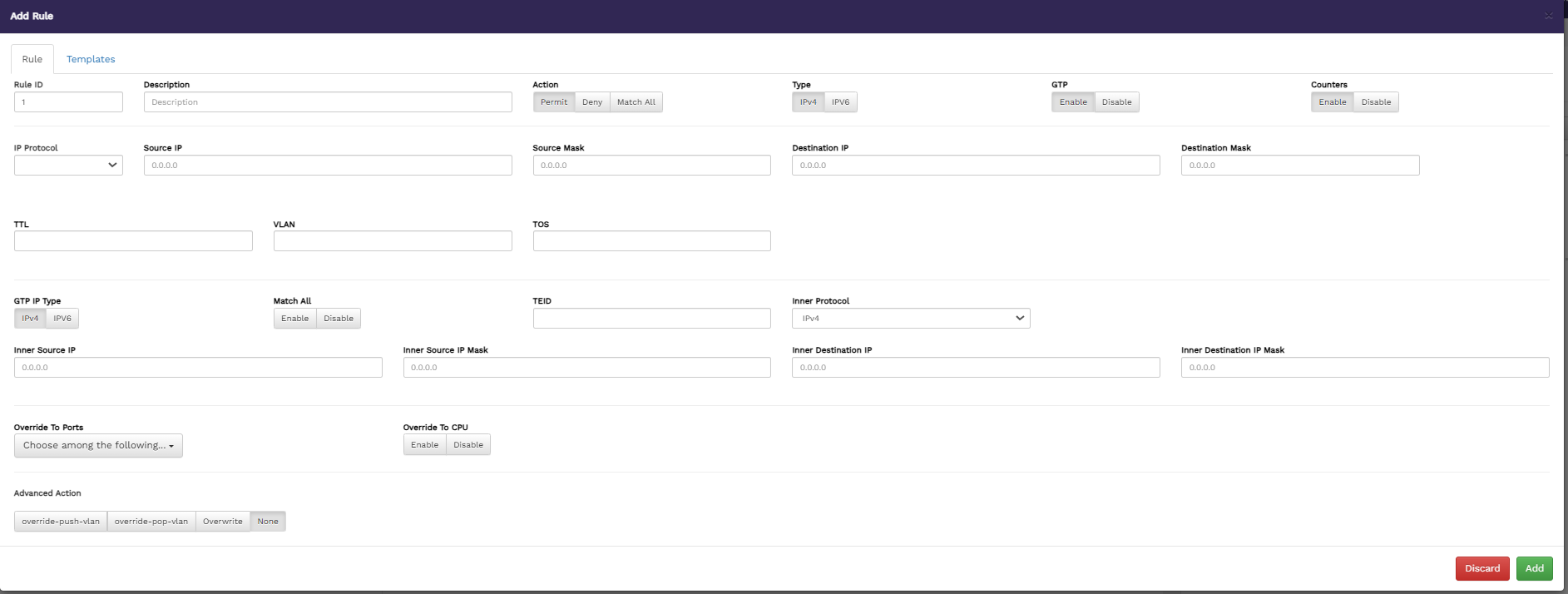
    The Add Rule window displays with GTP enable.

    Add rule pop-up window with gtp enable
    1. Specify values for the following, in the Rule tab:

      • Rule ID - specify a name for the new rule.

      • Description - enter a description of the new rule to show its purpose.

      • Action - select an action for the rule. The available options are Permit, Deny, Match All.

      • Type - select the IP address type. Available options are IPV4 and IPV6.

      • GTP - enable or disable the GTP-based filter option on a rule, when gtp enable provide GTP IP Type, Match All, TEID, Inner Protocol, Inner Source IP, Inner Source IP Mask, Inner Destination IP and Inner Destination IP Mask to match upon.

      • Counters - enable or disable counters.

      • IP Protocol - select the IP protocol for the rule. The available options are - IP, TCP, UDP,RSVP,GRE,SCTP and other. if you select others then we must provide protocol number.

      • Source IP - specify the source IP for the rule.

      • Source Mask - specify the source mask for the rule.

      • Destination IP - specify the destination IP for the rule.

      • Destination Mask - specify the destination mask for the rule.

      • TTL - specify the time-to-live value for the packets in the system.

      • VLAN - specify the VLAN details.

      • TOS - specify the type of service.

      • Override To Ports - select the override option for ports.

      • Advanced Action - specify the override actions. The available options are override-push-vlan, override-pop-vlan, and Overwrite. If you select override-push-vlan, you must also provide the VLAN ID, in the VLAN ID field. And if you select Overwrite ,then you must provide Destination IP or Destination mac or Destination Port.

    2. Specify values in the Template tab. Either specify the rule options in the first tab or select the pre-defined template on the second tab. For details on the template, refer to

    3. Click Add to add the rule.

    The added rules are displayed in the table below the Rules button on the Flow Manager page.

    Added rule displayed under Rules tab

    hashtag
    Adding Destination Ports

    To add destination ports,

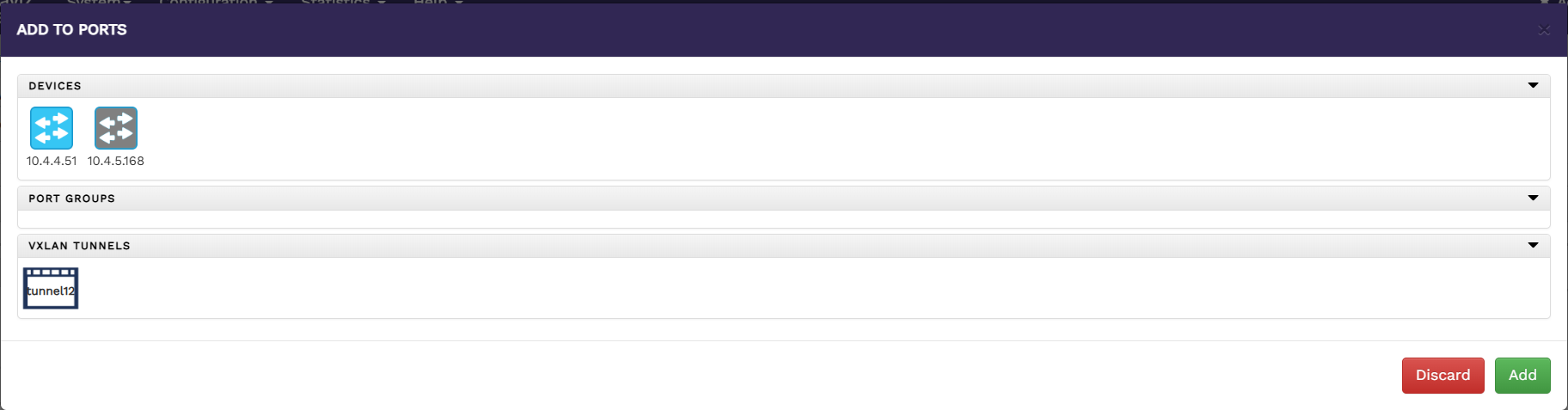
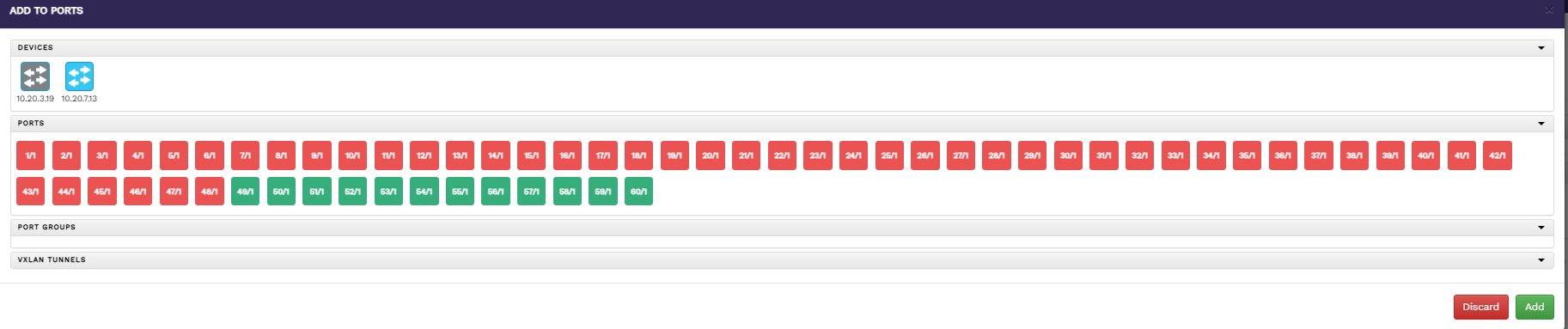
    1. Click the Tool Ports button on the Add Flow page.

      1. The Add To Ports window displays.

        To port addition page
    2. Select a device to list all the ports available for that device.

    3. Choose the ports you want to add as destination ports.

    4. Click Add to include the selected ports in the destination ports list.

      1. The added ports are displayed in the field below the Tool Ports button on the Add Flow page.

    To add destination ports as Vxlan Tunnel

    To configure a VXLAN tunnel as a destination port:

    1. Set the Flow Type to VXLAN Encap.

    1. Click Tool Ports button on the Add Flow page.

      1. The Add To Ports window will appear.

    Tool port addition page for tunnel
    1. Select a device to list the available Vxlan tunnel for that device.

    2. Choose the VXLAN tunnel you want to add as a destination port.

    3. Click Add to include the selected tunnel in the destination ports list.

      1. The added tunnel will be displayed below the To Ports button on the Add Flow page.

    After adding the source ports, destination ports, and rules, click Create Flow on the Add Flow page. This action creates a new flow.

    Page after Flow created

    hashtag
    Editing and Deleting the existing Flow

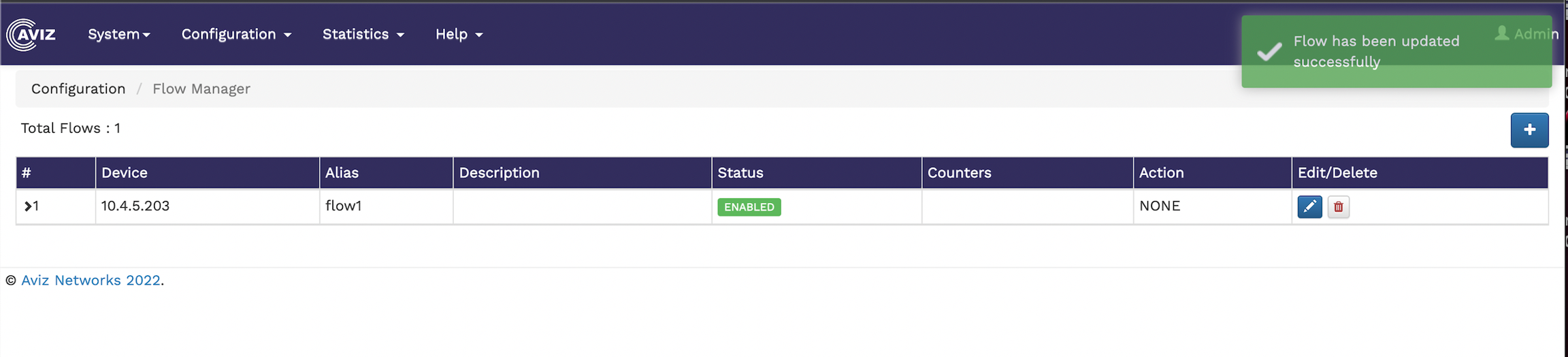
    To edit an existing flow, click the icon and make your changes in the flow page. Once the modification is done, click the update button

    Flow updated successfully

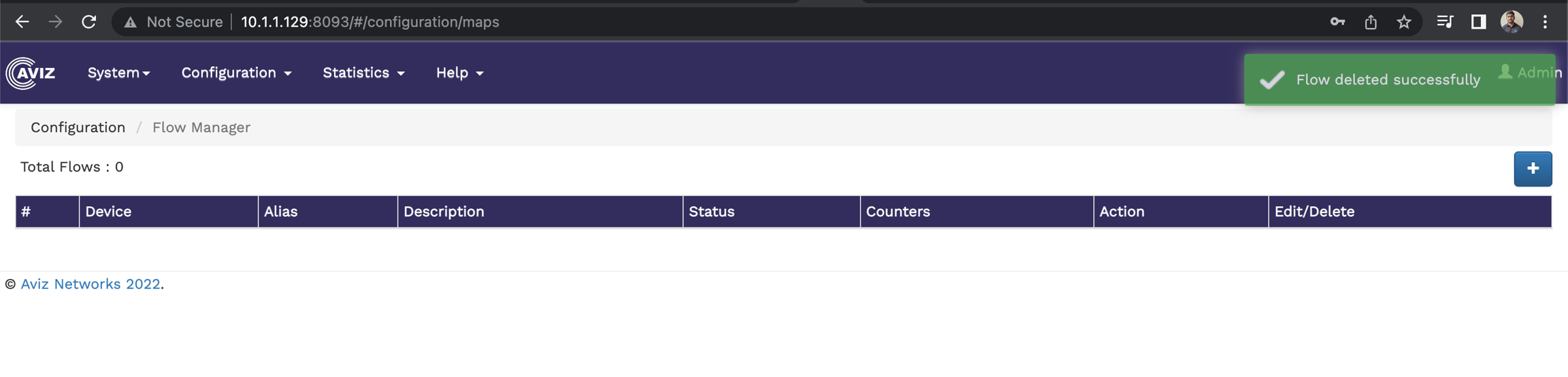
    To delete the existing flow, click the icon.

    Flow deleted successfully
    Flow Manager
    Counter statistics table
    Traffic rate statistics table
    Error statistics table
    Flow Manager
    Vlan Configuration Page
    Interface Vlan Confguration Page
    Interface Vlan Information Page
    Vlan deleted successfully
    Swagger UI showing the FlowVision Rest API
    Template

    Performing Backup and Restore

    To perform backup and restore from the FlowVision GUI, click System > Backup/Restore.

    The Backups page shows the available backup files of the system. The details include the backup filename, the date of backup creation, the status of the backup and the option to delete a specific backup file.

    The following image shows the Backups page:

    Backups page showing backup file details

    hashtag
    Creating a New Backup

    To create a new backup, click the Create Backup drop-down menu and select Create Backup.This action creates a new backup file and its status is displayed in the Backups table.

    You can also have the option to selectively backup the database or the FlowVision system. To perform this selective backup,

    1. Click Create Backup > Create Backup (Advanced). The New Backup window displays.

    2. Select the backup you want to create. The available options are - Backup DB and Backup FlowVision. This is a multi-select option where you can choose either or both.

    3. Click Backup to create the selected backup.

    hashtag
    Upgrading FlowVision

    You can upgrade the FlowVision system if required. To upgrade,

    1. Click Upgrade System on the top right corner of the Backups page. The Upgrade System window displays.

    2. Select the Upgrade FlowVision checkbox.

    3. Click Upgrade to upgrade the system.

    hashtag
    Deleting a Backup

    To delete a specific backup file, click the icon against the corresponding backup file in the Backups table. Confirm the delete action in the Confirm Delete prompt.

    FlowVision Controller Installation

    The FlowVision Controller can be installed using the following methods:

    FlowVision ESXi Host Installation
    FlowVision VirtualBox Installation